

After updating to iOS 26, many users have encountered a persistent bug in Safari and Chrome where floating UI elements—especially search bars and address bars—overlay webpage content during scroll events. This issue stems from changes in how iOS 26 handles viewport resizing and browser UI collapse, disrupting layouts that rely on position: fixed or sticky elements. The bug affects both browsers because Chrome on iOS uses Safari’s WebKit engine. While Apple and Google have yet to release a permanent fix, several workarounds can help stabilize the viewport and restore usability.
Table of contents
How to Resolve Floating UI Overlap in Safari and Chrome
Restart Your Device
Restarting your iPhone can refresh system-level rendering and UI behavior, especially after applying browser or system settings.
- Press and hold the Side button and either Volume button.
- Slide to power off.
- Wait a few seconds, then press the Side button again to turn the device back on.
Disable JavaScript in Safari
Some users on Apple’s forums found temporary relief by disabling JavaScript, which can reduce dynamic layout shifts and prevent certain floating elements from re-rendering during scroll.
Don’t miss the best of The Mac Observer
Set us as a preferred source and our Apple reporting ranks higher in your Google Search results and Discover feed — one tap, no account changes.
- Open Settings on your iPhone.
- Tap Safari > Advanced.
- Toggle off JavaScript.
Note: This may break functionality on interactive websites, so use it selectively.
Use Safari Reader View
Reader View simplifies page layout and removes floating UI elements, making it a useful workaround for content-heavy pages affected by the overlay bug.
- Open a webpage in Safari.
- Tap the AA icon in the address bar.
- Select Show Reader.
This view strips away dynamic elements and stabilizes the viewport.
Clear Safari Cache
While not a guaranteed fix, clearing Safari’s cache may help resolve residual layout issues caused by outdated scripts or styles.
- Go to Settings > Apps > Safari.
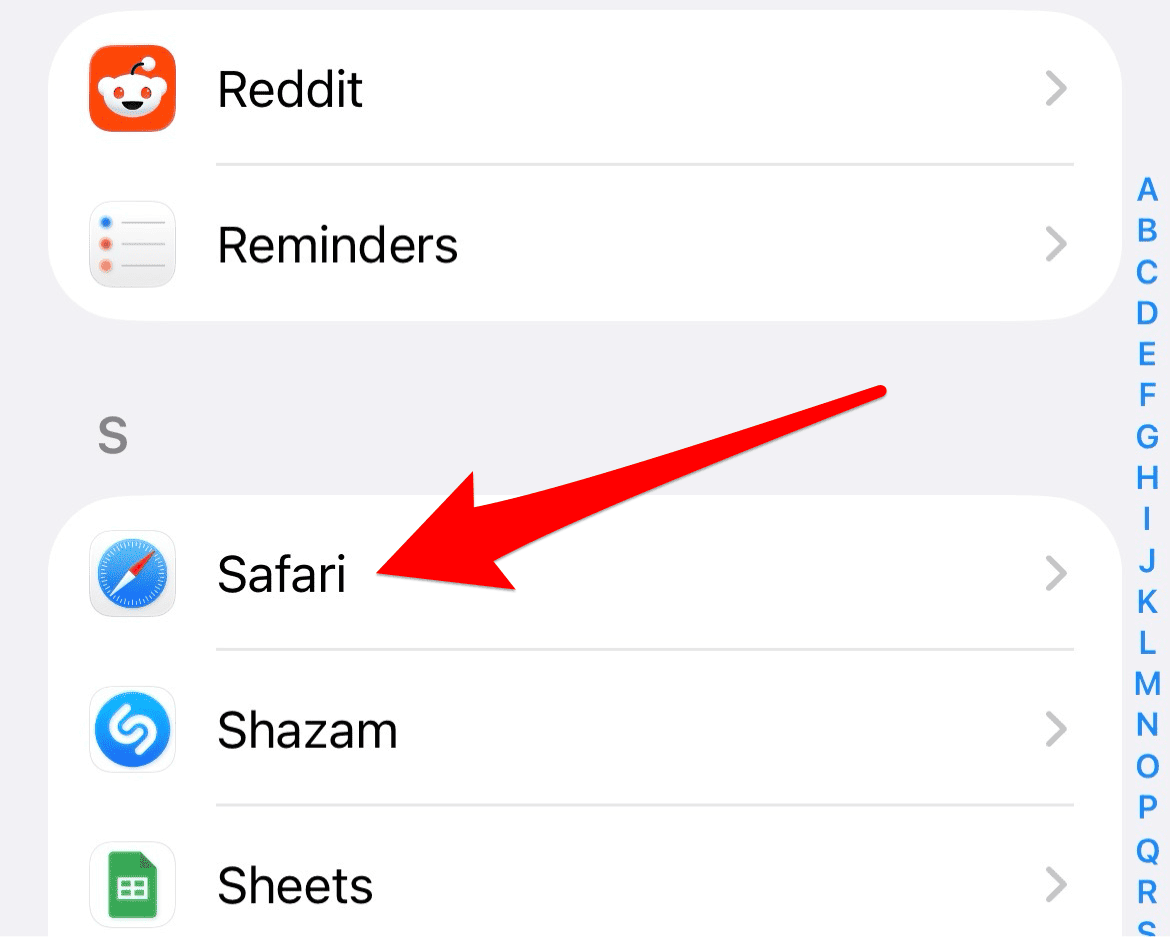
- Tap Clear History and Website Data.
- Confirm the action.

This resets stored data and may improve rendering behavior.
Reposition Safari or Chrome’s Address Bar
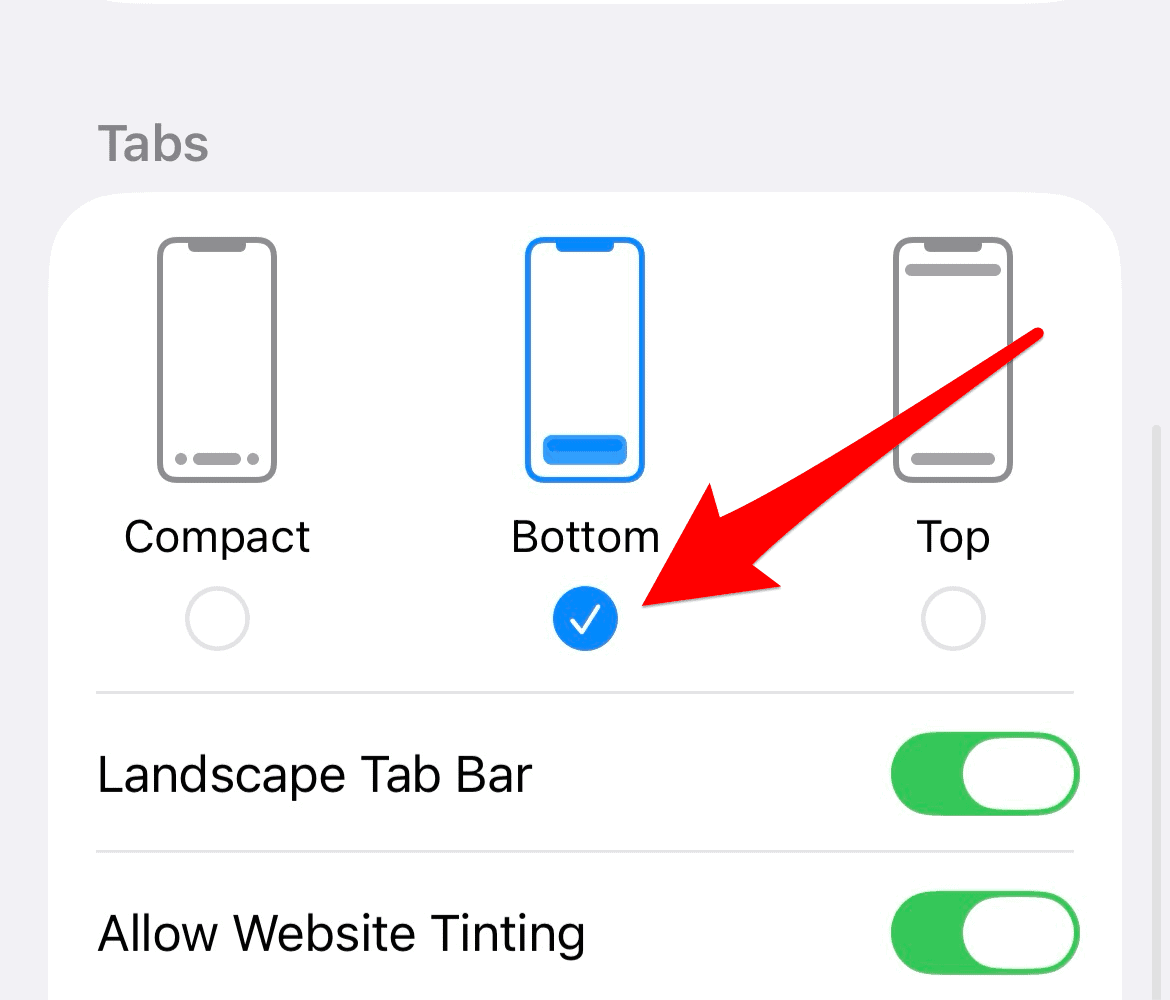
If you use Safari, you can move the toolbar to the bottom to reduce the interference.
- Go to Settings > Apps > Safari.
- In the Tabs section, tap Bottom.

If you use Chrome, you can move the address bar to the bottom with these steps:
- Open Chrome.
- Long-press the address bar at the top.
- Tap Move address bar to the bottom.
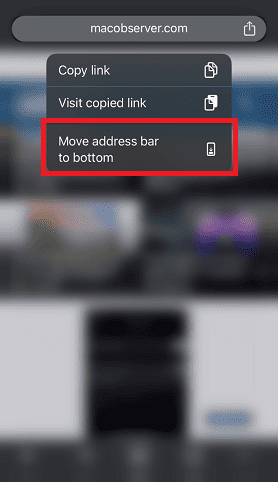

This adjustment helps isolate floating UI from key content areas.
Save Web Content Directly
If the overlay obstructs important content, Chrome now allows users to directly save files to Google Drive or Photos on iPhone. This feature is useful for preserving affected pages before applying layout fixes.
FAQ
iOS 26 changes how the address bar collapses during scroll events, affecting viewport height and element positioning.
No. Chrome on iOS also uses Safari’s WebKit engine, so similar bugs can appear.
Apple has not confirmed a timeline, but developer feedback suggests the issue is under review.
Sites using fixed or sticky elements near the viewport edges are most affected.
Viewport Stability Tips for iOS 26 Users
To maintain layout consistency and avoid floating UI interference, apply CSS adjustments, shift scroll context, or launch Safari from the home screen. For more insights into tab behavior and browser changes in iOS 26, learn how to use Safari tabs effectively.


Discussion