

Many iPhone owners find their alarms are too quiet, even when they turn the ringer all the way up. Without an adequate alarm, you can miss important events, like an early flight, an important class, or a morning meeting. Fortunately, you can adjust a few iPhone settings to make your alarms louder and more dependable. Here’s how to make sure your phone wakes you up when you need it the most.
Table of contents
Making your iPhone alarms louder
1. Verify alarm sounds
Before diving deeper into iOS, make sure you’ve selected a sound for your alarm.
- Open the Clock app and tap the Alarm tab.
- Tap Edit, then select the alarm you want to check.
- Tap Sound and make sure a tone is selected and not None. If you choose None, then the alarm will vibrate instead of playing a sound.
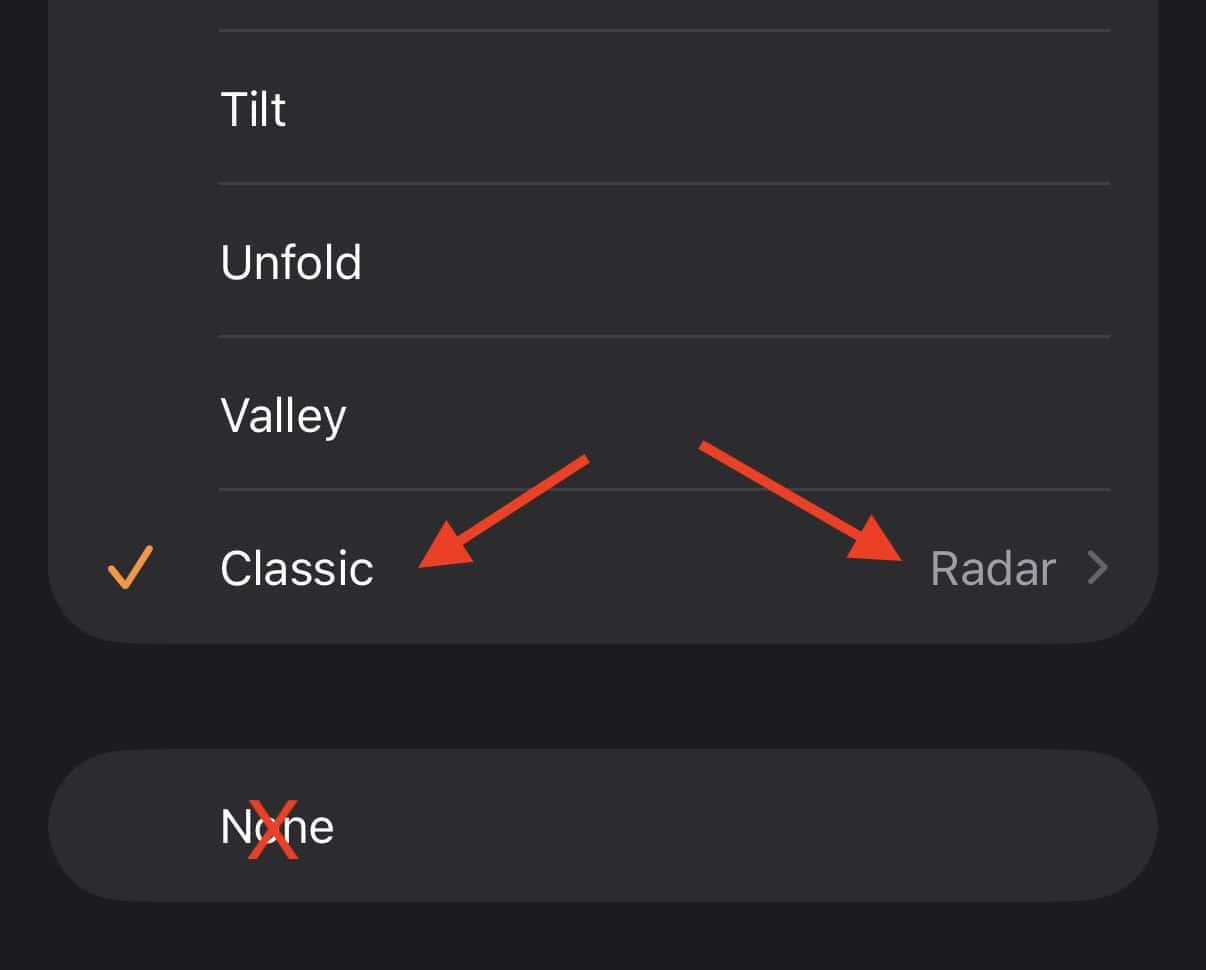
- Test a few tones to confirm your alarm actually plays through the iPhone’s speakers.

2. Check the volume and slider settings
Your volume slider controls the sound for your media and your alarm. Turn down your music, and you may inadvertently silence your alarms. Here’s how to fix this common error.
Don’t miss the best of The Mac Observer
Set us as a preferred source and our Apple reporting ranks higher in your Google Search results and Discover feed — one tap, no account changes.
- Open Settings › Sounds & Haptics.
- Under Ringtone and Alert Volume, drag the slider to the right for maximum volume. You may have adjusted this setting if your notifications were too loud.
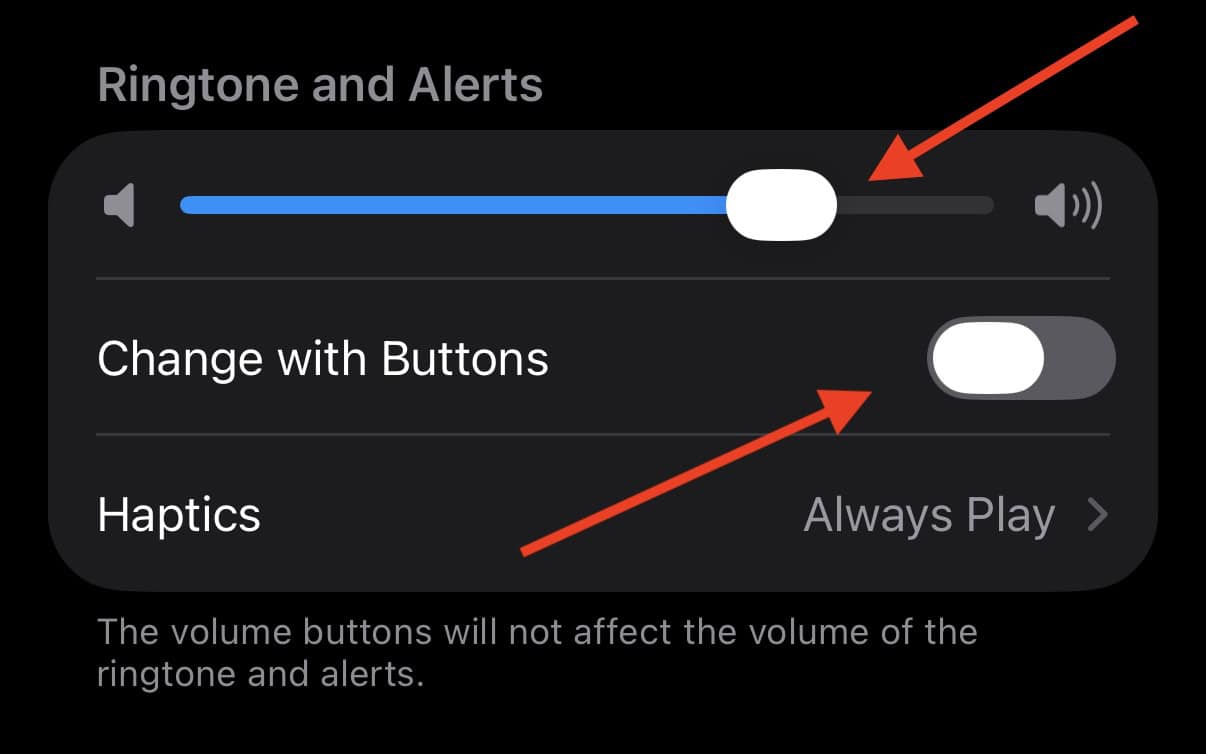
- Turn off Change with Buttons. This setting keeps your alarm volume separate from your media sounds.

3. Choose a louder alarm sound
Instead of messing with volume settings, you may simply need to select a louder or more jarring sound to wake you up.
- Open the Clock app › Alarm tab.
- Tap Edit, then choose your alarm.
- Under Sound, test and pick a loud, piercing tone (e.g., Radar, Alarm, or a custom loud song).
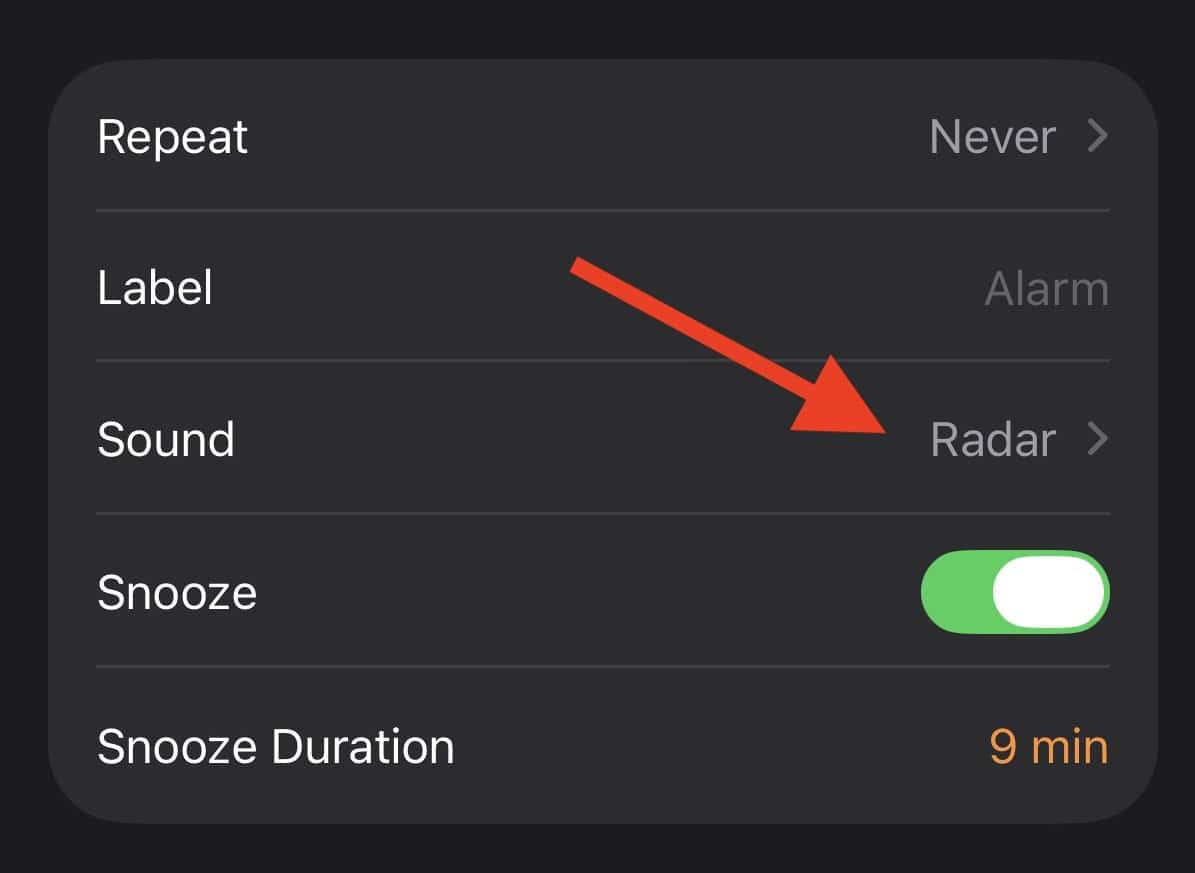
- Avoid soft tones or ambient melodies that fade in slowly.

4. Disable Attention-Aware features
Newer iPhones with Face ID automatically lower alert sounds when they detect you’re looking at the screen. Stop Face ID from silencing you by following these steps.
- Go to Settings › Accessibility > Face ID & Attention.
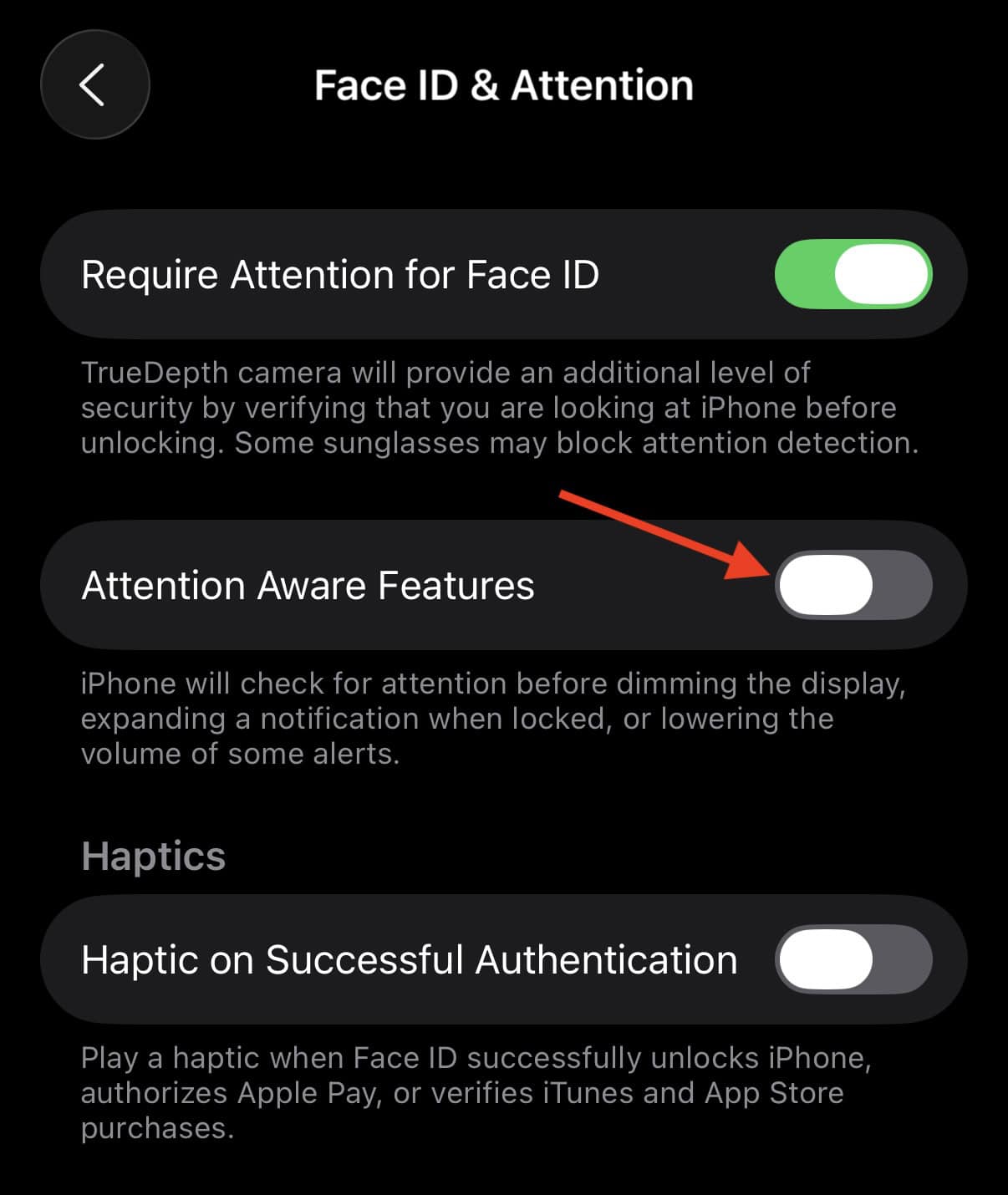
- Toggle Attention-Aware Features off.

Disabling Attention Aware prevents the alarm from quietly fading just because your iPhone thinks you’re awake and using your phone.
5. Check sound output devices
Ensure your alarm sounds only through the iPhone speaker, not through a connected Bluetooth headphone sitting in your backpack.
- Turn off or disconnect external Bluetooth devices before bed.
- Swipe down to display the Control Center and tap the media player icon.
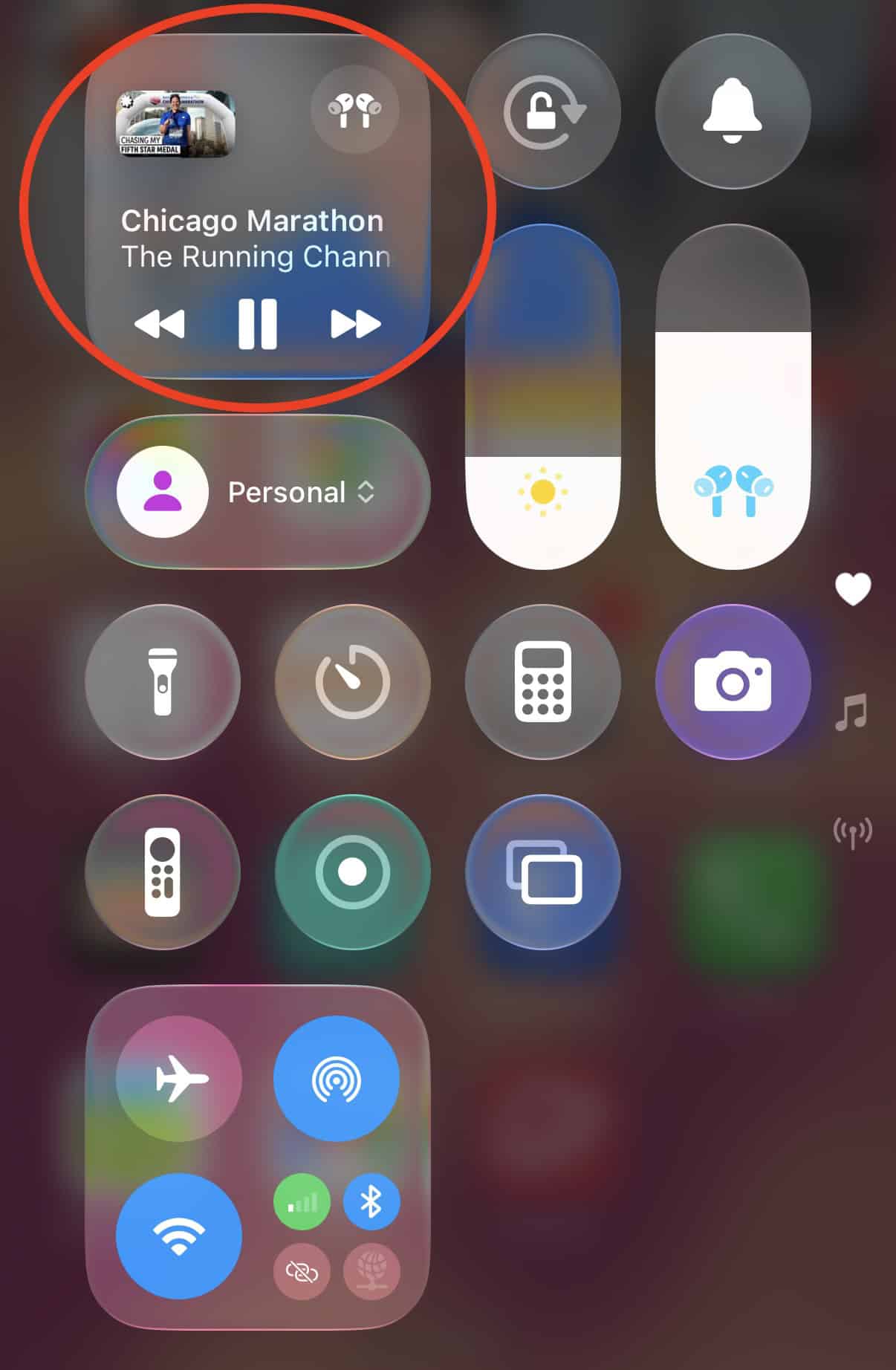
- Select iPhone Speaker as the output device if it is not selected by default.

Tips
- Place your phone on a solid surface for maximum volume. Don’t let a pillow or blanket muffle your alarm.
- Avoid using Do Not Disturb or Sleep Focus, which could block alarms from third-party apps. Check Settings › Focus > Sleep Focus (or Do Not Disturb) and select the apps you want to notify you under Allow Notifications
- Clean speaker grills to prevent muffled sounds.
- Use a backup alarm on another device. Have an Amazon Echo or Apple HomePod? Set up a separate alarm on those devices as a backup in case your iPhone fails to wake you up.
FAQ
Yes. iOS clock alarms play even when Silent Mode is on, unless your volume is so low that you mute the alarm. Notifications are silenced in silent mode, though.
Yes. If your headphones or AirPods are connected to your iPhone, you will hear your alarm there. Make sure to disconnect these audio devices before sleeping so your alarm sounds only through the phone’s speakers, not both.
Face ID’s attention-awareness or third-party apps can lower the volume or automatically silence it.
Go to Settings › Sounds & Haptics › Haptics and select Prominent.
Summary
- Increase Ringtone & Alert Volume in Settings.
- Pick a loud alarm tone in the Clock app.
- Turn off Attention-Aware Features.
- Confirm alarm output through iPhone speakers.
- Check the tips and FAQ for additional help.
Conclusion
A quiet alarm can ruin your day, but fixing it only takes a few minutes. Start by increasing your alarm volume and choosing louder tones before tackling more complex solutions. If you’ve tried everything and your alarm still doesn’t go off, you may be dealing with a system issue — check out this guide on why your alarms are not working for deeper troubleshooting steps. Armed with the know-how in these guides, you’ll ensure every wake-up call comes through loud and clear.


Discussion