

After updating to iOS 26, many users have been eager to try out Apple Intelligence, Apple’s new suite of AI-powered features that bring smarter writing tools, Siri upgrades, and personalized assistance to the iPhone and iPad. However, some users, including me, have run into an issue: Apple Intelligence gets stuck while downloading and never completes the setup.
If you’re seeing the “Preparing to download” or “Downloading Apple Intelligence” screen that won’t move forward, don’t worry. Temporary software glitches or connection problems usually cause this, and it’s easy to fix with a few quick steps.
Before diving into the fixes, if you want to know what Apple Intelligence actually offers, check out what you can do with Apple Intelligence. It gives you a clear picture of its features once everything’s running smoothly.
Don’t miss the best of The Mac Observer
Set us as a preferred source and our Apple reporting ranks higher in your Google Search results and Discover feed — one tap, no account changes.
Table of contents
Common Causes
From what I’ve noticed, the Apple Intelligence stuck downloading issue usually happens because the system can’t fully connect to Apple’s update servers or because some settings prevent large background downloads. In other cases, a poor Wi-Fi connection, low battery mode, or lack of storage can cause the download to freeze midway.
Another common reason is outdated system software. If you’re still on the initial iOS 26.0 release, minor bugs may prevent Apple Intelligence from installing properly. Restarting your device or resetting network settings usually helps get the process back on track.
1. Check Wi-Fi and Internet Connection
The first thing I do is check my Wi-Fi connection. Apple Intelligence requires a stable and secure network to download and install.
- Make sure you’re connected to a reliable Wi-Fi network.
- Avoid public or captive networks that need re-authentication.
- Turn Airplane Mode on and off to refresh the connection.
- If possible, restart your router or switch to another network.
A quick connection reset can often kickstart the download again.
2. Restart iPhone or iPad
A simple restart clears out background tasks that might be blocking the download.
- Press and hold the Power and Volume Down buttons.

- Slide to power off, wait a few seconds, then turn the device back on.
- Go to Settings → General → Apple Intelligence and check if it resumes.

This quick reboot helps if your system temporarily froze during installation.
3. Free Up Storage Space
Apple Intelligence is a large download that needs several gigabytes of free space.
- Open Settings → General → iPhone Storage.
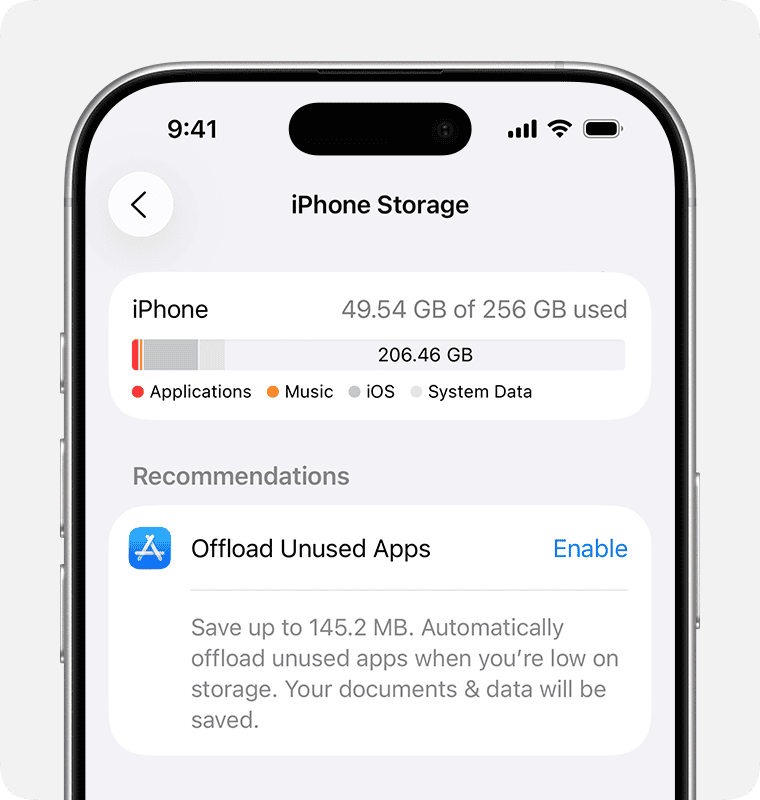
- Delete unused apps, photos, or old downloads.
- Restart the device and try again.

If you’re unsure how much space is required, aim for at least 7GB of free storage.
4. Sign Out and Back In to Apple ID
Apple Intelligence is linked to your Apple ID, so reauthenticating your account can help.
- Go to Settings → Apple ID → Sign Out.
- Restart your device.
- Sign back in using your Apple ID and password.
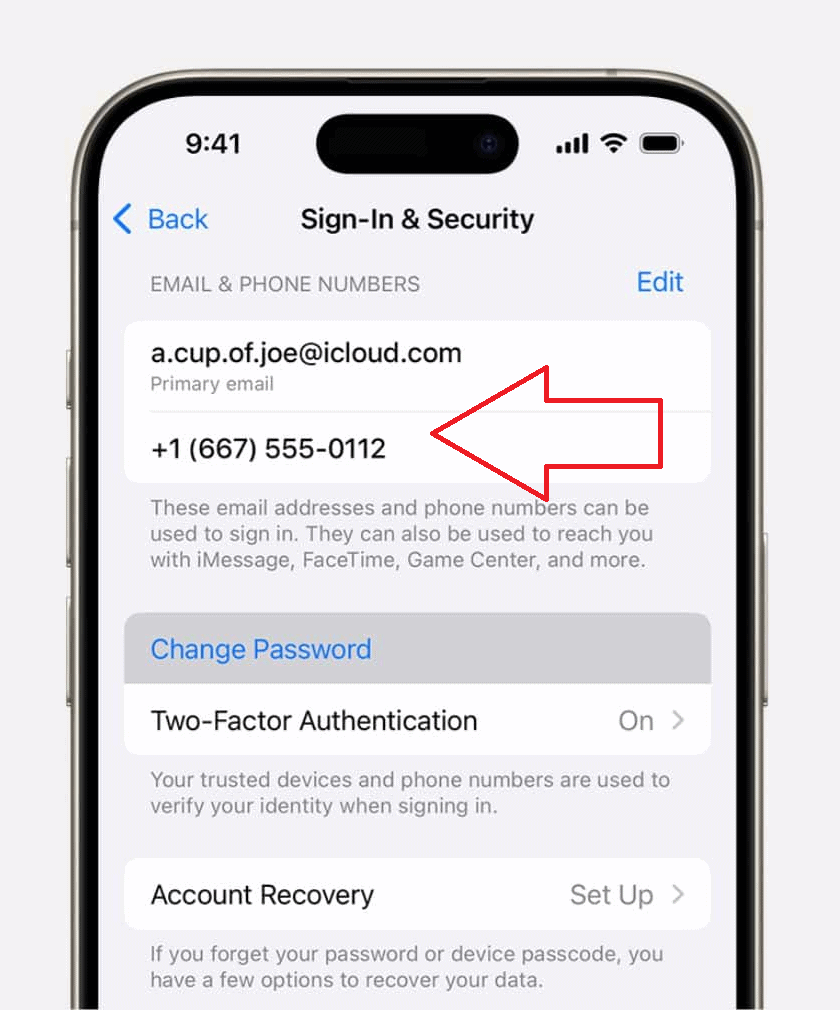

This refreshes your session and clears any temporary authentication errors that might be blocking the download.
5. Reset Network Settings
If the download keeps getting stuck, it might be a network configuration issue.
- Go to Settings → General → Transfer or Reset iPhone → Reset.
- Tap Reset Network Settings.
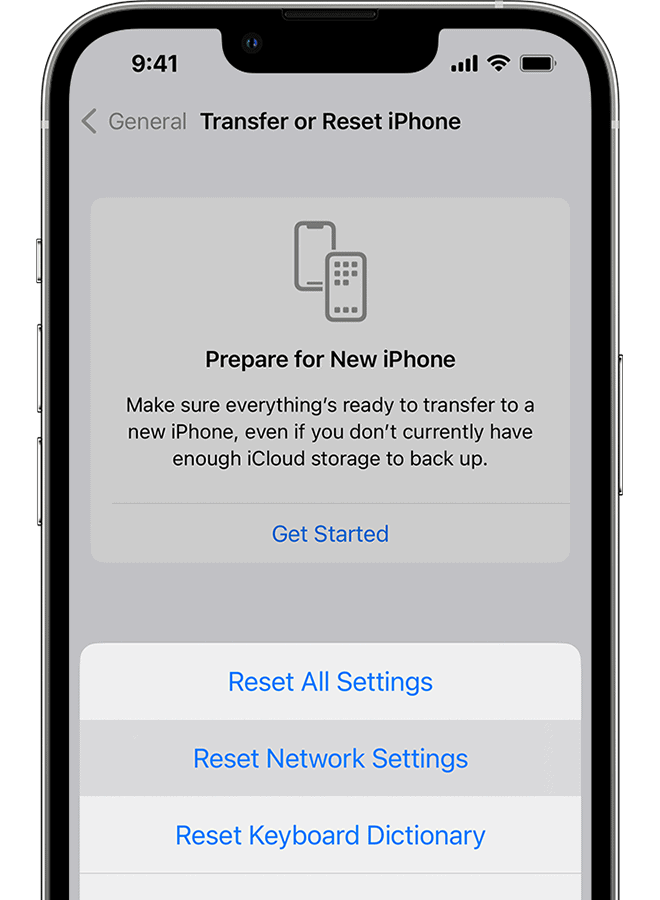
- Reconnect to Wi-Fi and try downloading again.

This removes old network profiles and DNS cache that could interfere with Apple’s update servers.
6. Update iOS to the Latest Version
Apple frequently releases small updates to fix bugs like this.
- Go to Settings → General → Software Update.
- If an update is available, install it.
Users running iOS 26.1 or later have reported smoother setup for Apple Intelligence. You can also check Apple’s full list of new Intelligence features to see what’s included in the latest version.
Tips to Prevent Future Installation Issues
Here are a few simple tips that help keep future downloads and updates smooth:
- Always install iOS updates on Wi-Fi instead of cellular data.
- Keep your device charged above 50% during updates.
- Avoid multitasking heavily during downloads.
- Restart your device once a week to clear background clutter.
- If other apps act up, like Home Screen icons not moving, try these iOS 26 fixes to reset your system behavior.
These small habits prevent a lot of installation errors from repeating.
Conclusion
If Apple Intelligence is stuck downloading, it’s usually a small network or storage issue, not a major bug. Most of the time, restarting your device, freeing up space, or updating iOS gets things moving again.
Once everything’s installed, you’ll be able to explore Apple’s new AI tools for writing, summarizing, and context-aware Siri suggestions. The feature set is worth the setup, so it’s worth taking a few minutes to troubleshoot.
If you’re curious about what comes next for Apple Intelligence, take a look at every new feature announced at Apple’s AWE event for a full breakdown.
FAQs
It’s often due to poor Wi-Fi, low storage, or a temporary server issue. Restarting and reconnecting usually fixes it.
It varies, but most users report needing at least 8–10GB of free space.
Yes. Go to Settings → General → Apple Intelligence and tap Cancel Download, then start again.
No. It usually resumes automatically once your connection is stable.
Yes, future iOS patches often resolve stuck downloads and setup errors.



Discussion