

Finding your iPhone’s IP address can be useful for troubleshooting, network setup, and other technical tasks. There are several ways to find your IP address, whether you’re using Wi-Fi or cellular data. This guide will show you how to quickly locate your iPhone’s IP address.
Table of contents
Finding iPhone IP Address: Methods To Try
There are two IPs on any internet connection: the private one, which is used by that device alone for a smaller network (e.g., your home’s Wi-Fi network); and the public one, which is usually shared by all devices in a network and is the one shown to other computers on the internet.
On Wi-Fi
The most common situation, if you want to know your IP on a Wi-Fi network, is that you’re trying to find the private IP. That’s the case, e.g., if you’re trying to diagnose an issue between your router and your iPhone. To do that, follow the steps below:
Don’t miss the best of The Mac Observer
Set us as a preferred source and our Apple reporting ranks higher in your Google Search results and Discover feed — one tap, no account changes.
- Open the Settings app on your iPhone.
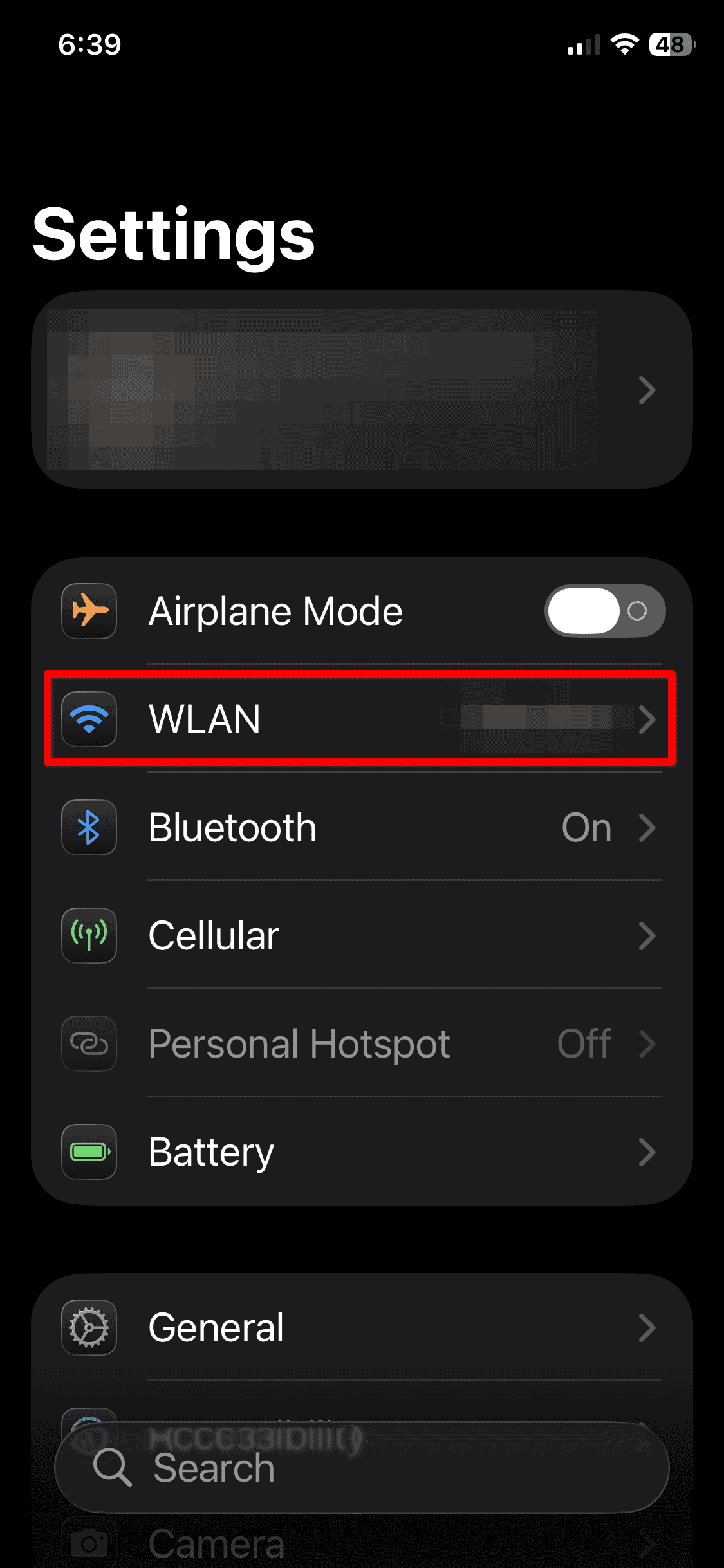
- Tap Wi-Fi.
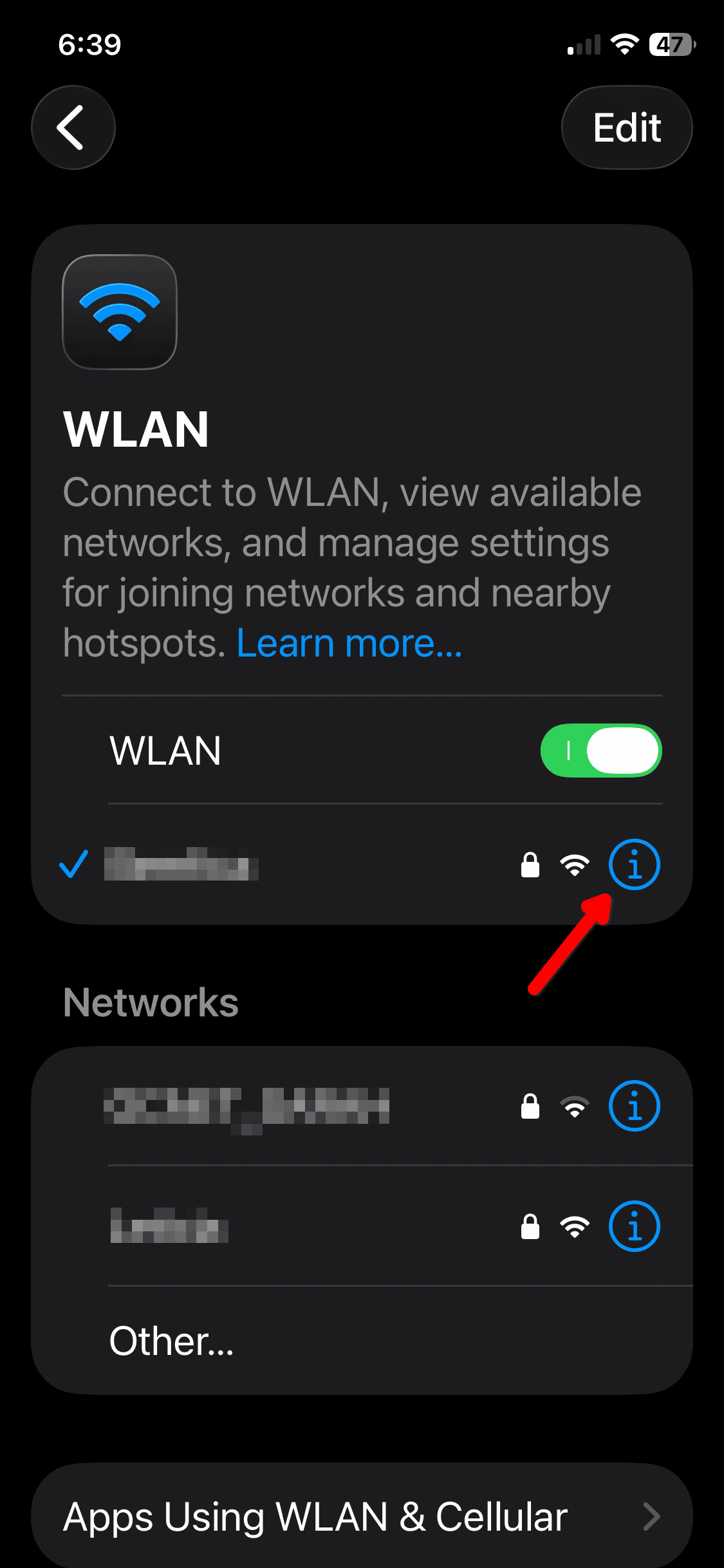
- Find your connected network and tap the info icon (ℹ️) next to it.

- Scroll down to the IP Address section. Your IP address will be listed here.


Find iPhone IP Address via Local Router
- Connect your iPhone to a Wi-Fi network.
- Open the Router’s Admin Page by typing its IP address into your browser.
- Navigate to the Device List or Connected Devices section.
- Look for your iPhone in the list of connected devices. You will see its IP address listed there.
On Cellular Data

Since cellular data means your iPhone’s isn’t sharing a network with any other device, it’s highly likely, in this case, that you want to find your public IP instead. Here’s how to do that:
- Open Safari on your iPhone.
- Type “what is my IP?” (without quotes) in Google or any other search engine.
- Usually, you’ll see a snippet right below the search box, showing your public IP.
- If the above doesn’t happen, go to WhatIsMyIP.com. This website will show your IP address right away.
- You can confirm the information provided in the previous step using similar services, or with apps like SpeedTest by Ookla.
Finding iPhone Public IP on Wi-Fi
The method above, for cellular data, also works if you’re connected to a Wi-Fi network. In this case, if you repeat the procedure with any device connected to the same router, the address shown will be the same.
Tips
- If you’re troubleshooting connectivity issues, make sure to check both your public and private IP addresses.
- Regularly reset your router to avoid network issues that may affect your IP address. Resetting your broadband modem as well may help if you’re having trouble related to your public IP.
Finding iPhone IP Address: FAQ
You can find your iPhone’s IP address while using a mobile network by following the steps under the “On Cellular Data” section above
Yes, your iPhone’s IP address can change, especially when switching between networks or if you’re using cellular data instead of Wi-Fi. Your mobile network’s and fixed broadband’s public IP addresses also change by themselves from time to time, though the exact frequency varies depending on your ISP.
Many apps that use network settings will automatically detect your IP address when needed. You can also find it by following the methods mentioned in this guide.
Summary
- To find your Wi-Fi IP address, go to Settings > Wi-Fi, then tap the info icon.
- To find your cellular IP address, use a search engine or a page dedicated to showing the users’ IP addresses.
- For a more detailed view, use your router’s admin page to locate your iPhone’s IP address.
Knowing how to find your iPhone’s IP address can help you troubleshoot network issues or set up network devices. Whether you’re using Wi-Fi or cellular data, the steps provided will help you easily find the information you need.




Discussion