

Connecting your Apple AirPods to a laptop, whether it’s a MacBook, Windows PC, or Chromebook, is a straightforward process that grants you superior wireless audio quality for calls, music, and streaming. While AirPods are designed for effortless pairing with Apple devices via the Handoff feature, they function as standard Bluetooth headphones and can be paired with virtually any modern laptop or desktop computer in just a few quick steps.
Table of contents
Connecting Your AirPods to a Laptop: A Step-by-Step Guide for PC and Mac
The key to connecting your AirPods to any non-Apple device is ensuring the device is in pairing mode. This simple action makes your AirPods discoverable to your laptop, allowing the systems to establish the necessary Bluetooth handshake for audio transmission. The steps are similar across operating systems, but the menu locations vary slightly.
1. Prepare for Pairing: Resetting Your AirPods
Before attempting to connect to a new device like a laptop, it is crucial to ensure your AirPods are properly reset, especially if they were previously linked to a different phone or computer. A fresh start minimizes connection conflicts and improves success rates for first-time pairing.
Don’t miss the best of The Mac Observer
Set us as a preferred source and our Apple reporting ranks higher in your Google Search results and Discover feed — one tap, no account changes.
- Place both AirPods in their charging case and close the lid for 30 seconds.
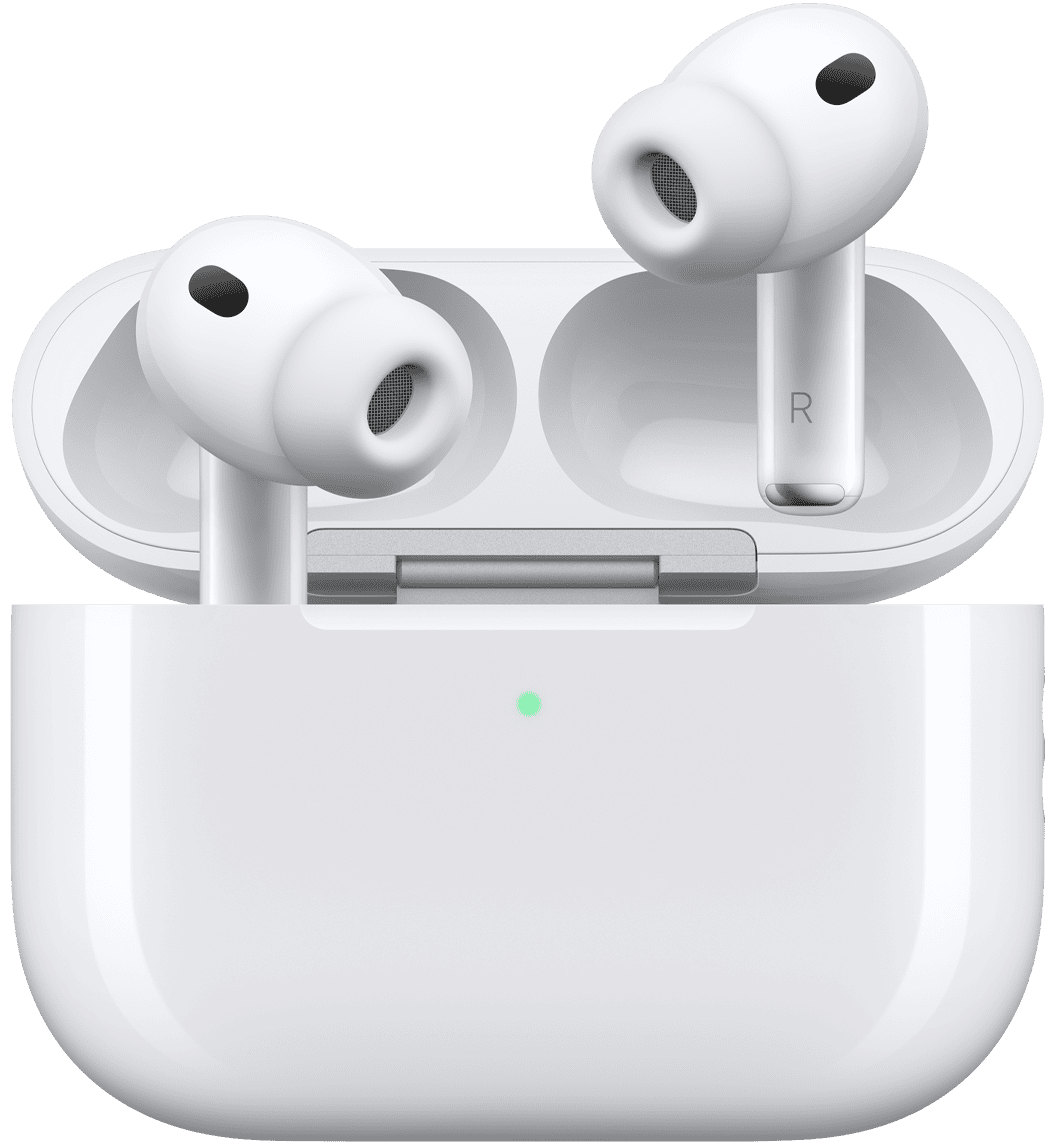
- Open the lid and press and hold the setup button on the back of the case until the status light flashes amber, then white.
- Your AirPods are now ready to be discovered by your laptop.

2. Connect AirPods to a MacBook
For owners of Apple laptops, the pairing process is designed to be the simplest of all, though sometimes a manual connection is necessary. Once the connection is made, your MacBook will remember the device, and future connections will be automatic. For more detailed advice on pairing, learn how to connect AirPods to your Mac.
- Ensure your AirPods are in the charging case with the lid open.
- On your MacBook, click the Control Center icon in the menu bar.
- Select the Bluetooth icon, then look under the Devices list.
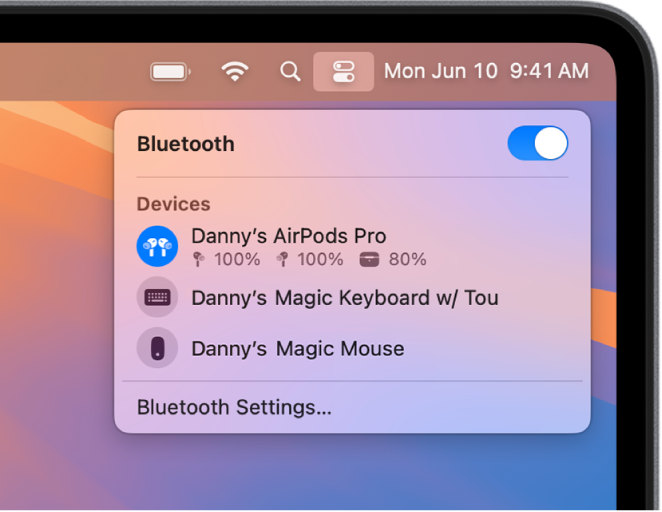
- Click on your AirPods’ name (e.g., “John’s AirPods”) to connect them instantly.
3. Pairing AirPods with a Windows PC or Chromebook
Connecting your AirPods to a Windows or Chrome OS device requires you to manually navigate to the Bluetooth settings and trigger a device search. The laptop’s operating system will treat the AirPods like any other third-party Bluetooth headset. You can learn more about connecting your AirPods to a Chromebook for specific tips on that platform.
- Put your AirPods into pairing mode (status light flashing white).
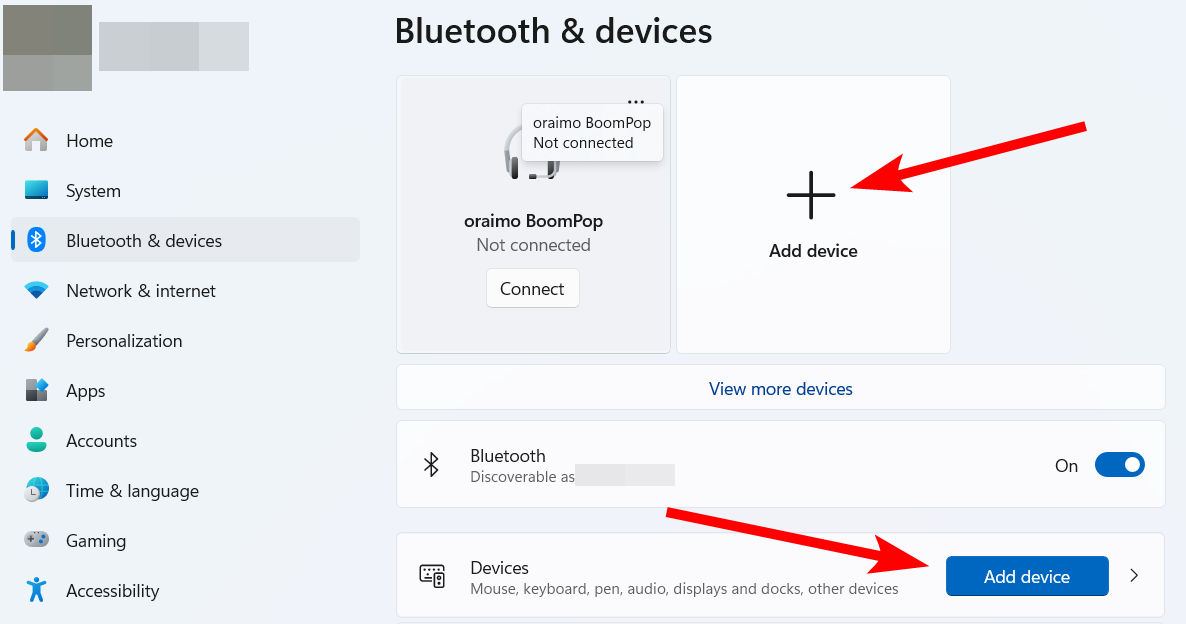
- On Windows, go to Settings > Bluetooth & devices > Device and click Add device.
- On Chromebook, click the time/battery tray and select the Bluetooth icon.
- Select Bluetooth as the device type.
- Click on your AirPods’ name when they appear in the list to complete the connection.
FAQ
Yes, if you’re using an Apple laptop logged into the same iCloud account as your iPhone, the AirPods will automatically switch between devices when you start playing audio on one or the other. For other devices, you must manually select the AirPods in the Bluetooth menu.
Windows often defaults to the “Hands Free Profile” (HFP) for calls, which sacrifices audio quality for microphone functionality. To fix this, change your PC’s audio output device to the “Stereo” or “High Quality” option in your Sound Settings.
Maintaining an Optimal Wireless Audio Connection
Maintaining a stable and high-quality audio connection between your AirPods and your laptop is typically effortless once the initial pairing is successful. By understanding the core principles of Bluetooth pairing and knowing a few quick troubleshooting fixes, you ensure your headset is always ready for use. This applies whether you are pairing the original model or learning how to connect AirPods Pro 3 to a laptop for maximum noise cancellation. Furthermore, if you’re having connection issues, learn how to fix AirPods not connecting.


Discussion