

The shift from physical SIM cards to the embedded SIM, or eSIM, has revolutionized how we connect. A common question for users of Apple’s popular 2019 device is: Can the iPhone 11 use eSIM? The answer is definitely yes. The iPhone 11 series supports Dual SIM capability, allowing users to run two separate cellular plans simultaneously using one physical SIM and one digital eSIM. This technology offers significant convenience for travelers and professionals managing multiple lines.
Table of contents
What to Know About eSIMs on iPhone 11

The entire iPhone 11 lineup—including the standard 11, the 11 Pro, and the 11 Pro Max—features Dual SIM technology. This means your device can manage two distinct phone numbers and plans at once. While newer iPhone models in some regions now rely exclusively on eSIM, the iPhone 11 uses a hybrid approach: one traditional physical nano SIM card and one integrated digital SIM. This setup is especially beneficial for travelers or professionals who need separate lines for business and personal use.
It’s worth noting that Apple first introduced eSIM support with the iPhone XS, XS Max, and XR in 2018. The iPhone 11 continued this trend, offering a more refined dual-SIM experience. However, it’s crucial to confirm that your mobile carrier supports eSIM activation for the iPhone 11, as not all providers do. The hardware is capable, but software issues can occasionally cause a no SIM available or invalid SIM error on the iPhone.
Don’t miss the best of The Mac Observer
Set us as a preferred source and our Apple reporting ranks higher in your Google Search results and Discover feed — one tap, no account changes.
How to Use an eSIM on iPhone 11
Setting up a new digital line on your device is a straightforward process once your carrier has provided the necessary information. Most carriers will give you a QR code or an activation code to initiate the eSIM setup.
- Prepare Activation: Contact your carrier to request an eSIM plan. They will generate a QR code or provide manual activation details.
- Access Settings: On your iPhone 11, navigate to Settings > Cellular (or Mobile Data).
- Add Cellular Plan: Tap Add eSIM.
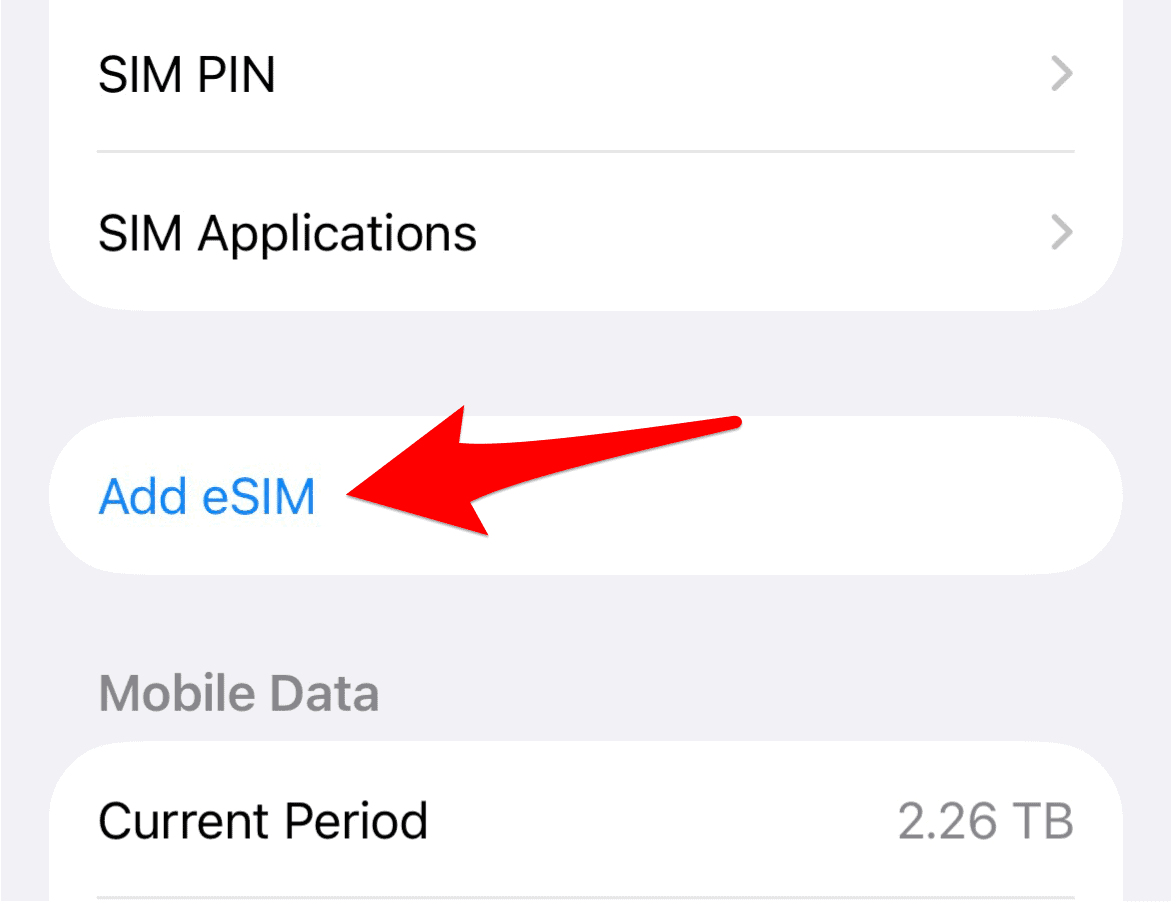
- Scan Code: Use the iPhone’s camera to scan the QR code provided by your carrier. If the scan fails, tap Enter Details Manually at the bottom.
- Label Lines: Follow the prompts to label your two lines (e.g., Personal, Business, Travel). You must also choose a default line for iMessage and calls.

If you encounter difficulties during the eSIM setup process, or if the device fails to recognize a newly added digital plan, a simple restart or network settings reset often resolves the issue.
Tips on Using an eSIM on iPhone 11

- Designate a Default Line: You can choose which line (physical or digital) is the primary line for calling and texting. This setting is easily adjustable in Cellular Settings at any time.
- Customize Data Usage: Clearly specify which line to use for cellular data. This is especially important for international travel to avoid unexpected roaming charges on your home line.
- Label Plans Clearly: Use descriptive names like “UK Business” and “US Personal” to easily distinguish between the two plans when making calls or sending messages.
- Travel Advantage: When traveling internationally, keep your home SIM active for incoming calls while using a local travel eSIM for affordable data and local calls, ensuring connectivity without swapping cards.
FAQ
No. The iPhone 11 supports Dual SIM functionality through one physical nano SIM and one eSIM. You cannot use two digital SIMs simultaneously on this model.
No. While most major global carriers support eSIM on iPhone 11, you must verify compatibility directly with your specific service provider before purchasing an eSIM plan.
This error can occur for various reasons. If it appears unexpectedly, ensure your device is running the latest iOS version, restart your device, or contact your carrier if the issue persists after basic troubleshooting.
The Future of Connectivity on Your iPhone 11
Embracing the eSIM on your iPhone 11 unlocks a powerful layer of flexibility, turning a single device into a true dual-SIM workhorse for travelers and multi-line users alike. This feature confirms the device’s continued relevance, allowing for effortless switching between plans. If you ever encounter the frustrating no SIM card installed error or a related activation problem, understanding the device’s full capabilities and troubleshooting steps is key.
Even when using a digital SIM, always be mindful of settings that could affect your SIM card lock in sleep mode. While some of these issues are associated with future iOS versions not yet publicly released, staying current with official updates and support documentation is the best way to ensure smooth performance.


Discussion