

Apple’s Digital ID feature is very convenient. It offers a secure way to carry official identification. This includes a state ID or a U.S. passport. Presenting your ID from your Apple Watch is convenient. However, your Digital ID may be missing. It is visible on your iPhone but not your Watch. This is a common and frustrating problem.
Key Troubleshooting Steps for Wallet Synchronization
Your Digital ID fails to appear on your paired Watch. The cause is often a fixable issue. These problems relate to compatibility or security settings. The following solutions will fix the most frequent issues. We will help you restore this critical function.
1. Confirm Device Compatibility and Software Updates
The Digital ID feature needs specific hardware. It also requires the latest security updates. The ID transfer fails if your software is old. It also fails if your model is incompatible. You must verify both devices meet basic requirements. You should check the supported iPhone models and iOS versions first.
Don’t miss the best of The Mac Observer
Set us as a preferred source and our Apple reporting ranks higher in your Google Search results and Discover feed — one tap, no account changes.
- You must have an iPhone 11 or later. You also need an Apple Watch Series 6 or later.
- Verify both devices run the latest operating system versions.
- Install any available updates immediately. New software versions often contain essential bug fixes.
2. Re-add the Digital ID via the Apple Watch App
Maybe you added your ID before pairing your watch. Or you skipped the initial setup option. Consequently, you must manually push the ID to the wearable. This process is separate from the primary setup. It usually requires re-authentication. Furthermore, review the essential things you should know about Apple’s new Digital ID.
- Open the Apple Watch App on your iPhone.
- Navigate to the My Watch tab.
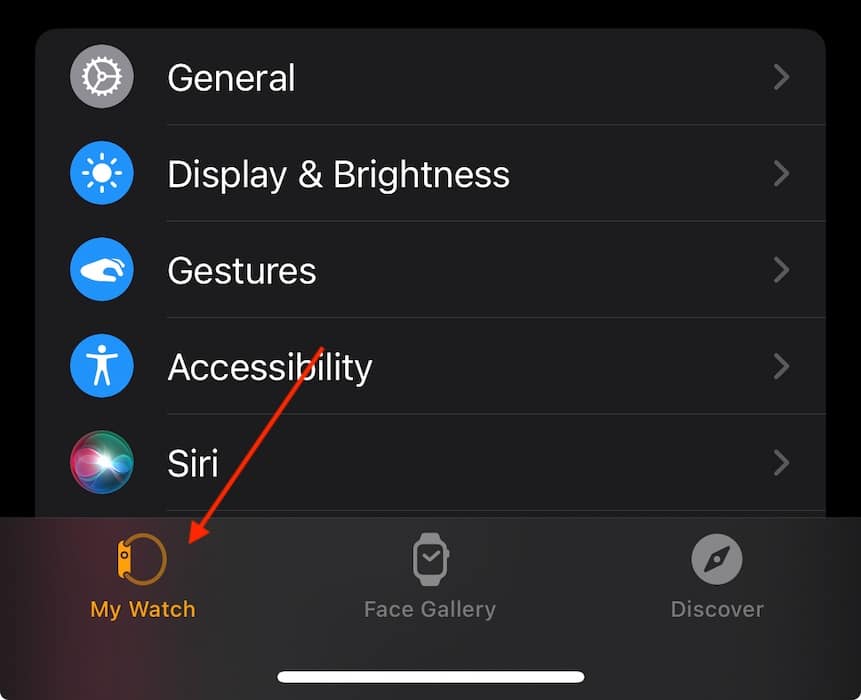
- Scroll down and tap Wallet & Apple Pay.
- Locate your Digital ID under Other Cards on Your Phone.
- Tap Add. Then, follow the prompts to finish the transfer.
3. Verify Apple Watch Security Settings
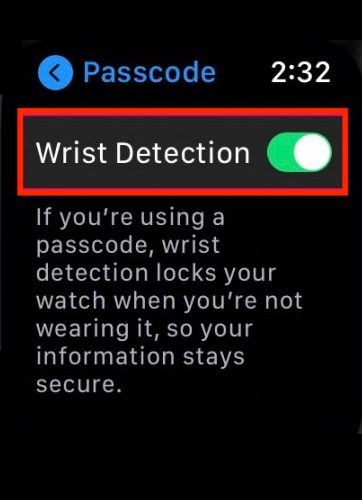
Security is highly important for identification. The Watch Wallet depends heavily on security features. Thus, your ID is inaccessible without a passcode. It also won’t work without wrist detection. The ID will not show up when you need it.
You must confirm the watch identifies you first. Therefore, the system locks out the ID if the watch detects removal. The ID will not appear if the watch is not securely on your wrist.
- Check for a Passcode. Go to Settings > Passcode on your Apple Watch. Make sure it is set.
- Enable Wrist Detection. Go to My Watch > Passcode in the iPhone Watch app. Toggle Wrist Detection on.
- Unlock Your iPhone. You must use Face ID or Touch ID. Do this every time you put on the watch.
4. Power Cycle Both Paired Devices
Glitches often result from corrupted files. Communication bottlenecks between devices also cause errors. A hard restart is a simple and effective technique. It refreshes critical Bluetooth and network connections.
Sometimes the simplest fixes work best. First, power down and reboot both devices. This forces a clean slate. Next, it reinitializes the connection for ID synchronization. This step can fix many system quirks. It can solve issues related to everything Apple didn’t tell you about Digital ID.
- Restart iPhone. Perform the standard restart procedure.
- Restart Apple Watch. Press and hold the side button. Slide the power off slider.
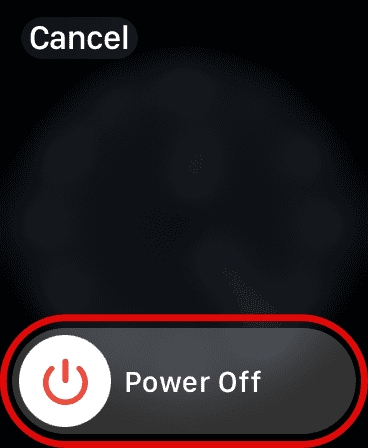
- Power On. Turn both devices back on. Wait a minute for them to re-pair.
5. Unpair and Re-pair Your Apple Watch
Try unpairing and re-pairing as a last resort. This step resolves persistent synchronization errors. It forces a fresh connection and full data sync. This includes all Wallet contents. Therefore, it should solve deeper pairing issues.
The iPhone automatically creates a full backup when you unpair. Consequently, you can restore your watch exactly as it was. This forces a clean re-sync of the Digital ID. It effectively resolves the missing ID issue.
- Open the Apple Watch App. Unpair the watch.
- Re-pair the Watch. Follow the instructions to set it up again. Choose to restore from the most recent backup.
- Confirm Sync. Check the Wallet app on your Watch. Confirm the Digital ID has reappeared.
FAQ
No, the Digital ID is stored securely on the Secure Element. You can present the ID without a network connection.
Verification from the issuing authority may be pending. Also, your software versions might mismatch.
Restoring Your Apple Watch ID Access
You can fix the missing Digital ID problem. Systematically check device compatibility first. Then re-add the ID through the Watch app setting. Finally, ensure security features are enabled. The convenience of digital identification requires synchronization. These fixes restore that consistent function. Thus, you gain quick, contactless identity verification. Before traveling, check if Apple’s Digital ID is available in your state for TSA use.




Discussion