

The Steam Mobile app uses Steam Guard for security. It scans QR codes for simple login. When the app fails to prompt for camera access, your iPhone locks the security feature. Corrupted iOS privacy settings cause this issue. An application glitch often prevents the permission dialog. Fortunately, users found several effective fixes. These workarounds resolve the hurdle without compromising your data.
Table of contents
Advanced Troubleshooting for Mobile Camera Permissions
When the standard permissions request fails, you must force the application to reinitialize the camera request. Therefore, simulate a use case or reset the underlying privacy framework.
1. Work Around the Permission Glitch Using the Profile Editor
This method bypasses the failed QR scanner prompt. First, initiate the camera from a different app function. Use the new avatar setting, for example. The app then must ask for camera permissions. This action registers the authorization in your iOS settings. If you struggle to manually unblock your iPhone camera, this app prompt offers a reliable solution.
Don’t miss the best of The Mac Observer
Set us as a preferred source and our Apple reporting ranks higher in your Google Search results and Discover feed — one tap, no account changes.
- Open the Steam Mobile app and navigate tap your Profile in the top-right corner.
- Tap View Profile > Edit Profile.
- Select the Avatar tab and tap Upload your avatar.
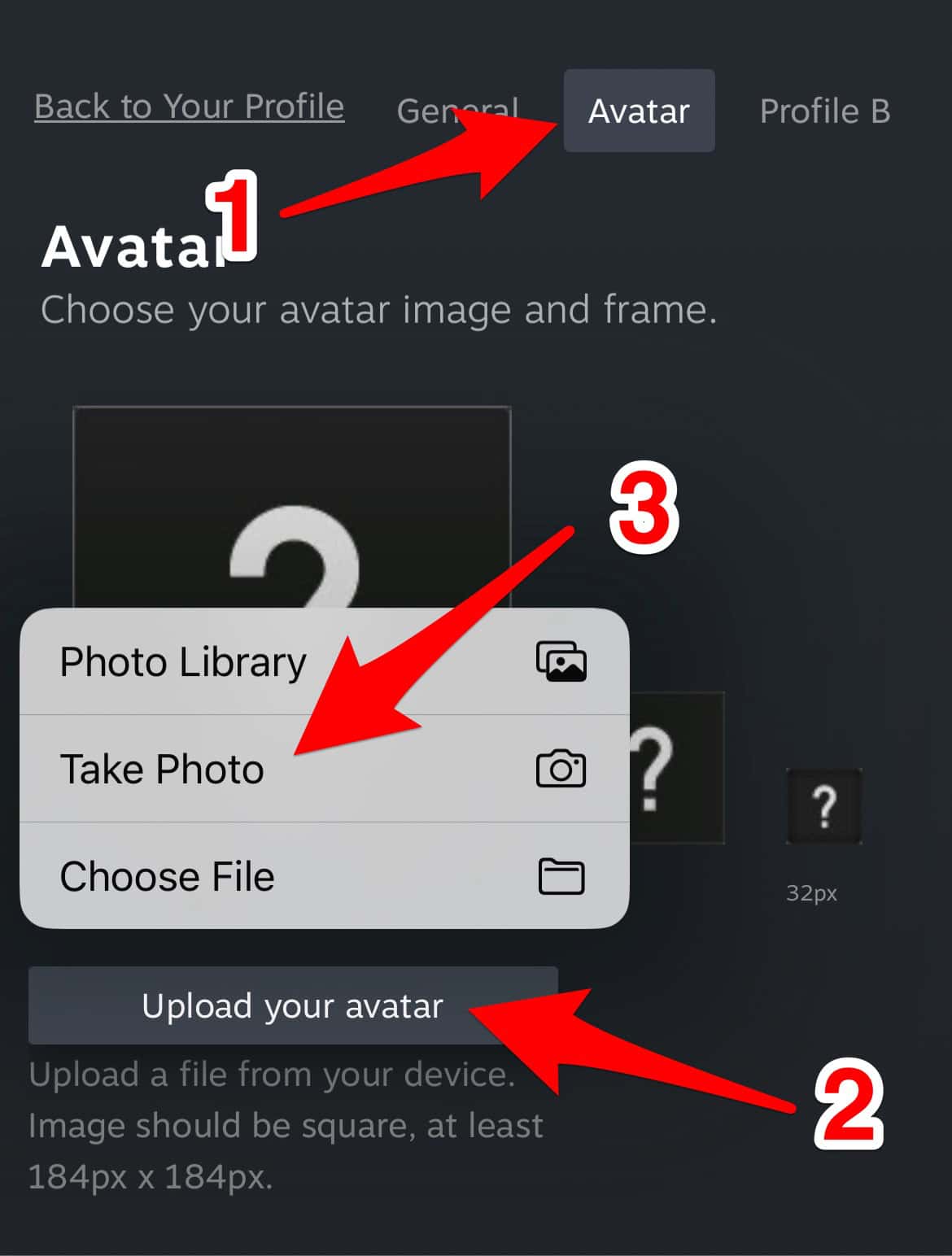
- When prompted, select the option to Take Photo.
- The system should display the camera access prompt. Accept the permissions.
- Close the app entirely and relaunch it. The QR scanner should now function.

2. Delete and Reinstall the Steam Mobile Application
The app’s stored data might be corrupted. Therefore, a simple deletion and reinstallation cycle clears faulty permissions fastest. This action wipes all local app data. You get a fresh start and a guaranteed permission request. Furthermore, you should now also be able to fix iPhone apps that cannot access photos if you encounter similar issues with media access.
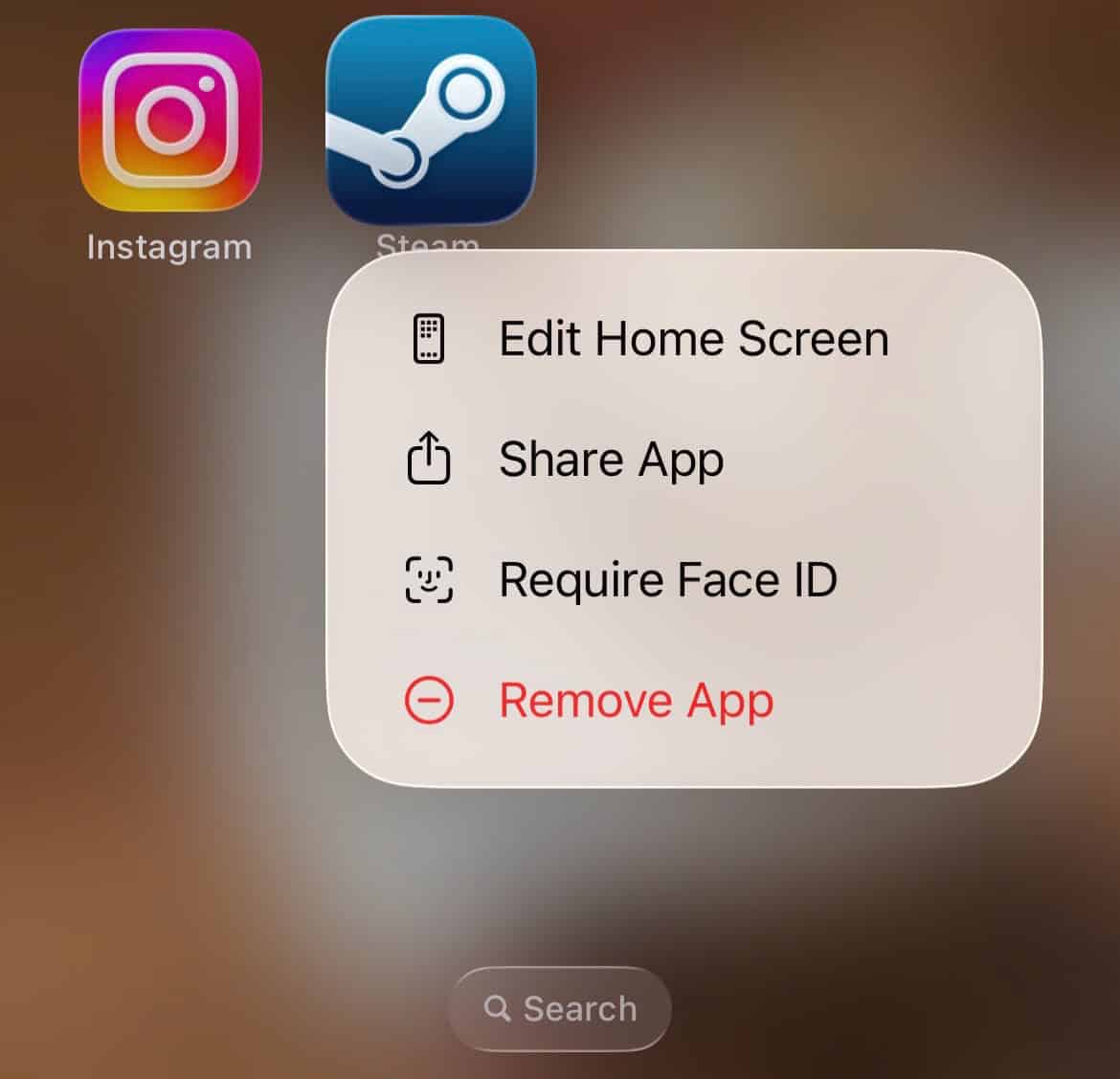
- Tap and hold the Steam Mobile icon.
- Select Remove App and confirm the uninstallation.
- Restart your iPhone to clear system cache.
- Re-download the Steam Mobile app from the App Store.
- Immediately open the app and log in. Approve the camera access prompt.

3. Verify Screen Time Restrictions on Camera Use
iOS includes powerful parental and productivity controls. These controls can inadvertently disable core hardware functions. You may not use specific restrictions, but check Screen Time. Ensure the Camera app is not disabled there. This is a critical step. Disabling the camera overrides any app specific authorization. This action is essential for managing iOS privacy settings for apps.
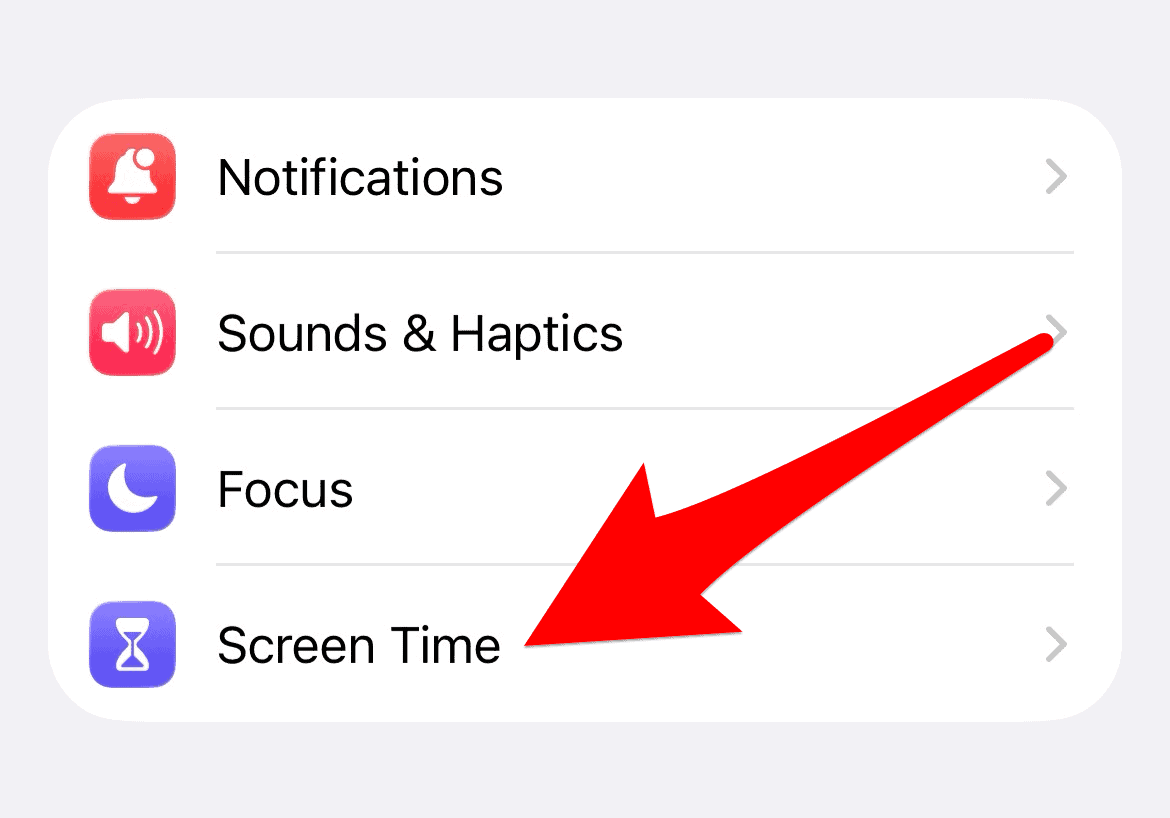
- Open your iPhone’s Settings app.
- Tap on Screen Time.
- Select Content & Privacy Restrictions.
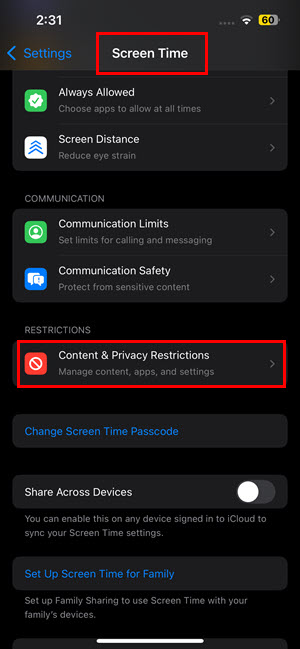
- Tap on Allowed Apps.
- Ensure the toggle next to Camera is switched ON.


4. Reset Location and Privacy Settings
An app’s privacy record may be missing or stuck. Consequently, reset all location and privacy settings. This forces the operating system to clear those records. All applications must prompt you again for permissions. This includes the camera permission required by the Steam Mobile app.
- Go to Settings > General.
- Tap Transfer or Reset iPhone.

- Select Reset and choose Reset Location & Privacy.
- Enter your device passcode to confirm the reset.

5. Force Restart the iPhone
A hard restart resolves temporary system freezes. It also fixes resource conflicts. These issues prevent system dialogues like permission requests from starting. This process clears the short term memory, or RAM. Ultimately, it resolves strange glitches without affecting your data.
- Press and quickly release the Volume Up button.
- Press and quickly release the Volume Down button.
- Press and hold the Side Button until the Apple logo appears.
- Allow the iPhone to boot up completely.
FAQ
The Steam Mobile application primarily requires camera access for the Steam Guard security feature. Steam Guard lets users log into Steam quickly. They scan a unique QR code on the desktop screen. This streamlines the two factor authentication process.
First, check your main iOS settings. Navigate to Settings > Privacy & Security > Camera. Look for a list of apps that requested access. Ensure the toggle next to Steam is enabled. If Steam is not listed, you must force the app to make the initial request.
Restoring Steam Mobile Functionality
Fixing the missing camera access issue is simple. You must reset the permissions framework. Alternatively, use the in-app avatar editor trick to trigger the dialogue. Applying these fixes restores security and convenience. This ensures Steam Guard protection for your account. Finally, if the green indicator light persists, you may need to fix the iPhone camera indicator that is always on specifically.


Discussion