

If you’re trying to log in and keep seeing errors, failed authentication messages, or endless loading screens, you’re not alone. The issue of Apple TV sign in not working can occur for several reasons, ranging from simple network issues to Apple ID verification failures.
The good news is that most sign-in problems can be fixed in just a few minutes. Here’s a clear breakdown of why it happens and what you should do to restore access.
Table of contents
Why Apple TV Sign-In Stops Working

Apple TV relies on three things at once: a stable internet connection, an active Apple ID session, and live access to Apple’s servers. If any one of these fails, sign-in can break.
Don’t miss the best of The Mac Observer
Set us as a preferred source and our Apple reporting ranks higher in your Google Search results and Discover feed — one tap, no account changes.
Common causes include:
- Temporary Apple server outages
- Weak or unstable Wi-Fi
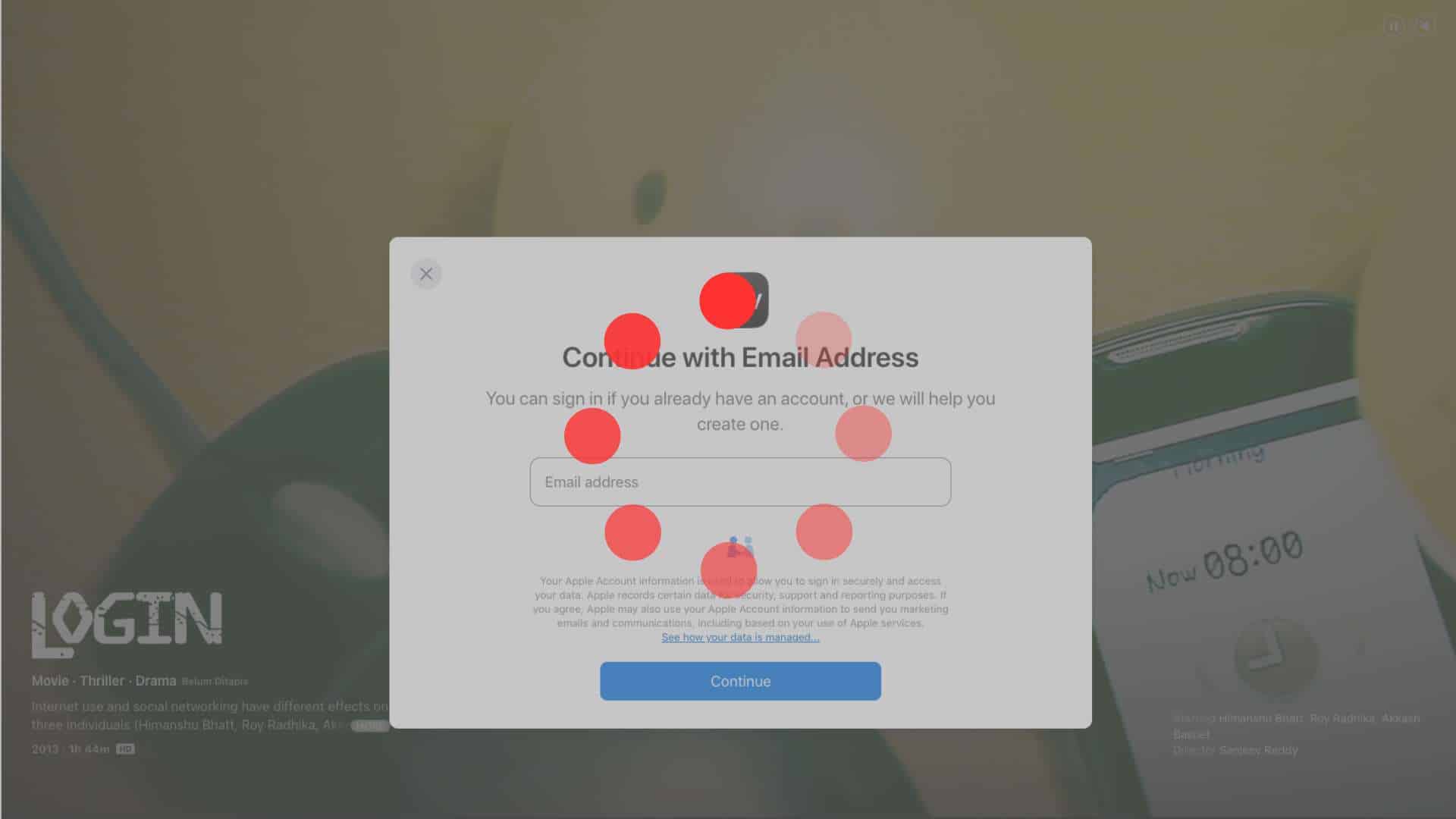
- Incorrect Apple ID password
- Two-factor authentication issues
- tvOS software bugs
- Time and date sync problems

When Apple’s servers cannot be reached properly, sign-in often fails across multiple services. In such cases, the MacObserver guide on fixing the “Cannot Connect to Apple Server” error is directly relevant, since Apple TV uses the same backend authentication system.
Check if Your Apple TV Can Reach Apple Services
Before changing passwords or resetting anything, confirm that your Apple TV can actually reach Apple’s servers.
On Apple TV:
- Open Settings
- Go to Network
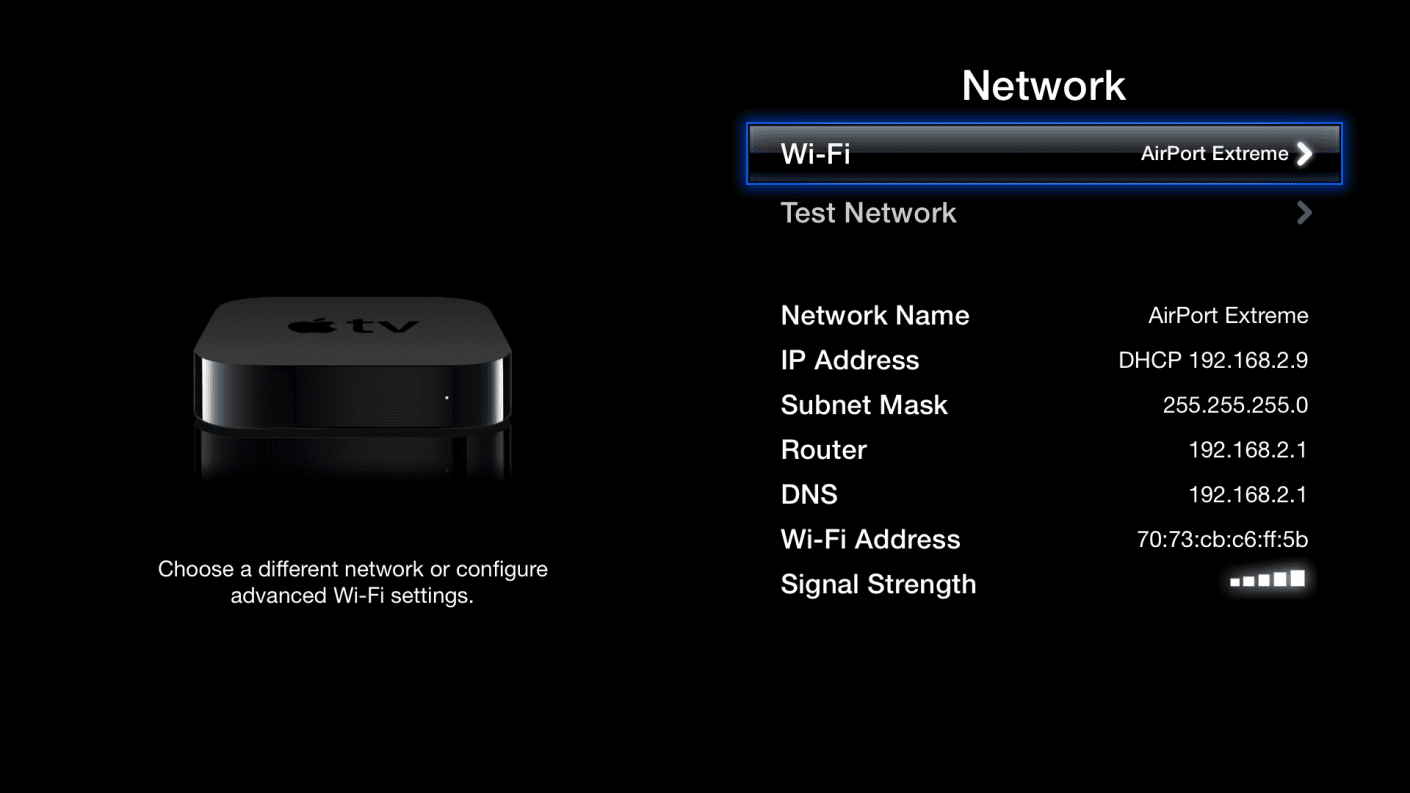
- Check that Wi-Fi or Ethernet shows Connected

If your device is online but sign-in still fails, Apple recommends following the steps in its official guide on what to do when you can’t sign in with your Apple ID.
How to Fix Apple TV Sign-In Not Working
Work through these fixes in order:
1. Restart Apple TV and Your Router
Power off both your Apple TV and your router, wait 30 seconds, then turn both back on. This clears most temporary network handshake failures.
2. Sign Out and Sign Back In
If your Apple ID session is corrupted:
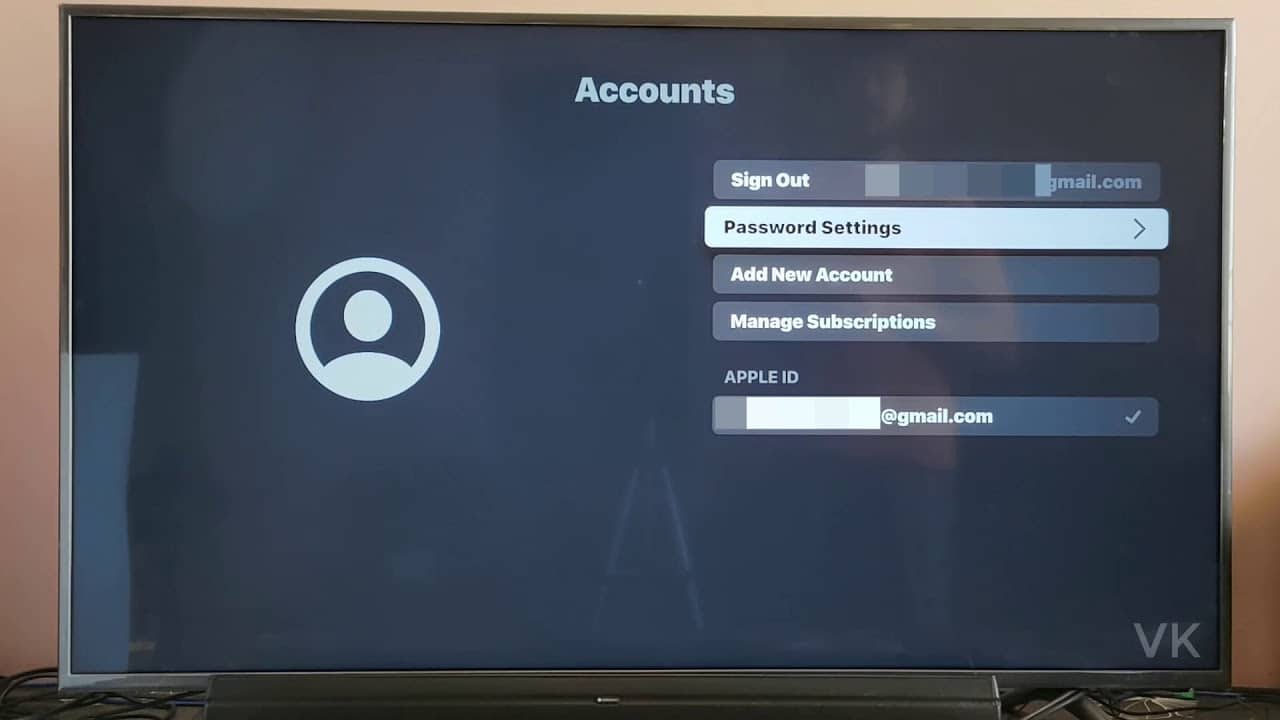
- Go to Settings > Users and Accounts
- Select your account
- Choose Sign Out
- Restart Apple TV
- Sign back in with your Apple ID

3. Verify Two-Factor Authentication
If you recently changed devices or passwords, Apple may block sign-in until verification is complete. Apple explains this process in its documentation on Apple ID two-factor authentication.
4. Update tvOS
Outdated software can directly cause repeated sign-in failures.
- Go to Settings > System > Software Updates
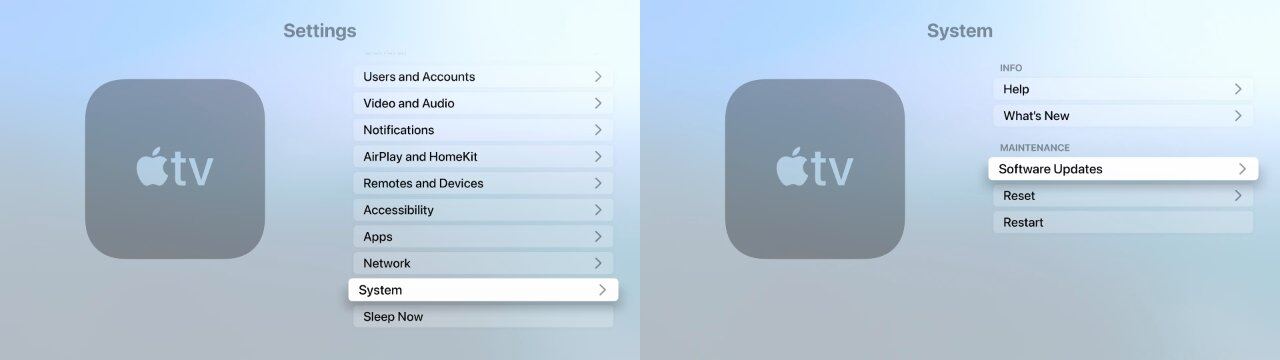
- Install any available updates

5. Rule Out Subscription-Linked Sign-In Errors
In some cases, sign-in errors appear only when accessing Apple TV+ or other paid channels. If login fails specifically during content access, the MacObserver walkthrough on fixing subscription issues on Apple TV is the correct next step.
When the Problem Is Your Apple ID (Not the Apple TV)
If Apple TV sign-in still fails after all troubleshooting steps, the problem may lie with your Apple ID itself rather than the device. Warning signs include:
- Repeated password rejection
- Verification codes not arriving
- Account temporarily locked messages
- Login failures on other Apple devices
In this case, resetting your Apple ID password directly through Apple’s recovery system is necessary before trying to sign in again on Apple TV.
The Bottom Line
When Apple TV sign in not working, the root cause is usually one of three things:
- Network connectivity problems
- Failure to connect to Apple’s servers
- Apple ID authentication issues
Restarting your network, verifying Apple ID credentials, updating tvOS, and checking subscription-related errors resolve the issue for most users within minutes.




Why does Apple TV app keep asking me to renew when I just renewed on July 3, 2026. I also changed my Apple password a few minutes ago. I’m trying to sign in on my Microsoft aspire go 15 laptop. Please help
The current issue is that signing into the Apple TV box requires using an iPad or iPhone to authenticate. Those who try to sign in manually will never be allowed to because the EULA only pops up when using another Apple device to authenticate. The EULA won’t pop on the Apple TV box and therefore will never allow manual authentication. My ticket for this issue has gone up to the Apple engineering group (3-5 day wait). When I’m finally contacted again, it will be by the 5th support agent to be involved and over a week of having 2 new Apple TV paper weights.