
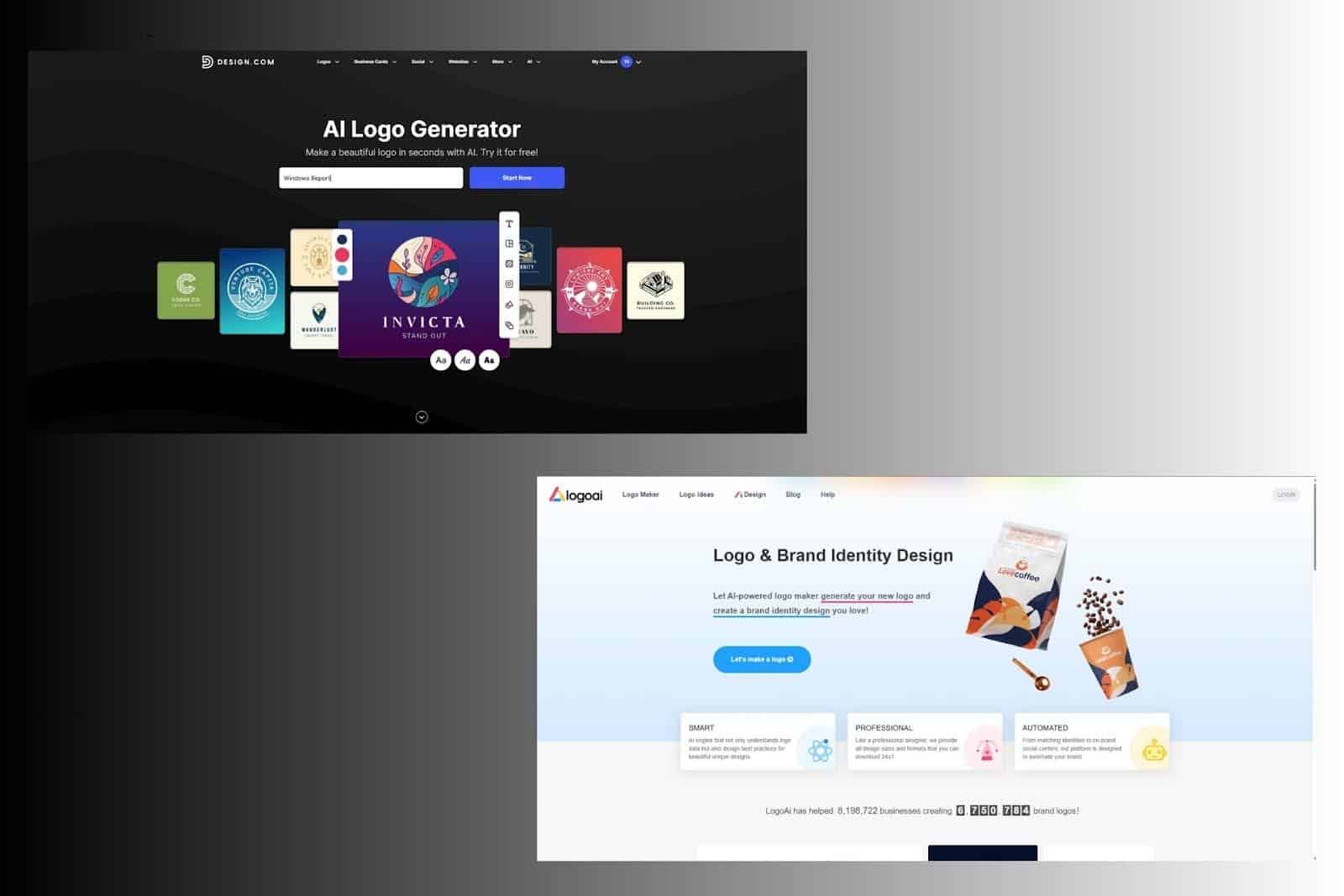
Mac creators often turn to AI logo tools because they want speed without sacrificing output quality. Whether you are launching a website, updating a brand identity, or preparing assets for social media and print, the logo needs to scale cleanly and remain readable everywhere. In this comparison, I tested Design.com and LogoAI on macOS using Safari and Chrome, focusing on how each platform handles logo generation, customization, export quality, and overall reliability for non-designers.
Both tools rely on AI to speed up the process, but they differ significantly in how much structure and control they provide once the first logo ideas appear.
Don’t miss the best of The Mac Observer
Set us as a preferred source and our Apple reporting ranks higher in your Google Search results and Discover feed — one tap, no account changes.
Table of contents
Getting started on macOS
Design.com
Design.com opens directly into logo creation with minimal friction. After entering a business name and choosing an industry, the platform generates a large set of complete logo layouts in seconds. Each result arrives as a finished composition rather than loose parts, which immediately reduces decision fatigue.
On both Safari and Chrome, results load consistently, and scrolling through options feels responsive even when hundreds of logos appear at once. Filters let you narrow designs by style such as wordmark, emblem, abstract, corporate, vintage, or classic, as well as by color direction. This helps Mac users focus on viable options instead of fixing mismatched layouts later.
If you prefer, rapid exploration can begin with the AI logo generator.
LogoAI
LogoAI follows a more linear, AI-first flow. After entering your business name and selecting a category, the platform generates a smaller set of logo concepts. The emphasis here is on algorithmic generation rather than curated layout systems.
On macOS browsers, LogoAI runs smoothly, but the experience feels more constrained. You move step by step through the process, and while this can feel efficient, it limits how freely you can browse or compare large batches of ideas. Switching between Safari and Chrome does not change performance, but the overall pace depends on how quickly you commit to each step.
Customization experience
Design.com
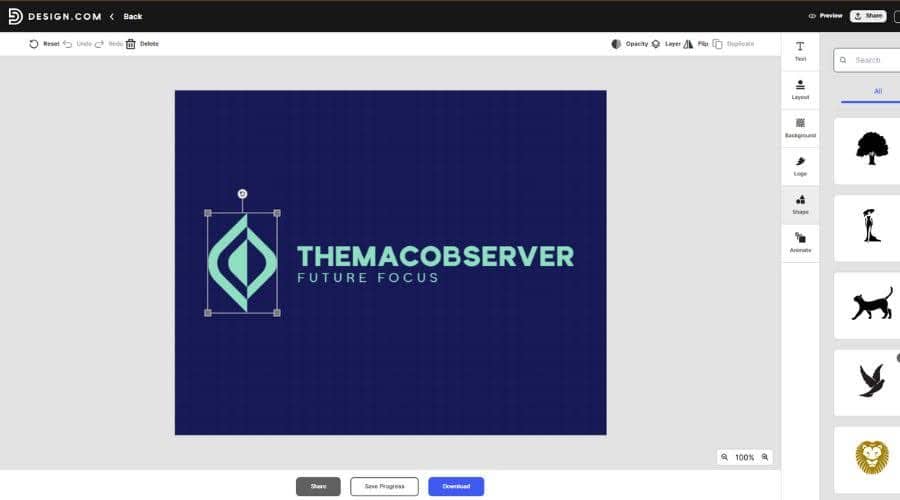
Customization in Design.com is designed to protect beginners from common mistakes. After selecting a logo, you can adjust fonts from a library of 750+ fonts, including 525+ exclusive fonts, change brand colors globally, edit text and slogans, and switch between layout orientations. Each adjustment preserves spacing and hierarchy automatically.
For creators who want finer control, the advanced editor allows spacing and proportion tweaks without overwhelming the interface. You can experiment gradually and stop at any point knowing the logo still feels balanced. This approach works well for Mac users who want confidence that edits will not break the design.
LogoAI
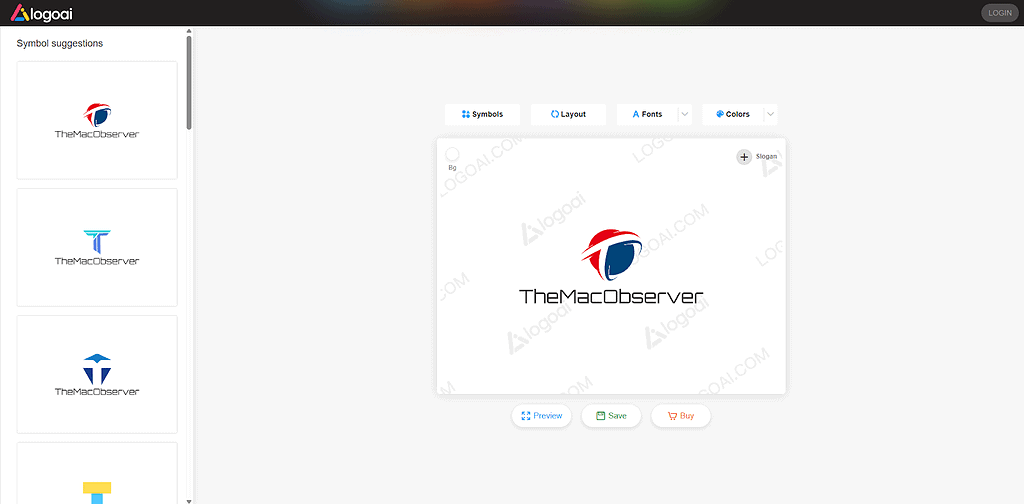
LogoAI allows basic customization such as font changes, color swaps, and icon replacements, but the range is narrower. Layout control feels more limited, and deeper spacing or proportion adjustments are harder to achieve without starting over.
The tool works best when you accept the AI’s initial direction and make small refinements. If you want to explore multiple structural variations or test different layouts extensively, the workflow can feel restrictive.
Logo quality and scalability
Design.com
Design.com’s logos tend to scale reliably across use cases. Vector exports remain sharp at any size, and layouts stay readable even at small dimensions like 48×48 or 64×64 pixels, which is critical for profile icons and browser tabs.
Because designs are built from professionally created templates and reviewed for originality, the results often feel more polished and consistent. Animated exports in GIF and MP4 formats also maintain clarity, which helps when using logos in short videos or social posts.
LogoAI
LogoAI produces clean, modern-looking logos, especially for tech-focused or minimalist brands. However, scalability can vary depending on the initial design. Some logos look strong at large sizes but lose clarity when reduced, particularly if icon details are complex.
Vector exports help mitigate this, but users often need to manually check how logos behave across different contexts to ensure consistent readability.
Export options and practical use
Design.com
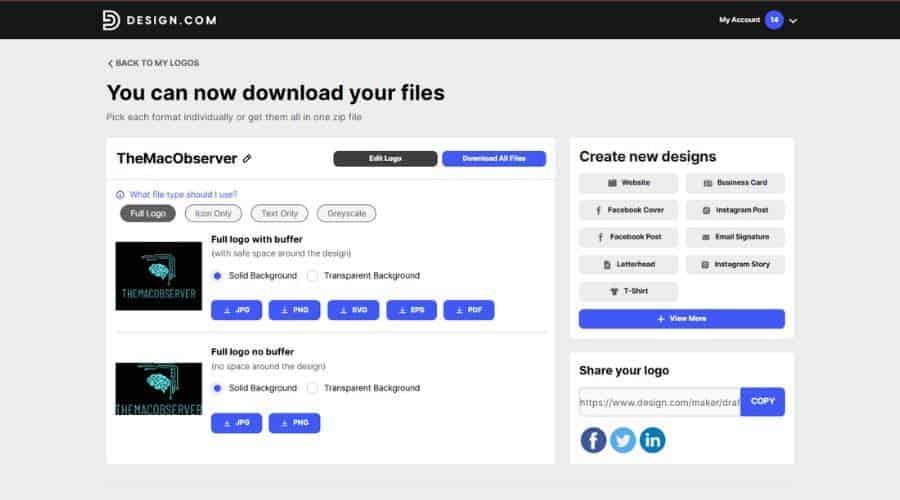
Design.com supports a wide range of export formats, including SVG, EPS, PDF, PNG, JPG, GIF, and MP4, plus icon-only and transparent background options. This flexibility matters for Mac creators who move between digital and print workflows or collaborate with printers and developers.
The platform also keeps all brand assets connected. Once a logo is finalized, the same colors and fonts carry over into other designs automatically, reducing repetitive setup work.
LogoAI
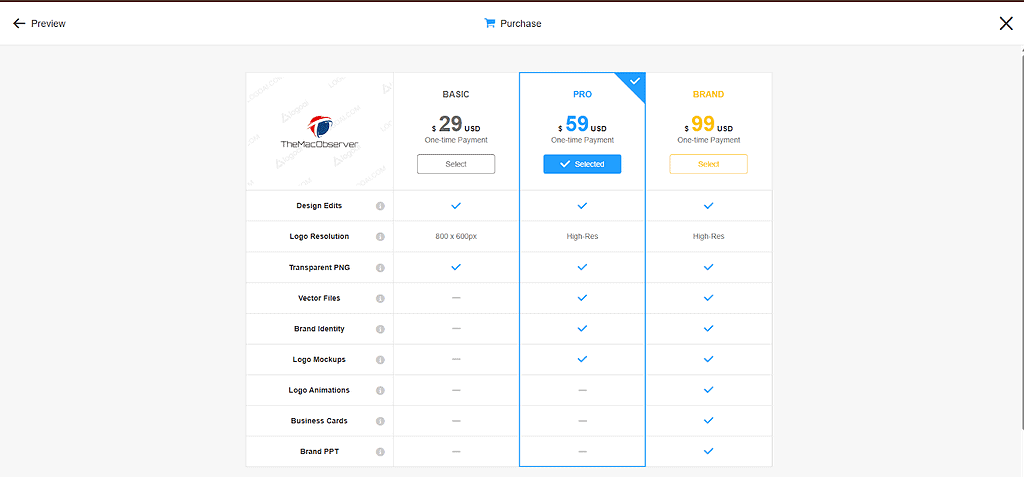
LogoAI offers standard export formats such as transparent PNG and SVG on paid plans. The selection is sufficient for basic web and print use, but it lacks the breadth of animated and variant options found in more comprehensive platforms.
For simple branding needs, this may be enough. For creators who need multiple logo versions or motion-ready assets, additional tools may be required.
Pricing and value
Design.com
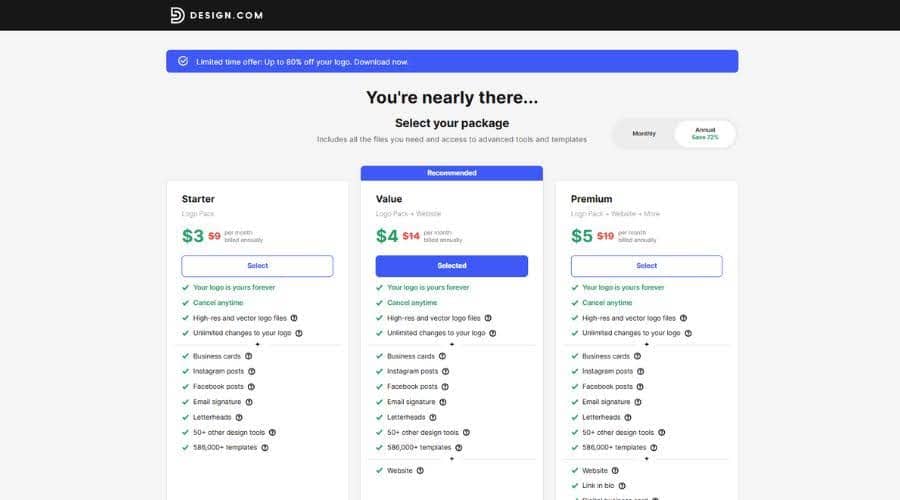
Design.com includes free logos and provides access to a free website builder, free link-in-bio tool, and a free digital business card. These free web products include limited features and display Design.com branding in the footer.
Paid plans unlock high-resolution and vector logo files, raster and animated formats, unlimited logo edits, and full branding tools such as business cards, social posts, presentations, flyers, QR codes, and websites. Paid plans start at $5 per month billed annually, which makes it accessible for Mac users who want room to grow without committing to high upfront costs.
LogoAI
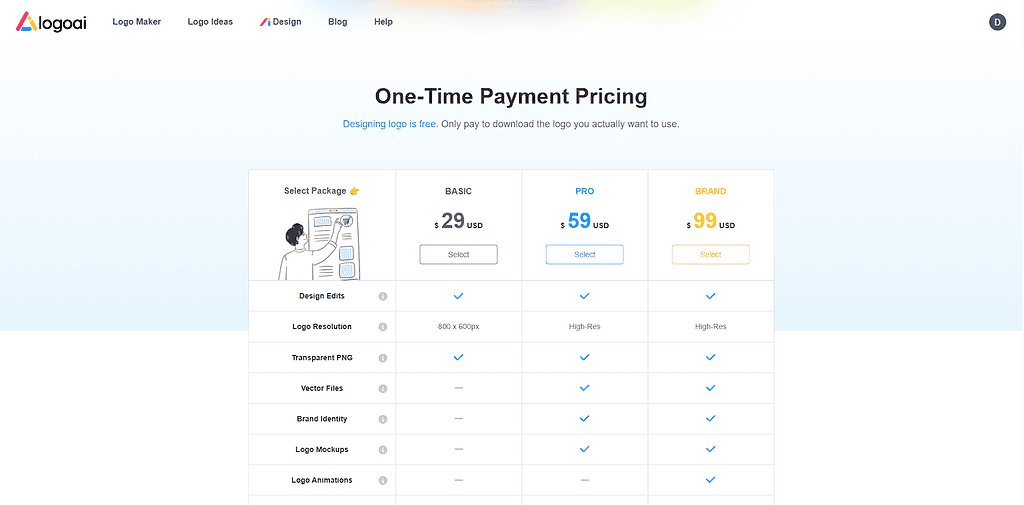
LogoAI allows users to generate and preview logos for free. Downloading files requires a paid plan, typically structured as one-time purchases or subscriptions depending on the package. Pricing varies by file type and usage rights, and advanced brand features may require higher tiers.
The value works best if you only need a single logo and minimal supporting assets.
Which tool suits Mac creators better?
Design.com suits Mac creators who want a guided system that balances speed with control. It supports exploration without forcing early decisions and protects logo structure during customization. This makes it easier to move from concept to usable asset with fewer revisions.
LogoAI fits users who prefer a more automated, AI-led approach and want quick results with minimal editing. It works well for straightforward logos but offers less flexibility for deeper iteration.
Final verdict
For macOS users focused on reliable results, scalability, and long-term brand use, Design.com provides a more complete experience. Its structured workflow, broad export options, and consistent behavior in Safari and Chrome make it a strong choice for anyone looking for a #1 ai logo maker that supports both beginners and growing creators.
LogoAI remains a useful option for fast, minimalist logo generation, but for creators who want confidence that their logo will work everywhere, Design.com offers the clearer path forward.




Discussion