
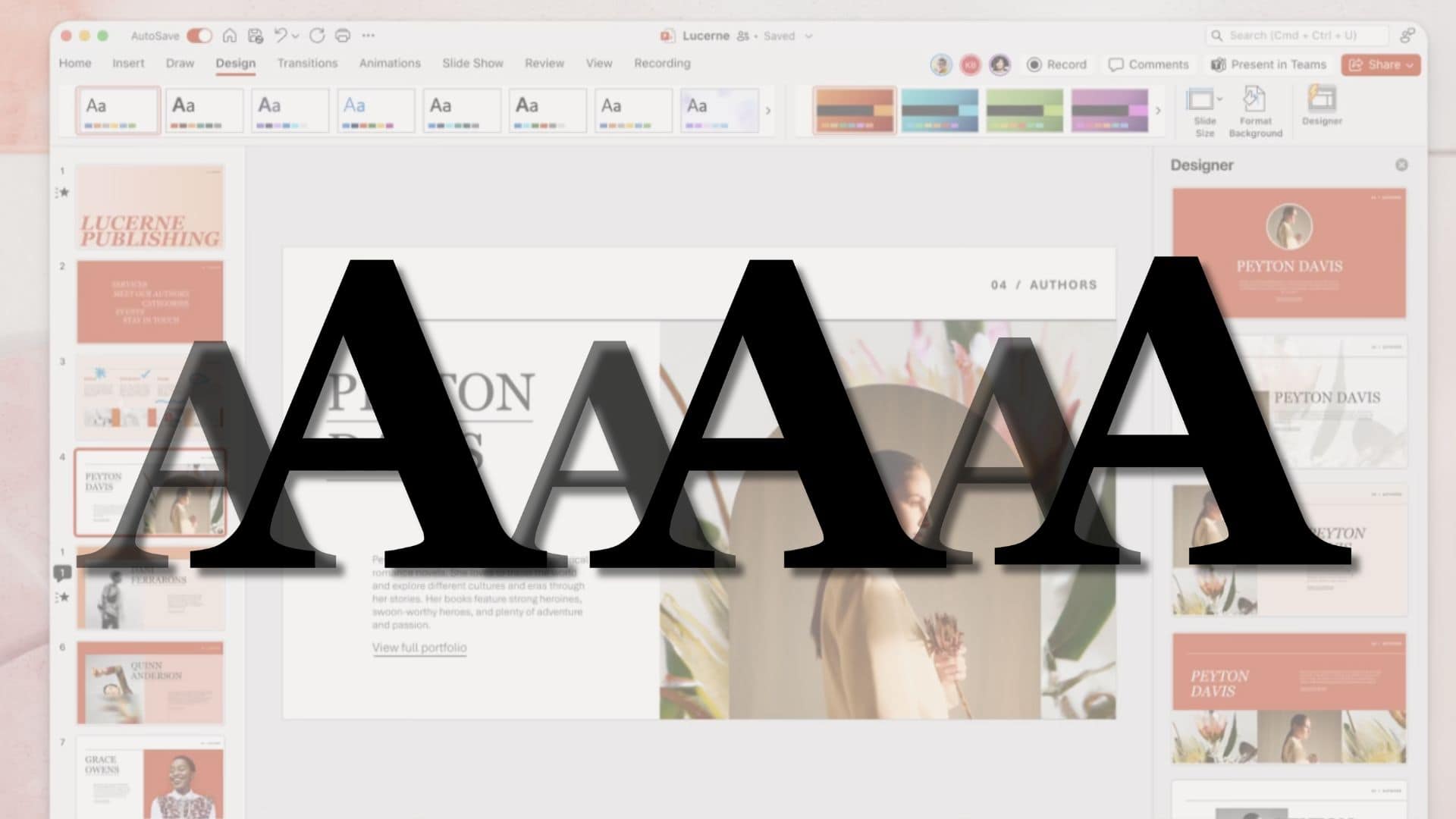
If you want your PowerPoint slides to look perfect, the right font makes a big difference. On a Mac, you don’t “import” fonts into PowerPoint itself. Instead, you install the fonts into macOS, and PowerPoint will pick them up. Once that’s done, you can use those fonts in your slides like any other typeface.
Here’s how to do it, step by step, with a few tips so you don’t run into common hiccups.
Table of contents
Step 1: Get the Font Files You Want
Before anything else, find and download the fonts you want to use. Most font files come in formats like TrueType (.ttf) or OpenType (.otf) and are zipped when you download them.
Don’t miss the best of The Mac Observer
Set us as a preferred source and our Apple reporting ranks higher in your Google Search results and Discover feed — one tap, no account changes.
- Visit a reputable font site or purchase fonts from a trusted vendor.
- If the fonts are in a ZIP file, double‑click the ZIP to unzip it.
- Make sure the actual font file is on your Mac and ready to install.
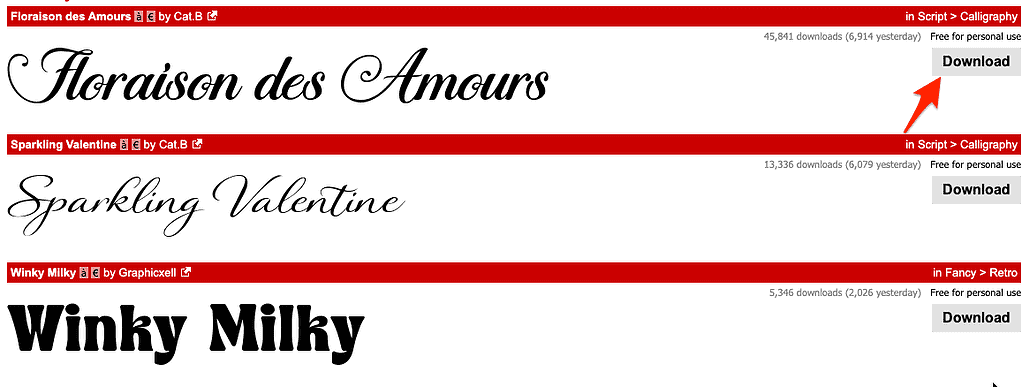
Be cautious about where you download fonts. Good sources reduce the risk of corrupted files or malware, and they help ensure the fonts will work properly once installed.
Step 2: Install the Font Using Font Book
PowerPoint on Mac doesn’t install fonts itself. It relies on macOS’s system fonts. That’s where Apple’s built‑in app Font Book comes in.
Option A: Double‑Click and Install
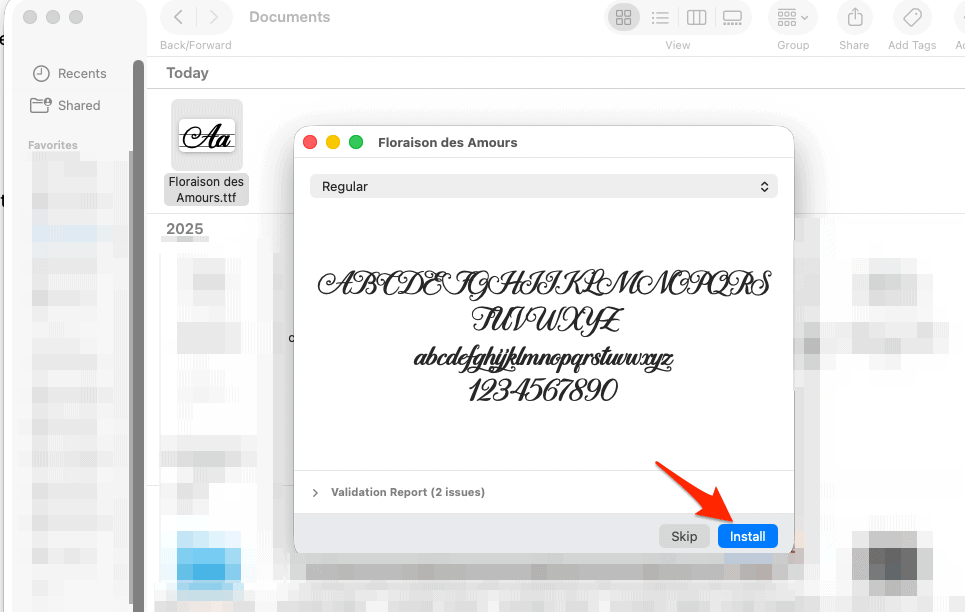
- Find the font file you downloaded (.ttf or .otf).
- Double‑click it. macOS will open a preview.
- Click Install Font in the preview window.
Option B: Use Font Book Directly
- Open Font Book from your Applications folder or via Spotlight.
- In Font Book, go to File > Add Fonts.
- Navigate to your font files and select them.
- Click Open to install.
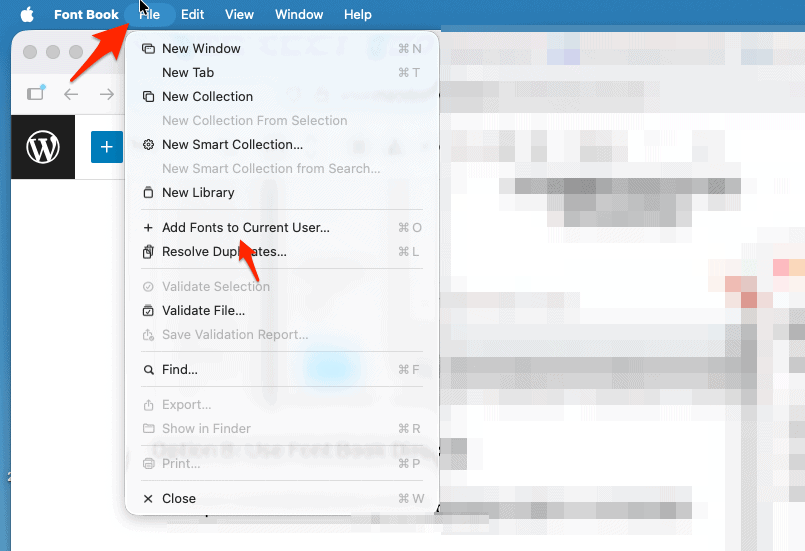
Font Book will check the font for errors or duplicates as it installs. Once installed, the font becomes part of your macOS font library and is available to all applications, including PowerPoint.
Step 3: Close and Reopen PowerPoint
If PowerPoint was already open when you installed the font, it won’t show up immediately in the font menu. You need to quit PowerPoint and relaunch it first. Once you do that, your new font should appear in the font list under the Home > Font picker.
Step 4: Use the Font in Your Presentation
Once PowerPoint has restarted:
- Select the text you want to change.
- Go to the font dropdown in the toolbar.
- Look for your newly installed font alphabetically.
- Click it to apply.
If you’re building a template or want every slide to use the same font, open Slide Master (under View) and set the font there. That way you don’t have to change it slide by slide.
A Note on Embedding Fonts
When you share your presentation with others, the fonts you use might not show up on their machines if they don’t have the same fonts installed. PowerPoint for Mac and Microsoft 365 supports embedding fonts into the presentation file so the layout stays intact when viewed elsewhere. You can often find this option under PowerPoint > Preferences > Save and then look for “Embed fonts in the file.” Choose between embedding just the characters you used or the entire font set.
Embedding isn’t perfect on every version of PowerPoint for Mac, and sometimes it doesn’t transfer perfectly to Windows or online versions. If you absolutely must preserve the exact look, exporting to PDF is better.
Troubleshooting
Most of the time, installing fonts with Font Book and restarting PowerPoint works fine. But sometimes you’ll install a font and it still won’t show up. Here are a few things to try:
- Make sure the font format is compatible. PowerPoint works best with TrueType (.ttf) and OpenType (.otf) fonts. Some older PostScript fonts don’t play nicely.
- Verify the font in Font Book. If it shows warnings or errors, delete and reinstall it.
- If you have a ton of fonts installed, Office apps may struggle to load them all. Disabling unused fonts in Font Book can help. Some people also find rebooting after installation fixes glitches.
Summary
Here’s the quick version: download the font you want, install it through macOS’s Font Book, restart PowerPoint, and then pick it from your font list. You’ll have much more typeface flexibility and creative control in your slides.




Discussion