

You can no longer use on-screen text, stickers, or classic camera filters directly inside FaceTime on iOS 26. Apple removed those built-in overlays, so FaceTime text features in iOS 26 are no longer available in the app itself.
Table of Contents
What You Can Do Now That FaceTime Removed Filters and Text
Confirm the FaceTime Text Was Removed in iOS 26
In earlier versions, you could tap Effects during a call to add stickers, labels, or filters. In iOS 26, the Effects panel no longer includes on-screen text or sticker overlays. It may be added back in future releases, but, as of iOS 26.3, the feature is still nowhere to be seen. Here’s how to check that:
- Start a FaceTime call.
- Tap the screen, then tap Effects, if available.
- Check whether text labels or sticker overlays appear.
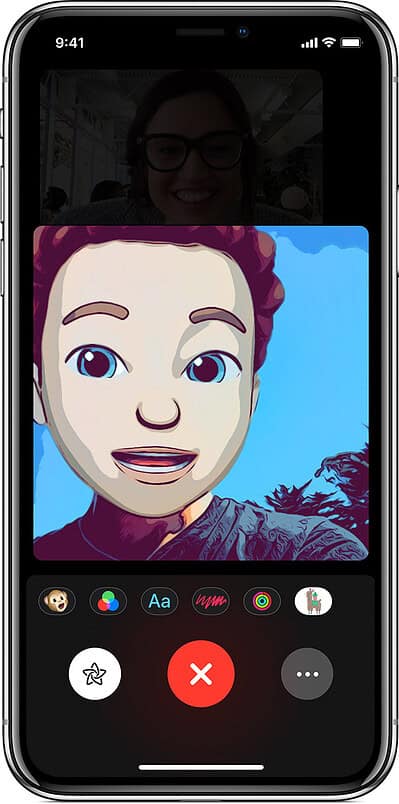

If you do not see those options, the change is system-level, not a FaceTime bug in iOS 26. There is no toggle in Settings to restore them.
Don’t miss the best of The Mac Observer
Set us as a preferred source and our Apple reporting ranks higher in your Google Search results and Discover feed — one tap, no account changes.
Use Messages Stickers During a FaceTime Call
While classic FaceTime stickers are gone, you can still share stickers through Messages during a video call.
- Open Messages in Split View during your call.
- Tap the Stickers icon inside a conversation.

- Select a sticker pack (or download one from the App Store), then send it in the chat.


This does not place stickers over your video feed, but it keeps visual elements in the conversation.
Try Third-Party Video Apps That Support Overlays
If you want camera filters, floating text, or animated stickers, you need another video calling app. Some apps still support video overlays similar to earlier facetime effects ios 26 users expected.
- Download apps like Snapchat, Instagram, or Zoom from the App Store.
- Start a video call inside the chosen app.
- Use the built-in filters, effects, or text tools offered there.
Each app handles overlays differently, so check their in-call menu for filter and text options.
Use Live Photos and FaceTime Reactions in iOS 26 Instead of Text

FaceTime still supports reactions and Live Photos, even after the removal of text overlays.
- During a call, open Control Center.
- Tap Video Effects, if shown.
- Enable reactions such as hearts, fireworks, or confetti.
This keeps some visual interaction, even though Apple no longer allows full sticker overlays in FaceTime.
Tips
- Keep iOS updated in case Apple adjusts FaceTime features again.
- Check Settings > FaceTime for new options after updates.
- Review App Store descriptions to confirm overlay support before installing alternatives.
- Test apps with friends first to confirm filter and text behavior.
FaceTime Text in iOS 26: FAQ
Apple removed those in-app overlays, and there is no setting to restore them.
No. It is a design change, not a temporary glitch.
Apple does not allow downgrading once signing windows close.
Summary
- FaceTime no longer supports text and sticker overlays in iOS 26.
- There is no toggle in Settings to restore those features.
- You can use Messages stickers during calls for limited visuals.
- Third-party apps offer filters, text, and animated overlays.
If you specifically want on-screen text or creative overlays, you must use a third-party video app, since FaceTime removed that capability in iOS 26.


Apple yall need to add the text icon back on FaceTime without it, it makes me inverted and i hate the way i look inverted i don’t care if it’s a personal problem but people genuinely used the text icon in the face time like yall added reaction like really what was the need in removing the text on face time add it back next update for iso 26.4 or 27 just immediately