
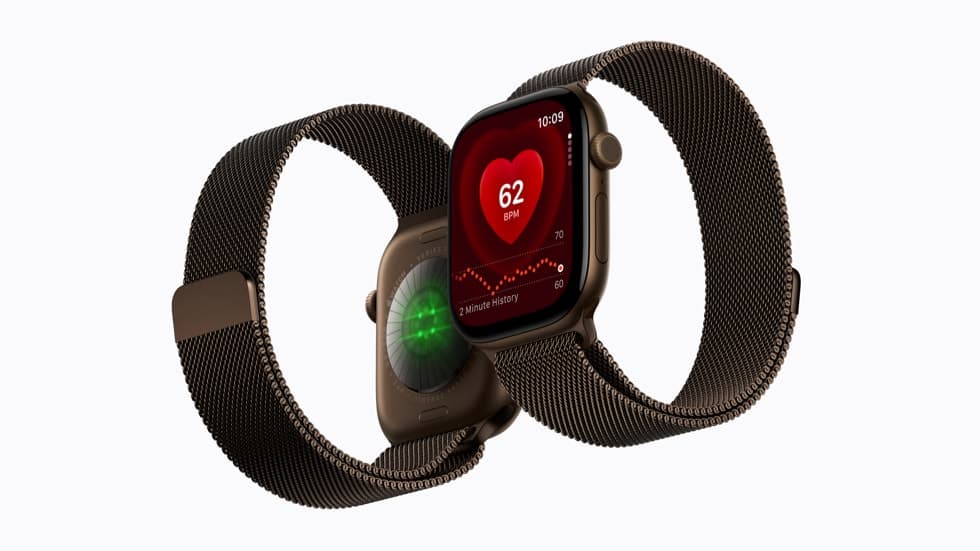
Before you set up an iPhone 18 Pro, update your current iPhone and Apple Watch and make sure your Health data is backed up. Apple’s support document on moving a watch to a new iPhone, dated September 14, also asks for Wi-Fi on both iPhones and at least 50 percent charge on the watch and the new phone.

Get that right and the watch should carry over during iPhone setup. If it doesn’t, you may have to erase the watch and restore it from a backup, which loses any Activity, workouts or watch settings that changed since that backup was made.
Before you start
Have these ready:
Don’t miss the best of The Mac Observer
Set us as a preferred source and our Apple reporting ranks higher in your Google Search results and Discover feed — one tap, no account changes.
- Your Apple Account and password.
- Your Apple Watch passcode.
- Wi-Fi on both the old and the new iPhone.
- At least 50 percent charge on the watch and the new iPhone.
Then update what you already own. On the old iPhone, go to Settings > General > Software Update. For the watch, open the Apple Watch app on that iPhone, tap My Watch, then go to General > Software Update, or use Settings > General > Software Update on the watch itself. Apple asks for “the newest available versions” and warns the updates “could take from several minutes to an hour,” so running them overnight makes sense.

Protect your Health and Activity data
If you back up with iCloud, check this on the old iPhone:
- Open the Settings app.
- Tap your name, tap iCloud, then tap Saved to iCloud.
- Tap Health and make sure Sync this iPhone is on.
If you back up to a computer, encrypt the backup, or your Health and Activity content won’t be saved. On a Mac, select “Encrypt local backup” in the Finder and create a password. Keep it somewhere safe, because Apple says “You can’t recover your backup without this password.”
Now back up the old iPhone. There’s no separate watch step: Apple says “Backing up your iPhone also backs up your Apple Watch.”
Set up the new iPhone
If you transfer from an iCloud or computer backup to the iPhone 18 Pro, pick the most recent one. If it isn’t listed, Apple says to check that your iPhone and Apple Watch are up to date.
When the new iPhone asks whether you want to use your Apple Watch, unlock the watch, keep it on your wrist and tap Continue. If it doesn’t ask, finish setup, keep the watch unlocked on your wrist with the iPhone nearby, and open the Apple Watch app. Then follow the prompt you see:
- It asks you to confirm you want to use your watch. Follow the onscreen steps to finish.
- It asks you to Start Pairing. Unpair your Apple Watch, then set it up again with the new iPhone and restore from a backup when asked.
Unpairing erases the watch and removes Activation Lock, which is why the backup matters. If your watch has cellular service, it must use the same carrier as your iPhone, unless it’s a watch you set up for someone in your Family Sharing group.
If something goes wrong
- Pairing didn’t finish. In the Apple Watch app, go to the My Watch tab and tap All Watches. If Pairing Not Complete appears, put the watch on, keep it unlocked and tap Finish Pairing.
- The watch is stuck on the Apple logo. Hold the Digital Crown and the side button until it restarts. Then firmly press the screen or hold the Digital Crown, tap Reset and pair again.
- The old iPhone is already gone. Erase the watch, pair it with the new iPhone and restore the most recent backup. Health and Activity data stored in iCloud returns on its own, though Apple says it can take a few days. iCloud doesn’t store Activity Sharing data.
- Health data is missing after a computer transfer. Turn on Health under Settings > [your name] > iCloud > Saved to iCloud on both iPhones. Without iCloud, make a new encrypted backup of the old iPhone, erase the new one, restore it from that backup, then pair the watch again.
Apple’s bluntest line covers the worst case: “If you don’t have your old iPhone or you can’t back it up, you can’t recover your Health and Activity content.” Don’t erase or trade in the old iPhone until the watch works on the new one.
Adding an Apple Watch Series 12 as well? When your iPhone has already been set up with another watch, Apple’s pairing flow shows a Make This Your New Apple Watch screen, where you can restore a backup from your previous watch.



