
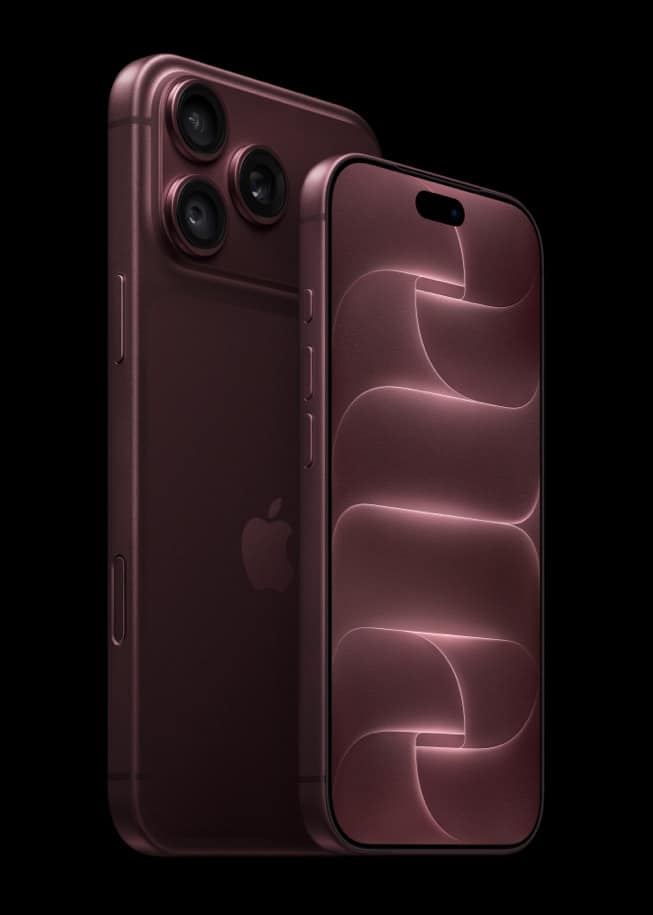
A new iPhone 18 Pro starts out charging to 100 percent, with Optimized Battery Charging switched on. If you’d rather cap it, open Settings, tap Battery, tap Charging, and choose a limit between 80 and 100 percent in 5 percent steps.
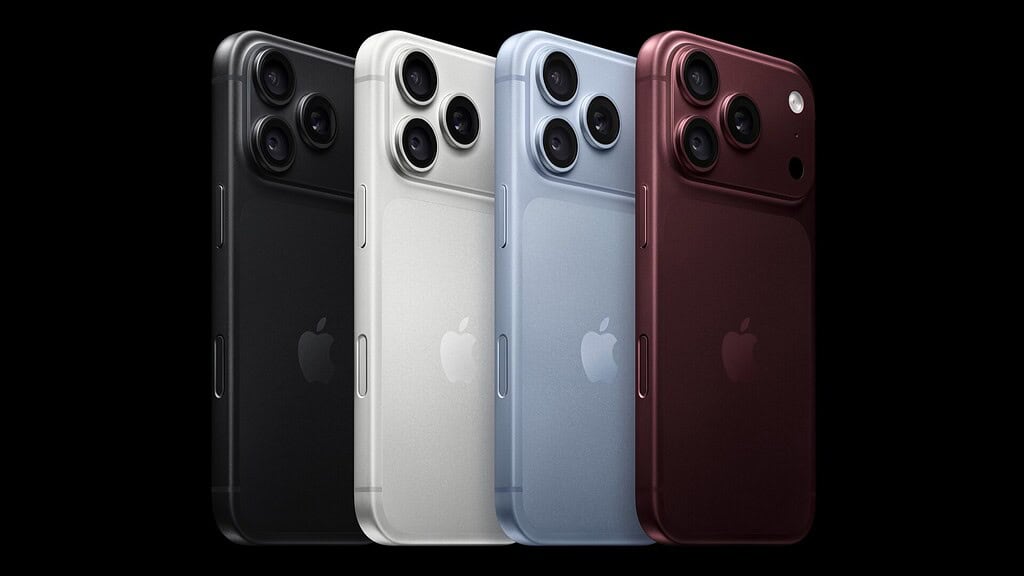
It’s worth deciding during setup. Charge limits aren’t new: Apple’s guide lists them for iPhone 15 and later, which covers iPhone 18 Pro and iPhone 18 Pro Max even though neither page names them. What follows is how the limit, the one-day override and Optimized Battery Charging fit together on a phone fresh out of the box.
What the default does in the first two weeks
Apple says Optimized Battery Charging “is on by default when you set up your iPhone,” and it’s only available when the charge limit is 100 percent. It reduces the time your iPhone spends fully charged by delaying charging past 80 percent when it predicts the phone will stay on a charger for a long stretch.
Don’t miss the best of The Mac Observer
Set us as a preferred source and our Apple reporting ranks higher in your Google Search results and Discover feed — one tap, no account changes.
On a new phone, that protection takes a while to arrive. Apple says the feature “needs at least 14 days to learn your charging habits, so it won’t engage before then,” and your iPhone also needs “at least 9 charges of 5 hours or more in a given location.” Until then, it won’t delay a charge.
A charge limit works differently. Apple’s iOS 27 guide says that when Charge Limit is on, “iPhone stops charging when it reaches your selected percentage.” Apple suggests a level such as 80% to “reduce battery wear, especially if you charge your iPhone frequently or keep it connected for long periods.”
How to set a charge limit
- Open the Settings app.
- Tap Battery, then tap Charging.
- Choose the charge percentage you want.
You can change or remove the limit at any time. Don’t expect it to land on the exact number: Apple says your iPhone “will charge to within a few percentage points of your chosen limit and then stop charging,” and if the level drops more than 5 percent while it’s plugged in, charging starts again. iOS may also suggest a limit of its own, with a message such as “Based on your iPhone habits, a charge limit of 95% is recommended to help preserve your battery.”
One thing looks like a bug but isn’t. Your iPhone will occasionally charge to 100% even with a lower limit set, which Apple says keeps the battery percentage display accurate. It may happen more often if the phone rarely gets to finish a full charge.
Charge to full for one day
A cap at 80% is easy to live with until a travel day or a long shoot. Go back to Settings > Battery > Charging, choose 100%, and you get two choices:
- Allow Until Tomorrow: lifts the cap for now, and Apple says “the charge limit will return to your set percentage at 6:00 a.m.”
- Set Limit to 100%: keeps the limit at 100% until you change it again.
Allow Until Tomorrow is the one to remember, because you don’t have to go back and lower the limit afterward. If you need a full battery sooner than scheduled, Apple’s guide adds a shortcut: open Settings, tap Battery, then tap Charge to 100%.
If you stay at 100% and Optimized Battery Charging is holding back a charge, a Lock Screen notification says when your iPhone will be full. Touch and hold it, then tap Charge Now.
For Apple’s battery life and charging speed figures, see our iPhone 18 Pro battery and charging guide. The rest of the phone is covered in our iPhone 18 Pro launch coverage.



