

You ever have one of those times where you find out something that’s really simple and helpful, and then you wonder how you never knew it before? That just happened to me, and this tiny trick has already made my workflow better. Can’t believe I didn’t know this was possible! I’m kicking myself.
Anyway, here’s what I found out: To create an all-day event that spans multiple days in Calendar on your Mac, you can just click and drag across the “all-day” section at the top of week view…

…which’ll then add a new event covering those days, ready for you to edit with its title and other details.

In month view, you’ll do something similar: Click and drag across the days in question…

…to block off an all-day event for those dates.

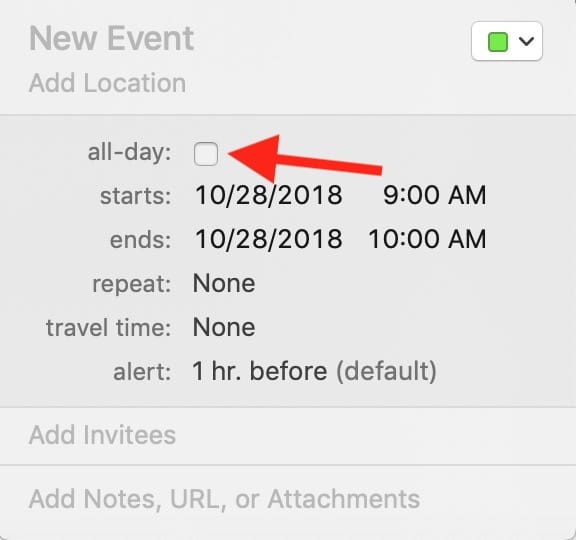
Of course, you can always do it the old-fashioned way when you’re editing an event’s details by clicking on the “all-day” box and then manually adjusting the affected dates.
But maybe you guys already knew you could click and drag. Maybe I’m the last train to depart the station. Maybe I’m not the sharpest tool in the shed or the brightest bulb in the box.
Hey, I’m just glad I know it now!
Don’t miss the best of The Mac Observer
Set us as a preferred source and our Apple reporting ranks higher in your Google Search results and Discover feed — one tap, no account changes.


D’oh…
Melissa does is again!
Awesome tip that I never knew about, but so Mac OS-obvious…
Getting smarter every day. 😉
Keep these coming!
Thanks!
Why, thank you, Dr.MORO! And thanks for reading. 🙂