

Canvas keeps coursework organised, but switching between apps to check every assignment can get repetitive. The simple fix is to connect your Canvas calendar with Apple Calendar. Once subscribed, every class event and deadline appears alongside your personal and work schedules, synced automatically across all your Apple devices.
Table of contents
Copy Your Canvas Calendar Feed
Canvas creates an iCal feed that lets you subscribe from external apps like Apple Calendar.
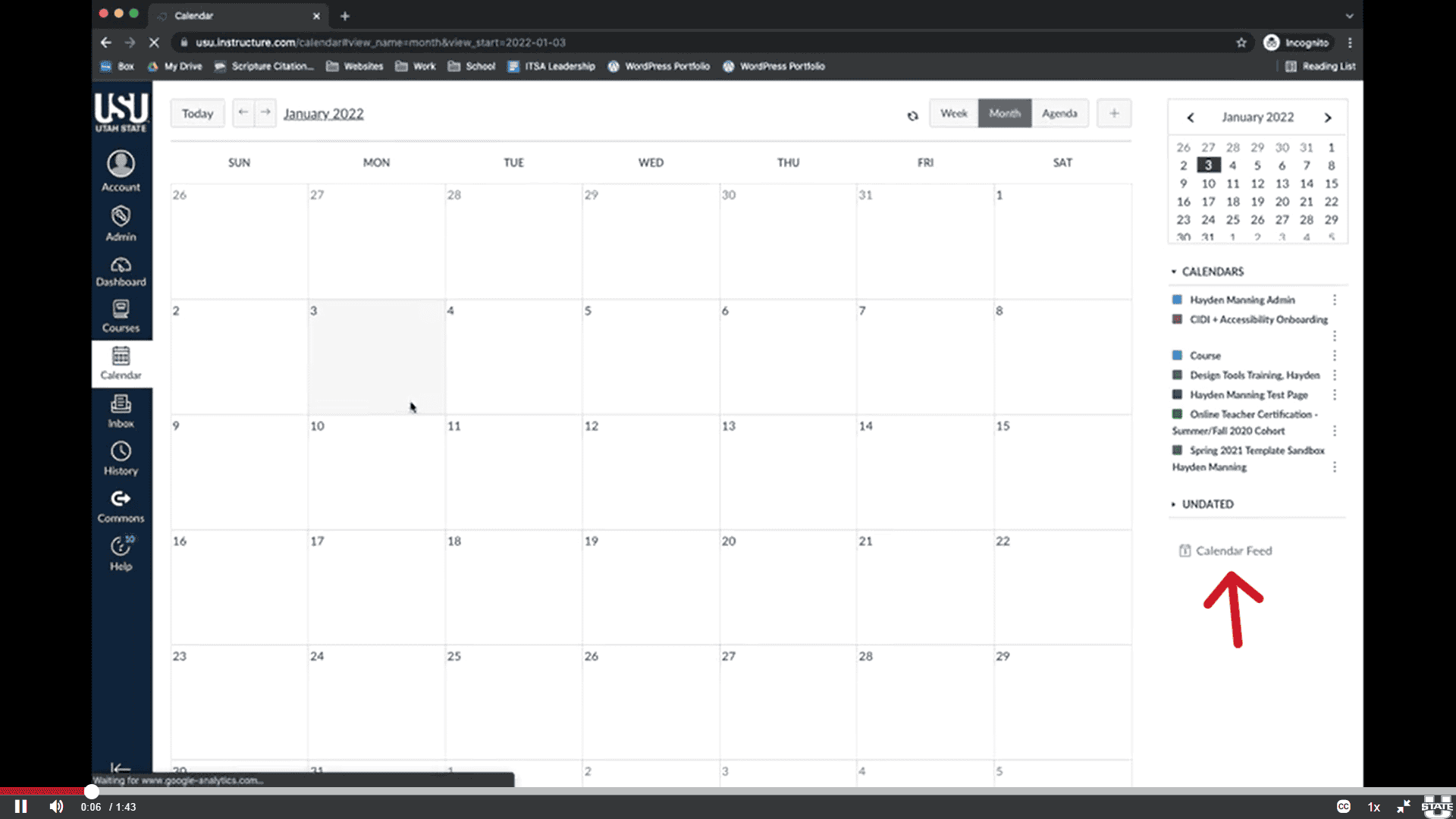
- Sign in to Canvas and open Calendar.
- On the right, select Calendar Feed.
- Copy the URL that appears. This is your personal calendar link.
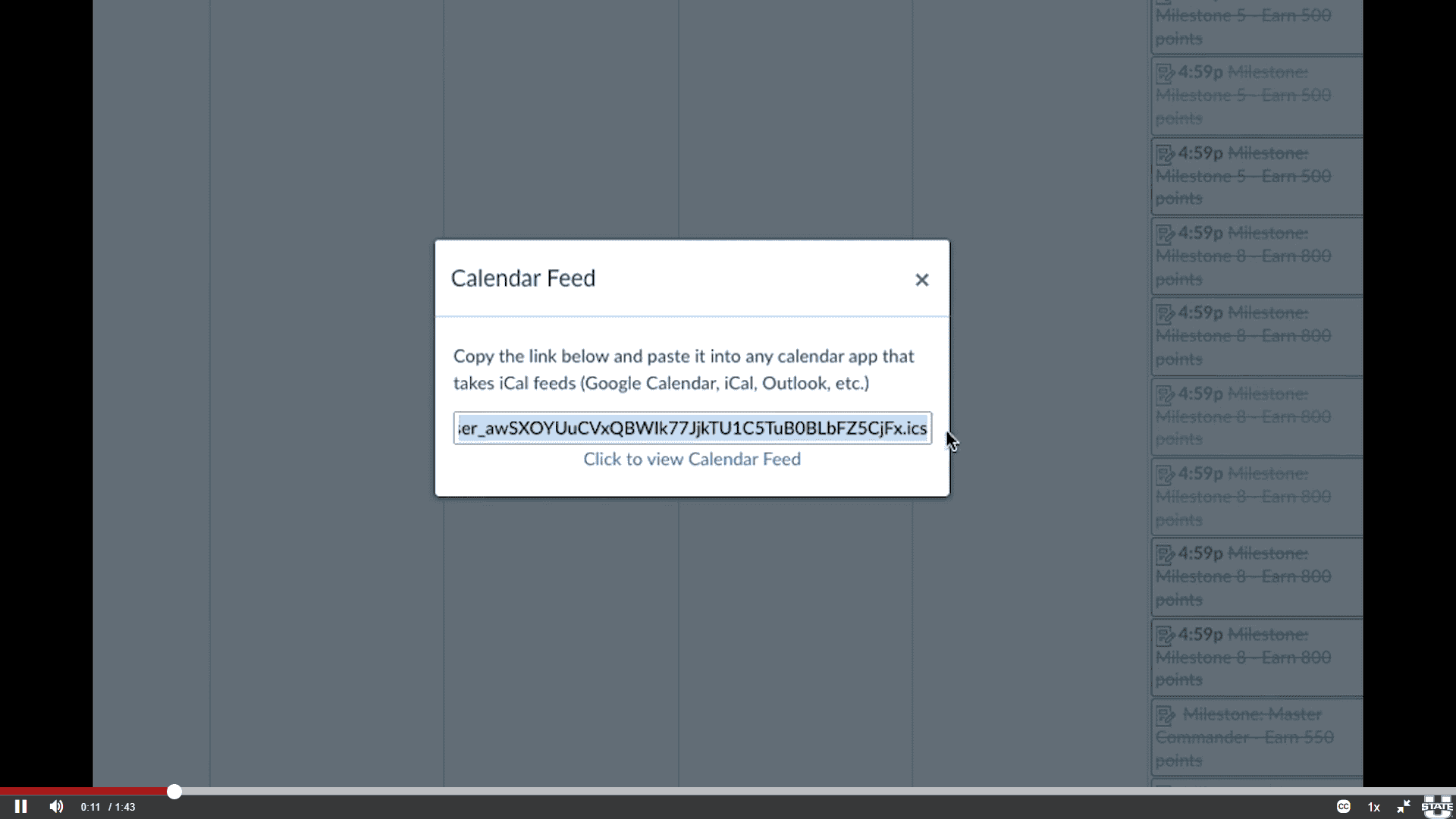


The feed updates automatically when instructors add new events or modify due dates. It’s a one-way sync, meaning you can view Canvas items in Apple Calendar but can’t edit them from there. The same process is detailed in Canvas’s calendar documentation.
Don’t miss the best of The Mac Observer
Set us as a preferred source and our Apple reporting ranks higher in your Google Search results and Discover feed — one tap, no account changes.
Subscribe on Mac
Adding your Canvas feed to Apple Calendar takes less than a minute.
- Open Calendar on your Mac.
- From the menu bar, select File › New Calendar Subscription.
- Paste your Canvas link and click Subscribe.
- Name the calendar, assign a colour, and under Location, select iCloud if you want it synced with your iPhone and iPad.
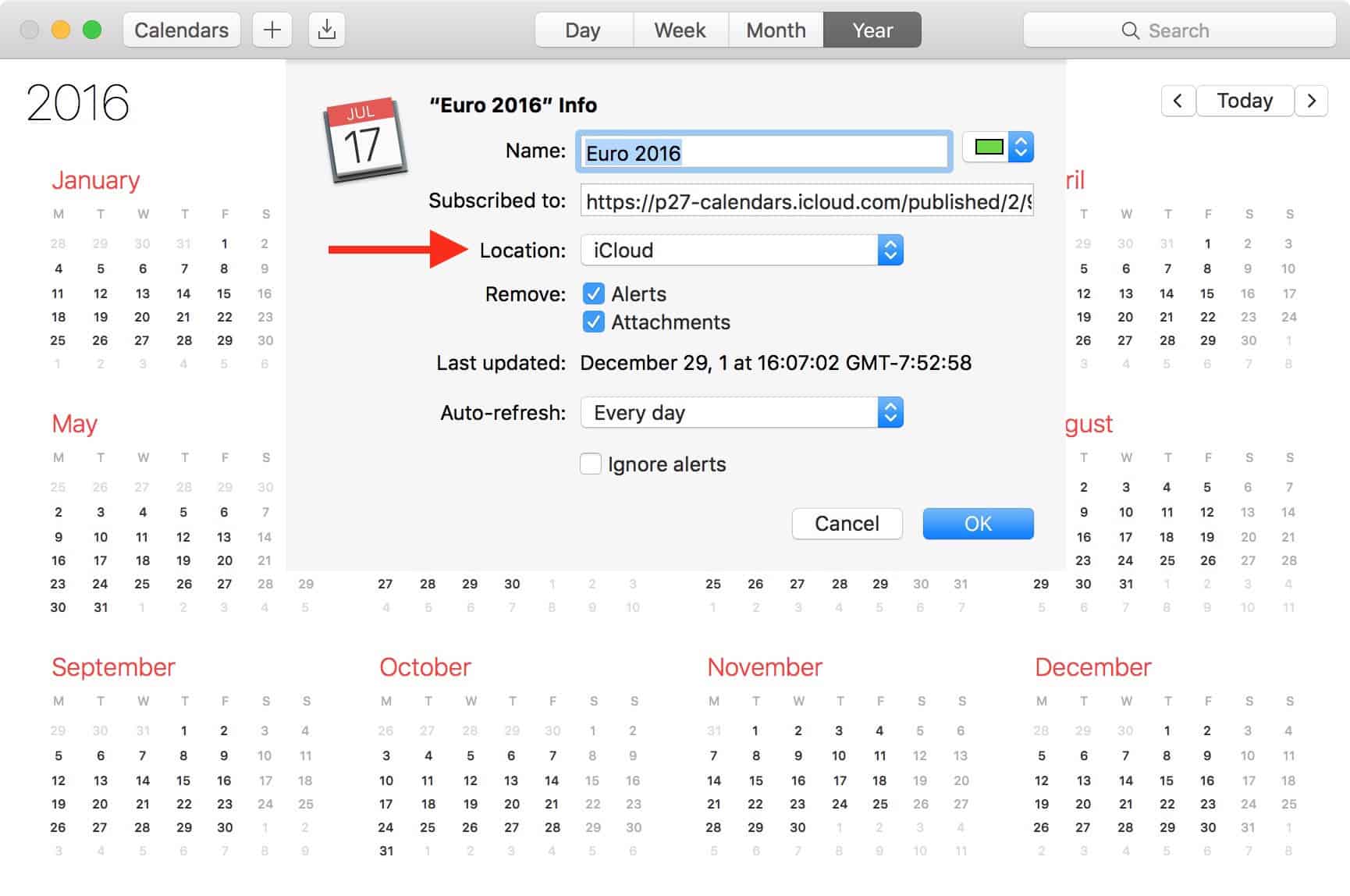
- Set Auto-Refresh to Every day so updates appear automatically.

These settings use the built-in subscription feature described in Apple’s Calendar user guide.
To make your calendar easier to read, you can adjust colour groups, hide inactive schedules, or set smarter alerts. See how to use Calendar effectively in macOS for organisation tips that pair well with Canvas feeds.
Subscribe on iPhone or iPad
You can also add the same feed directly on iOS.
- Copy your Canvas calendar link on your iPhone or iPad.
- Go to Settings › Calendar › Accounts › Add Account › Other › Add Subscribed Calendar.
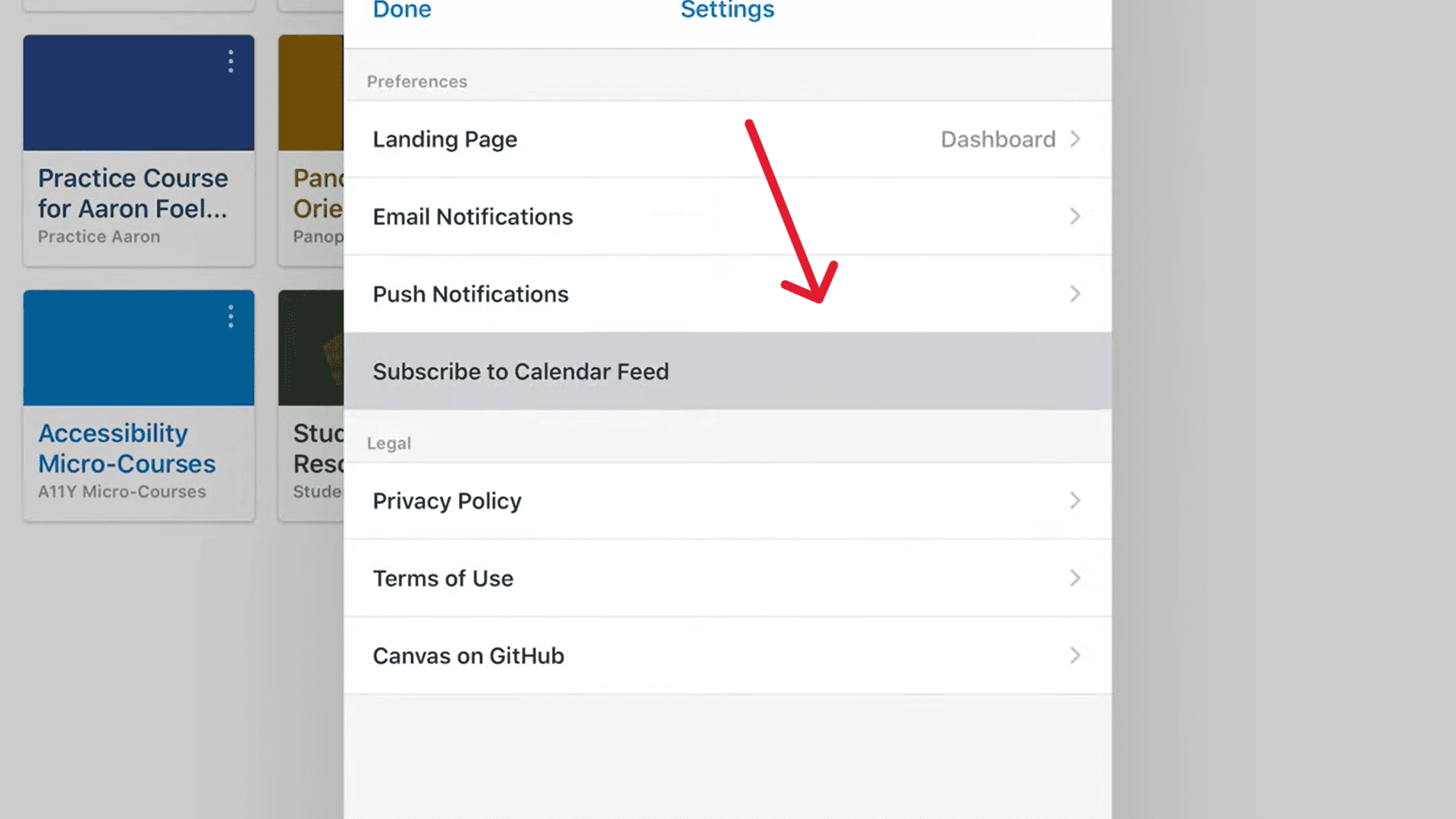
- Paste the link, tap Next, and review the details.
- Tap Save to confirm.

Your Canvas events now appear in the Calendar app and stay synced through iCloud. If updates don’t refresh properly, Apple’s iCloud calendar sync page outlines reliable fixes.
If you manage multiple accounts, you can also sync Apple Calendar with Google Calendar or add iCloud Calendar to Outlook to keep everything visible under one unified timeline.
Manage or Remove the Subscription
You can modify or remove the calendar at any time:
- On Mac, open Calendar, control-click the subscribed calendar in the sidebar, and select Unsubscribe.
- On iPhone or iPad, go to Settings › Calendar › Accounts, choose the subscribed feed, and delete it.
Unsubscribing only stops the sync; your original Canvas data remains untouched.
Keep Your Schedule Tidy
Before copying your Canvas feed, choose which course calendars to include. Deselect older or inactive classes in Canvas so only current courses sync. This helps Apple Calendar stay focused and clutter-free.
For those managing both work and coursework, combining all sources into one view saves time and prevents double-booking. Apple Calendar supports merging iCloud, Google, and Outlook events. You can learn to do this while keeping each calendar separate but coordinated through our walkthrough on combining calendars in macOS.
Final Thoughts
Subscribing to your Canvas calendar in Apple Calendar brings everything together in one trusted interface. It syncs through iCloud without extra steps, updating in the background so your coursework, reminders, and meetings stay aligned.
It’s a small change, but it turns scattered schedules into a single, streamlined routine exactly how a calendar should work.



Discussion