

Apple Maps is usually reliable. It gets you where you need to go, gives you real-time traffic updates, and even tells you where to turn in that calm, Siri voice. But when it stops working, it’s more than just annoying. Whether your location isn’t showing up, directions are off, or the app just won’t load, there are a few clear reasons this happens, and some easy fixes that can get things back on track.
Let’s walk through what actually works when Apple Maps decides to go rogue.
Table of contents
- 1. Check Your Internet Connection
- 2. Make Sure Location Services Are On
- 3. Recalibrate GPS
- 4. Double-Check Your Date and Time
- 5. Restart Apple Maps (and Then Your iPhone)
- 6. Reinstall the App
- 7. Check Sound and Navigation Settings
- 8. Still Stuck? Try Reporting an Issue
- When Nothing Else Works
- The Bottom Line
1. Check Your Internet Connection
It sounds obvious, but weak Wi-Fi or poor cellular data is the number one reason Maps fails. The app needs an active connection to load maps and route data.
Don’t miss the best of The Mac Observer
Set us as a preferred source and our Apple reporting ranks higher in your Google Search results and Discover feed — one tap, no account changes.
If you’re on Wi-Fi, move closer to your router or toggle the connection off and back on. On cellular, try switching between 5G and LTE or move to an area with better signal. If you’re downloading something big in the background, pause it — it might be hogging your bandwidth.
Here’s the thing: even a strong connection can momentarily drop. A quick disconnect and reconnect often solves it.
2. Make Sure Location Services Are On
If Apple Maps can’t find your current position, it’s usually because Location Services are turned off or restricted.
- Go to Settings > Privacy & Security > Location Services, and make sure the feature is toggled on.
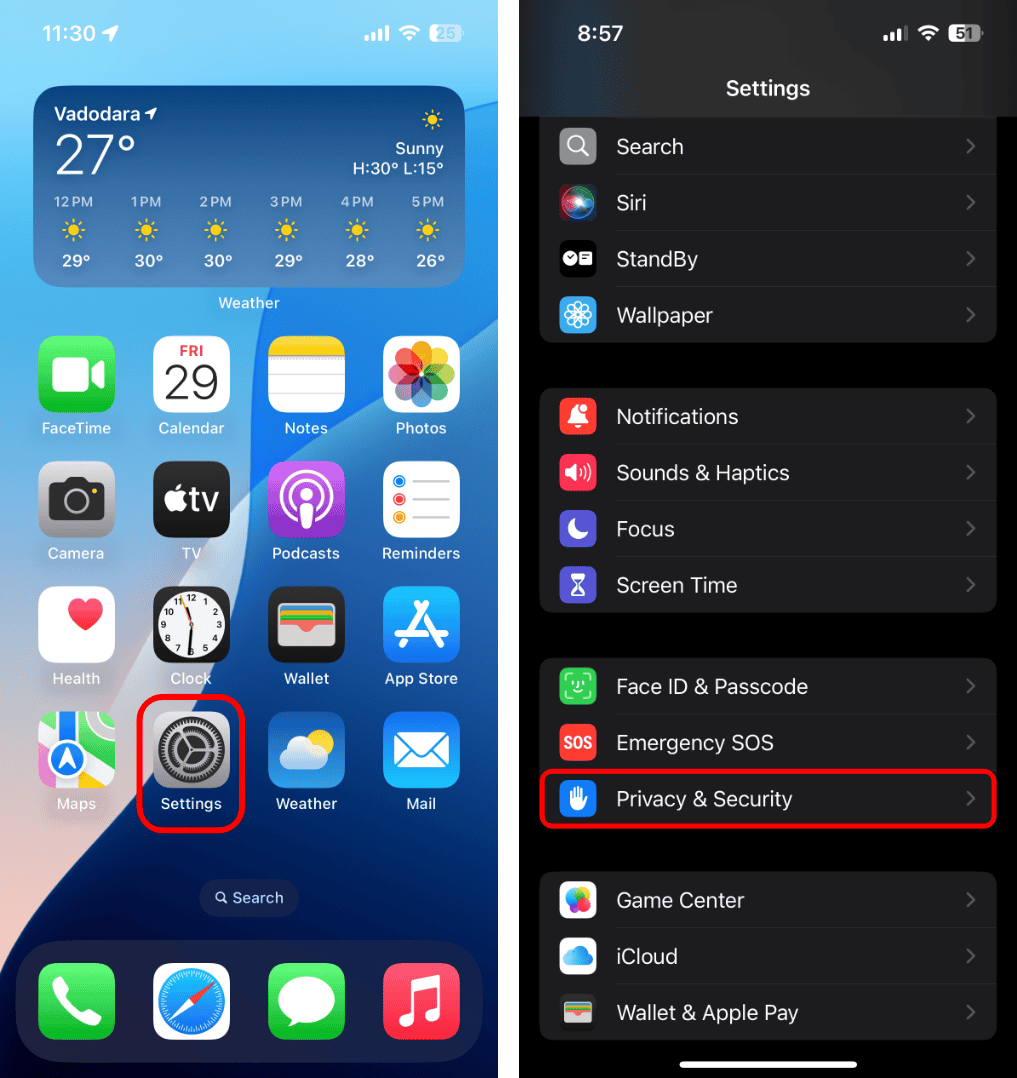
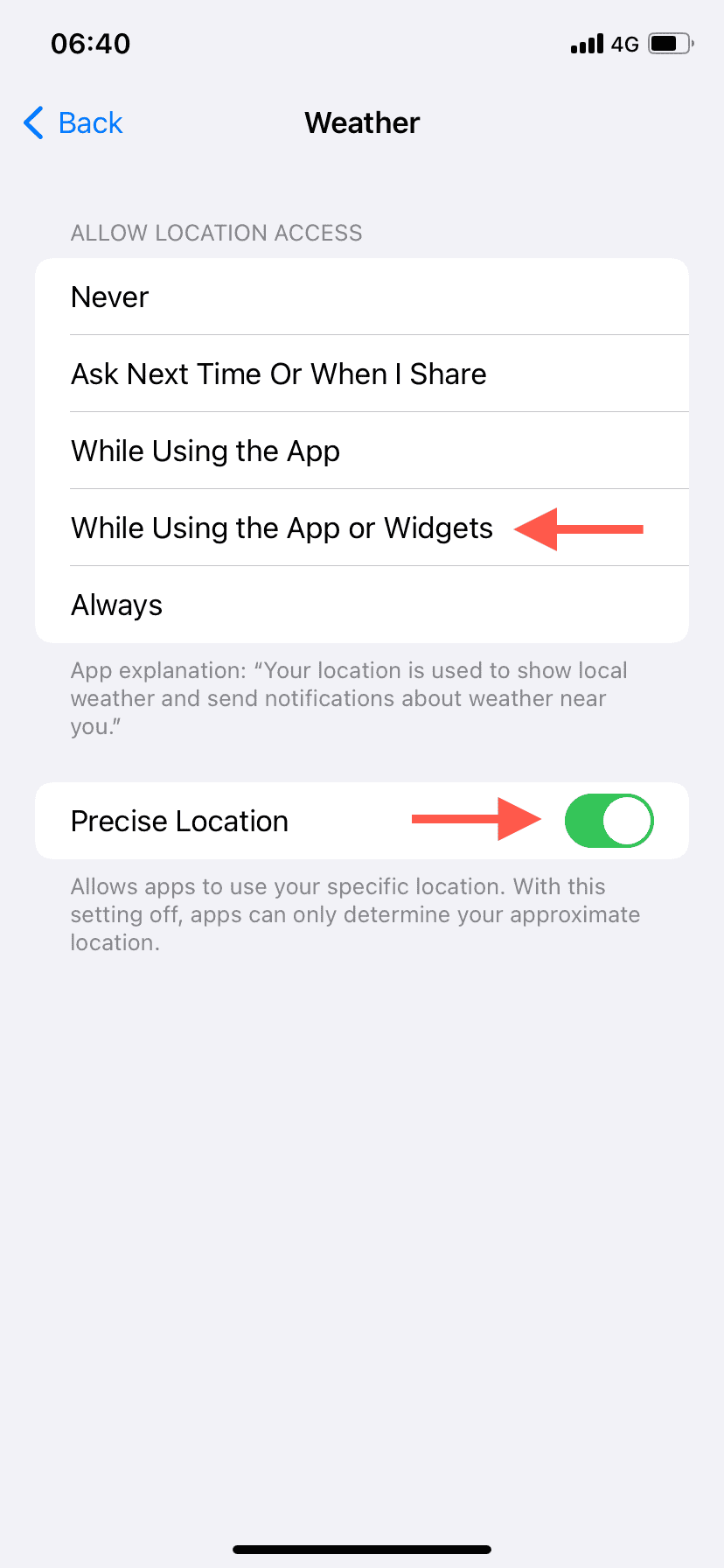
- Then scroll down to Maps and select While Using the App or Widgets.
- You can also turn on Precise Location, which helps your iPhone pinpoint exactly where you are instead of just giving a general area.


If that still doesn’t do it, close Maps completely and reopen it — sometimes it just needs a nudge.
3. Recalibrate GPS
Even with Location Services on, GPS can still be finicky — especially if you’re indoors, underground, or surrounded by tall buildings. Apple Maps relies on a mix of GPS, Bluetooth, Wi-Fi, and nearby cell towers to find you.
The best move? Step outside where your phone has a clear view of the sky. If you’re driving, wait a few seconds after starting your route so the GPS can catch up.
4. Double-Check Your Date and Time
This one surprises people: if your iPhone’s date or time is even slightly off, Maps can get confused. It affects how your phone communicates with Apple’s servers and GPS satellites.
Head to Settings > General > Date & Time and turn on Set Automatically. It’s a small fix that can save a lot of frustration.
5. Restart Apple Maps (and Then Your iPhone)
Sometimes an app just glitches out. Swipe up from the bottom of your screen, pause to open the App Switcher, and swipe Apple Maps up to close it completely. Reopen it and try again.
If that doesn’t help, restart your iPhone. Go to Settings > General > Shut Down, slide the power off, then turn it back on. A quick reboot clears out minor system hiccups that could be causing Maps to misbehave.
6. Reinstall the App
If Maps keeps crashing or refuses to load data, it might be carrying corrupted data behind the scenes. Deleting and reinstalling it is a clean reset.
- Press and hold the Maps icon on your Home Screen, tap Remove App, then Delete App.
- Go to the App Store, search for “Apple Maps,” and reinstall it.
This gives you a fresh version — no lingering bugs or broken settings.
7. Check Sound and Navigation Settings
If the issue isn’t with directions but with sound, make sure the volume’s up and that Maps is actually set to give spoken directions.
- Go to Settings > Maps > Spoken Directions.
- You can pick where the voice plays (iPhone speaker, car speakers, Bluetooth headset) and whether it pauses your podcasts or music.
During navigation, you can also tap the little audio icon on the map to adjust how often you hear directions.
8. Still Stuck? Try Reporting an Issue
If you’re seeing wrong locations, outdated routes, or missing places, Apple actually lets you report it directly.
- Open Maps, scroll to the bottom, and tap Report an Issue.
- From there, you can add a missing place, correct a business listing, or flag an incorrect street or direction. Apple usually reviews and updates these pretty quickly.
If you’re a business owner, you can also claim your location through Apple Business Connect to update photos, addresses, and hours across Maps, Siri, and other Apple apps.
When Nothing Else Works
If you’ve done everything and Apple Maps still isn’t cooperating, there’s always the nuclear option: a factory reset. It wipes your phone clean, eliminating any deep-rooted software problems. Just make sure to back up your data first.
That said, most people won’t need to go that far. In most cases, a location or connection tweak fixes Maps in minutes.
The Bottom Line
Apple Maps usually just works — until it doesn’t. Whether it’s bad signal, GPS drift, or a quick setting gone wrong, the fixes are all pretty simple once you know where to look.
So before you give up and switch to Google Maps, run through the basics: internet, location, time, restart. Nine times out of ten, that’s all it takes to get your iPhone pointing you back in the right direction.


The maps app is not giving verbal directions.
The app gives me the right directions the problem I’m experiencing is in the verbal directions. Instead of saying at the next light turn right the app says turn right. It happens way before that intersection. This is very confusing unless I look at the map itself.