

Apple Music error 7506 on macOS disrupts your daily listening experience. This specific error typically indicates a synchronization failure between your Mac and Apple servers. Consequently, you may face library loading issues or playback interruptions. Fortunately, you can resolve this error quickly to regain access to your favorite playlists.
Table of contents
Effective Solutions for “Apple Music Error 7506”
1. Verify Your Internet Connection and Server Status
First, ensure your network remains stable because a weak connection often triggers sync errors. Additionally, check the official Apple System Status page to confirm that Apple Music services stay online. Sometimes, local network congestion or server outages cause this specific glitch.
- Toggle your Wi-Fi off and back on.
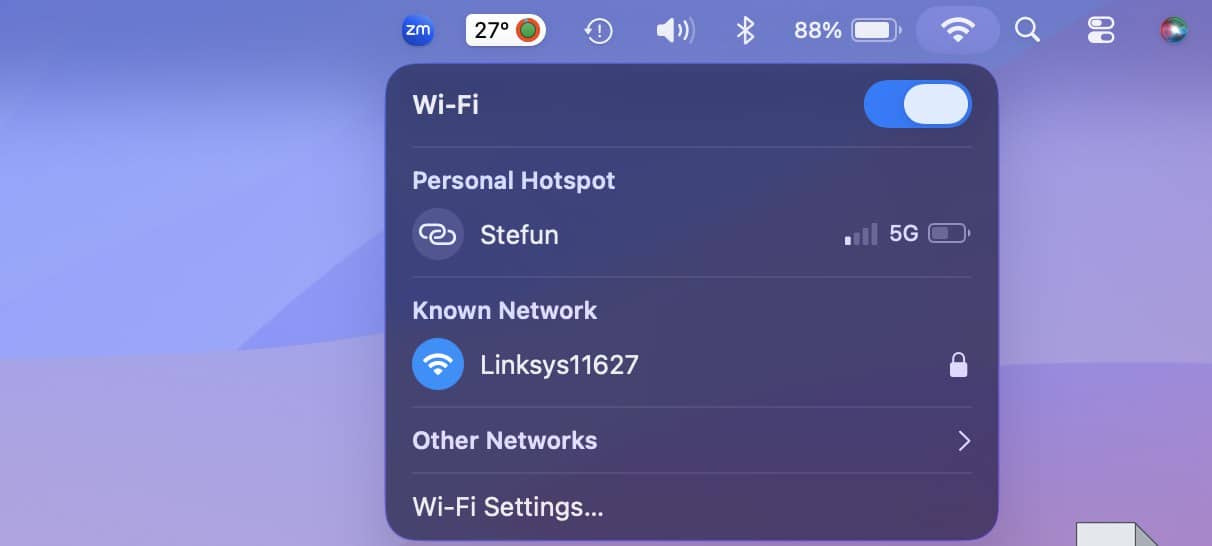
- Restart your router to refresh the signal.
- Visit the official Apple System Status website.
- Disable any VPN or firewall that may be blocking the Music app.

2. Force Restart the Music App
Sometimes background processes become unresponsive, causing error 7506 to appear on your screen. Force-quitting the application clears the temporary cache immediately. Furthermore, it allows the software to establish a completely new connection to your expansive iCloud Music Library.
Don’t miss the best of The Mac Observer
Set us as a preferred source and our Apple reporting ranks higher in your Google Search results and Discover feed — one tap, no account changes.
- Press
Command + Option + Escapeon your keyboard. - Select Music from the active applications list.
- Click the Force Quit button.
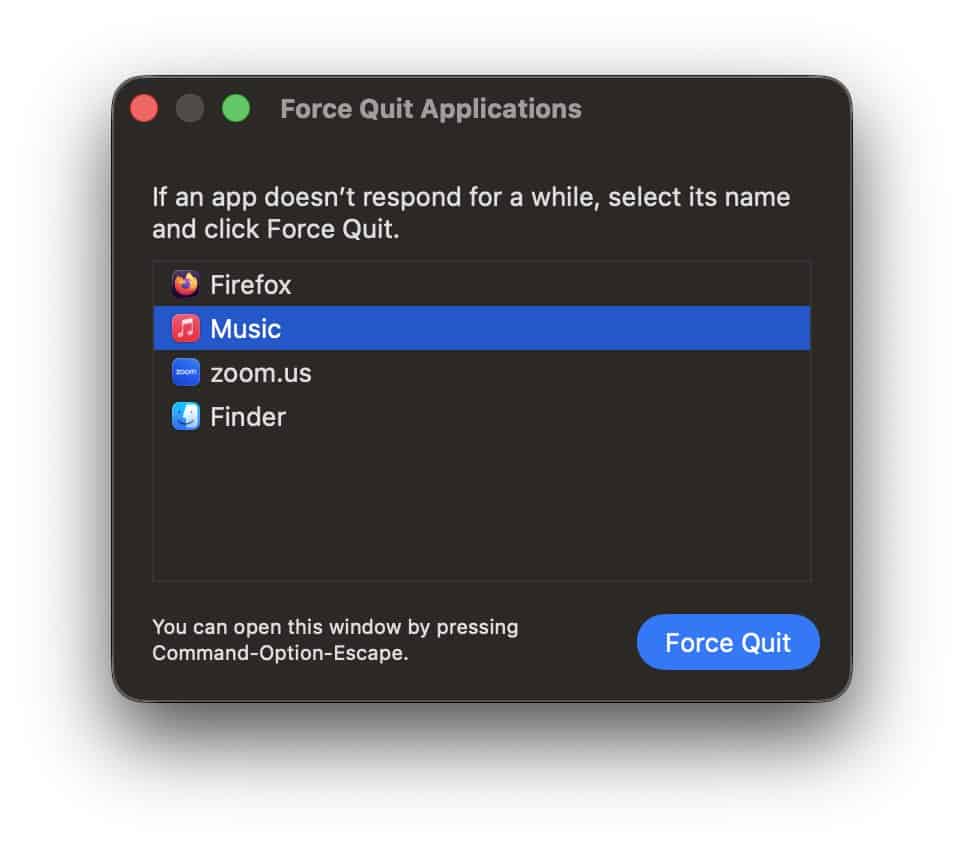
- Relaunch the app and try playing a track.

3. Sign Out and Re-authenticate Your Account
Authorization issues frequently cause playback errors like 7506 during your streaming sessions. Log out of your Apple ID within the Music app to reset security tokens. Afterward, sign back in to clear persistent communication errors with the primary Apple server.
- Open the Music app on your Mac.
- Click Account in the top menu bar.
- Select the Sign Out option.
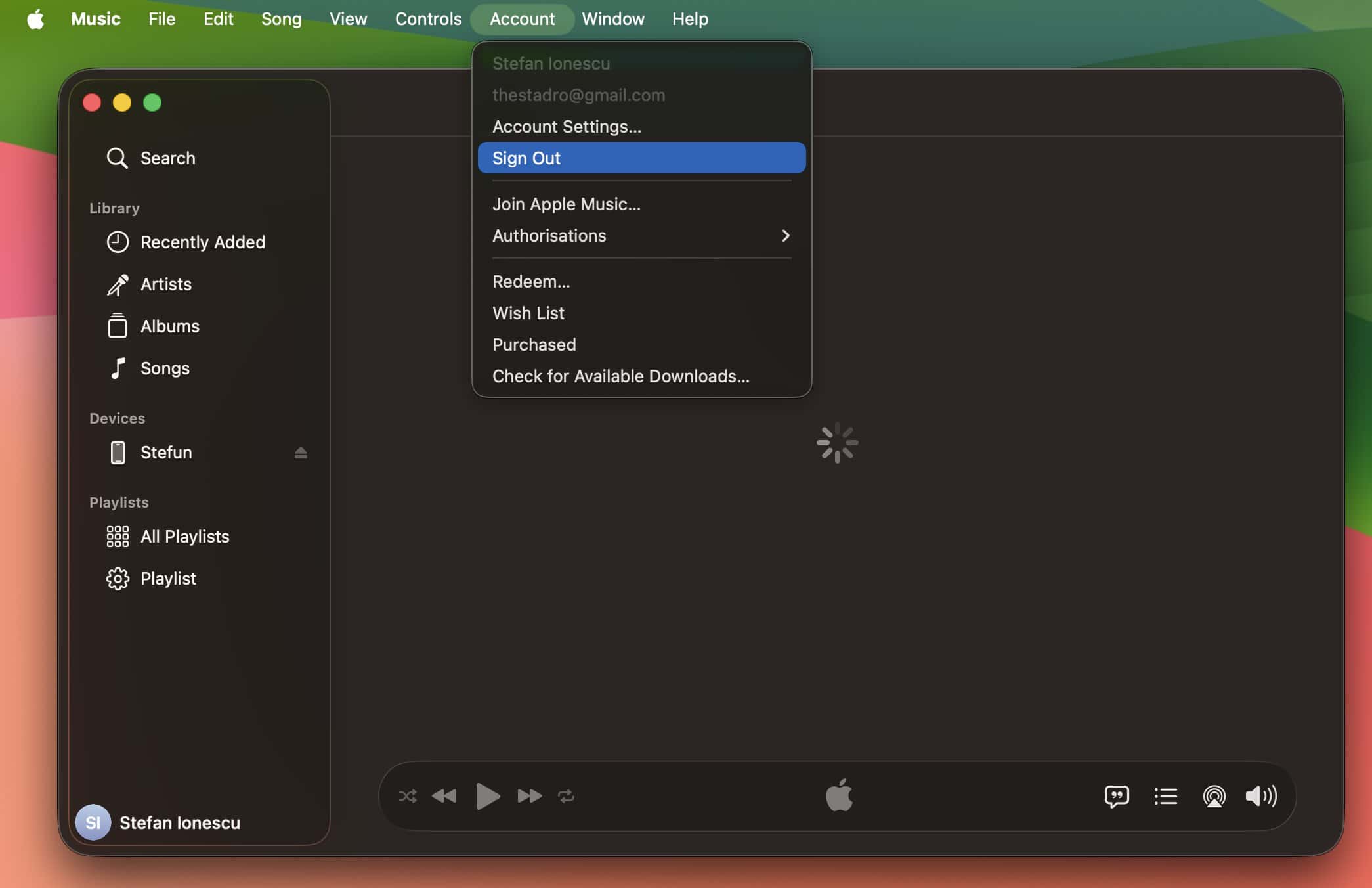
- Restart your Mac and then Sign In again.

4. Reset the Music Library Database
A corrupted local database file often prevents Apple Music not loading correctly for many users. Delete the preference files to force macOS to rebuild the library structure. This step helps because Apple Music on macOS Tahoe is a mess right now.
- Close the Music app completely.
- Open Finder and select Go > Go to Folder.
- Type
~/Library/Preferencesand press Enter.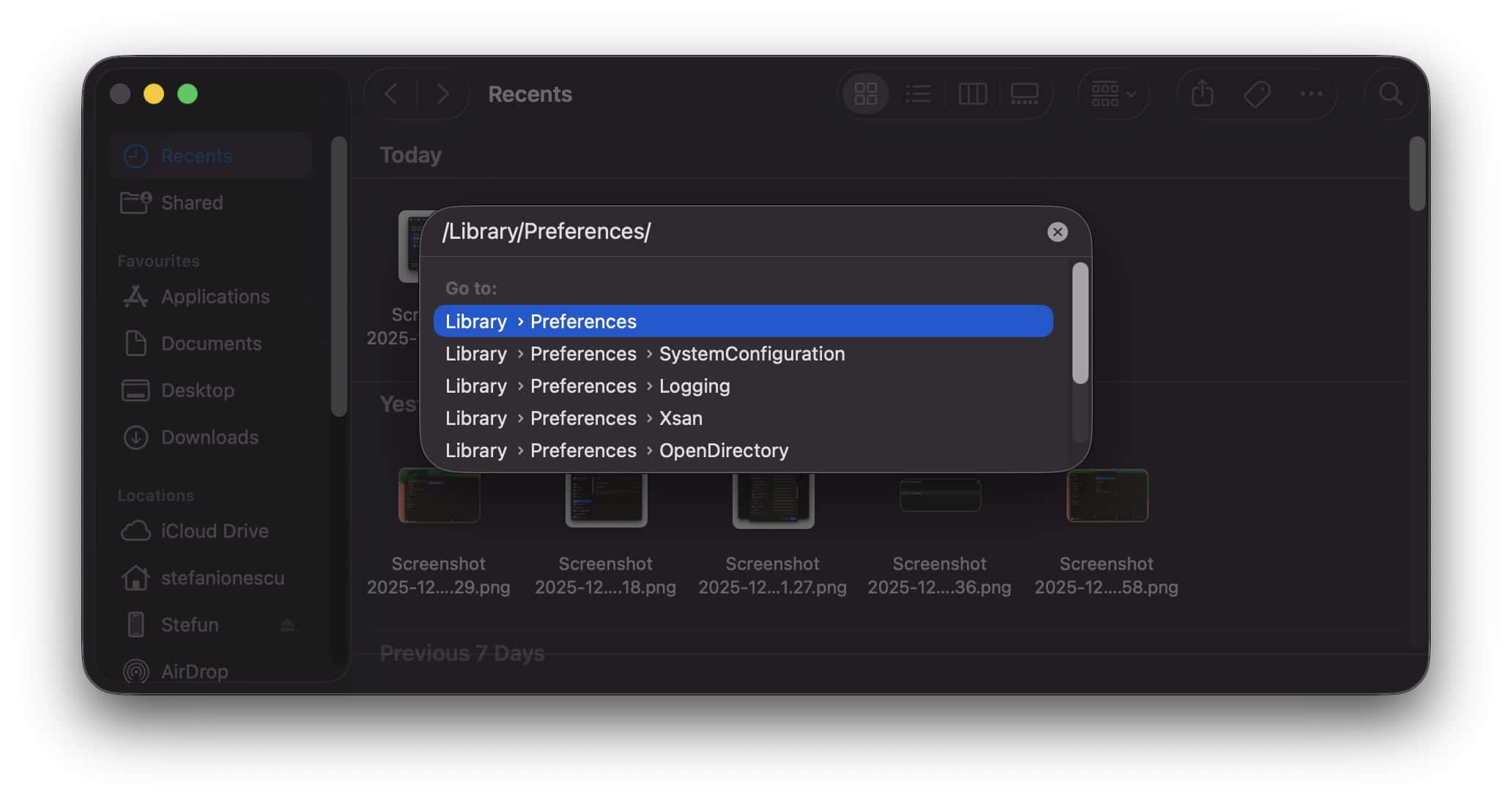
- Move
com.apple.Music.plistto the Trash. - Reopen the Music app to test the fix.

5. Update macOS Software
Software compatibility remains vital for all modern streaming services today. Apple frequently releases patches for the Music app through system updates. Therefore, keeping your system current resolves known bugs that trigger 7000-series error codes during your daily playback or syncing.
- Click the Apple Menu and choose System Settings.
- Navigate to the General tab and select Software Update.
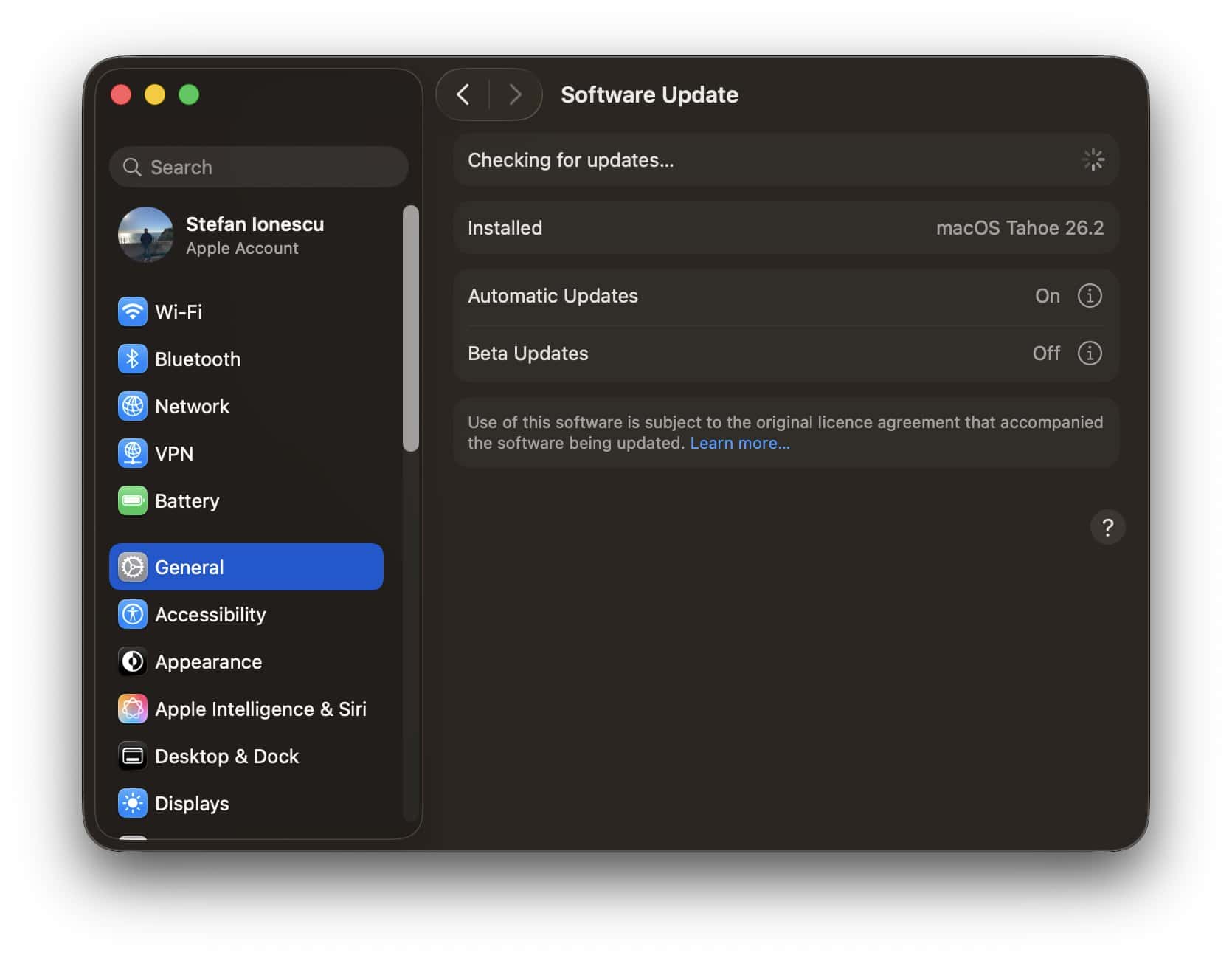
- Click Update Now if a version is available.
- Let the Mac restart to finish the installation.

FAQ
This error indicates a sync failure between your app and the iCloud Music Library.
The error usually blocks all playback. Once fixed, you can learn how to shuffle all songs easily.
No, resetting preferences only affects app settings. Your music files stay safe on your drive.
Restoring Smooth Music Playback
Fixing error 7506 requires stable network checks and account re-authentication. Most users resolve the issue by refreshing their library connection. However, if you experience Apple Music not playing through headphones after the fix, check your Sound output settings in the System Settings menu.


Discussion