

If your Apple Pencil is not writing, it can be due to a low battery, a loose tip, Bluetooth issues, software glitches, or even damage. The good news is that most of these problems have simple fixes.
From recharging and re-pairing to tightening the tip or restarting your iPad, you can usually get it working again in minutes. This guide explains the main causes and step-by-step solutions to bring your Apple Pencil back to life!
Table of contents
How to Fix an Apple Pencil That Won’t Write?
1. Charge the Battery Properly
A dead or low battery is a common cause. So, charge the Apple Pencil to fix the issue.
Don’t miss the best of The Mac Observer
Set us as a preferred source and our Apple reporting ranks higher in your Google Search results and Discover feed — one tap, no account changes.
- Apple Pencil (1st gen): Remove the cap and plug it into your iPad’s Lightning port.
- Apple Pencil (2nd gen) and Pro: Snap it to the iPad’s magnetic side.
- USB-C Pencil: Slide the cap to reveal the USB-C port and connect via cable.

Let it charge for about 10 minutes before testing.
2. Reconnect Bluetooth and Re-Pair
Sometimes the pairing fails quietly.
- Turn Bluetooth off and on via Settings > Bluetooth.
- If your Pencil appears under My Devices, tap the info icon and choose Forget This Device, then pair the Apple Pencil again.
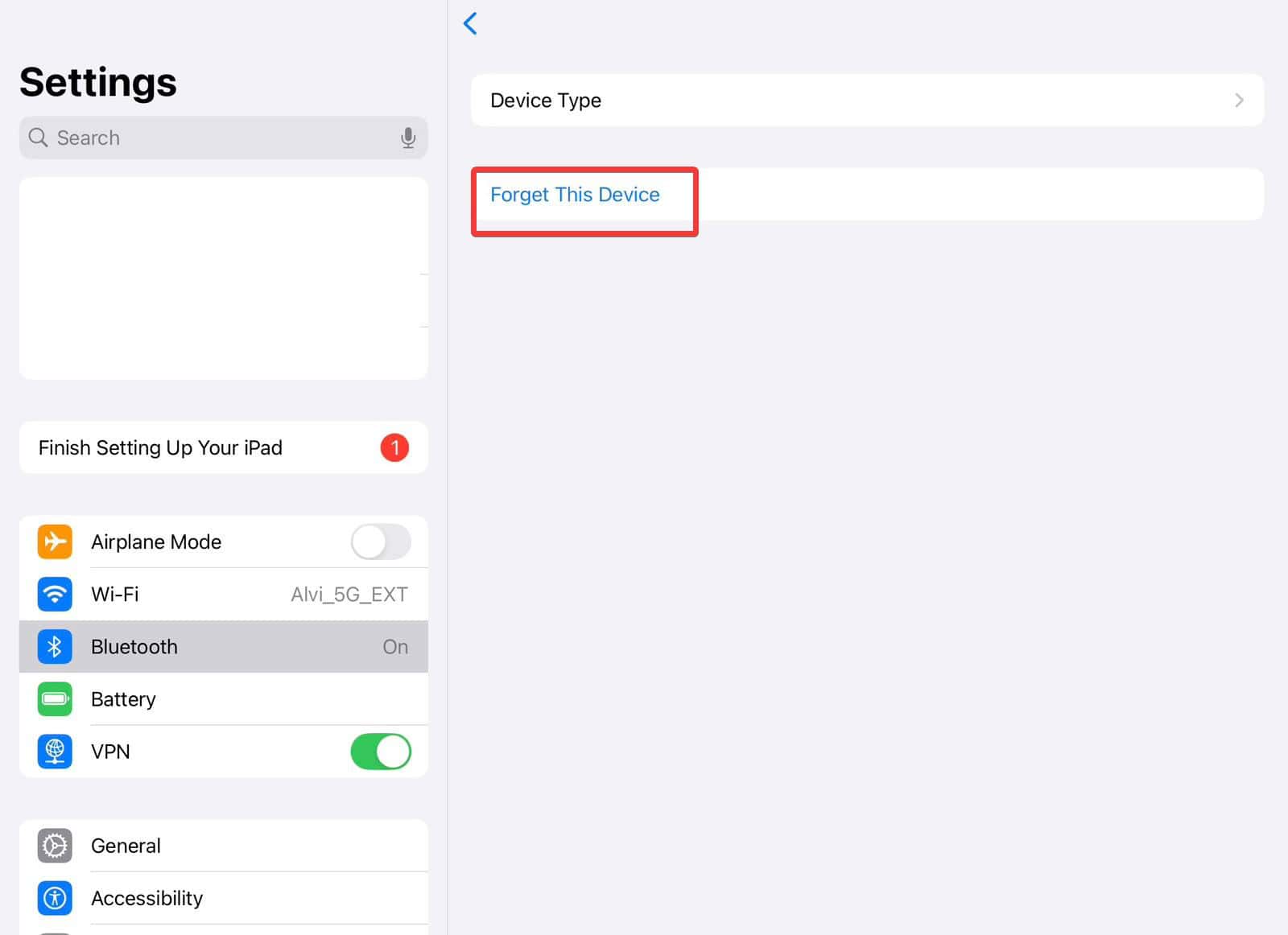

Restarting your iPad can also help reset the connection.
3. Tighten or Replace the Tip
A lot of users miss this simple fix. If the tip isn’t snug, the Pencil may not work. You should see a tiny gap about the thickness of a sheet of paper between the tip and the body. Twist the tip clockwise until snug.
4. Restart or Force Restart Your iPad
A normal restart might help, but a force restart of the iPad often clears hidden glitches. Many users report that a force restart instantly fixed their Apple Pencil writing issue.
5. Swap iPads if Possible
If the Pencil pairs but still won’t write, try pairing it with another iPad, even briefly. Then reattach it to your own. This has worked for some users.
6. Inspect for Physical Damage
If the Pencil was dropped onto its tip, the internal transducer may be damaged. A bent or broken element means it likely needs replacement, as it cannot be repaired.

If you have a spare one, consider replacing the Apple Pencil’s tip or, as a last resort, contact Apple Support.
7. Check App or Charging Interference
If writing lags or fails only when plugged into a non-Apple charger, that could be the cause. Switching to an official Apple charger can fix the delay issue.
Tips
- Use a supported app like Notes to test your Pencil. This helps confirm if the issue is app-specific.
- Make sure your Pencil and iPad are compatible. For example, the 2nd-gen Pencil does not work with older Lightning-only iPads.
- Some users found success by pairing the Pencil with Bluetooth off, then restarting the iPad.
- If your screen was replaced by a non-Apple repairer, calibration issues can stop the Pencil from writing.
Frequently Asked Questions
Yes. Loose tip, wrong pairing, iPad glitches, or physical damage can all cause this even when it looks connected.
It should be snug. You should see a gap about the thickness of a sheet of paper. Too loose or too tight can both cause problems.
Yes, some users faced lag or unresponsiveness when charging via non-Apple sources. Switching to an official charger resolved it.
If the internal transducer is damaged or you’ve tried everything, your Pencil may need replacement. Check warranty or AppleCare coverage options if available.
Summary
- Charge your Pencil correctly and give it at least 10 minutes.
- Toggle Bluetooth, unpair, and re-pair your Pencil.
- Ensure the tip is snug and has a small paper-thin gap.
- Restart or force restart your iPad.
- Try pairing the Pencil with another iPad, then pair it back.
- Check for physical damage to the tip or internal parts.
- Use official Apple chargers and test with the Notes app.
Conclusion
When your Apple Pencil stops writing, start with simple checks like charging, Bluetooth, and the tip. If problems return often, keep a spare tip handy, update iPadOS regularly, and use only official chargers to avoid performance issues. If nothing works, test on another iPad to confirm whether the Pencil or iPad is at fault.
Knowing these steps ensures you can troubleshoot quickly and keep your Apple Pencil reliable for note-taking, drawing, and daily tasks.
Before you leave, learn how to use an Apple Pencil and make the most out of it!


Discussion