
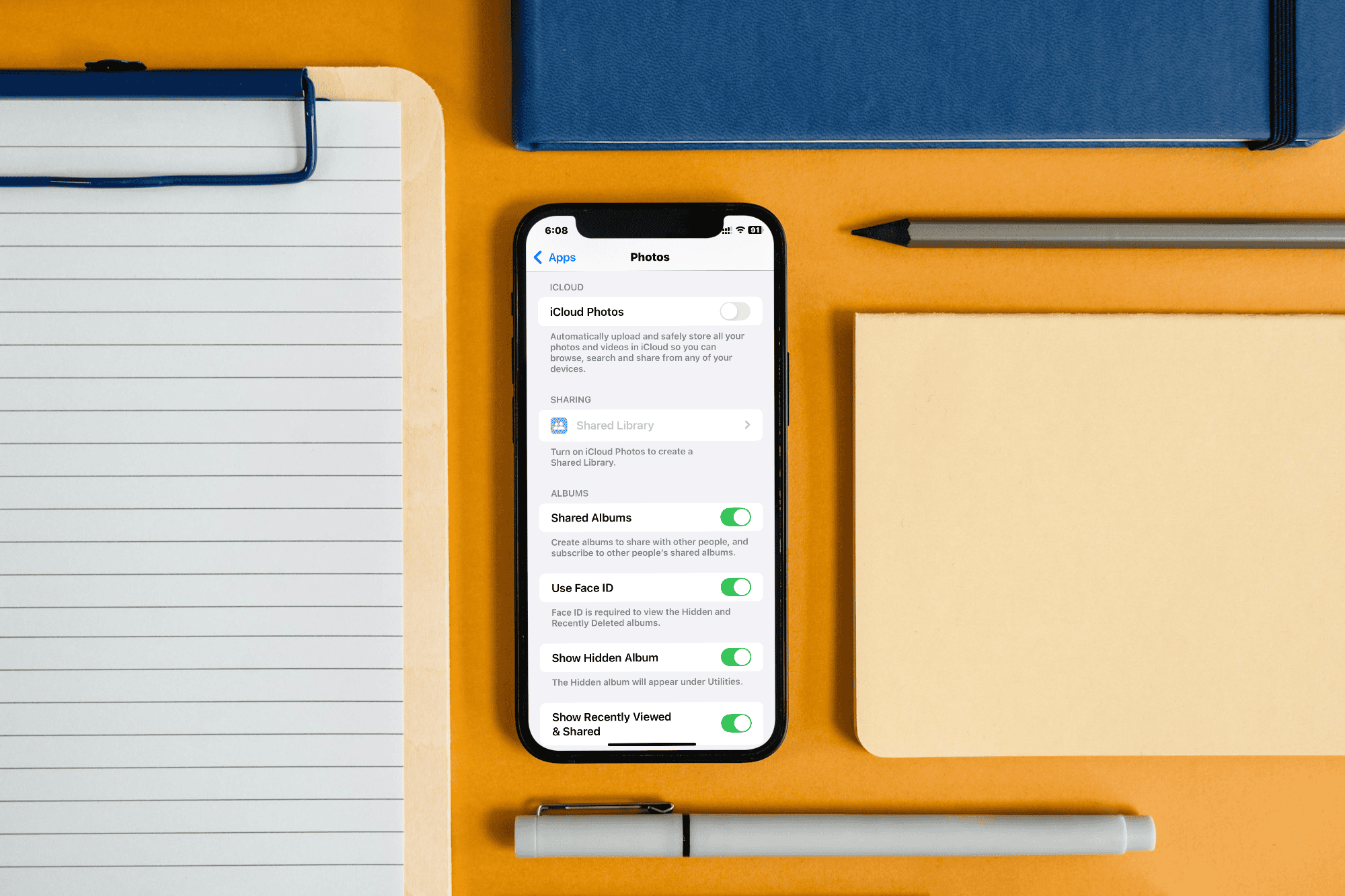
iCloud Shared Albums let you instantly share memories across Apple devices. However, you might open an album and find it empty. Missing recent photos can be very frustrating. This common issue is usually a simple setting problem. It could also be a connectivity issue or an account glitch. Thankfully, straightforward steps can quickly restore your missing pictures.
Essential Troubleshooting Steps for iCloud Photo Sharing Issues
1. Confirm Your Internet Connection and iCloud Status
A stable internet connection is vital for all iCloud services. If your device is offline, new photos will not load. A weak connection also prevents syncing. Therefore, checking connectivity should be your first step. This check must precede all device-specific settings changes.
- Check Wi-Fi/Cellular: Verify that Wi-Fi or cellular data works. Test this by successfully loading a website or another app.
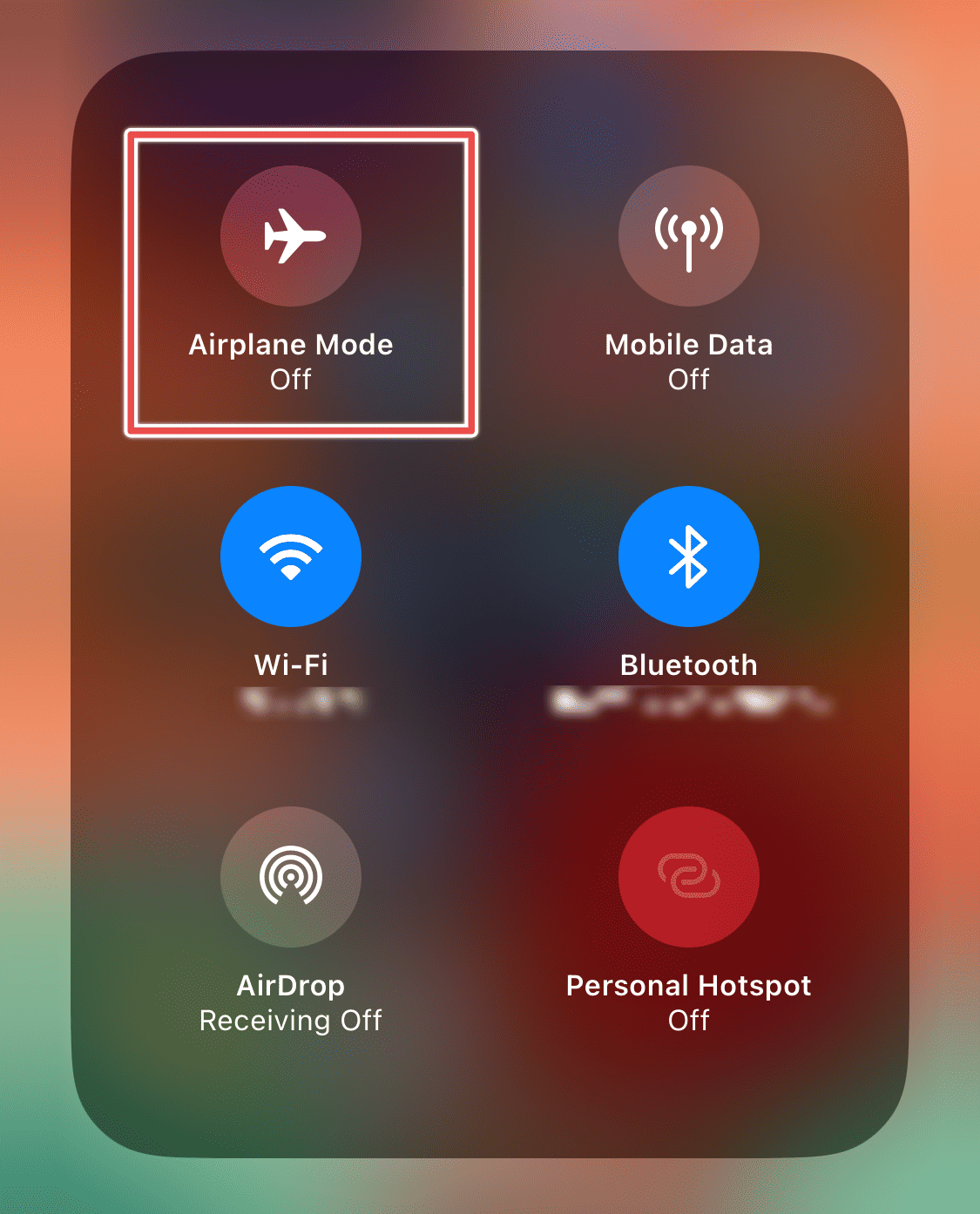
- Restart Connection: Toggle Airplane Mode on and off. This forces a refresh of all network connections. Use your device’s Control Center to do this.
- Check Apple’s Status: Visit Apple’s System Status page externally. Confirm that iCloud services are operational. Server outages prevent content from syncing properly.
2. Verify that iCloud Shared Albums is Enabled
The album’s content will cease to sync if someone disables the Shared Albums feature. This can happen accidentally in settings. You must ensure your device has this key toggle active. Furthermore, confirm the creator has not disabled the feature. This step is crucial for functionality.
Don’t miss the best of The Mac Observer
Set us as a preferred source and our Apple reporting ranks higher in your Google Search results and Discover feed — one tap, no account changes.
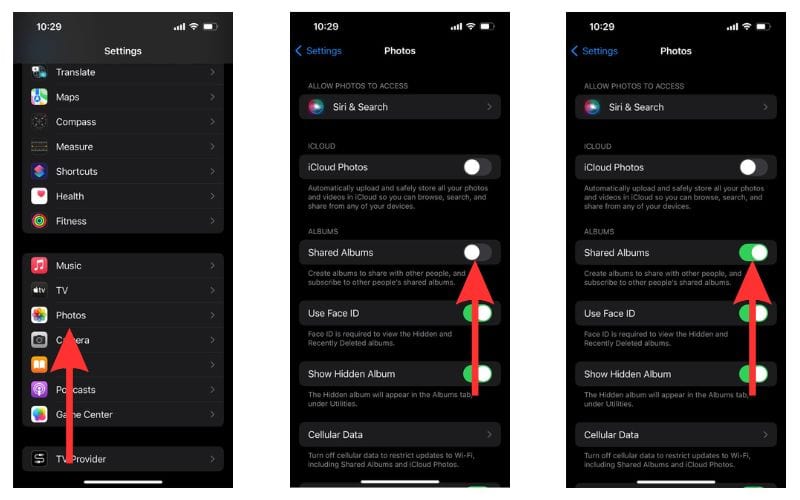
- Go to Settings: Open the Settings app on your iPhone or iPad.
- Open Photos: Scroll down the list, then tap the Photos option.
- Toggle On: Confirm the Shared Albums toggle shows “on” (green).
3. Perform a Quick Sign Out and Back In
The connection between your device and the iCloud servers sometimes needs a hard reset. You can refresh authentication tokens by signing out and then back in. This action resolves underlying syncing issues effectively. Consequently, new content will load correctly. This is a common fix for various iCloud-related glitches.
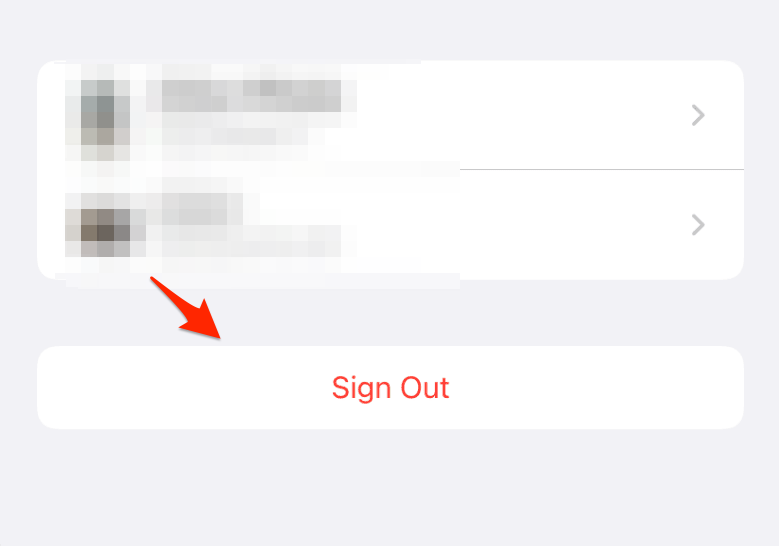
- Sign Out: Go to Settings, tap your Apple ID profile at the top. Scroll down, then select Sign Out.
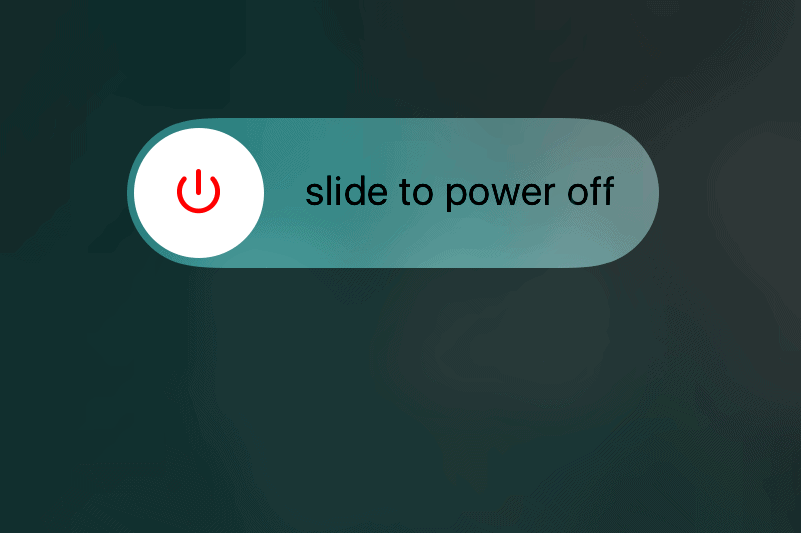
- Restart Device: Power your iPhone or iPad completely off. Then power it back on to clear temporary files.
- Sign In: Return to Settings. Tap the sign-in option, then re-enter your credentials.
4. Check for Album Subscriber Limits and Re-invite
iCloud imposes limits on Shared Albums. This includes the total number of participants allowed. Photos may not appear if the album is full. Likewise, photos won’t load if an invitation link has expired. Therefore, confirm the current subscription status with the album’s owner. This is the best step in this scenario.
- Contact the Creator: Ask the shared album’s creator to check the participants page. They should confirm you are still listed as an active subscriber.
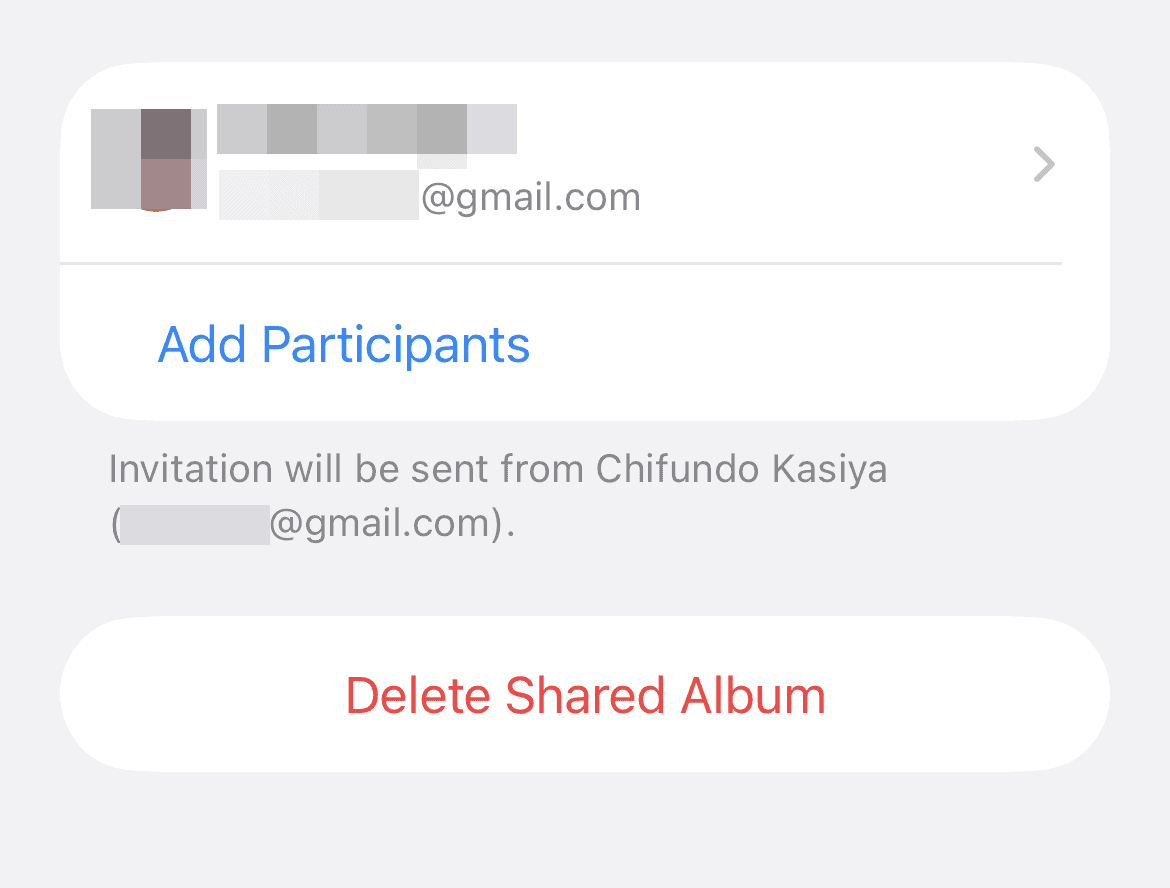
- Review Limits: A single Shared Album only allows 100 participants. A user can only subscribe to 200 total Shared Albums.
- Re-invite: The creator may need to remove your old subscription. Then, they must send a new invitation. For troubleshooting, users can first learn how to unsubscribe from shared photo albums. This ensures a completely clean connection before accepting the fresh invite.
5. Update Your Device’s Operating System
Older operating system versions often have compatibility issues. These bugs can interfere with vital iCloud services. Apple often releases updates that include crucial patches. These patches fix syncing and photo-related functions. Therefore, keeping your device up-to-date is a key preventative measure.
- Check for Update: Go to Settings > General > Software Update.
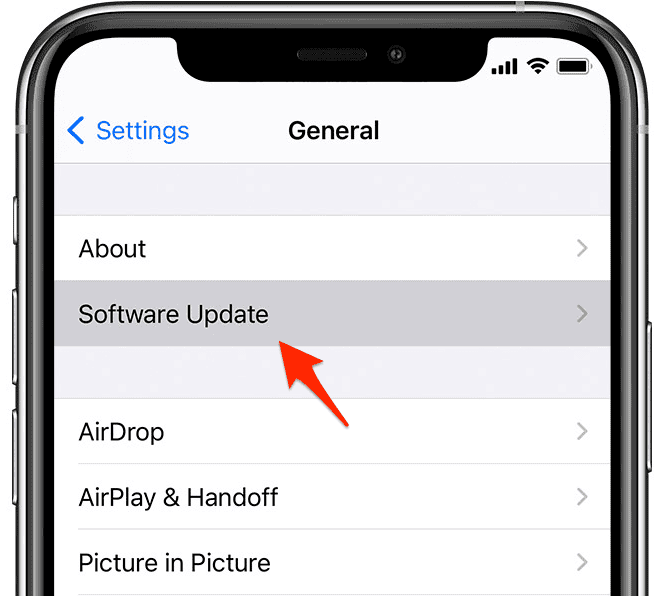
- Install: Download and install the update if one is available.
- Compatibility: Ensure your device runs the latest stable OS. This prevents known syncing bugs. For more general maintenance advice, consider an intro to personal information management on your Apple device.
FAQ
This happens because your device saves storage space. It only downloads a low-resolution preview initially. You must ensure you have a strong, stable internet connection. Allow time for the high-resolution version to download completely. However, if the image remains blurry, the creator uploaded a low-quality original file.
Yes, you can manage your shared content better. Create folders in your Photos app for categorization. You can learn how to customize album folders in Photos for better organization.
Restoring Access to Your Missing iCloud Memories
Fixing photo visibility issues is usually simple. It involves ensuring proper device configuration. Furthermore, you need a healthy connection to the cloud. You can quickly view the full collection of memories again. Just check your Wi-Fi and verify the Shared Albums feature is active. Occasionally, resetting your iCloud account also helps. If problems persist, review the comprehensive details on iCloud Shared Albums features and limitations.




Discussion