

If your iPhone won’t exit Do Not Disturb mode, no matter how many times you toggle it off, it might be because of hidden automations or Focus settings. Fortunately, it’s easy to fix once you know where to look. In this guide, we’ll walk you through how to troubleshoot and permanently disable unwanted Do Not Disturb triggers using your iPhone’s settings.
Table of contents
How to Fix Do Not Disturb That Won’t Turn Off
1. Check if Do Not Disturb is Manually Active
- Open Control Center (swipe down from top right on Face ID models).
- Look for the Focus (moon) icon.

Image credit: Apple - If “Do Not Disturb” is highlighted, tap it to disable.

If this doesn’t work, proceed to check automations and Focus settings.
Don’t miss the best of The Mac Observer
Set us as a preferred source and our Apple reporting ranks higher in your Google Search results and Discover feed — one tap, no account changes.
2. Delete Any Automatic Schedule
- Go to Settings > Focus > Do Not Disturb.
- Scroll to Set a Schedule or Set Up Automation.

- Tap “Turn On Automatically.”
- If a time, location, or app-based automation is listed, tap into it.
- Tap Delete Automation to remove it.

3. Disable Smart Activation
- Still under Settings > Focus > Do Not Disturb.
- Scroll to Smart Activation.
- If enabled, toggle it off.
Smart Activation uses on-device intelligence to turn on DND based on your patterns (e.g., at work, bedtime). This can lead to DND turning on unexpectedly.
4. Turn Off Focus Sharing Across Devices
- Open Settings > Focus.
- Toggle off “Share Across Devices.”
If you use the same Apple ID (Apple Account) on multiple Apple devices (Mac, iPad, Apple Watch), Focus status syncs across them. Turning off this feature prevents your Mac from reactivating DND on your iPhone.
5. Restart Your iPhone and Update iOS
If DND still won’t turn off:
- Restart your iPhone.
- Then go to Settings > General > Software Update.
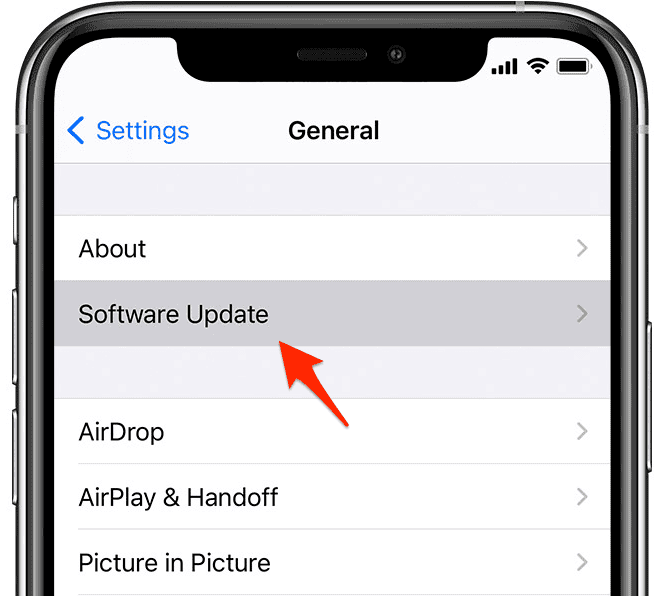
- Make sure your iOS is up to date.

Apple has fixed several Focus-related bugs in recent updates.
Tips for Managing Do Not Disturb and Focus
- Label Custom Focus Modes Clearly: Avoid confusion by renaming Focus modes you create for work, fitness, or driving.
- Use Control Center for Quick Toggles: Tap and hold the Focus icon for easy switching.
- Review App & People Exceptions: Inside Focus settings, check who can bypass DND.
- Avoid App-based Automation: Some meditation or wellness apps may request to turn on Focus. Review those settings.
- Turn Off Sleep Focus if Not Used: Sleep mode often activates DND; disable it in Health > Sleep.

Frequently Asked Questions
Usually, an automation or Focus setting is turning it back on. Check Settings > Focus > Do Not Disturb > Turn On Automatically.
Delete all schedules and automations from the Focus settings. Also disable Smart Activation and Focus sharing.
Go to Control Center and tap the Focus icon. You can also allow certain contacts or apps to bypass it under Settings > Focus > Do Not Disturb.
Both versions support automation-based Focus modes. iOS 18 has improved transparency, but can still activate DND from Siri-suggested patterns.
Yes. If Smart Activation is enabled or if an automation is set, DND can turn on without warning.
Summary
- Check Control Center to toggle off DND.
- Go to Settings > Focus > Do Not Disturb.
- Delete automations under “Turn On Automatically.”
- Disable Smart Activation and Focus sharing.
- Restart your iPhone and update to the latest iOS.
Conclusion
If your iPhone is stuck in Do Not Disturb mode and you can’t turn it off, the culprit is usually a hidden Focus automation or Smart Activation setting. Thankfully, Apple gives you full control to customize, delete, or override these triggers.



What a stupid “feature”. I’m stuck in DND…
I always used the switch on the left of my iPhone 12 Pro Max to silence notifications every night except for family members to get in touch if there is an emergency to ring through. I never had an issue until one of the recent update. My phone is stuck the “Do Not Disturb” mode and I have tried everything to get it out of this mode. I am missing important client calls and it is infuriating.
This is very frustrating on my iPhone 11. Never turned on DND, but it keeps coming on multiple times a day. Why is there no damn off button?
Never even touched DND, infuriatingly difficult to turn off and disable on iPhone 13 Pro. That there is no off switch is ridiculous, didn’t matter how many times it was turned off, focuses that were never set deleted, auto-on turned off and phone restarted and updated. PITA!! Went to post this comment and it said it was a duplicate comment-I’ve never posted anything. Gotta love technology!!!
Never even touched DND, infuriatingly difficult to turn off and disable on iPhone 13 Pro. That there is no off switch is ridiculous, didn’t matter how many times it was turned off, focuses that were never set deleted, auto-on turned off and phone restarted and updated. PITA!!
I’ve NEVER used Focus! And can’t get off Do not disturb!
Thank you SO MUCH! I find “do not disturb” infuriating. A few years ago I accidentally turned it on and missed several frantic phone calls about a friend in the hospital, who died. I did not get to see my friend before she died because of do not disturb. If I could remove this etting etirely from the phonr, I would.
Ridiculous that there’s no just turning it off as an option completely off as an option versus all the nuances. It can actually cause havoc in communications. I’m using beta
iPhone 11 dnd button must be broken…hear voice talking but will not let me enter code….i enter code and nothing happens….reboot does not resolve…cannot get to settings
I have iPhone 13 Pro with iOS 26.2.1 and don’t see any smart activation options for DND. Had a set schedule for DND but phone doesn’t recognize it. In Control Center, there is no Off toggle; tap the DND icon and just goes into the settings with no way of turning it off. So everything is DND all the time (except the exceptions I have allowed). But I’m missing some that I would like to get.
I have same iPhone and same issue!