

Split View mode is one of the most efficient multitasking tools on Apple devices. It allows users to keep two apps open side by side, making it easier to compare data, write while researching, or follow notes during a meeting. What many users don’t realize is how simple it is to control or exit Split View when they’re done multitasking.
On both iPad and Mac, closing Split View doesn’t just free up screen space. It helps streamline focus, conserve battery, and organize workflow. So, here’s how to close apps in Split View efficiently, using quick gestures or built-in system controls.
Table of contents
What’s the Split Apps Functionality in iPads and Macs
Split View allows users to use two apps simultaneously on one screen. On the iPad, this divides the display into two adjustable sections. On Mac, it arranges two apps side by side in full-screen mode, creating a focused workspace.
Don’t miss the best of The Mac Observer
Set us as a preferred source and our Apple reporting ranks higher in your Google Search results and Discover feed — one tap, no account changes.
This functionality is helpful for multitasking, such as reading while taking notes or comparing spreadsheets. To learn how to activate and manage it, check these detailed guides on using Split Screen on iPadOS 26 and using Split View on Mac.
Here are the Ways to Close Apps in Split View Mode on iPads and Macs
The steps to close Split View apps differ slightly between iPad and Mac, but both methods are straightforward and quick.
On an iPad
There are multiple ways to close Split View apps on an iPad:
1. Drag the Divider Bar
- Open two apps in Split View mode.
- Locate the divider bar in the center of the screen.
- Tap and drag the divider toward the app you want to close.
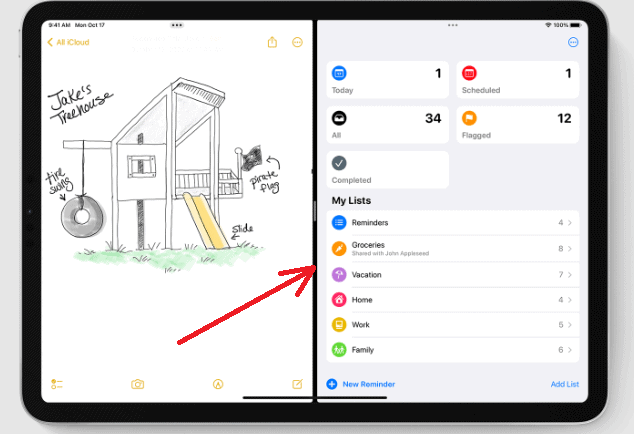
- When the divider reaches the screen’s edge, the app disappears, and the remaining app expands to full screen.

2. Exit Split View Using the App Switcher
- Swipe up from the bottom edge of the screen and pause in the middle to open the App Switcher.
- Locate the Split View window showing two apps side by side.
- Swipe up on that Split View window to close both apps completely.
3. Use the Multitasking Menu
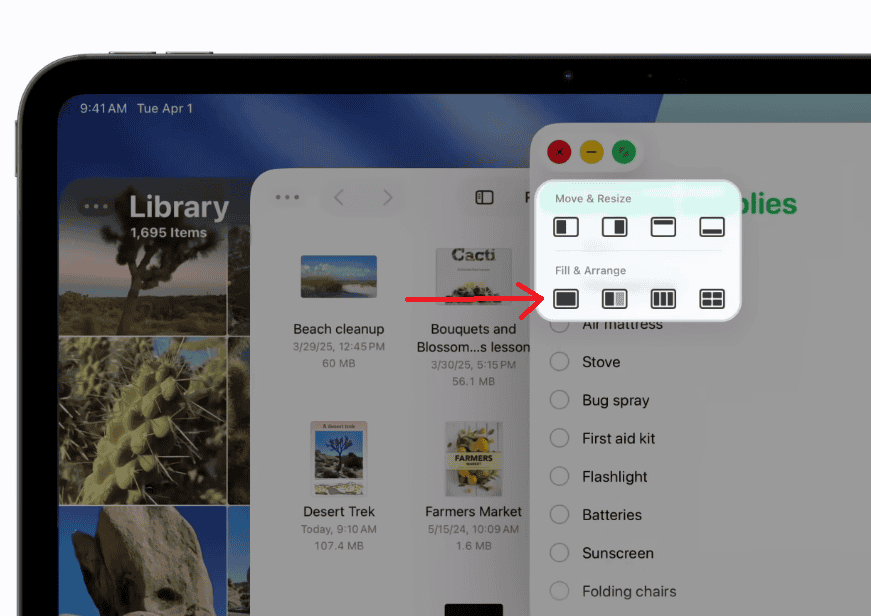
- Tap the three-dot button at the top of one of the apps.
- A small menu will appear with multitasking options.
- Select Full Screen to exit Split View and focus on one app.

For additional methods to exit Split View and return to a single window, check this related article on how to unsplit the screen on iPad.
On a Mac
On macOS, Split View can be closed using any of the following methods:
1. Exit Using the Green Button
- Move your cursor to the top-left corner of either Split View window.
- Hover over the green full-screen button.
- From the menu that appears, click Exit Full Screen.
- Both apps will leave Split View and return to their standard desktop windows.
2. Use Mission Control
- Swipe up on the trackpad with three or four fingers or press the F3 key.
- This opens Mission Control, where all windows and desktops are displayed.
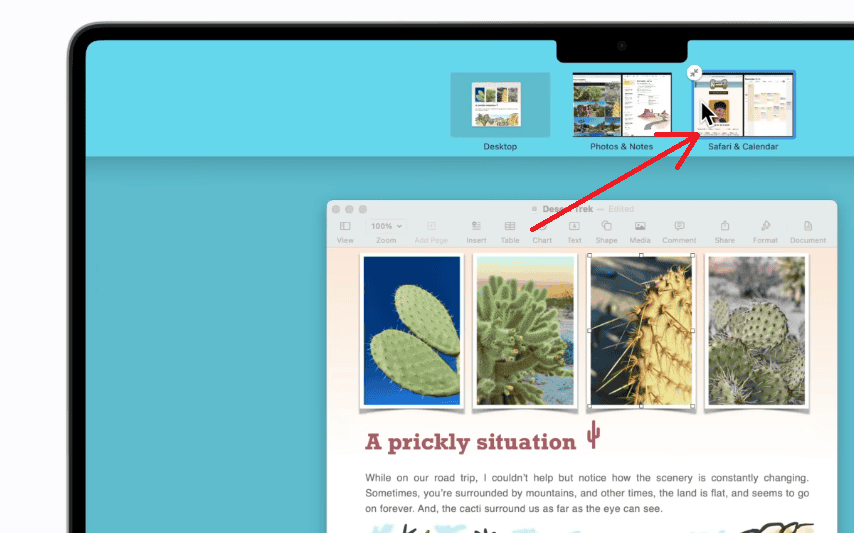
- Locate the Split View space at the top of the screen.
- Hover over it and click the icon seen in the screenshot to close the Split View session entirely.

3. Drag an App Out of Split View
- Open Mission Control using the same gesture or key.
- Click anywhere on the empty space on the screen of your Mac.
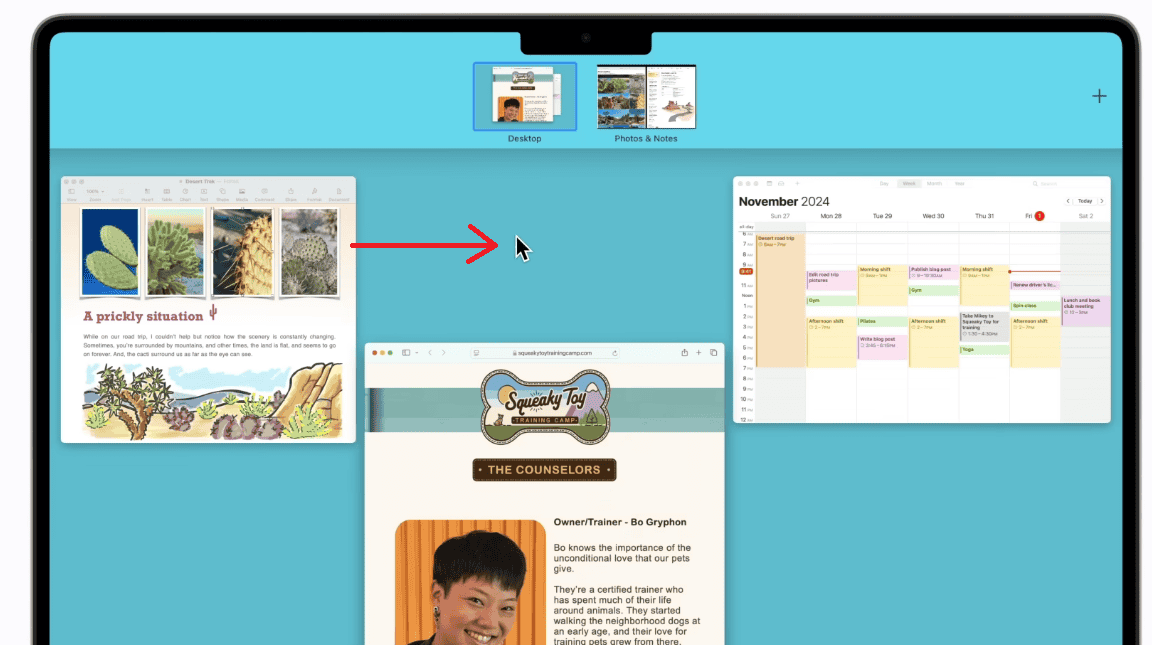
- The other app will automatically exit Split View and switch to full-screen or windowed mode.

Tips
- Use the Dock for quick multitasking: Drag an app from the Dock to the left or right edge of the screen to open Split View faster.
- Know the gestures: Learning the drag and swipe gestures saves time when managing apps.
- Confirm app compatibility: Some apps don’t support Split View on iPad, especially older or third-party apps.
- Explore essential tools: Improve productivity with 7 essential apps to get the most out of your M3 iPad Air.
- Boost performance: If multitasking feels slow, check these tips to speed up your iPad.
Making the Best of the Split View Mode
Managing Split View on iPad and Mac requires different approaches depending on the device and desired outcome. The ability to close individual apps or exit the entire Split View mode provides flexibility for various workflows. Regular practice with these methods makes transitioning between single-app and multi-app views seamless.
FAQs
No. Some older or unsupported apps do not work with Split View on iPad.
Drag the divider bar all the way to one edge of the screen to close one app instantly.
Hover over the green full-screen button and select Exit Full Screen to restore both apps to normal windows.
No. macOS supports only two apps in Split View, though additional apps can run in separate spaces.
Make sure Multitasking & Stage Manager are enabled in Settings > Home Screen & Multitasking.


Discussion