

With iOS 26, Apple finally gave the Home Screen a serious design overhaul. The big headline is Liquid Glass, a new layered, translucent look that spreads across icons, widgets, folders, and system panels. But that’s only the start.
On top of the default style, you now have:
- Clear icons – semi-transparent, glass-like icons.
- Tinted icons – colors pulled from your iPhone body, case, or wallpaper.
- Shortcuts custom icons – still around for those who want total freedom.
Let’s break each one down.
Don’t miss the best of The Mac Observer
Set us as a preferred source and our Apple reporting ranks higher in your Google Search results and Discover feed — one tap, no account changes.
Table of contents
What Is Liquid Glass?
Liquid Glass is the foundation of iOS 26’s new look. The dock, App Library, and Spotlight search bar all use translucent layering, and app icons gain a subtle reflective sheen. It’s Apple’s way of making iOS feel less flat and more dynamic.

If you want the full breakdown of how it works across the system, check our Liquid Glass explained guide.
Clear Icons: The Full Glass Effect
Clear is the most dramatic new style. It removes the solid background color from icons and makes them appear translucent panes.
- Light Mode: Icons dim the wallpaper beneath them.
- Dark Mode: Icons stay transparent but with darker layers for legibility.
- Auto Mode: Switches between the two based on system appearance.
How to Enable Clear Icons
- Long-press your Home Screen until icons jiggle.
- Tap Edit in the corner.
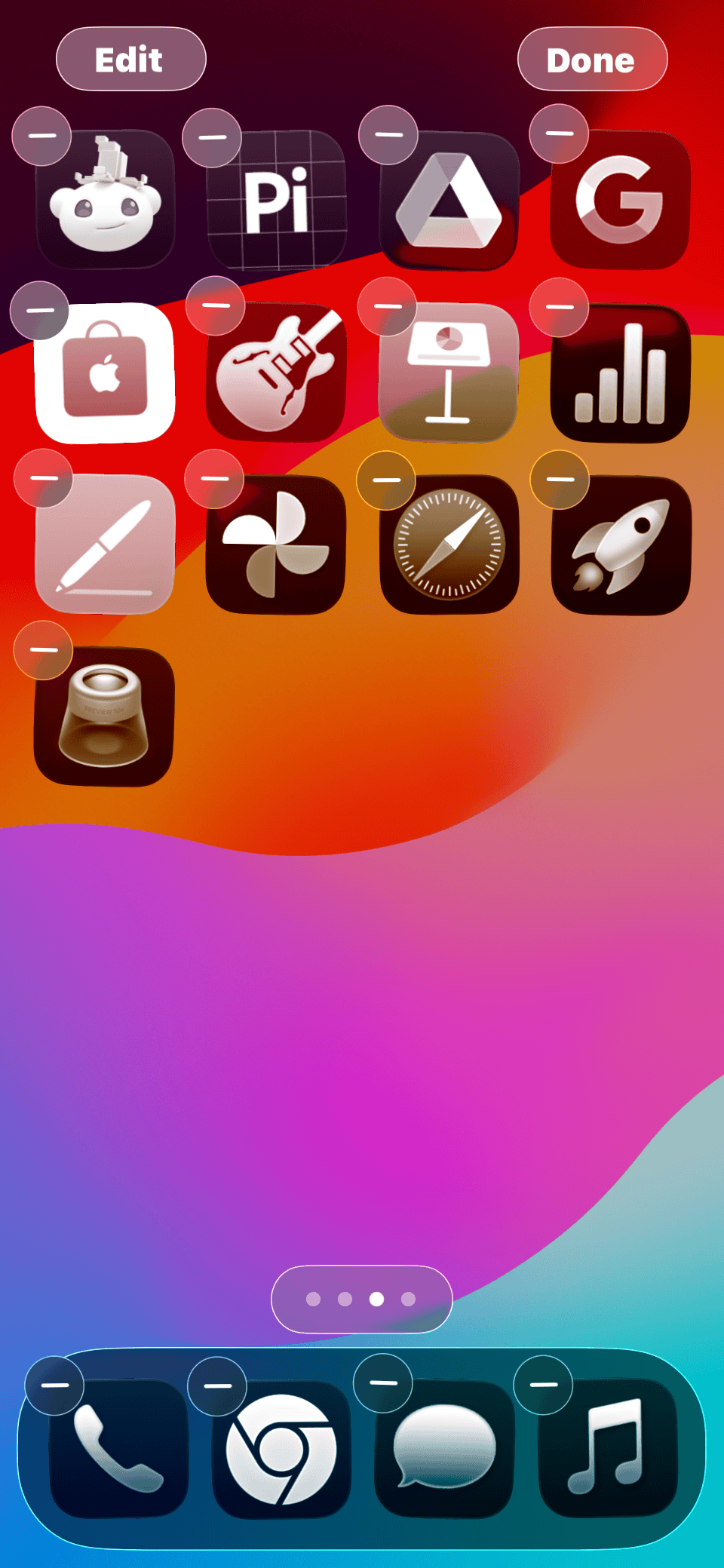
- Select Customize.
- Pick Clear and choose Light, Dark, or Auto.
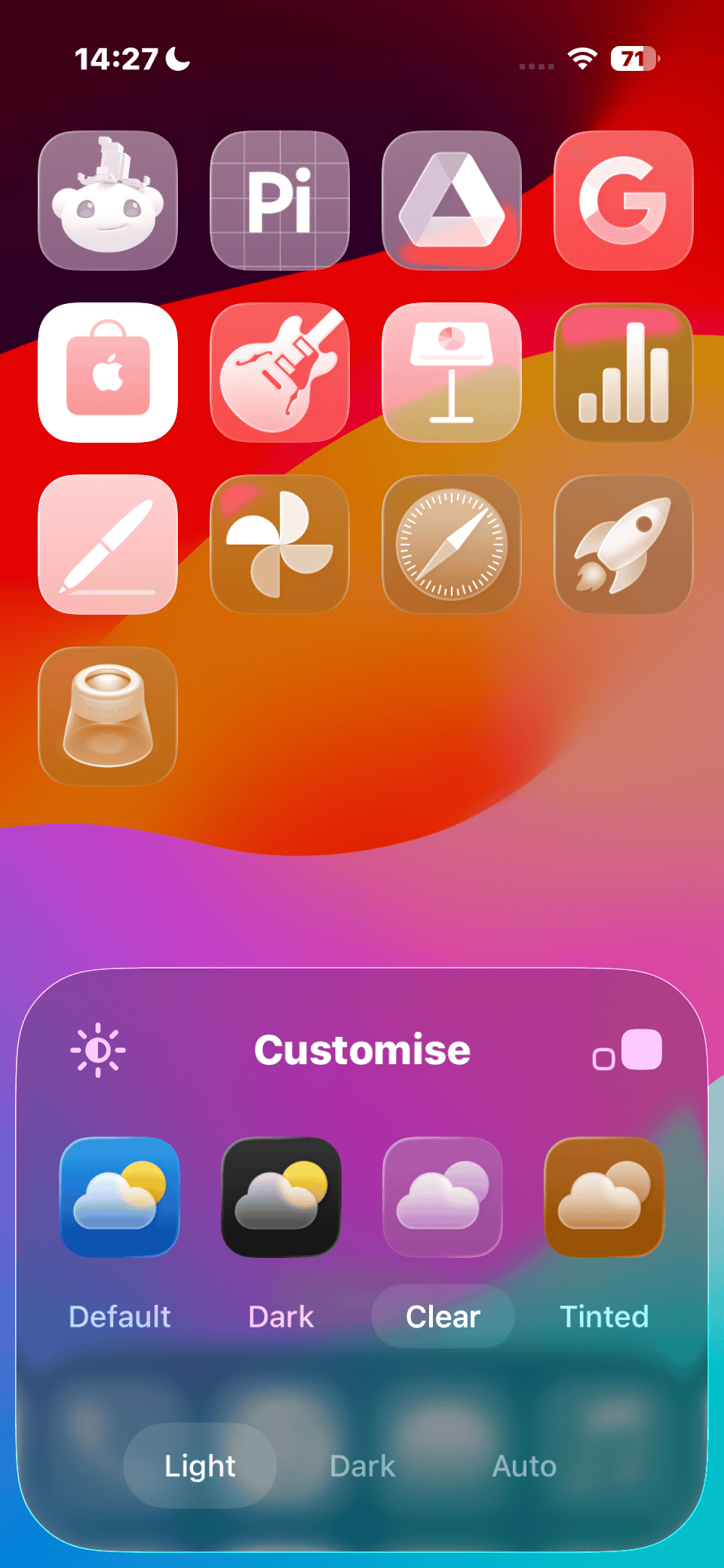
- Adjust wallpaper brightness with the sun toggle if text looks hard to read.


Accessibility settings like Reduce Transparency and Increase Contrast can also tweak the Clear look.
Tinted Icons: Match Your iPhone or Case
Apple expanded tinting in iOS 26 with new smart options. Now icons can auto-match:
- The color of your iPhone (e.g., Desert Titanium on iPhone 16 Pro).

- The color of your MagSafe case, if it’s an official Apple case.
You can still manually pick any color or pull one from your wallpaper. The effect stays consistent with the Liquid Glass look, translucent, layered, and reflective. To do this, open Settings → Personalization → Accent Color, then select Manual.
From there, you can choose a preset color, use the color picker to select any custom shade, or enable Match Wallpaper to automatically extract a color from your current wallpaper.
Shortcuts: Full Custom Icons Still Work
If you want to go beyond Apple’s built-in styles, the Shortcuts app still lets you replace any app’s icon with an image of your choice. It’s more work, but you get unlimited design freedom.
Here’s how:
- Open Shortcuts.
- Tap + to create a new shortcut.
- Use the Open App action and pick your app.
- Tap the settings icon → Add to Home Screen.
- Tap the icon preview → choose a custom image.
This method doesn’t carry the Liquid Glass effects but is perfect if you want themed Home Screens with icons you design or download.
Table: iOS 26 Icon Customization Options
| Method | Look & Feel | Best For |
|---|---|---|
| Default | Liquid Glass layered icons | Simple, modern Home Screen |
| Clear | Transparent glass-like icons | Minimalist setups, showing off wallpapers |
| Tinted | Auto-match iPhone/case colors | Seamless hardware + software aesthetic |
| Shortcuts | Any image you choose | Themed setups, maximum customization |
Before You Start
- Backup your iPhone. Customization changes are safe, but always good practice (how to downgrade safely if needed).
- Know your style. Clear and Tinted are system-native; Shortcuts icons are manual and take more effort.
- Check compatibility. You’ll need iOS 26 or later—supported on iPhone 12 and up.
Tips for Better Customization
- Use Clear icons with vibrant wallpapers for a layered look. Pair with the new iPhone 17 wallpapers for a striking effect.
- If icons are hard to read, toggle Increase Contrast in Accessibility.
- Case-matching only works with official Apple MagSafe cases. Third-party ones may not trigger tinting.
- Combine Clear icons with Adaptive Time Lock Screen widgets for a full iOS 26 theme (guide here).
FAQs
No, you can only apply one style per Home Screen.
No, since iOS 14.3, shortcuts launch apps directly without showing the Shortcuts app first.
Yes—just select the default option in the Customize menu.
Not directly. But using Dark mode with Clear icons can slightly improve efficiency on OLED iPhones.
Summary: All Ways to Customize Icons in iOS 26
- Default – Liquid Glass layered icons.
- Clear – Transparent, glassy icons.
- Tinted – Auto or manual color tints.
- Shortcuts – Full control with custom images.
Conclusion
Apple finally gave iPhone users a real Home Screen makeover. Between Liquid Glass, Clear, Tinted, and classic Shortcuts custom icons, iOS 26 gives you more ways than ever to personalize your device. Whether you want a minimalist glass effect, icons that match your case, or a full theme you design yourself, it’s all possible now.
And when paired with new hardware like the iPhone 17, the effect is even better, it feels like hardware and software were designed as one.



Thanks! This has been very helpful for me to customize my wallpaper to look the way I want it to.