

When trying to take a Live Photo in FaceTime, you may see the message “FaceTime Photos must be enabled on both devices to use this feature”. Usually, it means one or both users have Live Photos turned off. If that’s not the case, here’s how to fix or workaround the error.
Table of Contents
How to fix FaceTime Live Photos not working
Turn On FaceTime Live Photos on Both Devices
This is the most common cause of the FaceTime Live Photos issue. Both participants must enable the feature in Settings.
Time needed: 3 minutes
- Open Settings.
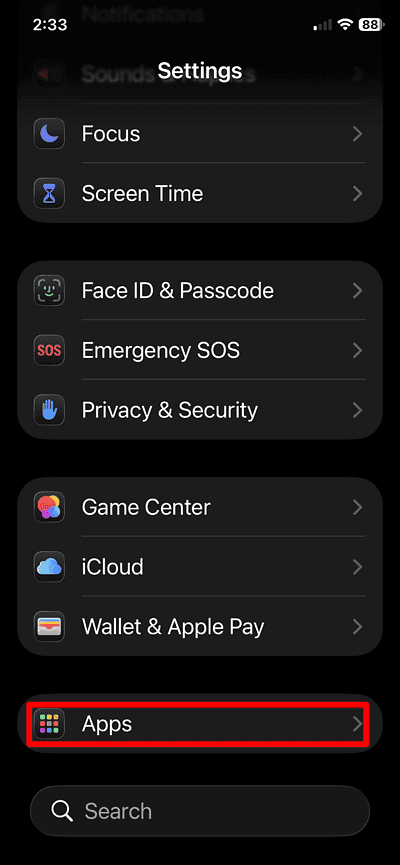
- Scroll down and tap FaceTime.

- Turn on FaceTime Live Photos.

- Ask the other person to repeat the same steps.


After enabling the option on both devices, end the call and start a new one.
Don’t miss the best of The Mac Observer
Set us as a preferred source and our Apple reporting ranks higher in your Google Search results and Discover feed — one tap, no account changes.
Toggle the Setting Off and on Before Calling
Some iOS 26 builds can cause a temporary FaceTime Live Photos bug. Toggling the feature refreshes the permission in the system.
- Go to Settings > FaceTime.
- Turn off FaceTime Live Photos.
- Wait 10 seconds.
- Turn FaceTime Live Photos back on.
- Start a new FaceTime call.
This simple reset often fixes situations where you can’t take FaceTime photos during a call.
Check Screen Time Restrictions
Restrictions can silently disable camera access or FaceTime features.
- Open Settings.

- Tap Screen Time.

- Go to Content & Privacy Restrictions > Allowed Apps & Features.

- Make sure Camera and FaceTime are allowed.


If restrictions block access, the “FaceTime Photos must be enabled on both devices” message may appear even when the toggle looks active.
Update iOS on Both Devices
Some reports of FaceTime Live Photos broken behavior occur on specific iOS 26 versions. Installing the latest update can resolve system-level bugs.
- Go to Settings > General > Software Update.

- Install any available update.
- Restart the device after installation.

Make sure both participants update their devices before testing again.
Restart Both Devices
A restart clears temporary FaceTime Live Photos glitches.
- Open Settings > General > Shut Down.
- Power off the device.
- Turn it back on after 10 seconds.
- Start a new FaceTime call.
“FaceTime Photos must be enabled on both devices” Issue: Tips
- Always enable FaceTime Live Photos before placing a call.
- Confirm both devices are signed in to FaceTime.
- Use Wi-Fi for stable photo capture.
- Leave the call and start a fresh session if the error appears mid-call.
FAQ
The feature is disabled on one device, or a temporary iOS issue prevents the setting from syncing.
Usually no. End the call, enable the setting, then start a new call.
Yes. Older and recent iOS versions have reported temporary glitches that require toggling or restarting.
Fixing “FaceTime Photos must be enabled on both devices”: Summary
- Enable FaceTime Live Photos on both devices.
- Toggle the feature off and on if the error persists.
- Check Screen Time restrictions.
- Update iOS and restart both devices.
When both devices enable FaceTime Live Photos and you restart the call, the “FaceTime Photos must be enabled on both devices” message should disappear.


Discussion