

Apple Music can stop working on Windows due to app issues, system compatibility problems, or account and network conflicts. Common signs include songs not playing, missing library content, or repeated sign-in errors.
In most cases, the problem is local to the app or Windows settings and can be fixed without advanced troubleshooting. The solutions below focus on practical steps that restore normal playback and syncing.
Table of contents
Reasons Apple Music Is Not Working on Windows
Apple Music may not work on Windows due to temporary Apple server issues, which can interrupt streaming, syncing, or sign-in functions. In many cases, the problem is caused by an outdated Apple Music app or Windows version, leading to compatibility issues after system updates. Corrupted app data or cache files can prevent songs from playing or cause the app to freeze.
Don’t miss the best of The Mac Observer
Set us as a preferred source and our Apple reporting ranks higher in your Google Search results and Discover feed — one tap, no account changes.
Incorrect audio output or sound enhancement settings may result in no sound even when playback appears active. In addition, VPNs, firewalls, or unstable network connections can block Apple Music services, while Apple ID authentication or sync problems may stop the music library from loading correctly.
Here’s How to Fix the Problem
1: Check Apple Music Service Status
Before changing system or app settings, confirm that Apple Music services are available.
- Open a web browser and visit Apple’s system status page.
- Check the status of Apple Music and related services.
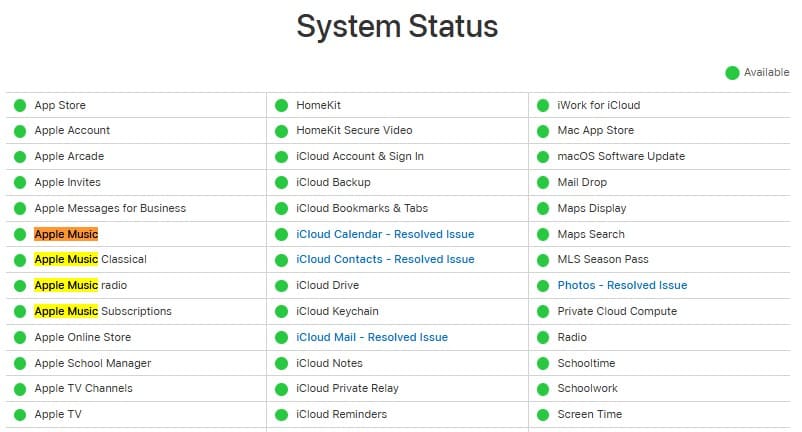
- If an outage is reported, wait until the service is restored.

This step helps avoid unnecessary troubleshooting when the issue is server-related.
2: Update Apple Music and Windows
Outdated software can cause playback errors and sign-in failures.
- Open the Microsoft Store and check for Apple Music updates.
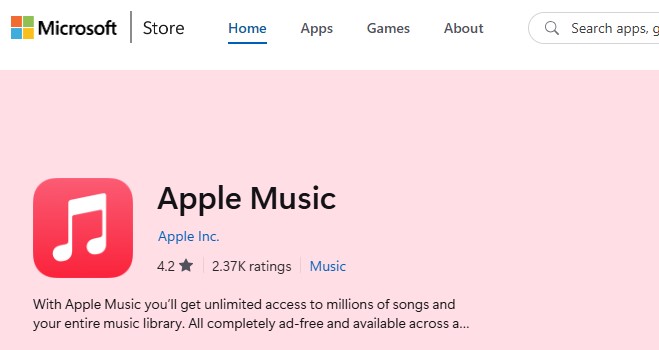
- Install any available updates.
- Open Windows Settings and install pending Windows updates.
- Restart the computer.

Keeping both the app and Windows updated improves stability.
3: Sign Out and Sign Back In
Account sync issues can stop music from loading or playing.
- Open Apple Music on Windows.
- Sign out of the connected Apple ID.
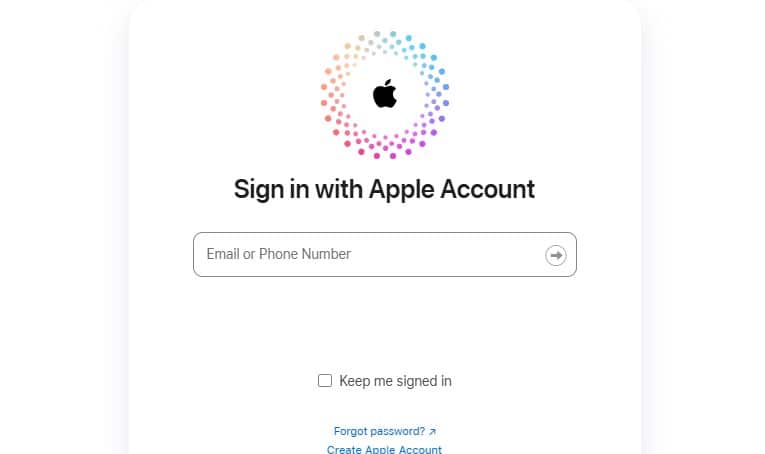
- Close the app completely.
- Reopen Apple Music and sign in again.

This refreshes account authentication and library syncing.
4: Reset or Repair the Apple Music App
Corrupted app files can break playback and downloads.
- Open Windows Settings.
- Go to Apps and find Apple Music.
- Open Advanced options.
- Select Repair first.
- If the issue continues, select Reset.
Repair keeps data intact, while reset clears local app data.
5: Check Audio Output and Enhancements
Incorrect sound settings can make Apple Music appear silent.
- Right-click the speaker icon in the taskbar.
- Open Sound settings.
- Confirm the correct audio output device is selected.
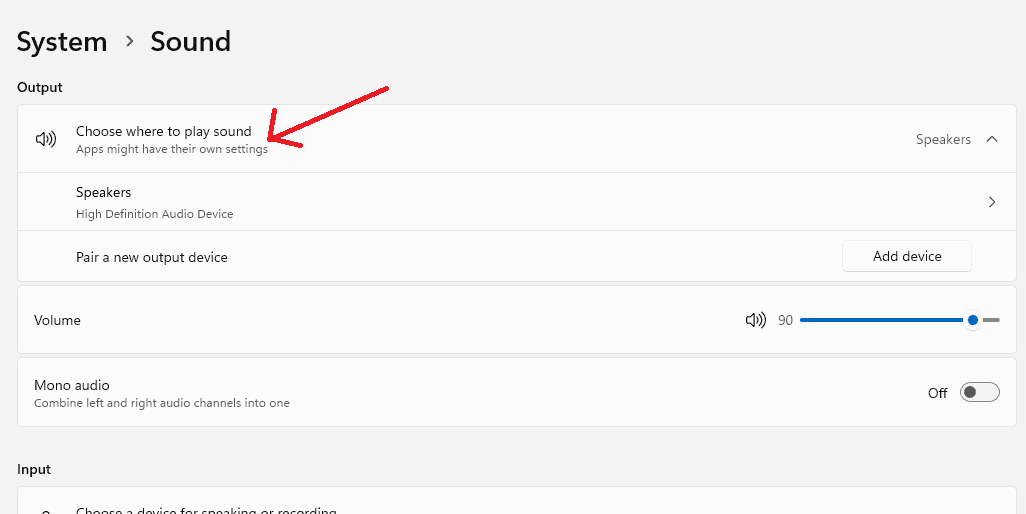
- Disable sound enhancements if enabled.
- Test playback again.

This ensures audio is not blocked at the system level.
6: Disable VPN and Review Network Settings
Network filters can interfere with streaming and sign-in.
- Turn off any active VPN connection.
- Temporarily disable third-party firewalls if appropriate.
- Restart Apple Music and test playback.
This helps identify network-related interference.
7: Reinstall Apple Music
If none of the above solutions work, a clean reinstall is often effective.
- Uninstall Apple Music from Windows.
- Restart the system.
- Reinstall Apple Music from the Microsoft Store.
- Sign in and check playback.
A fresh install removes corrupted files and settings.
Additional Tips
- Maintain a stable internet connection during streaming.
- Avoid running multiple audio apps that compete for the same output device.
- Check available storage space for offline downloads.
- Restart the PC after major updates or resets.
In case Apple Music isn’t working on your iPhone, follow these soutions.
Conclusion
Apple Music issues on Windows are usually linked to updates, app data, or system settings rather than hardware problems. Checking service status, keeping software updated, and repairing the app resolve most cases. Reinstalling the app should be the final step if issues persist. Once these fixes are applied, Apple Music typically returns to normal playback and syncing.
FAQs
This is commonly caused by audio output settings, account sync problems, or corrupted app data.
Yes, resetting clears local data, including downloads. Streaming access remains after signing in again.
It is generally stable when updated, but issues can appear after Windows updates or network changes.
Yes, strict firewall or VPN rules can interfere with the Apple Music service.


Discussion