

Users may not be able to add an Illinois Driver’s License to Apple Wallet due to unsupported device settings, verification issues, region mismatches, or iCloud configuration errors. Most problems are resolved by checking Wallet settings, updating iOS, and ensuring all identity verification prompts are completed. The solutions below outline every practical method to enable successful ID setup in Apple Wallet.
Table of contents
Why is this happening?
This issue usually occurs when the iPhone is not updated, Wallet access is restricted, or the Face ID and Apple ID settings are not configured correctly. Another common cause is when the device region or iCloud account does not match the supported state requirements. Network instability can also prevent the Illinois ID verification process from completing.
Here’s How to Fix ID Setup Issues in Apple Wallet
1. Check for service availability alerts
Illinois’ digital ID system may be busy due to high volume, which temporarily blocks new enrollments. Apple Wallet may show a message such as “Your state’s service is currently busy.”
Don’t miss the best of The Mac Observer
Set us as a preferred source and our Apple reporting ranks higher in your Google Search results and Discover feed — one tap, no account changes.
- Open the Wallet app.
- Try adding the ID as usual.
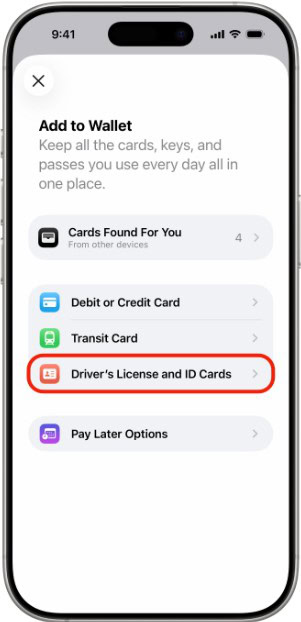
- Look for any service-busy or high-volume alerts.
- Wait and try again later if the system is overloaded.

This ensures the issue is not related to a state system outage.
2. Check iPhone compatibility
Apple Wallet IDs require specific hardware and software features.
- Make sure your device is an iPhone 8 or later.
- Confirm it is running iOS 16.4 or later.
- Restart your iPhone.
This ensures the device supports mobile ID enrollment.
3. Update iOS
Outdated software can block the Illinois ID from loading into Wallet.
- Go to Settings.
- Tap General.
- Tap Software Update.
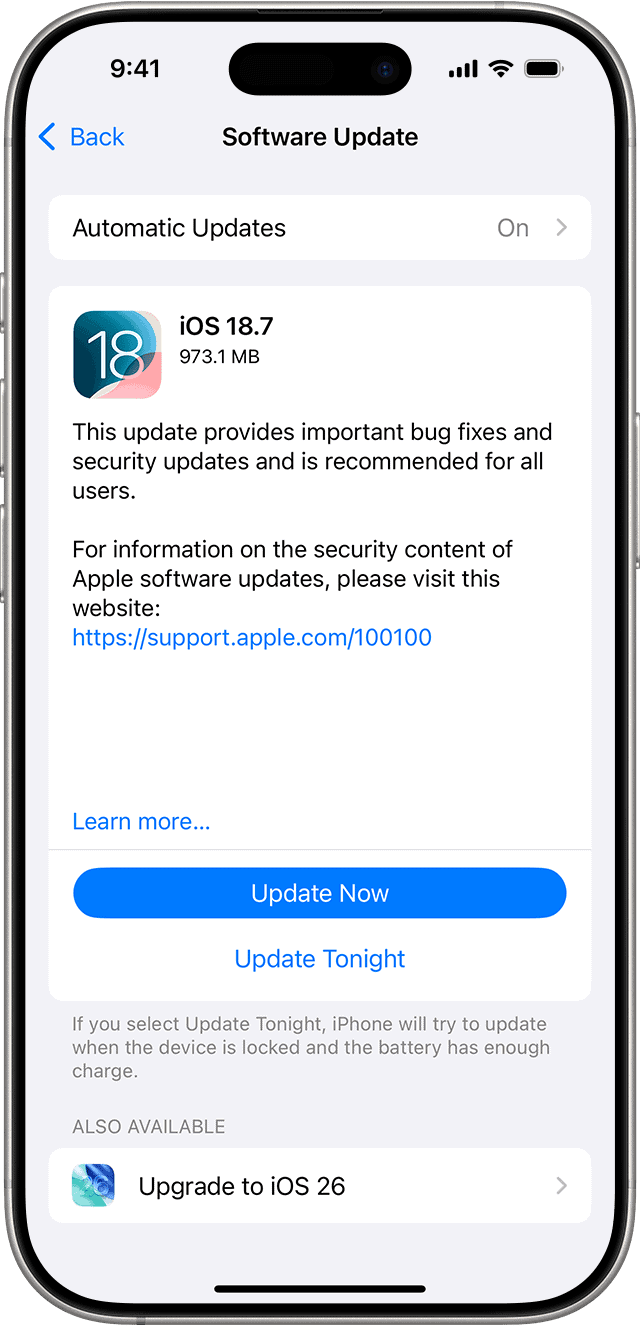
- Install available updates.

Updated firmware ensures Wallet and identity verification work correctly.
4. Enable Wallet and Apple Pay
Wallet settings may be disabled or restricted.
- Open Settings.
- Tap Wallet and Apple Pay.
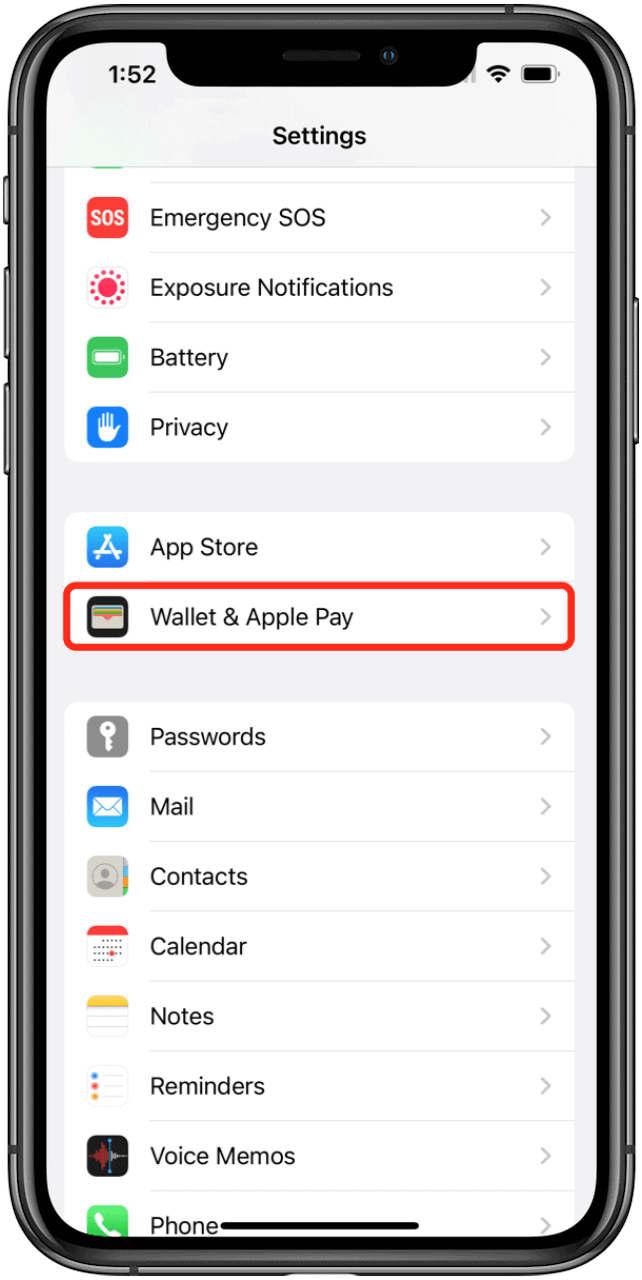
- Ensure the feature is enabled.
- Check that Add to Wallet is available.

This allows the system to show state ID enrollment options.
5. Turn on Location Services
Illinois ID verification requires location checks.
- Go to Settings.
- Tap Privacy & Security.
- Tap Location Services.
- Turn it on.
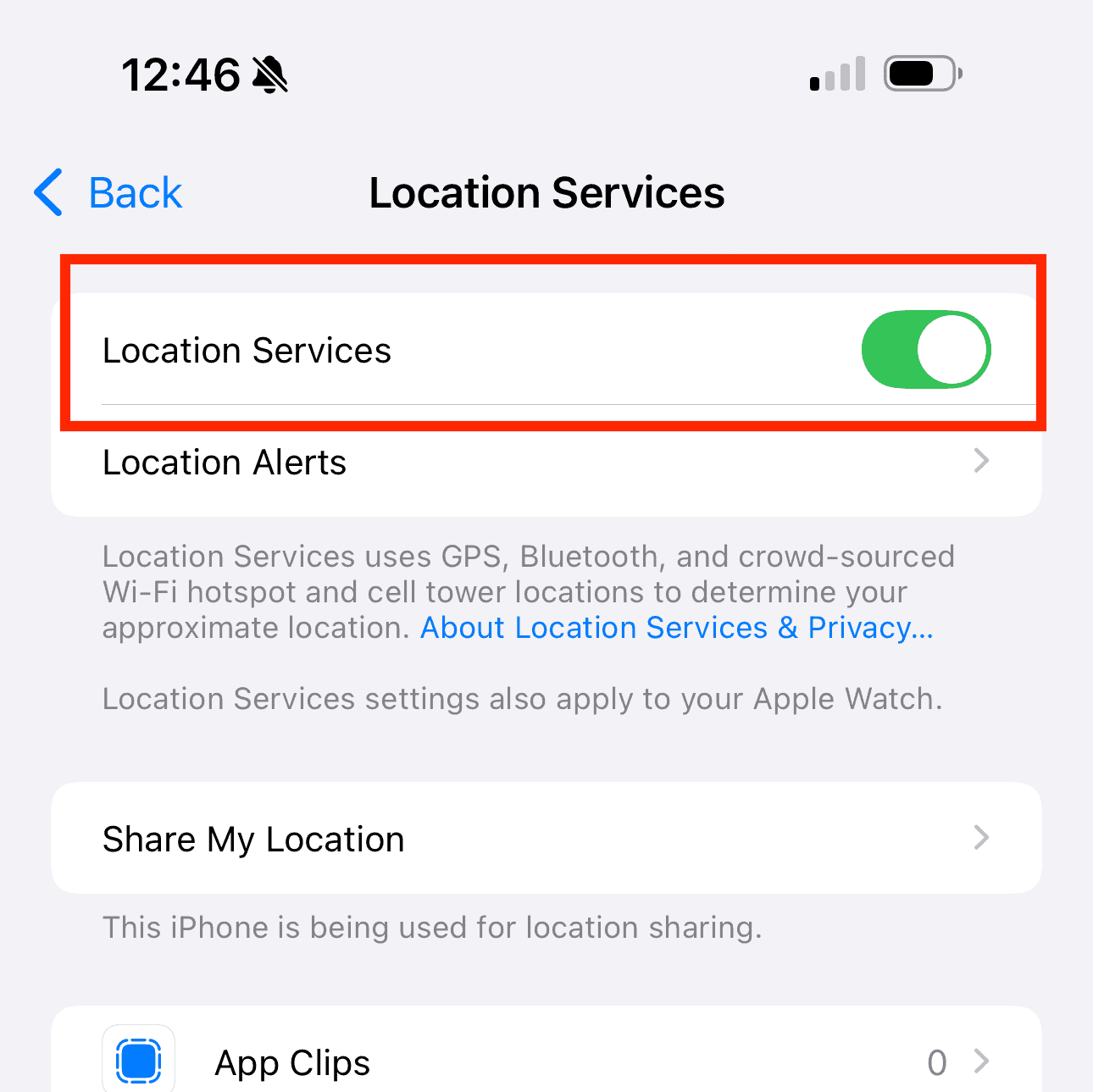

Location access confirms state eligibility during setup.
6. Verify your Apple ID
Identity setup may fail when the Apple ID is not fully verified.
- Go to Settings.
- Tap your Apple ID.
- Complete any pending identity or security prompts.
A verified Apple ID ensures secure ID enrollment.
7. Check iCloud settings
Wallet IDs rely on iCloud syncing.
- Go to Settings.
- Tap your Apple ID.
- Open iCloud.
- Make sure iCloud Drive is enabled.
This enables secure storage for your digital ID credentials.
8. Connect to a stable network
ID verification requires a reliable internet connection.
- Toggle Wi Fi off and on.
- Switch to another network if available.
- Avoid public hotspots.
Stable internet ensures the identity scan and upload process completes.
9. Try adding the ID again
If Wallet failed halfway, restarting the process helps.
- Open the Wallet app.
- Tap the plus icon.
- Choose Driver’s License or State ID.
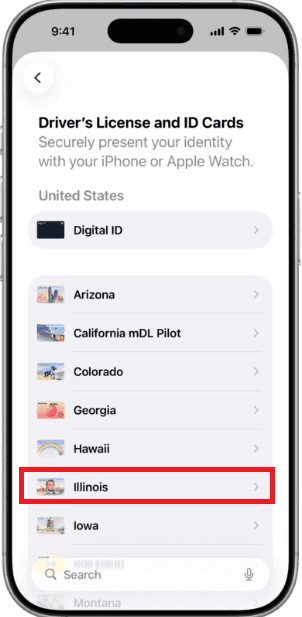
- Select Illinois and follow the instructions.

Restarting the enrollment initiates a new verification session.
10. Reset Wallet settings
Corrupt Wallet settings may block ID addition.
- Go to Settings.
- Tap General.
- Tap Transfer or Reset iPhone.
- Select Reset then Reset All Settings.
This clears problematic settings without deleting your data.
Additional Tips
• Ensure your physical ID is clean and readable for scanning.
• Do not use screen protectors that interfere with Face ID.
• Avoid using a VPN during verification.
• Try adding the ID at a time when network load is low.
Conclusion
Most issues preventing an Illinois Driver’s License from being added to Apple Wallet relate to software settings, identity verification, or network problems. Once iOS is updated, Wallet settings are enabled, and all ID requirements are met, the digital license usually enrolls without further interruptions. We hope that these steps helped you ensure smooth registration and ongoing access to your mobile ID.
FAQs
Your iOS version, device region, or Wallet settings may be outdated or disabled.
Poor lighting, camera smudges, or a damaged license can cause scan errors.
Yes. Face ID is required for secure identity verification.
Yes. You still need your physical card in many situations, including some law enforcement checks.



Discussion