

Excel may stop updating on iPadOS 26 due to sync conflicts, pending app updates, limited storage, or temporary system errors. The quickest way to address it is to refresh the app, check OneDrive sync, and ensure the latest Excel and iPadOS versions are installed. We have compiled multiple solutions below, which outline every practical method to restore normal updates and keep files syncing without delays.
Table of contents
Why is this happening?
Excel may not update on iPadOS 26 when the app is outdated, OneDrive sync is stalled, or the file becomes locked during background processes. System-level issues like low storage, weak network strength, and temporary iPadOS glitches can also prevent changes from showing in real time. These factors disrupt how Excel refreshes data, saves edits, or syncs with cloud storage.
Here’s How to Fix Excel Update Issues in iPadOS 26
1. Force quit Excel
Sometimes Excel keeps a stuck background state that prevents new changes from showing. Closing the app fully refreshes its session.
Don’t miss the best of The Mac Observer
Set us as a preferred source and our Apple reporting ranks higher in your Google Search results and Discover feed — one tap, no account changes.
- Open the App Switcher.
- Swipe up on Excel to close it.
- Relaunch Excel and check if updates appear.
This helps Excel clear temporary cache issues and load the file correctly.
2. Update Excel from the App Store
Outdated app versions often fail to sync or refresh data properly. Updating ensures compatibility with iPadOS 26.
- Open the App Store.
- Search for Microsoft Excel.
- Tap Update if available.

Once updated, Excel can process sync operations using the latest system frameworks.
3. Check OneDrive sync
If OneDrive stalls, Excel cannot reflect your latest edits. Ensuring the file is syncing correctly often solves the issue.
- Open the OneDrive app.
- Check for any sync warnings or pending uploads.
- Tap the file or refresh OneDrive manually.
- Reopen Excel.
When the cloud sync completes, Excel updates appear normally.
4. Restart the iPad
A simple reboot clears system-level glitches that can interrupt Excel’s refresh or sync processes.
- Press and hold the top button.
- Slide to power off.

- Turn the device on after a few seconds.

Restarting gives iPadOS a clean state to run Excel without conflicts.
5. Check available storage
Low storage limits how Excel caches files and saves edits. Freeing space often removes update delays.
- Go to Settings.
- Tap General.
- Tap iPad Storage.
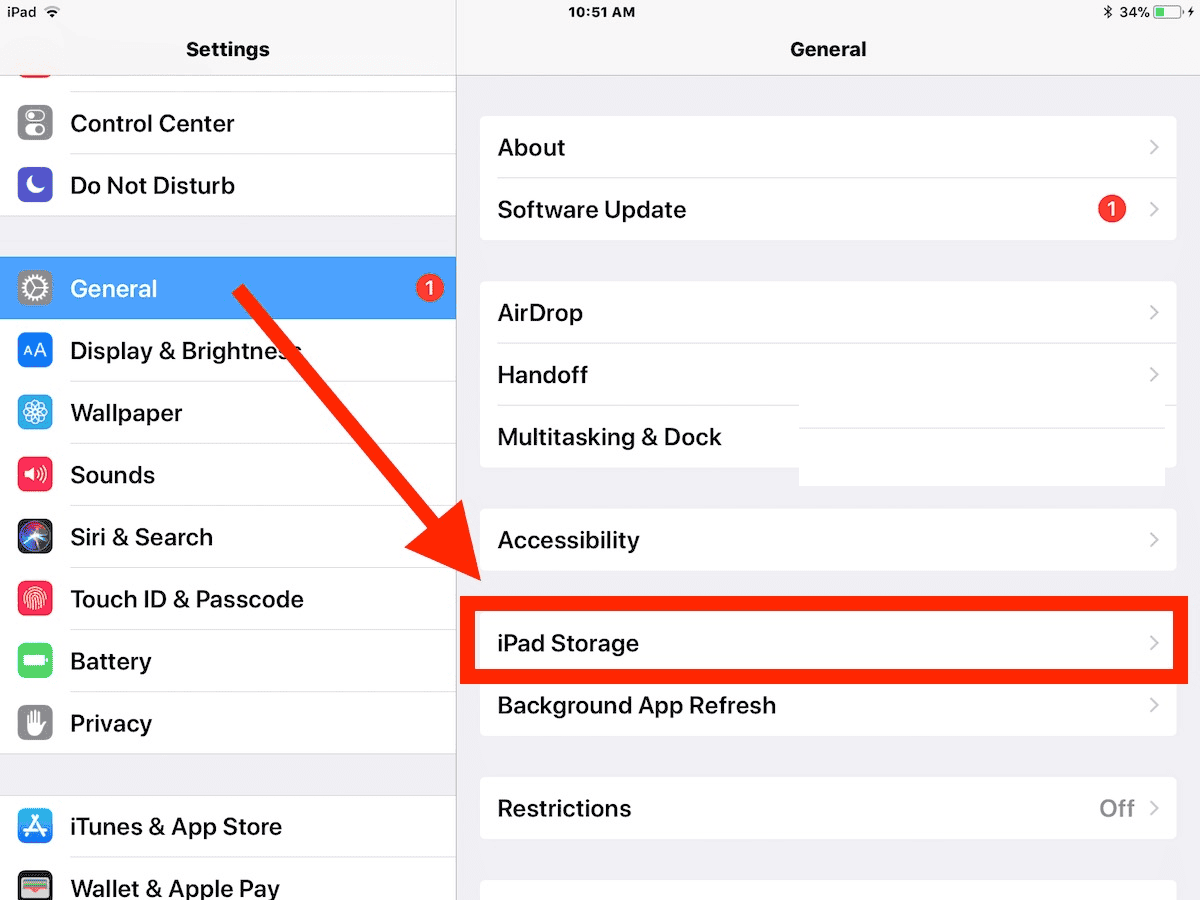
- Remove unused apps or large files.

Once space clears, Excel performs updates without restrictions.
6. Disable AutoSave and enable it again
AutoSave may freeze during a sync conflict. Turning it off and on resets the saving pipeline.
- Open the Excel document.
- Tap the file name.
- Turn AutoSave off.
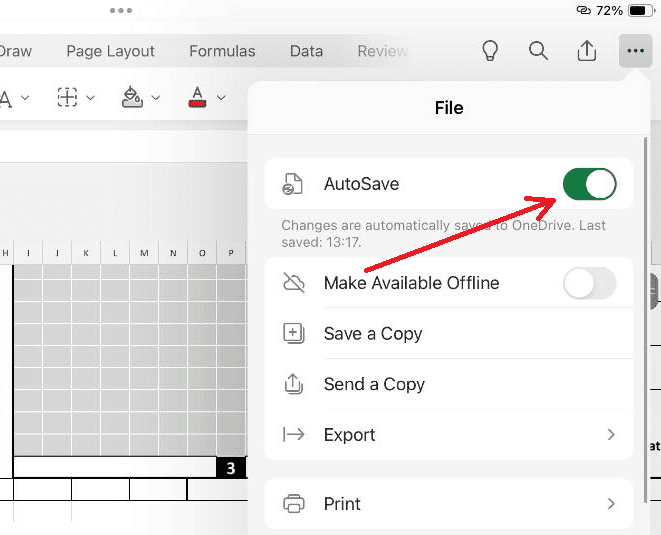
- Wait a moment and turn it back on.

This refresh helps Excel trigger a new save and sync cycle.
7. Reconnect your internet
Weak networks prevent real time changes from syncing. Resetting your connection ensures stable data flow.
- Turn Wi Fi off and on.
- Switch to another network if possible.
- Try mobile hotspot if the connection remains unstable.
After the network stabilizes, Excel updates usually reflect immediately.
8. Reinstall Excel
If app files are corrupted, reinstalling gives Excel a clean foundation while keeping your cloud files safe.
- Touch and hold the Excel icon.
- Tap Remove App.
- Install Excel again from the App Store.
- Sign in and open your file.
Fresh installation resolves errors that cannot be fixed by simple restarts.
9. Make a new copy of the file
A specific file may be damaged or locked. Creating a copy resets its internal structure.
- Open OneDrive.
- Duplicate the file.
- Open the new copy in Excel.
- Check if updates now sync normally.
If the copy works, the original file likely had metadata or sync corruption.
Additional Tips
• Keep iPadOS updated to avoid compatibility issues.
• Avoid editing the same file on multiple devices at the same time.
• Keep Excel, OneDrive, and SharePoint apps installed and updated.
• Maintain stable Wi Fi during large file edits.
Conclusion
Excel update issues on iPadOS 26 are usually linked to sync delays, outdated components, or low system resources. Once the app, network, and storage conditions are refreshed, Excel starts updating normally again. Applying the methods above helps maintain reliable performance and prevents similar interruptions over time.
FAQs
Internet is required for cloud syncing. Local edits do not need a connection.
This happens when OneDrive has not completed syncing or the file is cached.
No. Files stored in OneDrive, SharePoint, or iCloud remain safe.
Yes. Limited storage affects Excel’s ability to save and refresh data.




Discussion