

Many users find that setting up their new AirPods Pro 3 is quick and effortless. However, occasionally the “Find My” feature doesn’t link or recognize the earbuds right away. This problem often stems from syncing or iCloud connection issues rather than hardware faults. With the right steps, it’s possible to restore the connection so the AirPods appear correctly in the Find My app. In this article, we’ll explain how to fix the issue using multiple methods.
Table of contents
Why Find My Won’t Link to AirPods Pro 3
The “Find My” feature uses a combination of technologies, including Bluetooth, iCloud, and the Find My network, to pinpoint the location of your devices. When your AirPods Pro 3 fail to appear in the Find My app, it generally indicates a disruption in the link between your Apple ID, the device pairing, or the specific settings of the Find My feature.
There are several common issues that can cause this disconnection. These include fundamental problems like the AirPods not being properly paired to your iPhone, or a settings conflict where the crucial Find My network is disabled on your device.
Don’t miss the best of The Mac Observer
Set us as a preferred source and our Apple reporting ranks higher in your Google Search results and Discover feed — one tap, no account changes.
Here are the Common Ways to Fix This Problem
1. Check Find My Settings on iPhone or iPad
Find My won’t show your AirPods Pro 3 unless the feature is enabled on your Apple device. It’s the first thing to confirm before troubleshooting further.
- Open Settings on the iPhone or iPad.
- Tap your Apple ID name at the top.
- Go to Find My and ensure Find My iPhone is turned on.
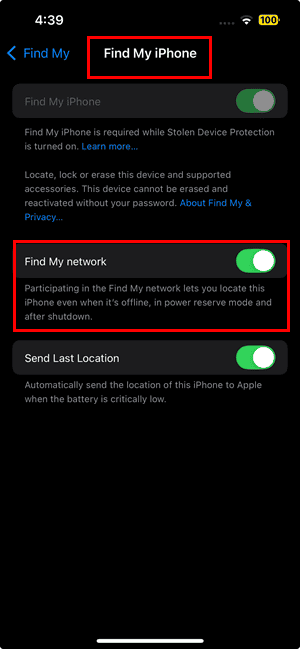
- Enable Find My network and Send Last Location as well.

When these options are active, the AirPods will automatically appear under your iCloud account after pairing.
If you’re unfamiliar with how Find My works with AirPods, it might help to review this AirPods Pro guide for beginners.
2. Confirm AirPods Pro 3 Are Paired Correctly
Sometimes, the AirPods may connect for audio but not link to your Apple ID. It’s worth checking the Bluetooth settings to make sure they’re properly paired.
- Open Settings > Bluetooth.
- Find AirPods Pro 3 on the list.
- Tap the (i) icon next to them.
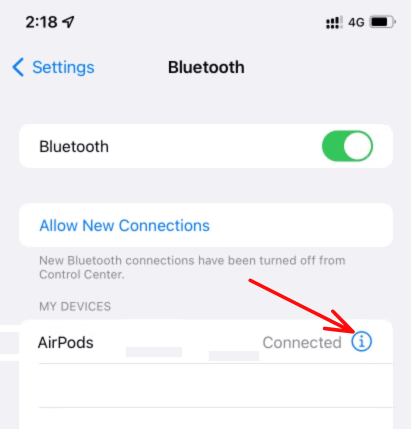
- Scroll down and see if your Apple ID email appears.

If your Apple ID isn’t listed, unpair and reconnect the AirPods. To do that:
- Forget the device from Bluetooth settings.
- Put your AirPods Pro 3 in pairing mode by pressing and holding the button on the case until the light flashes white.
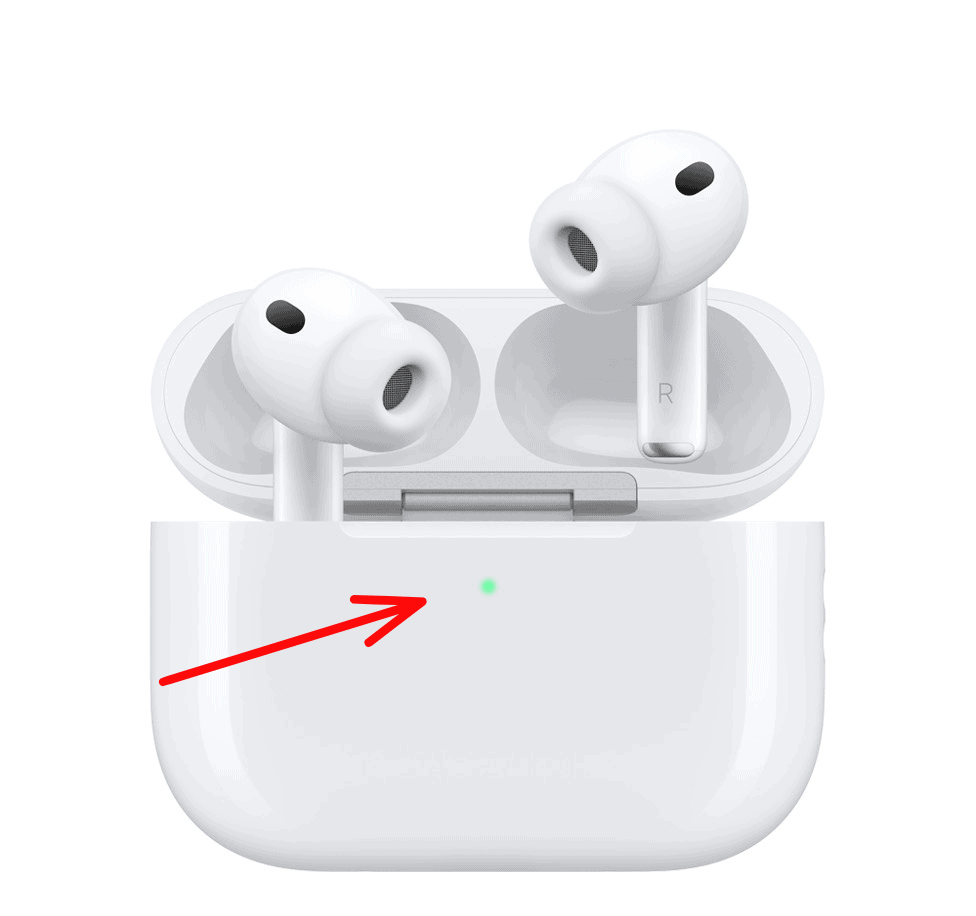
- Reconnect them by holding the case near your iPhone.

For a detailed guide, refer to how to activate AirPods pairing mode.
3. Update iOS and AirPods Firmware
Sometimes “Find My” issues occur because of outdated software. Both iOS and AirPods firmware should be up to date.
- To update iOS, go to Settings > General > Software Update.
- To update AirPods firmware, place the AirPods in their case, connect them to power, and keep them close to the iPhone for about 30 minutes.
After updating, reopen the Find My app to check if the AirPods appear under the Devices tab.
4. Reset AirPods Pro 3
If the AirPods still don’t link with Find My, resetting them can usually fix the issue.
- Place both AirPods in the charging case.
- Keep the lid open.
- Press and hold the setup button on the back of the case for about 15 seconds, until the LED flashes amber and then white.
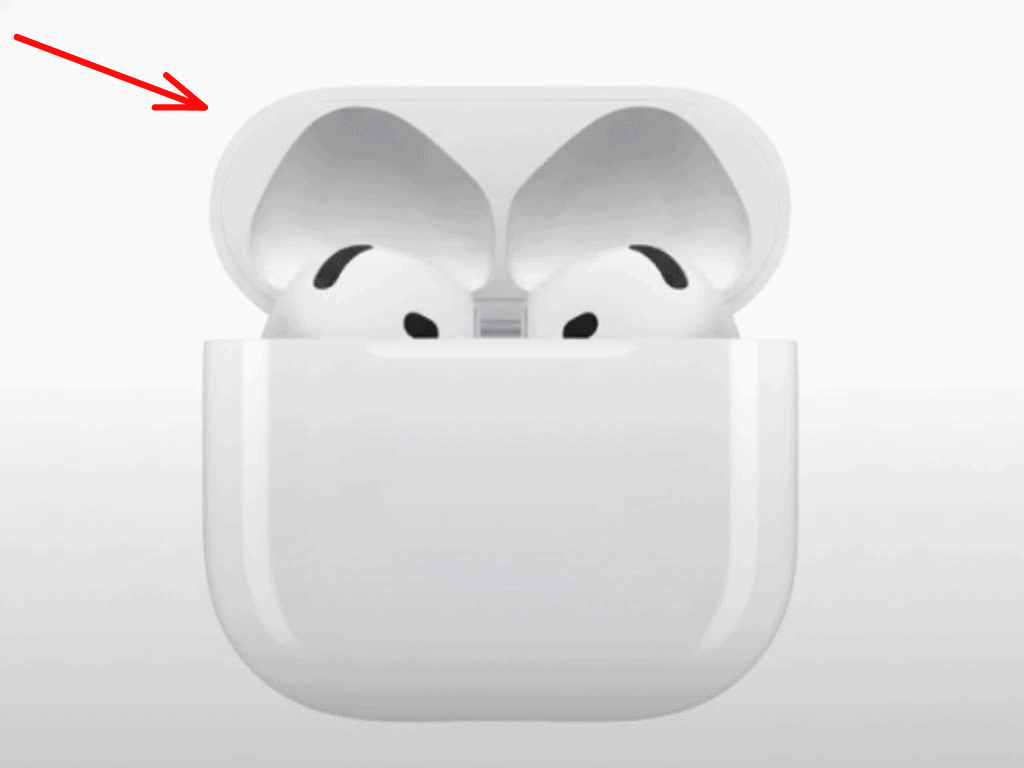
- Release the button and pair them again with your iPhone.

After reconnecting, wait a few minutes to see if they appear in Find My.
You can also learn more about connecting them to different devices in this step-by-step AirPods Pro 3 connection guide.
5. Reconnect to the Same Apple ID
AirPods link to the iCloud account used during pairing. If the Apple ID is different across devices, Find My may not show them.
- Go to Settings > Apple ID on your iPhone.
- Check that you’re signed in with the same Apple ID used previously.
- On another Apple device, open Find My and confirm if the AirPods appear under Devices.
If they still don’t show up, sign out of iCloud and sign back in, then pair your AirPods again.
Users who own other Beats or Apple headphones can also learn about pairing modes, such as for AirPods Max, which follow a similar process.
Tips
- Keep Bluetooth and Wi-Fi turned on during setup.
- Avoid using VPNs while linking devices, as they may interrupt iCloud syncing.
- Place the AirPods near your iPhone when reconnecting.
- Make sure the case and both earbuds have enough charge.
- Restart the iPhone before re-pairing if the AirPods still don’t appear.
Final Thoughts
Fixing the “Find My” linking issue with AirPods Pro 3 usually takes just a few checks. Ensuring your iCloud account, firmware, and Bluetooth connection are in sync resolves it most of the time. Once they’re properly linked, the Find My feature becomes a reliable way to track and protect your AirPods wherever you go. Keeping software updated and staying signed into the same Apple ID helps prevent the issue from recurring.
FAQs
It usually happens when Find My is turned off on the iPhone, or the AirPods haven’t been linked to your Apple ID yet.
No. Once paired with an Apple ID, they appear automatically. Manual addition isn’t required.
Yes. After a reset, they must be paired again to reconnect to your iCloud account.
They generally appear within a few minutes after pairing if Find My is active on your device.
If Find My network is enabled, you may still see their last known location when they were last connected.



I do not see a ‘setup’ button nor any button on the back of the iPod Pro 3 case
I’m sure you’ve solved this by now, but for future Googlers since this came up high in the results: the pods 4 and pro 3 have a touch function where the status light shows up. double tap it, wait for the light to blink white, double tap again, wait for it to blink faster, then double tap a third time, the light will blink amber, when it turns white again it’s reset.