

If you’re experiencing fluctuating speaker volume on your iPhone 17 Pro Max, especially during songs, this guide will walk you through troubleshooting steps to fix the issue. Follow these solutions to restore stable audio playback.
Troubleshooting iPhone 17 Pro Max Speaker Volume Fluctuations
1. Turn Off Audio Enhancements and Volume-Limiting Features
Sometimes, audio enhancements or volume-limiting features can cause volume fluctuations. To fix this:
Time needed: 5 minutes
- Open Settings and go to Sounds & Haptics.

- Disable Volume Limit and Reduce Loud Sounds.

- In music apps like Apple Music or Spotify, turn off Dolby Atmos, Spatial Audio, or any other audio enhancements that may be active.
2. Reset Audio Settings and Restart Your iPhone
Sometimes, a temporary glitch may cause fluctuating volume. Follow these steps:
Don’t miss the best of The Mac Observer
Set us as a preferred source and our Apple reporting ranks higher in your Google Search results and Discover feed — one tap, no account changes.
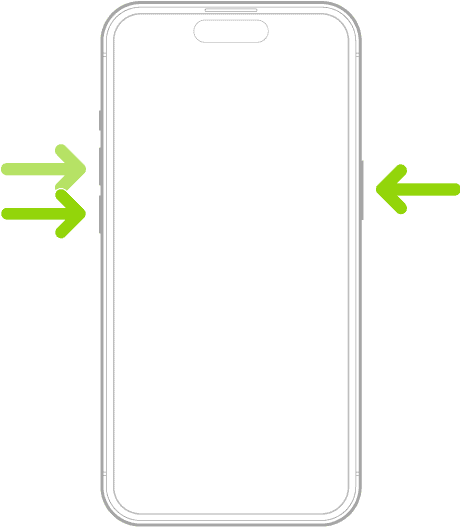
- Force restart your iPhone by quickly pressing and releasing the Volume Up button, then the Volume Down button, and holding the Side Button until the Apple logo appears.
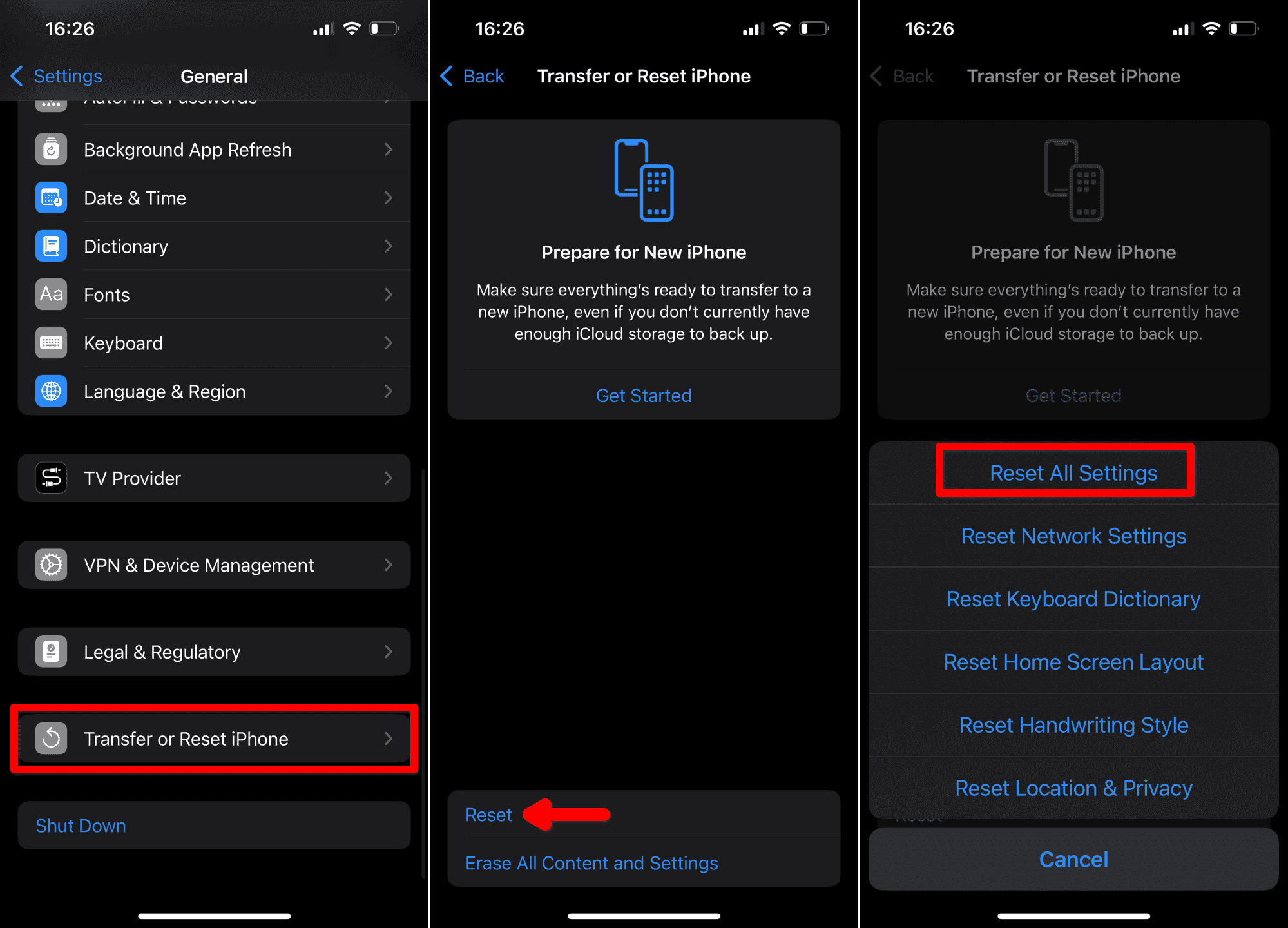
- If the issue persists, go to Settings > General > Reset > Reset All Settings (this will reset settings but won’t delete data).


3. Test With Headphones or Bluetooth Speakers
If you only experience volume fluctuations through the internal speakers, try playing audio through headphones or Bluetooth speakers:
- Connect headphones or a Bluetooth speaker to your iPhone.
- Play the same song and check if the volume fluctuations still occur. If not, the problem may be related to the internal speakers.
4. Try External Playback, or Use Audio Output Controls
If you continue experiencing volume fluctuations, consider using external speakers or adjusting audio output settings:
- Try using an external Bluetooth speaker for more stable volume output.
- Alternatively, use Control Center to manually adjust audio output and volume for consistent sound.
5. Contact Apple Support if the Issue Persists
If none of the above steps resolve the issue, the problem may be hardware-related. Contact Apple Support or visit an authorized service provider for further assistance:
- Go to Settings > Support to start a live chat with Apple Support.
- Alternatively, visit an Apple Store or Apple-authorized service provider for a diagnosis.
Tips
- Keep your iPhone’s volume at a moderate level when troubleshooting to avoid damage from sudden loud bursts.
- Test audio with tracks that have consistent loudness to check for stability.
- Ensure iOS and all music apps are up-to-date to benefit from bug fixes and improvements.
Summary
- Turn off audio enhancements and volume-limiting features in Settings and apps.
- Reset audio settings and restart your iPhone.
- Test audio with headphones or Bluetooth speakers to isolate the issue.
- Use external speakers or output controls to maintain consistent volume.
- If the issue persists, contact Apple Support or visit an authorized service provider.
Fluctuating speaker volume on your iPhone 17 Pro Max can be fixed by adjusting settings, testing with different audio outputs, or performing a system reset. If the issue continues, contacting Apple Support is your next step. Keep these tips in mind to maintain smooth audio performance from your device.


Discussion