

Your Apple Watch uses separate controls for alerts, calls, and media. That means changing one control does not always change the others. This article covers every practical way to raise volume for alerts, media playback, calls, and connected headphones. This means you will learn how to change alert volume in Settings, how to use Control Center and Now Playing for media, how to manage headphone limits, and how to use accessibility options to make sound more noticeable. Follow the steps that match your situation and watchOS version.
Table of contents
- Methods
- 1. Adjust Alert Volume in Settings
- 2. Increase Media Volume via Control Center
- 3. Use Now Playing for Real-Time Audio Control
- 4. Change Apple Watch Alert Volume from iPhone
- 5. Raise Bluetooth Headphone or Speaker Volume
- 6. Turn Off Silent Mode and Check Focus
- 7. Adjust Headphone Safety Limits
- 8. Set Haptics for Stronger Feedback
- 9. Optimize Audio with Balance and Mono Mode
- 10. Increase Volume During Calls
- 11. Device-Level Checks if Volume Remains Low
- Tips
- FAQs
- Summary
- Conclusion
Methods
Below are the key methods you can use. Each method explains what it changes and gives clear steps you can follow on the watch or on your iPhone.
1. Adjust Alert Volume in Settings
Use Sounds & Haptics to raise ringer and notification volume. This controls system tones and alerts you receive on the watch.
Don’t miss the best of The Mac Observer
Set us as a preferred source and our Apple reporting ranks higher in your Google Search results and Discover feed — one tap, no account changes.
- Press the Digital Crown to open the app grid or list.
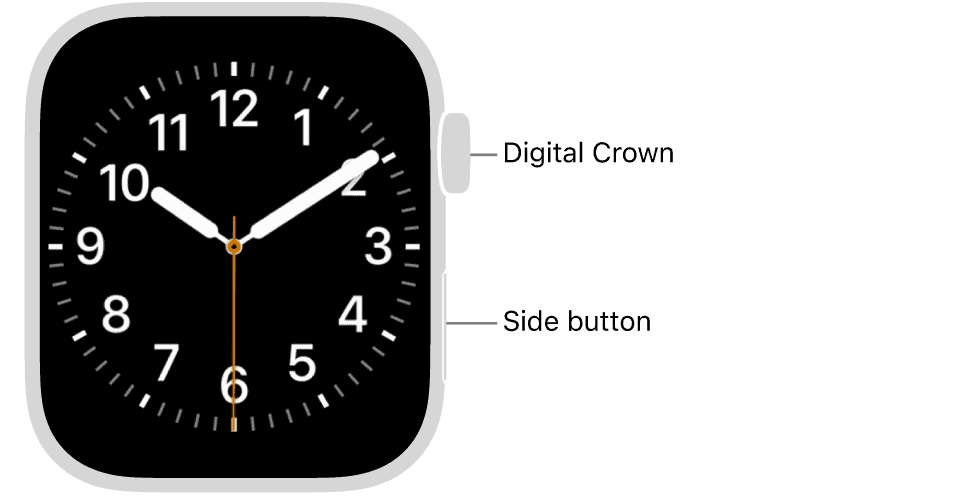
- Open Settings on the watch.
- Tap Sounds & Haptics.
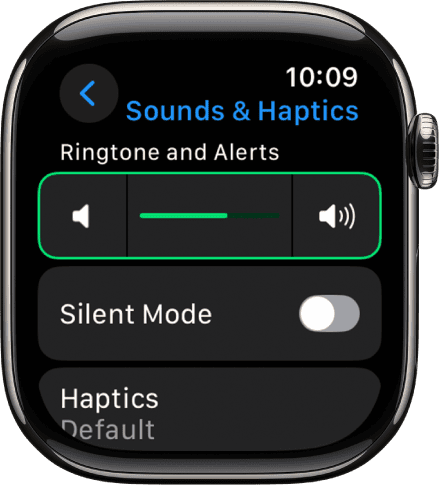
- Drag the Alert Volume slider up, or rotate the Digital Crown for fine control.
- Make sure Silent Mode is off so alerts play audibly.
- Optional: turn on Prominent Haptics if you want stronger taps as a backup to sound.


You can also go to Settings on Apple Watch directly to tweak sound preferences.
2. Increase Media Volume via Control Center
Use Control Center when you need a quick, on-screen volume change for music, podcasts, or other media playing on the watch or on connected headphones.
- Open Control Center. Press the side button on watchOS 10 and later, or swipe up from the watch face on earlier versions.
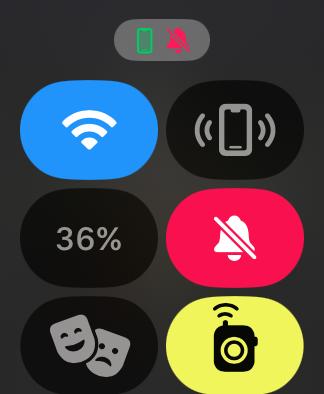
- Tap the volume control icon.
- Drag the slider upward to increase media output immediately.

Need a refresher? Here’s how to open Control Center on Apple Watch.
3. Use Now Playing for Real-Time Audio Control
Now Playing turns the Digital Crown into a live volume control while audio plays. Use this for precise, immediate adjustments.
- Start playback on the watch or a connected device.
- Open the Now Playing app on the watch.
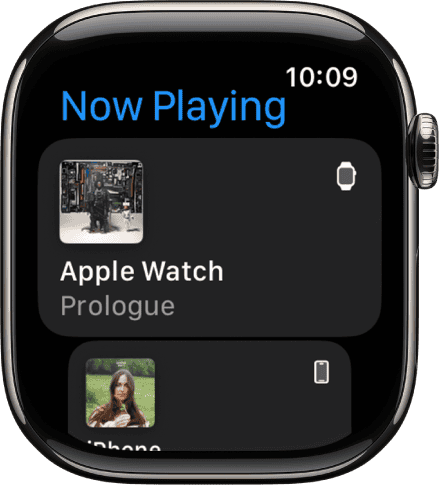
- Rotate the Digital Crown to raise or lower volume while audio plays.

4. Change Apple Watch Alert Volume from iPhone
Use the Watch app on your iPhone to change alert volume remotely. This is useful if the watch is on your wrist and you do not want to navigate the watch UI.
- Open the Watch app on your iPhone.
- Tap My Watch then Sounds & Haptics.
- Drag the Alert Volume slider upward. The watch updates immediately.
If alerts keep bothering you, you can turn off notifications on Apple Watch instead.
5. Raise Bluetooth Headphone or Speaker Volume
The watch sends media to Bluetooth devices. If sound remains low, increase volume on the headphones, the watch, or both.
- Pair your Bluetooth headphones or speaker: open Settings > Bluetooth on the watch and connect the device.
- Start playback.
- Open Control Center and tap the audio icon to reach the headphone volume slider, then raise it.
- Alternatively, open Now Playing and turn the Digital Crown, or use hardware buttons on the headphones.
6. Turn Off Silent Mode and Check Focus
Silent Mode and Focus states can mute alerts even when volume is high. Turn them off to restore audible notifications.
- Open Control Center on the watch.
- Check the bell icon. If it is highlighted, tap it to disable Silent Mode.
- Verify no Focus or Do Not Disturb mode is active that silences alerts.
- Trigger a test notification or timer to confirm sound returns.
7. Adjust Headphone Safety Limits
Headphone Safety can cap loudness to protect hearing. Raise or disable the cap if headphone volume stops below a level you expect.
- Open Settings > Sounds & Haptics > Headphone Safety on the watch.
- Turn off Reduce Loud Sounds or increase the decibel limit.
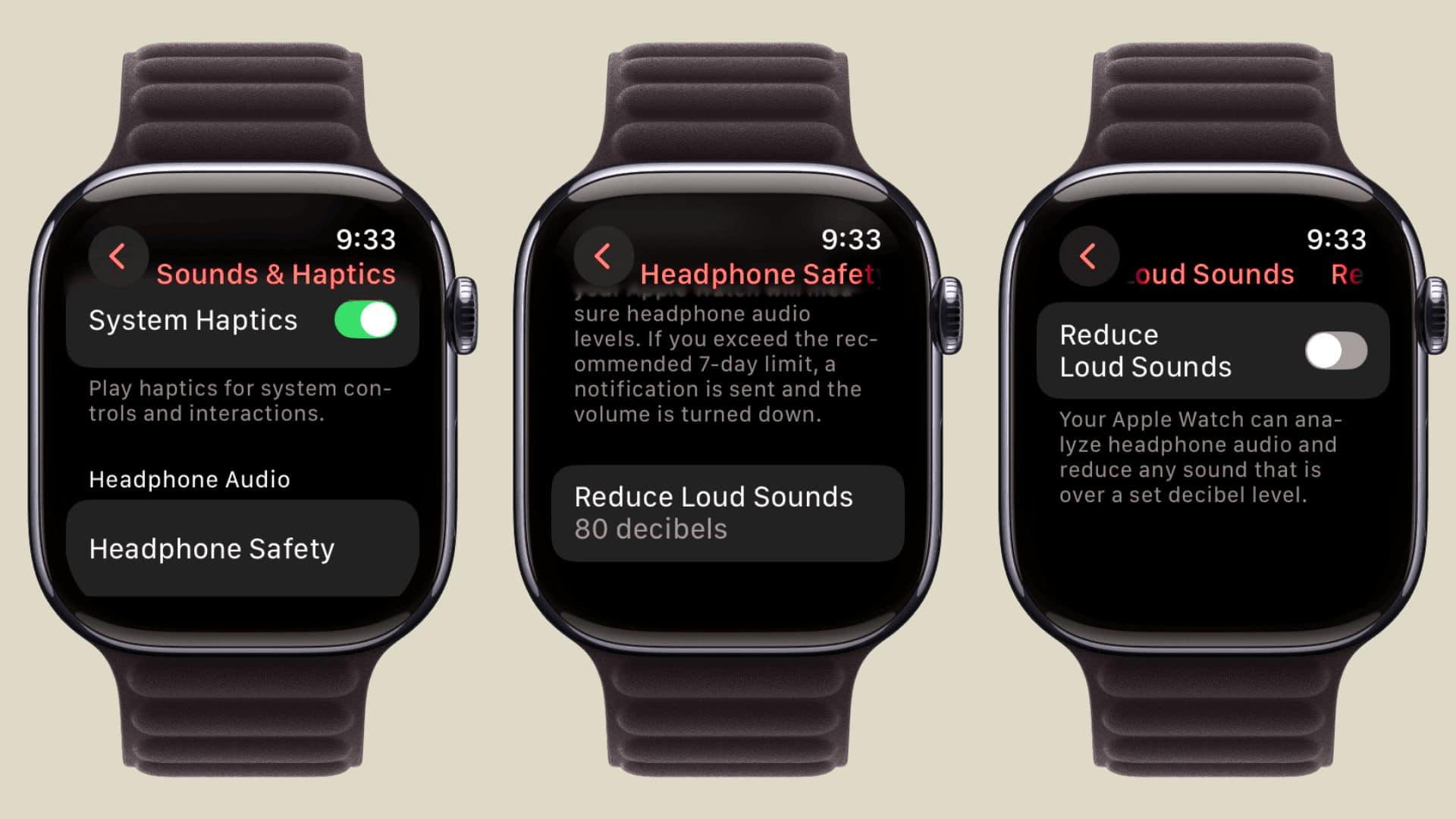
- Replay audio and increase volume using the Digital Crown or Control Center.

On iPhone or iPad, you can set maximum volume control to protect your ears.
8. Set Haptics for Stronger Feedback
Stronger haptics help you notice alerts even when sound is not high. Combine haptics with a higher alert volume for reliability.
- Open Settings > Sounds & Haptics on the watch.
- Tap Haptics and choose Prominent.
- Optionally enable Crown/System Haptics for extra tactile feedback while you navigate.
Or, if sound isn’t essential, here’s how to silence Apple Watch notifications.
9. Optimize Audio with Balance and Mono Mode
Accessibility controls can improve perceived loudness by adjusting channel balance or forcing both channels into one ear.
- Go to Settings > Accessibility > Hearing on the watch.
- Enable Mono Audio if you want the same audio sent to both ears.
- Adjust the Left/Right Balance toward the ear that needs more volume.
10. Increase Volume During Calls
Calls use in-call volume controls. Raise volume while the call is active for immediate effect.
- While on a call, rotate the Digital Crown to increase in-call volume.
- If you use Bluetooth earbuds, press their hardware volume buttons as needed.
- Check Headphone Safety settings if call volume still seems limited.
11. Device-Level Checks if Volume Remains Low
Sometimes basic steps fix persistent low volume. Try these checks before troubleshooting further.
- Confirm Silent Mode is off and the Alert Volume slider is high in Settings > Sounds & Haptics.
- Restart the Apple Watch and test again.
- Re-pair Bluetooth headphones if audio behaves oddly.
- If problems persist, consider updating watchOS and testing again.
Tips
- Keep watchOS updated to benefit from Control Center and Now Playing improvements.
- Use Now Playing and the Digital Crown during workouts for fast, precise volume control without leaving the workout screen.
- Combine higher Alert Volume with Prominent Haptics so you do not miss important notifications.
- Manage Alert Volume from your iPhone Watch app when you cannot access the watch UI.
- Disable or raise the Headphone Safety cap if headphone volume tops out too early.
FAQs
The Apple Watch speaker is not intended for continuous media playback. For music and podcasts, pair Bluetooth headphones or a speaker and then raise volume using Control Center, Now Playing, or the headphone hardware.
Yes. Open Now Playing and turn the Digital Crown to change volume instantly during playback.
You can change alert volume from the Watch app on iPhone. For media, you must adjust volume during playback with Now Playing, Control Center, or headphone controls.
Check that Silent Mode and any active Focus are disabled and confirm the Alert Volume slider is high in Settings > Sounds & Haptics.
Headphone Safety features, specifically Reduce Loud Sounds, can cap maximum volume. Raise the cap or disable the feature to allow more loudness.
Summary
- Raise alerts: Settings > Sounds & Haptics. Turn off Silent Mode.
- Control media: use Control Center and Now Playing with the Digital Crown.
- Boost Bluetooth audio: adjust headphone sliders and hardware buttons.
- Review Headphone Safety: raise or disable Reduce Loud Sounds to lift caps.
- Use accessibility: Prominent Haptics and Mono/Balancing for clearer perception.
Conclusion
You have predictable controls to raise sound on the Apple Watch. Use Sounds & Haptics for alerts, Control Center or Now Playing for media, and headphone or accessibility settings for better clarity and higher limits. Those steps give you reliable control over alerts, calls, and media.


Discussion