

Few things can make your stomach drop faster than seeing the Green Screen of Death on your iPhone. It’s jarring, sudden, and looks like a sign of total failure. But contrary to what it looks like, it doesn’t always mean your iPhone is dead. You can force the device into recovery mode, run Apple Diagnostics, reinstall iOS through Configurator, or check for overheating and firmware issues.
That said, this isn’t your typical screen glitch. It could point to deeper software corruption or even hardware defects. Let’s break down what causes it and what you can actually do to fix it.
What Does an iPhone Green Screen Mean?
When your iPhone screen turns green, it indicates a problem with the display. The Green Screen of Death issue is most commonly seen on iPhone X, 12, and 13. This can occur due to a temporary software glitch, hardware failure, or physical/water damage.
iPhone Green Screen After iOS 17 Update
Many iPhone 13 users face this problem after updating to iOS 17. If your device is still under warranty, it might be wise to back it up and consider a replacement.
How Do I Fix the Green Screen of Death on my iPhone?
 Tip
Tip
Now, we assume the green screen on your iPhone isn’t permanent, and that you can still access your phone after it goes away. If it is permanent, you don’t have too many options. You can try to revive it with a forced restart, and if that doesn’t help, your only option is to contact Apple support or visit a repair service.
If the green screen is only temporary, there are a few things you can try to prevent it from happening again. Keep reading for more details.
1. Force Restart Your iPhone
Time needed: 1 minute
Before assuming the worst, it’s essential to check if the green screen is due to a temporary glitch.
Here’s how to perform a hard reset which can resolve temporary software issues:
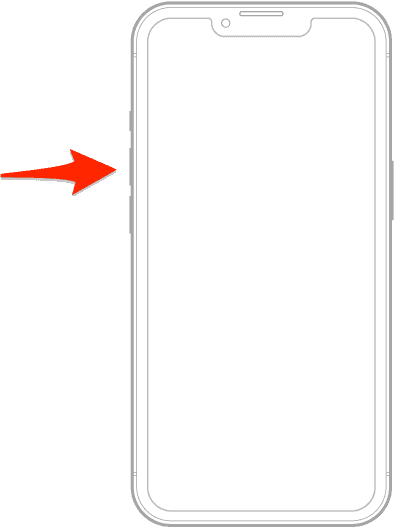
- Press and immediately release the volume up button.
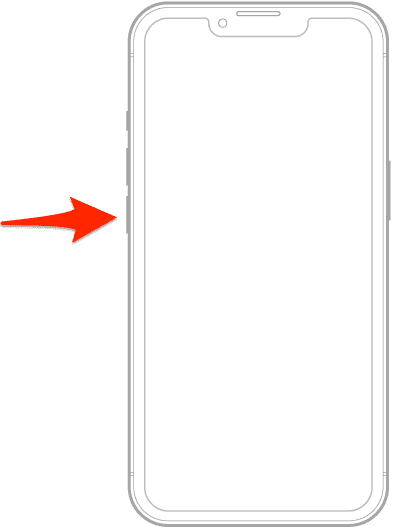
- Press and immediately release the volume down button.
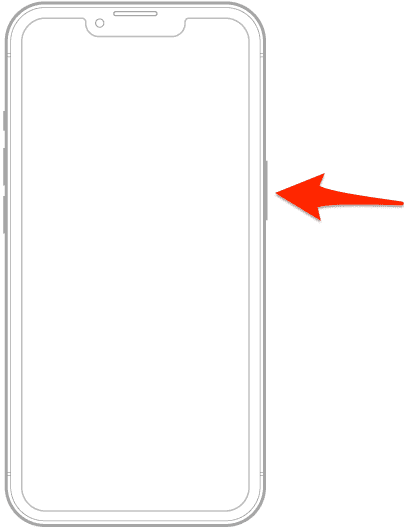
- Then press and hold the side (power) button until the Apple logo appears, which might take around 10-20 seconds. Ignore any other screens that might show up, including the one with the slider to turn the device off.
If you’re iPhone has booted successfully but the screen is not responsive to touch, check out our dedicated guide to further address the issue.
2. Force iPhone Into Recovery Mode
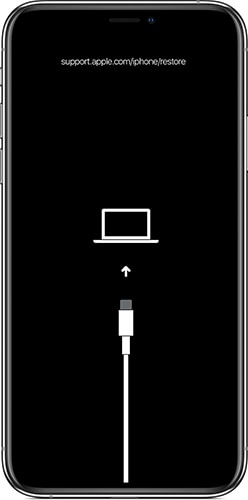
Green screens are often linked to firmware corruption or GPU stalls. Entering recovery mode lets you reinstall iOS without erasing your data. If your iPhone is responsive but stuck on a green or flickering screen, this method can help restore stability without a factory reset.
- Connect your iPhone to a Mac or PC using a USB cable.
- For iPhone 8 and later: Press and quickly release Volume Up, then Volume Down, then hold the Side button until recovery screen appears.
- On macOS Finder or iTunes (Windows), select Update when prompted.
- Let the system reinstall iOS. Your data should remain untouched.

3. Run Apple Diagnostics to Check for Hardware Issues
Not every green screen is software-related. You could be dealing with GPU or display controller issues. Apple Diagnostics helps rule out hardware faults and offers reference codes that Apple Support can interpret. It’s worth running if you’re seeing flickering, vertical lines, or random color flashes.
- Disconnect all accessories.
- Shut down your iPhone.
- Hold the Volume Up and Side button while reconnecting to a Mac with Configurator 2 open.
- Follow the prompt for Diagnostics.
- Take note of any error codes and compare them at Apple Support.
4. Use Apple Configurator 2 for Stable OS Restore
Configurator 2 is Apple’s preferred tool for IT and support technicians. It gives you deeper restore control compared to iTunes. If iOS updates are failing or your iPhone crashes midway through recovery, this tool reduces the chances of bricking your device mid-restore.
- Download Apple Configurator 2 from the Mac App Store.
- Connect your iPhone via USB.
- Put your iPhone into DFU Mode.
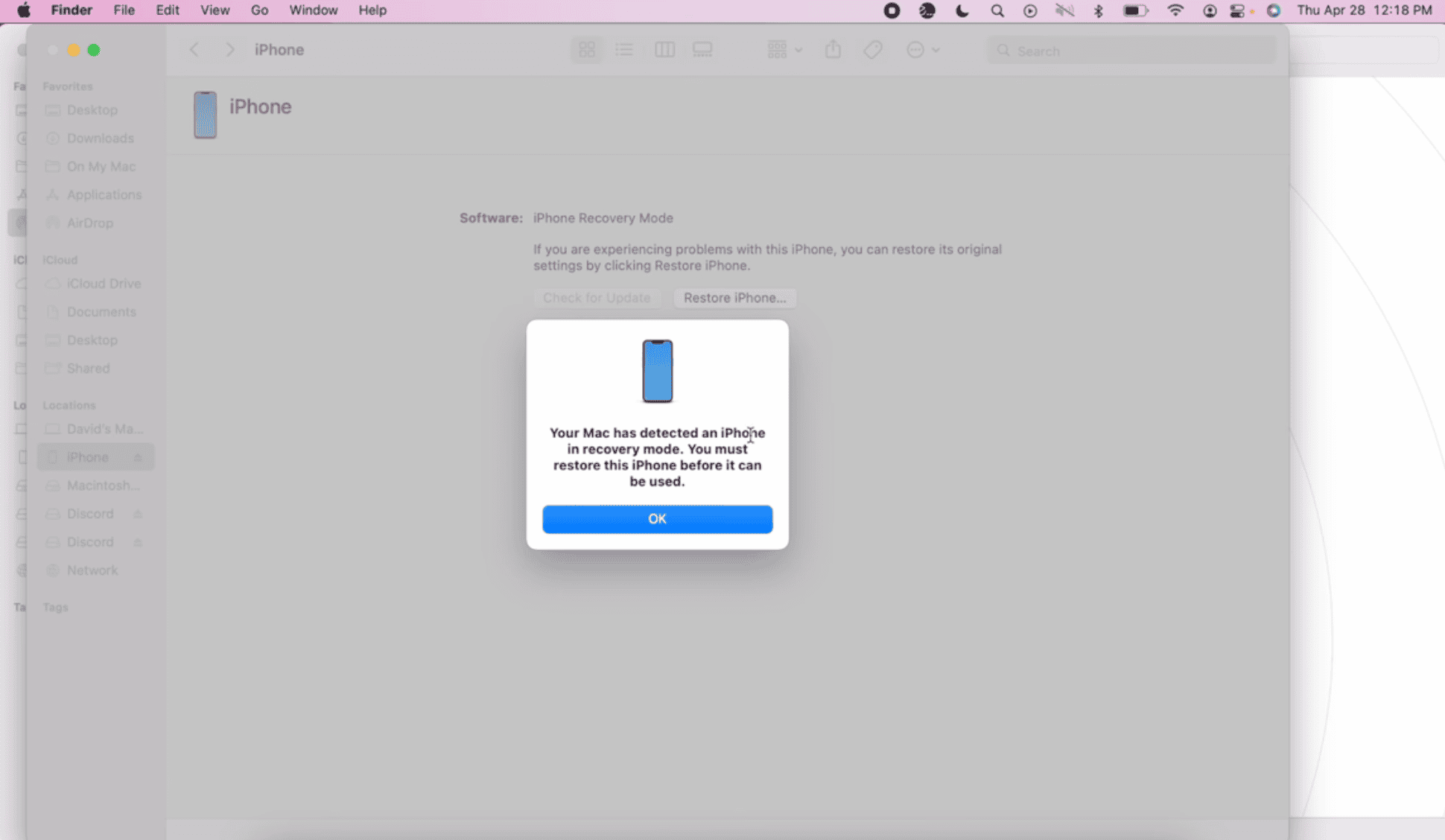
- Select your device in Configurator and click Restore.
- Wait for iOS to reinstall—please don’t disconnect during the process.

5. Check Battery Health and Overheating Logs
Poor battery health or overheating can trigger GPU panic, which may cause display glitches like a persistent green screen. Apple’s Battery Health section shows max capacity and whether performance management is active due to unexpected shutdowns.
- Open Settings > Battery > Battery Health & Charging.
- Check Maximum Capacity and Peak Performance Capability.
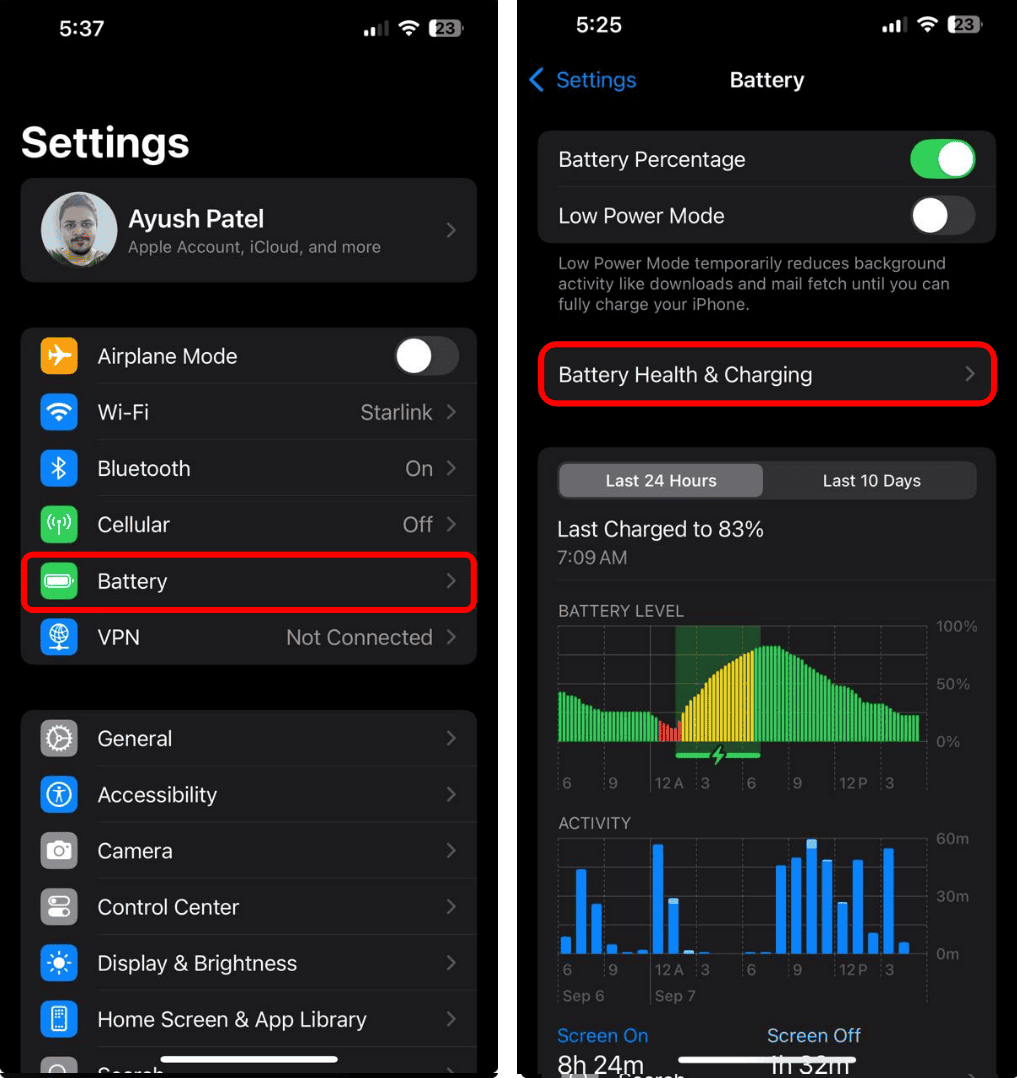
- If it says “Performance management applied,” overheating may be the culprit.
- Let the phone cool down. Remove the case if needed.
- Consider battery replacement if health drops below 80%.

6. Reinstall iOS Using a Clean IPSW File
Over-the-air updates occasionally carry bugs that corrupt device firmware. Downloading a clean, signed IPSW file from Apple’s servers can fix screen-related bugs caused by bad update files. It’s a more controlled way to restore your OS.
- Visit ipsw.me and download the latest signed IPSW for your iPhone model.
- Connect your iPhone to a Mac.
- Open Finder and enter Recovery Mode on your iPhone.
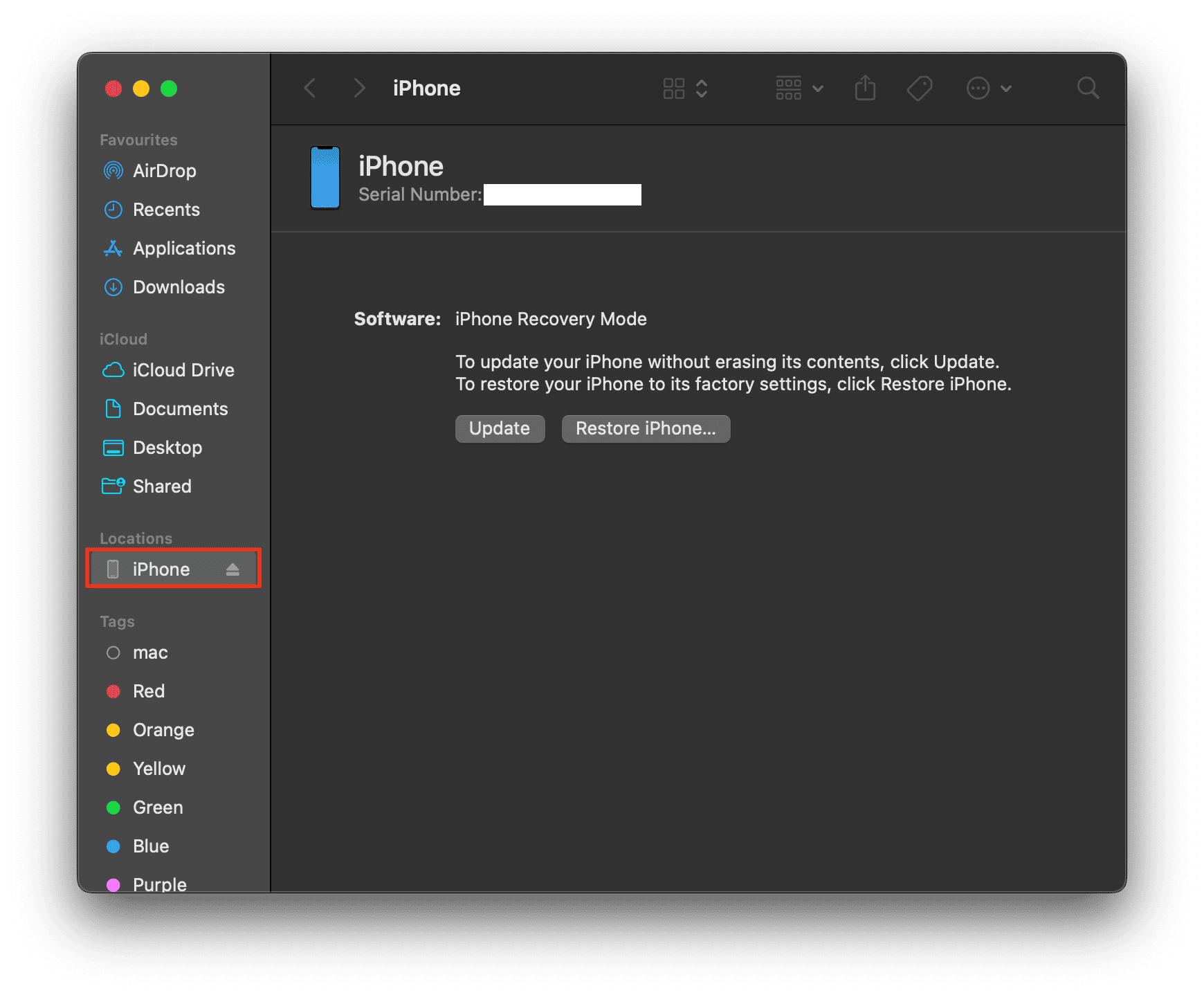
- Hold Option and click Restore iPhone.
- Select the IPSW file and begin installation.

7. Connect your iPhone to iTunes
An unlikely solution comes from an Apple forums user who claims they resolved the green screen problem by connecting their iPhone to iTunes on PC and then force-restarting it. So, you can try the same:
- Connect a USB cable to a PC or Mac.
- Open the iTunes app on your PC or Mac.
- Connect USB cable to iPhone.
- Force restart your iPhone (follow the instructions listed above).
- Repeat this process 3-4 times.
If the green screen persists, contact Apple Support. It’s likely a hardware issue. In this case, schedule an appointment with an Apple Store or an Apple Authorized Service Provider (AASP) for an inspection. You can find a nearby location through Apple’s Location Selector.
This workaround does seem odd, but it has apparently worked for multiple users, so you might as well give it a try.
How to Fix iPhone Screen Green Tint From Water Damage
Check if there are any signs of physical damage or if the device was recently exposed to water. If you get a Green Screen of Death on your iPhone after water damage, make sure the device is powered off and leave it in a dry place for at least 48 hours.
What Causes the Green Screen of Death on iPhone?
There are various factors that can lead to the Green Screen of Death:
- Sometimes, software bugs or corrupt files can cause the display to malfunction and the iPhone not to turn on.
- This could be a malfunctioning screen, loose internal connections, or a faulty graphics processing unit.
- Dropping your phone or exposing it to physical stress could damage the screen or internal components.
- Exposure to water or excessive moisture can cause the iPhone’s screen to turn green. This is common when the phone isn’t given enough time to dry or hasn’t been properly cleaned after water exposure.


I am trying to restart the phone but can’t find the iPhone logo
You’ll need to force restart it instead: for iPhone 8 and later, quickly press Volume Up → Volume Down → hold the Side button until the Apple logo appears. This should reboot the device and often resolves the green screen issue.