

Many iPhone users rely on Apple Pay for quick and secure contactless transactions. However, following the major iOS 26 update, some users have reported issues with their Near Field Communication (NFC) enabled payments not working correctly at checkout terminals. This disruption, where the phone either fails to activate the payment or remains stuck on the “Hold Near Reader” message, is likely a complex software glitch impacting the Wallet app’s communication protocols. Fortunately, there are several effective troubleshooting steps you can take to restore your mobile payment functionality.
Table of contents
Essential Solutions for Apple Pay Malfunctions on iOS 26
Encountering a payment failure at the point of sale can be highly inconvenient, but most problems related to Apple Pay not working on your iPhone after a major OS update like iOS 26 can be resolved with simple software and settings checks.
1. Re-add Your Payment Cards
Sometimes the iOS update process can corrupt or de-verify card data within the Wallet app. Deleting and re-adding your card often forces a fresh, clean provisioning process with your bank, which can fix underlying communication errors.
Don’t miss the best of The Mac Observer
Set us as a preferred source and our Apple reporting ranks higher in your Google Search results and Discover feed — one tap, no account changes.
- Go to Settings and tap Wallet & Apple Pay.
- Select the card that is not working.
- Scroll down and tap Remove Card.
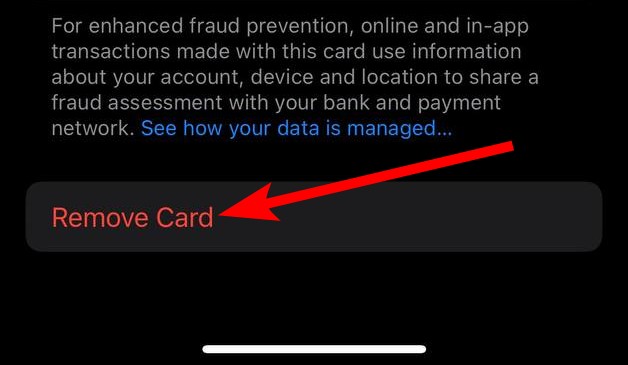
- Restart your iPhone.
- Return to the Wallet app, tap the plus icon (+), and follow the steps to re-add your credit or debit card. For a complete guide on the setup process, you can learn how to set up Apple Pay.
2. Force Restart Your iPhone
A forced restart is a classic first-line defense against numerous software glitches. This action clears temporary system memory and can resolve unexpected bugs that prevent the NFC hardware or Wallet app from launching correctly.
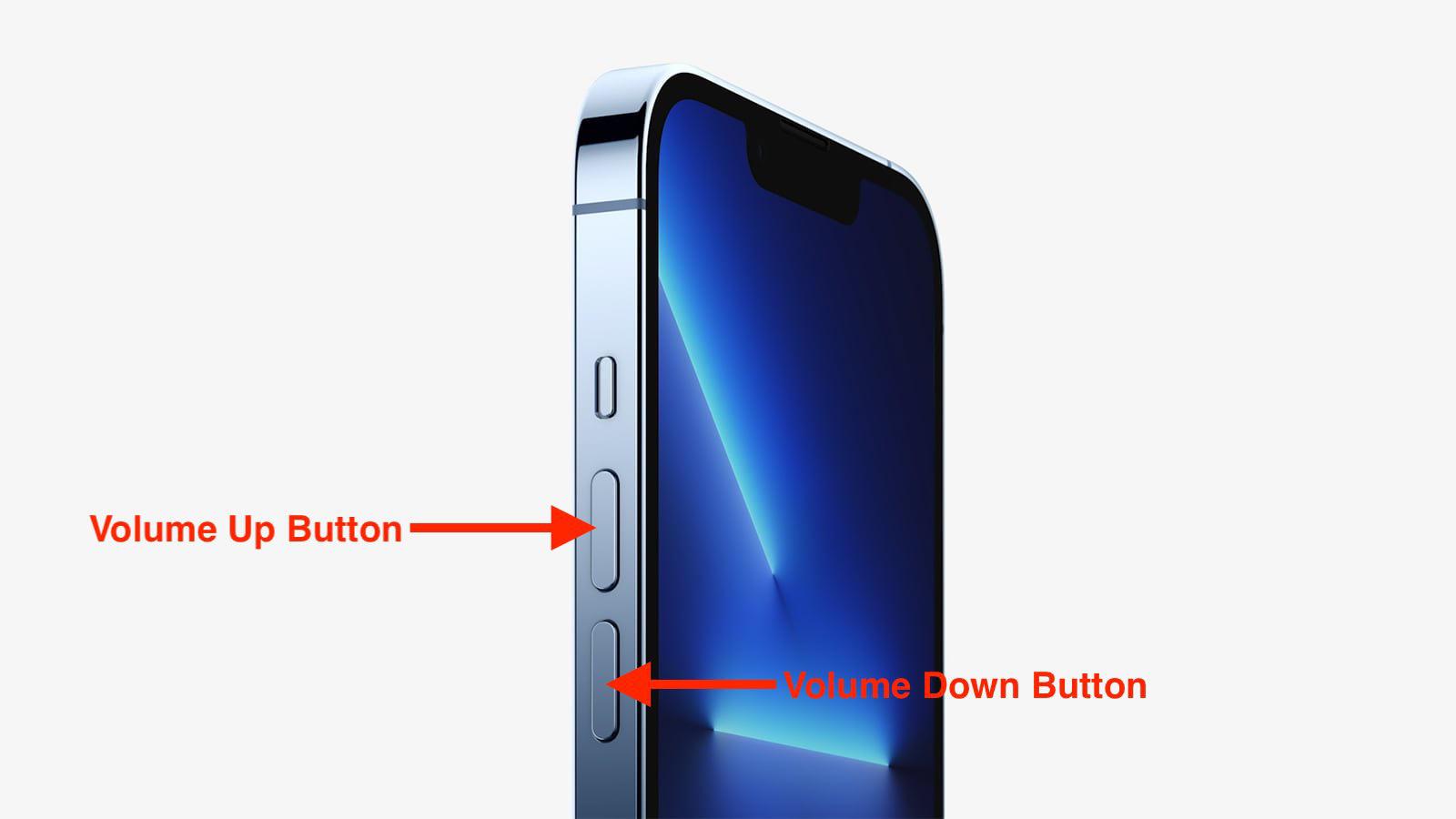
- Press and quickly release the Volume Up button.
- Press and quickly release the Volume Down button.
- Press and hold the Side button until the Apple logo appears, then release.
3. Verify Face ID or Touch ID Settings
Apple Pay transactions are inherently tied to your biometric authentication, whether it is Face ID or Touch ID, as a critical security measure. The recent iOS 26 update may have inadvertently disabled or altered the setting that governs the double-click activation of the Wallet app. Ensuring these security features are correctly configured is paramount, especially when considering is Apple Pay is truly secure.
- Open Settings and navigate to Face ID & Passcode (or Touch ID & Passcode).
- Scroll down to the Use Face ID For section and ensure Apple Pay is toggled on.
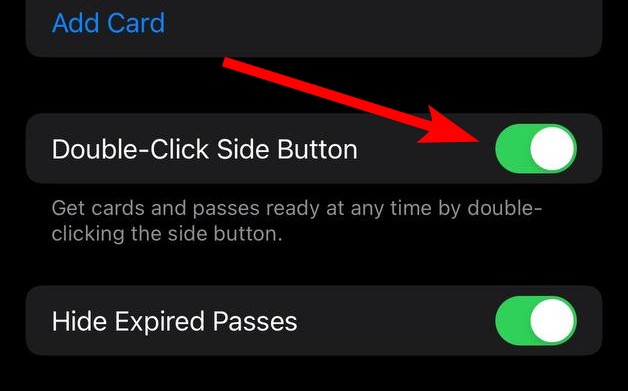
- Also, check the Wallet & Apple Pay settings to make sure Double Click Side Button is enabled.
4. Ensure Card Verification is Complete
User reports from support communities indicate that following the iOS 26 installation, cards may appear set up but are not fully verified, causing the double-tap and NFC process to fail. Checking this status can be the single most effective fix to ensure the card is properly provisioned with the bank.
- Go to Settings and tap Wallet & Apple Pay.
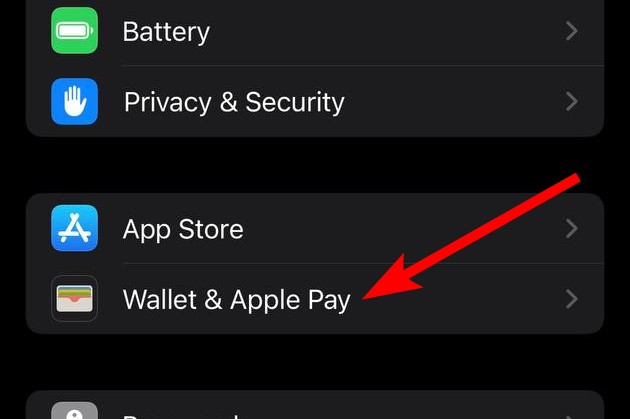
- Tap the problem card and look for any verification prompts or status messages.
- If a bank requires further authentication, complete the process, which may involve receiving a code via text or calling your financial institution to finalize verification.
5. Update iOS to the Latest Version
When a major bug affects a large number of users, Apple typically releases a minor point update (like iOS 26.0.1 or 26.1) specifically to provide a fix. Checking for and installing the very latest iOS version can resolve known software conflicts that were introduced during the initial rollout of iOS 26.
- Go to Settings.
- Tap General, then Software Update.
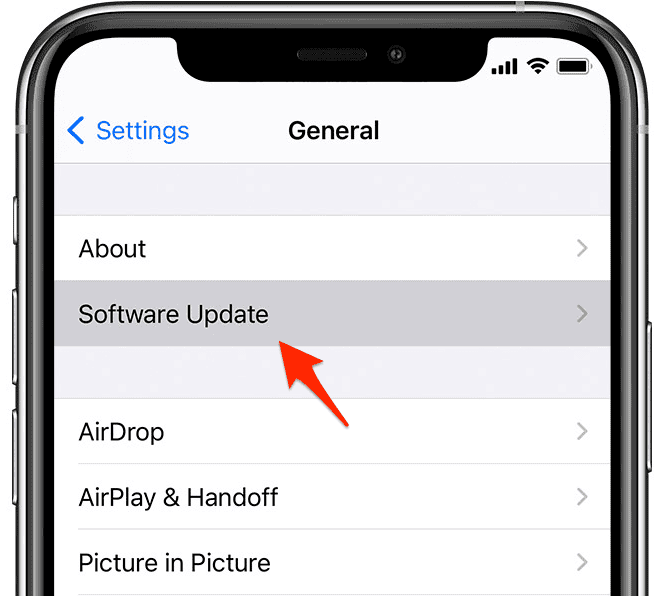
- If an update is available, tap Download and Install.

6. Check the Default Payment Card
Sometimes, simply re-designating your primary payment method can refresh the system’s tokenization data. The iOS 26 transition might confuse which card the system should default to when the device is placed near a terminal. Toggling your default card or ensuring your cards are correctly ordered may resolve the NFC activation glitch. This simple step can sometimes fix issues that feel like a software deadlock.
- Open Settings and tap Wallet & Apple Pay.
- Under Transaction Defaults, tap Default Card.
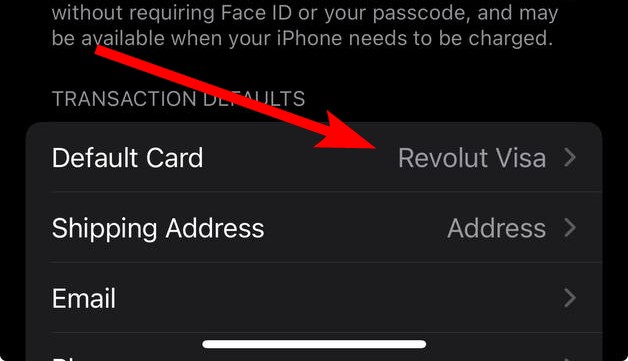
- Select a different card, or reselect the one you intend to use most often, to ensure it is properly registered as the primary method. If you use the Apple Account Card, this is also where you can manage its priority when you add your Apple Account card to Wallet.
FAQ
This usually suggests the NFC chip is active, but the transaction is timing out. This can be caused by a software glitch, a communication error with the terminal, or a required card verification step that hasn’t been completed. Ensure you hold the top of your iPhone near the reader and not the bottom.
While less common, it is possible. However, if Apple Pay was working fine before the iOS 26 update and other NFC functions (if applicable) are also failing, a software bug is more likely. Contacting Apple Support to run remote diagnostics can help rule out a hardware fault.
This confirms the issue is specific to the digital tokenization and Wallet app, not the bank account or physical card itself. The fixes mentioned above, especially removing and re-adding the card, are most likely to correct this issue.
Restoring Contactless Payment Functionality
Dealing with a non-functioning mobile payment system after an update is frustrating, but the fix is often software-related, as seen with similar past issues like Apple Pay not working after an iPhone 16 update. By systematically applying these troubleshooting steps, especially card re-provisioning and verification checks, you can quickly restore your contactless payment functionality. Should the problem persist, your next step should be contacting Apple Support for specialized assistance.


Hello,
Since a few days, when I double click my Iphone 16 the wallet opens after checking my face ID but no transactions are finalized.
In other words, the screen just tells me to “Hold Near Reader” but nothing happens. WHY?
I tried all three credit cards in my Wallet but neither of the cards function with the contactless system
Therefore, I have to pay by getting my physical cards out of my pocket.
I have tried the above recommendations but have the feeling that the NFC is not working. How can this be checked otherwise.
Regards