

If you have noticed the Safari home button missing after a recent update or a change in settings, you are not alone. While Apple prioritizes a minimalist design, many users rely on the home button for quick navigation. This disappearance is likely caused by a specific default UI configuration, but it can be easily resolved through a simple customization sequence within your browser settings.
Table of contents
Restoring the Home Button on macOS
1. Customize the Safari Toolbar
The most common reason for the home button disappearing is that it has been removed from the active toolbar layout. macOS allows you to drag and drop various tools to personalize your browsing experience and improve accessibility.
- Open Safari on your Mac.
- Right-click (or Control-click) on any empty space within the top toolbar area.
- Select Customize Toolbar… from the context menu.
- Locate the Home icon (shaped like a house) in the selection window.
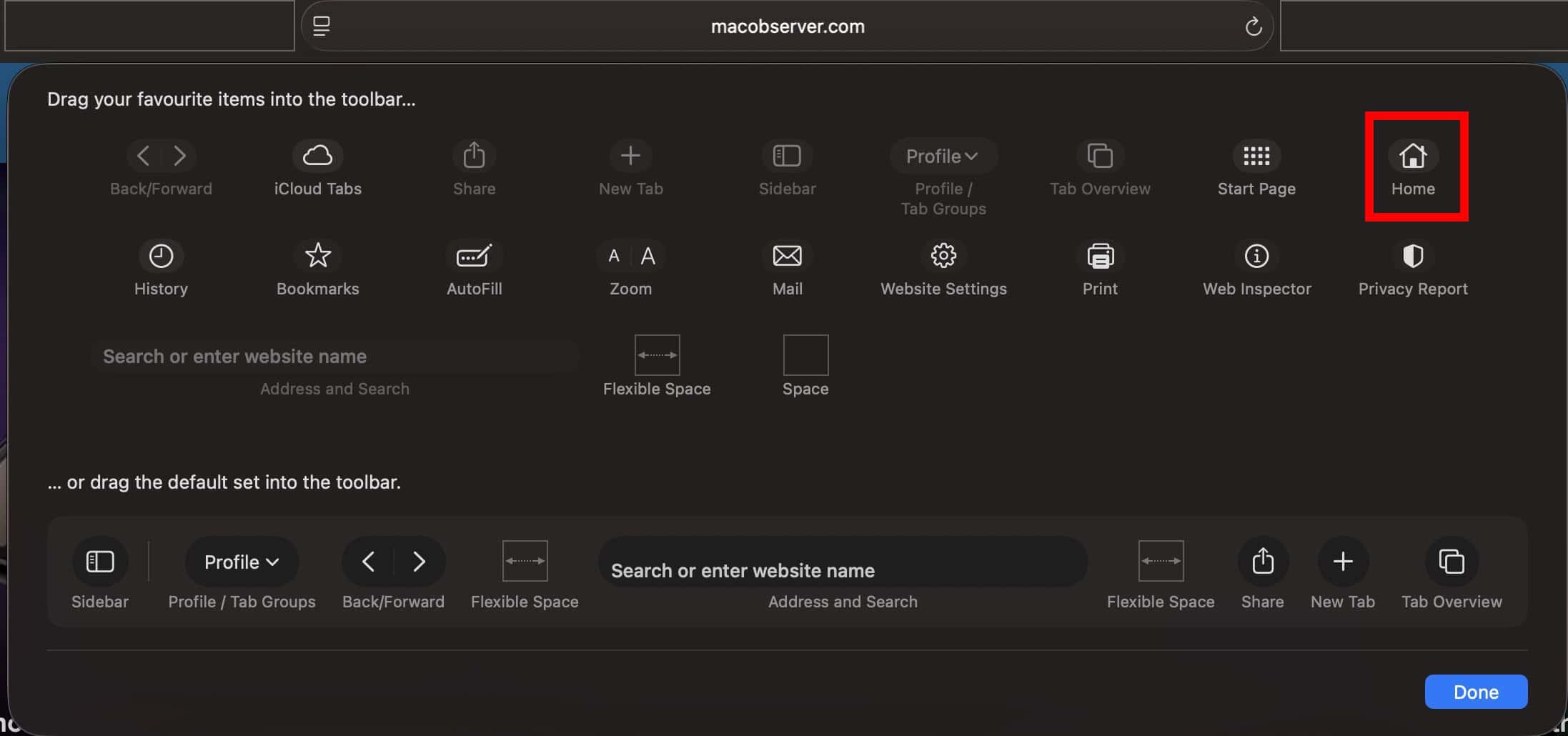
- Click and drag the icon up to your preferred spot in the toolbar and click Done.

2. Configure Your Homepage URL
Adding the button is only half the battle; it must be linked to a specific destination to function correctly. If the button is present but unresponsive, you likely need to define a homepage address in the application settings.
Don’t miss the best of The Mac Observer
Set us as a preferred source and our Apple reporting ranks higher in your Google Search results and Discover feed — one tap, no account changes.
- Navigate to the top menu bar and click Safari > Settings (or Preferences).
- Open the General tab at the top of the settings window.
- Look for the Homepage field and type in the full URL of your favorite site.
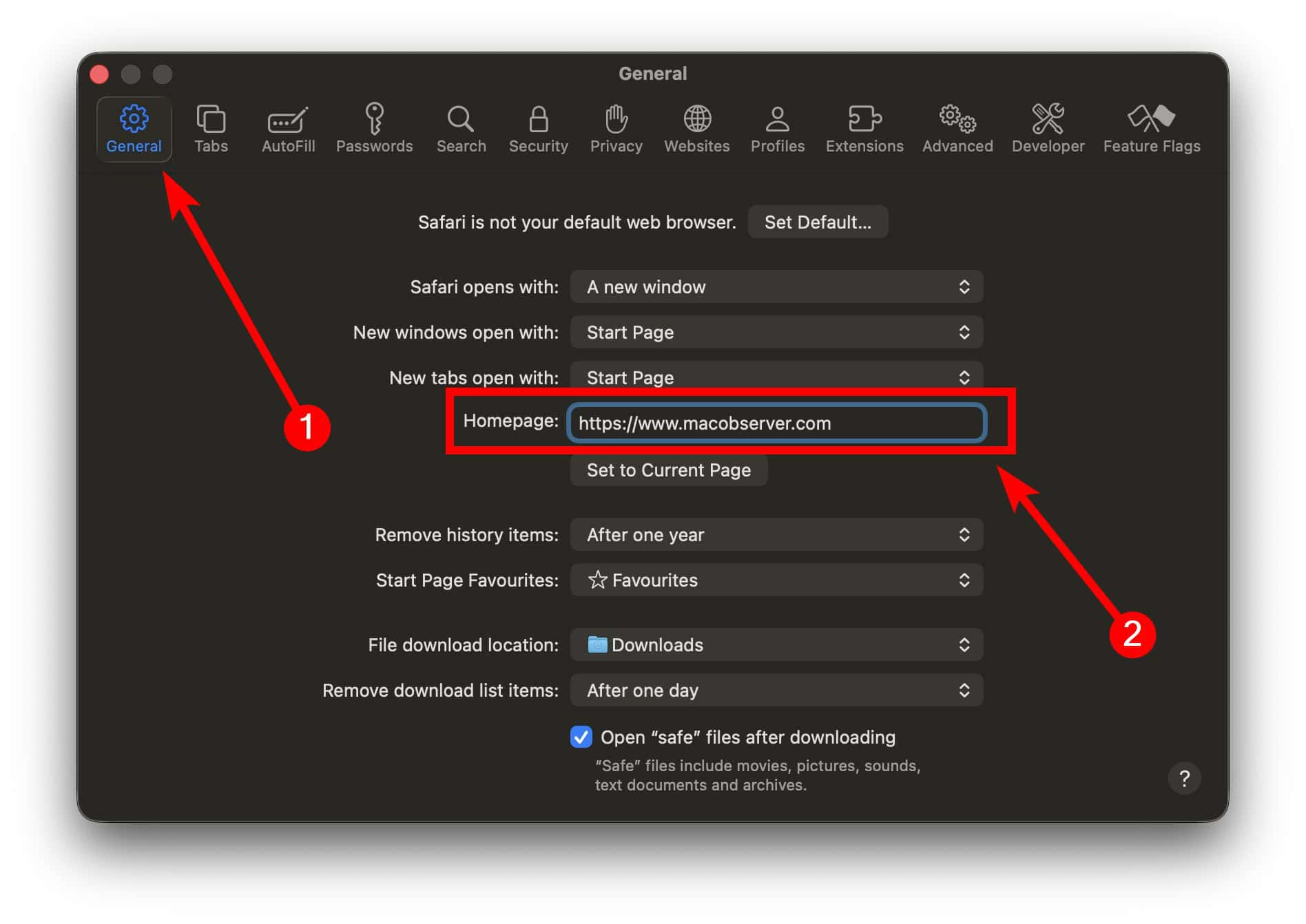
- Verify that your “New windows open with” setting is also set to your homepage for consistency.

This level of customization is one reason why users often perform a Safari vs Brave comparison to see which browser offers the most intuitive toolbar control and personalized navigation.
3. Verify Safari Technology Preview Settings
If you are a developer or an early adopter, you might find that certain UI elements behave differently in experimental builds. Buggy toolbar behavior is sometimes isolated to specific versions of the browser software during testing phases.
- Check if you are running the standard version or the developer version of Safari.
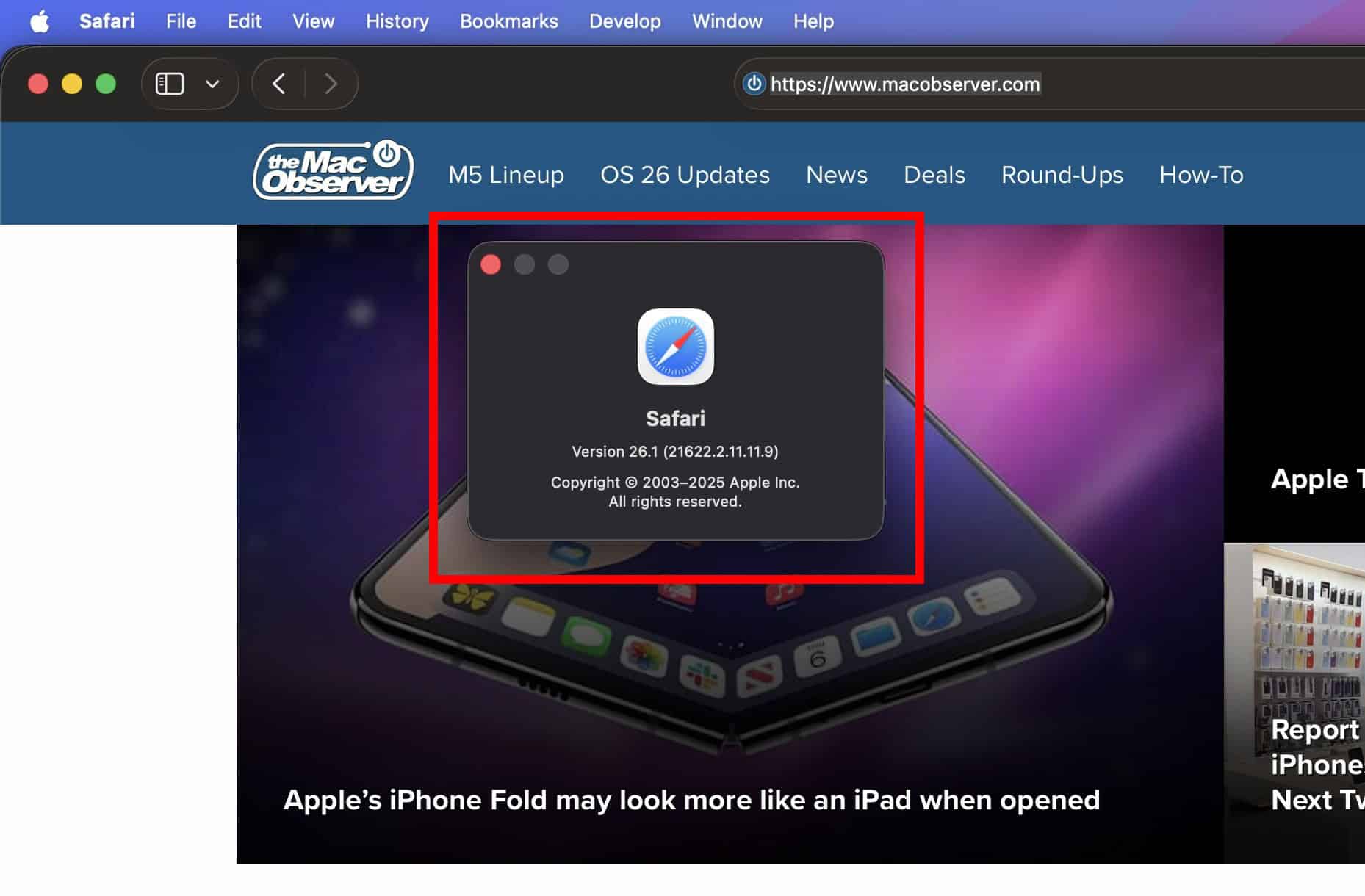
- Frequently, Apple releases Safari Technology Preview updates that include specific patches for UI glitches.
- Installing the latest update for your specific build can often force the toolbar icons to reappear if they were lost during a software update.

4. Reset the Toolbar to Default
If your toolbar remains glitched or the home button refuses to stay pinned, a full reset of the interface may be necessary. This process clears out any conflicting layout preferences that might be hiding your navigation tools.
- Right-click the toolbar again and select Customize Toolbar….
- At the bottom of the window, locate the “default set” of icons.
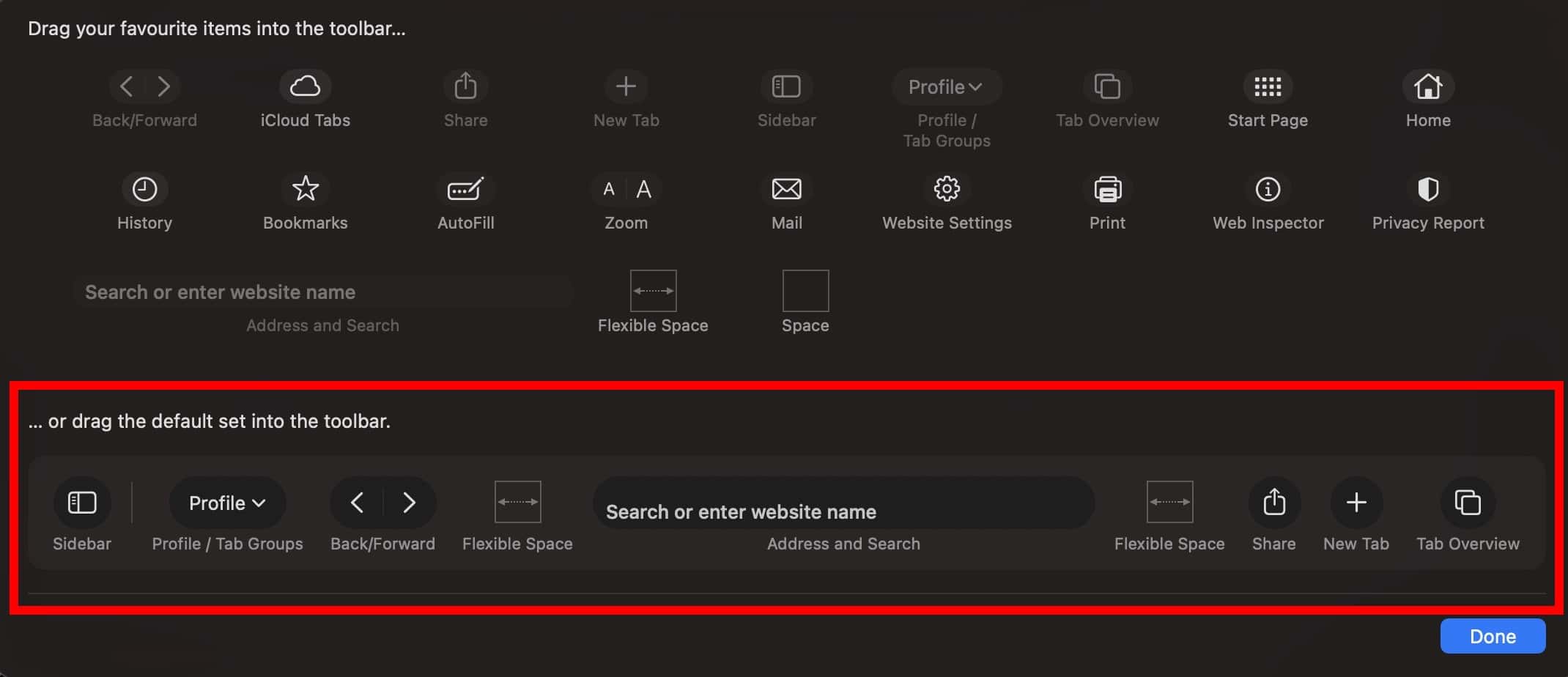
- Drag the entire default set into your toolbar to overwrite your current configuration.
- Re-add the Home button manually after the reset to check for stability.

5. Organize Active Navigation Elements
A missing home button is often more noticeable when your browser feels cluttered. Organizing your tabs and window layout can help you navigate back to your primary sites even when the physical icon is not visible.
- Use the “Tab Groups” feature to keep your home-related sites in one dedicated area.
- Pin your most important tabs by right-clicking a tab and selecting “Pin Tab.”
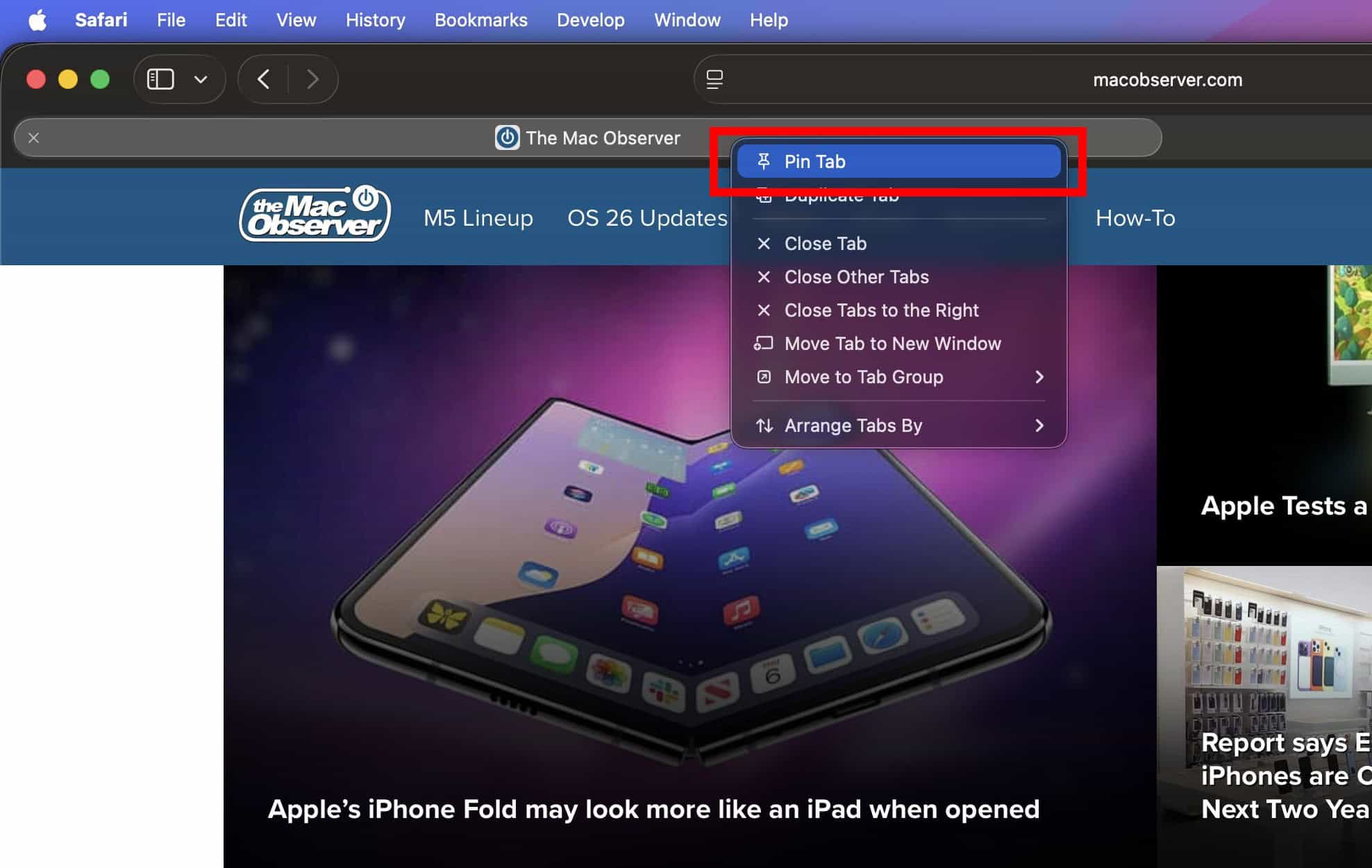
- Learning how to manage iOS 26 Safari tabs or macOS tab groups ensures your workspace remains efficient regardless of toolbar changes.

FAQ
Apple aims for a clean, distraction-free interface. By removing the home button, they provide more horizontal space for the URL address bar and active tabs.
No, the icon is a system-standard house symbol and cannot be changed without using third-party browser extensions or modifying system files.
Yes, as long as your toolbar is set to show in Full Screen. You can toggle this by going to the View menu and selecting Always Show Toolbar in Full Screen.
Efficiently Navigating Safari Without a Home Button
Restoring your navigation icons ensures a smoother browsing experience across your Mac. Whether you prefer the classic toolbar icon or using keyboard shortcuts, these steps eliminate the frustration of a missing home button. Maintaining a clean interface while you manage Safari browsing history will keep your browser fast, functional, and tailored to your specific workflow.


Discussion