

You can only sign out of Apple Music on an iPhone through your device settings. Apple does not provide a sign-out button inside the Music app itself. When you sign out, it ends your Apple Music session on that device. Your library, playlists, and offline music won’t sync until you sign back in. You stay subscribed unless you cancel on your Apple ID subscriptions page.
Many people assume you can tap a log out button in the Apple Music app. That’s not how Apple designed it. You use the Settings app, under your Apple ID and purchase settings.
This guide covers every method to sign out of Apple Music in iOS 26 in clear detail.
Don’t miss the best of The Mac Observer
Set us as a preferred source and our Apple reporting ranks higher in your Google Search results and Discover feed — one tap, no account changes.
Table of contents
Method 1
Sign Out from Media & Purchases in iOS 26
This is the standard way to disconnect Apple Music from your iPhone.
How to sign out
- Open the Settings app on your iPhone or iPad.
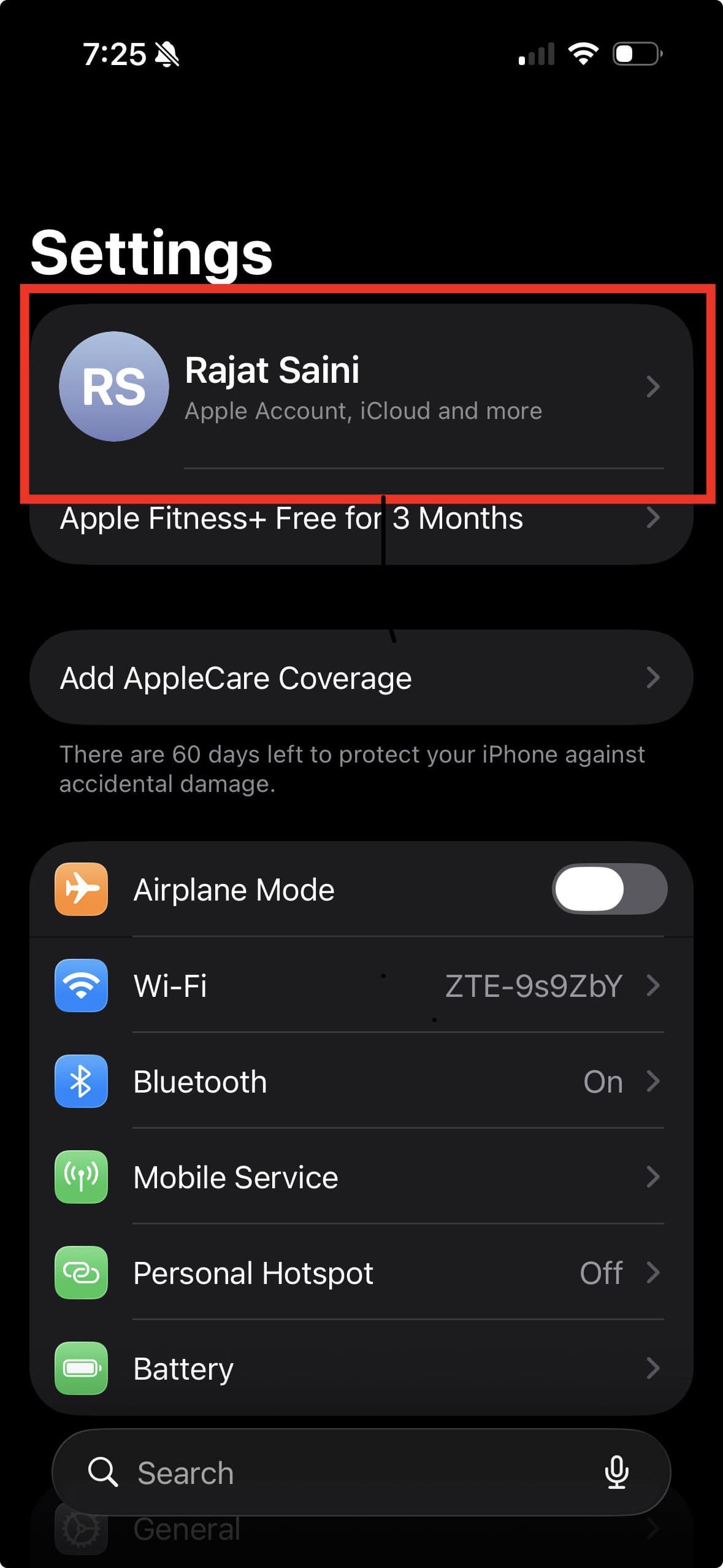
- Tap your name or Apple ID banner at the top.
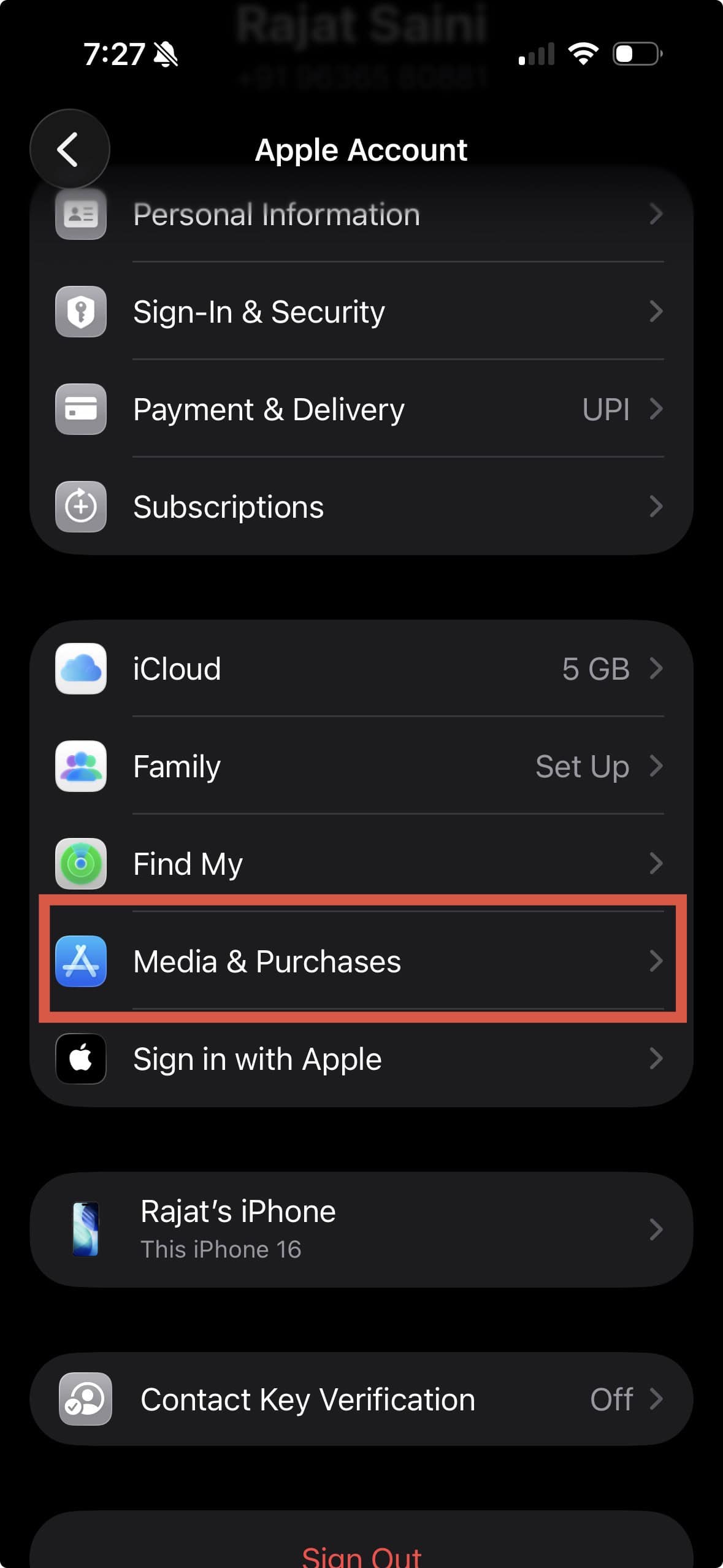
- Scroll and tap Media & Purchases.
- Tap Sign Out.
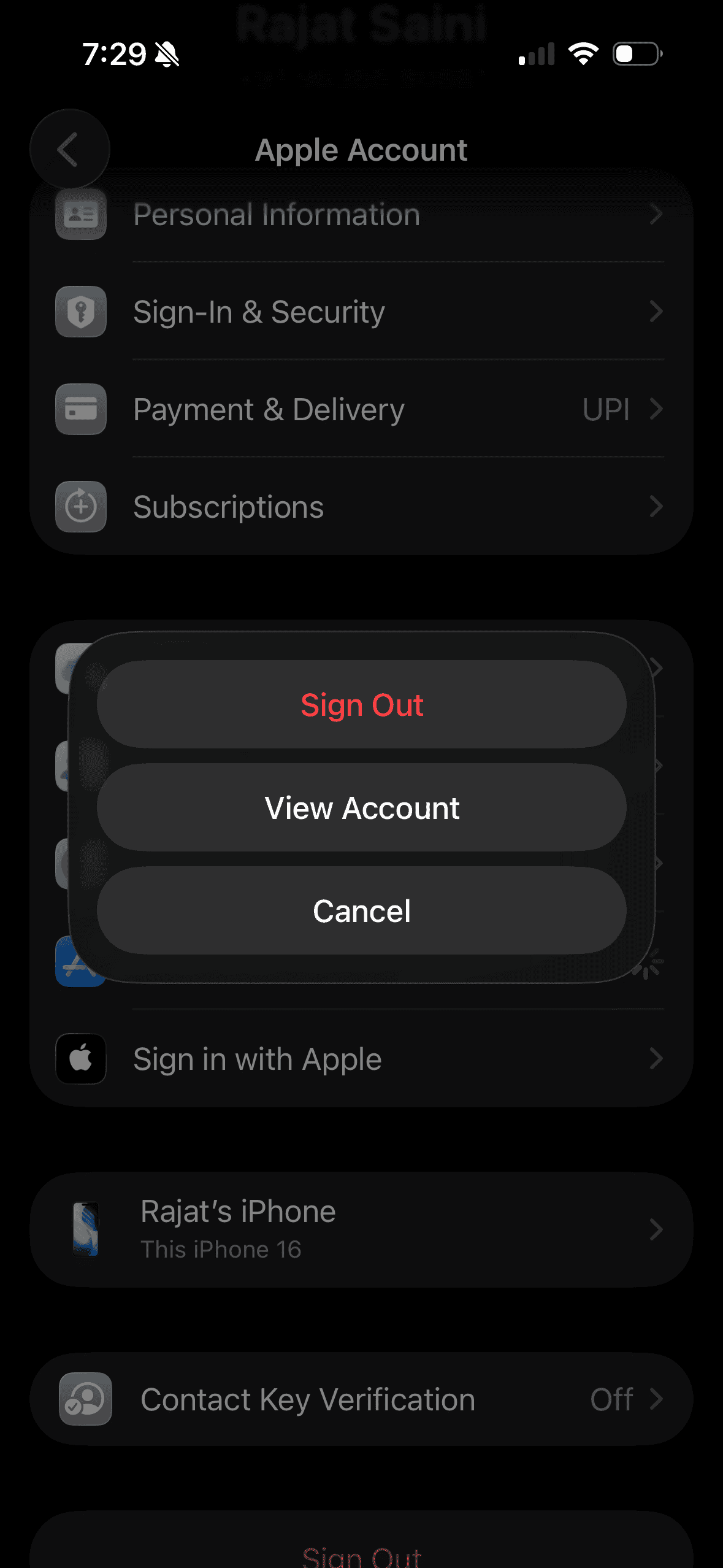
- Confirm when prompted.


What happens
- You sign out of Apple Music, the App Store, iTunes, and other media services.
- Offline songs and playlists no longer appear until you sign in again.
- Your subscription stays active with your Apple ID but won’t function on this device.
Method 2
Remove This Device from Your Apple Account
This method unlinks your iPhone from Apple Music and other media services without signing out of your Apple ID entirely.
How it works
- Go to Settings and tap your Apple ID.
- Tap Media & Purchases.
- If asked, sign in with your Apple ID password or Face ID.
- Tap View Account or Account Settings.
- Scroll and tap Remove This Device.
What this does
- Your iPhone stops syncing media purchases and Apple Music access.
- You can still use the iPhone with your Apple ID for iCloud and other services.
- If you decide to use Apple Music again, you must sign in from this device.
Method 3
Sign Out Remotely from All Devices
You can manage Apple Music sign in on devices you no longer have. This method helps if you lost a device or sold it.
How to do this
- Open a web browser and sign in to your Apple ID account.
- Go to the Devices section.
- Tap a device you no longer use.
- Tap Remove from account.
Results of remote removal
- The device signs out of Apple Music and all Apple services.
- You protect your account if a device is lost.
- iCloud and Apple Music access end on that device until you sign in again.
Method 4
Sign Out of Apple Music on Other Platforms
If you use Apple Music outside iOS, you also need to sign out on those platforms.
Mac
- Open the Music app.
- Click Account in the menu bar.
- Click Sign Out.
- Confirm when prompted.
Web
- Open Apple Music on the web.
- Tap your profile icon at the top right.
- Tap Sign Out.
Windows via iTunes
- Open iTunes.
- Click Account in the menu bar.
- Click Sign Out.
- Confirm if needed.
Tips Before You Sign Out
- Backup any downloads you want to keep offline.
- Signing out does not cancel your Apple Music subscription.
- Signing out removes access on that device but does not delete your Apple ID.
- If you use two Apple IDs, review your Media & Purchases account carefully.
FAQs
Can you sign out of Apple Music inside the Music app?
No. You must use Settings or remove the device from your Apple ID.
Will signing out cancel my subscription?
No. Your subscription stays active until you cancel it in your Apple ID subscriptions settings.
What happens to my downloaded music?
Offline music is removed from the device when you sign out. It returns only after you sign back in.
Summary
- Open Settings and sign out under Media & Purchases.
- Use Remove This Device to unlink Apple Music from your iPhone.
- Remove devices from your Apple ID account to sign out remotely.
- Sign out separately on Mac, web, or Windows platforms.
- Back up files before signing out to avoid data loss.
Conclusion
You cannot log out of Apple Music directly from the Music app in iOS 26. You must use the Settings app, your Apple ID, or remove devices from your account. These methods keep your music safe and help you switch accounts or secure lost devices. Follow the steps above to sign out cleanly and stay in control of your Apple Music access.


Discussion