

Streaming live sports can be frustrating. You might see buffering, error codes, or an unresponsive video player on your iPhone. These issues often happen because of conflicts. They stem from the website’s format or browser settings. iOS updates can also cause problems. You must address these common conflicts quickly. Check the service status and adjust your network. This is the key to restoring smooth viewing on your mobile device.
Diagnosing and Resolving Common StreamEast Mobile Streaming Issues
1. Confirm the Service is Currently Operational
StreamEast operates in a very dynamic online environment. Therefore, first verify that the streaming domain is active. The site might face a temporary shutdown or maintenance. Checking this first saves unnecessary time. It confirms the issue is not local to your iPhone or network.
- Use an independent website status checker. Test the site on a different device.
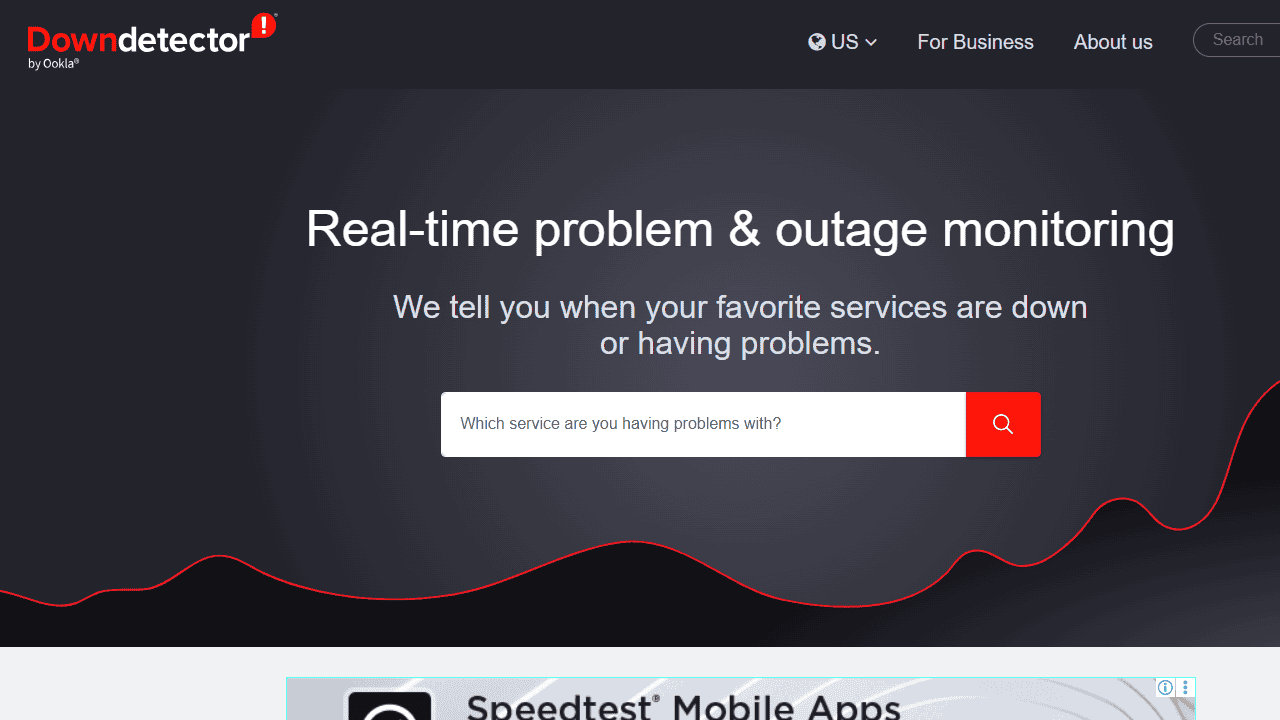
- Search social media or forums for immediate outage reports.
- Look for official mirror sites if the main site is down.
- Consider alternative, reliable sports platforms. See these best game streaming services for options.

2. Clear the Browser’s Cache and Website Data
iOS Safari and other browsers gather stored data. Cookies and cache files build up quickly. They can interfere with the complex HTML5 video players. A corrupted cache file causes frequent playback errors. Clearing the cache is a crucial, safe first step.
Don’t miss the best of The Mac Observer
Set us as a preferred source and our Apple reporting ranks higher in your Google Search results and Discover feed — one tap, no account changes.
- Go to Settings > Apps > Safari.
- Select Clear History and Website Data next.
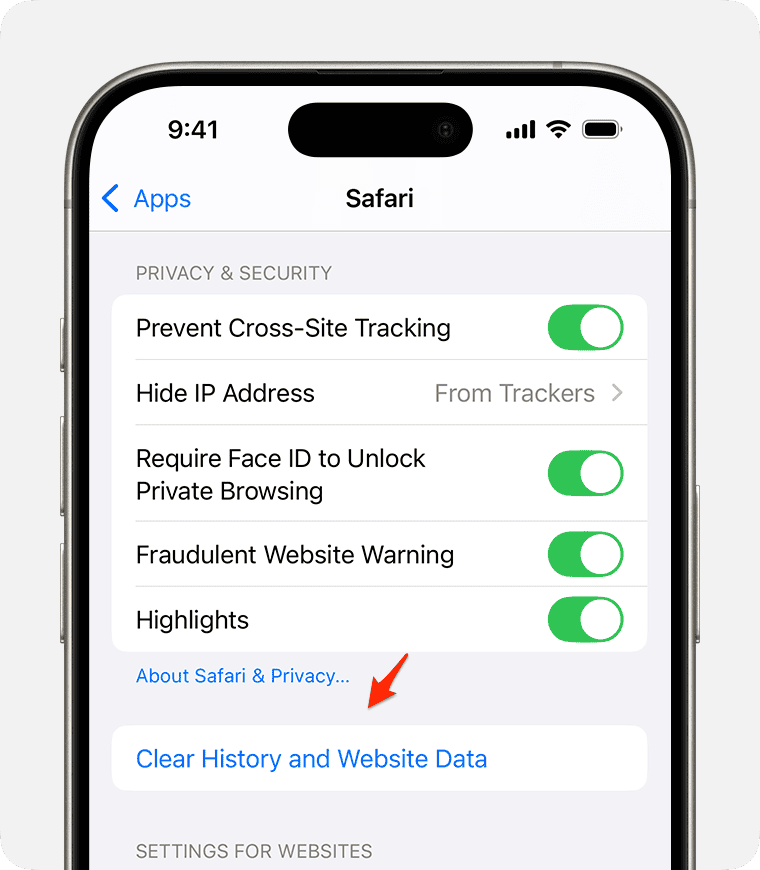
- Confirm the action when the prompt appears. (Note: You will log out of all websites.)
- Force-close the browser app. After that, attempt to load the stream again.

3. Update iOS Software and Perform a Hard Reset
Compatibility problems frequently arise after iOS updates. They also happen if the operating system runs an older version. An outdated version conflicts with modern web media standards. Then, performing a full device restart is necessary. This ensures the operating system applies pending fixes. It also flushes all system memory.
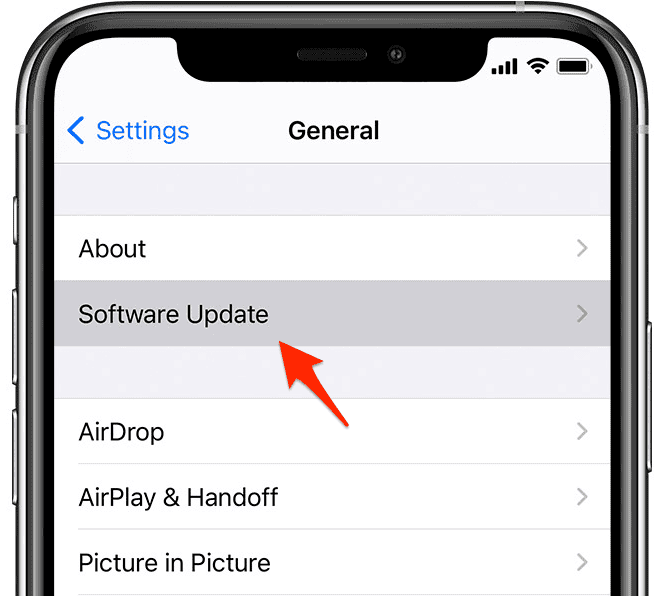
- Navigate to Settings > General > Software Update. Install any available iOS updates immediately.
- After updating, perform a hard reset. The method varies by iPhone model.
- Wait until the Apple logo reappears on screen. Only then, try to access the stream.

4. Review VPN and Cellular Data Restrictions
Many sports streaming platforms enforce location restrictions. Consequently, using a Virtual Private Network (VPN) can trigger blocks. Similarly, a slow cellular connection can cause problems. iOS might prevent playback to save data or battery life.
- Disable your VPN temporarily if you are using one. Reload the stream in your mobile browser.
- Check your iPhone’s Settings > Cellular/Mobile Service > Cellular/Mobile Data Options.
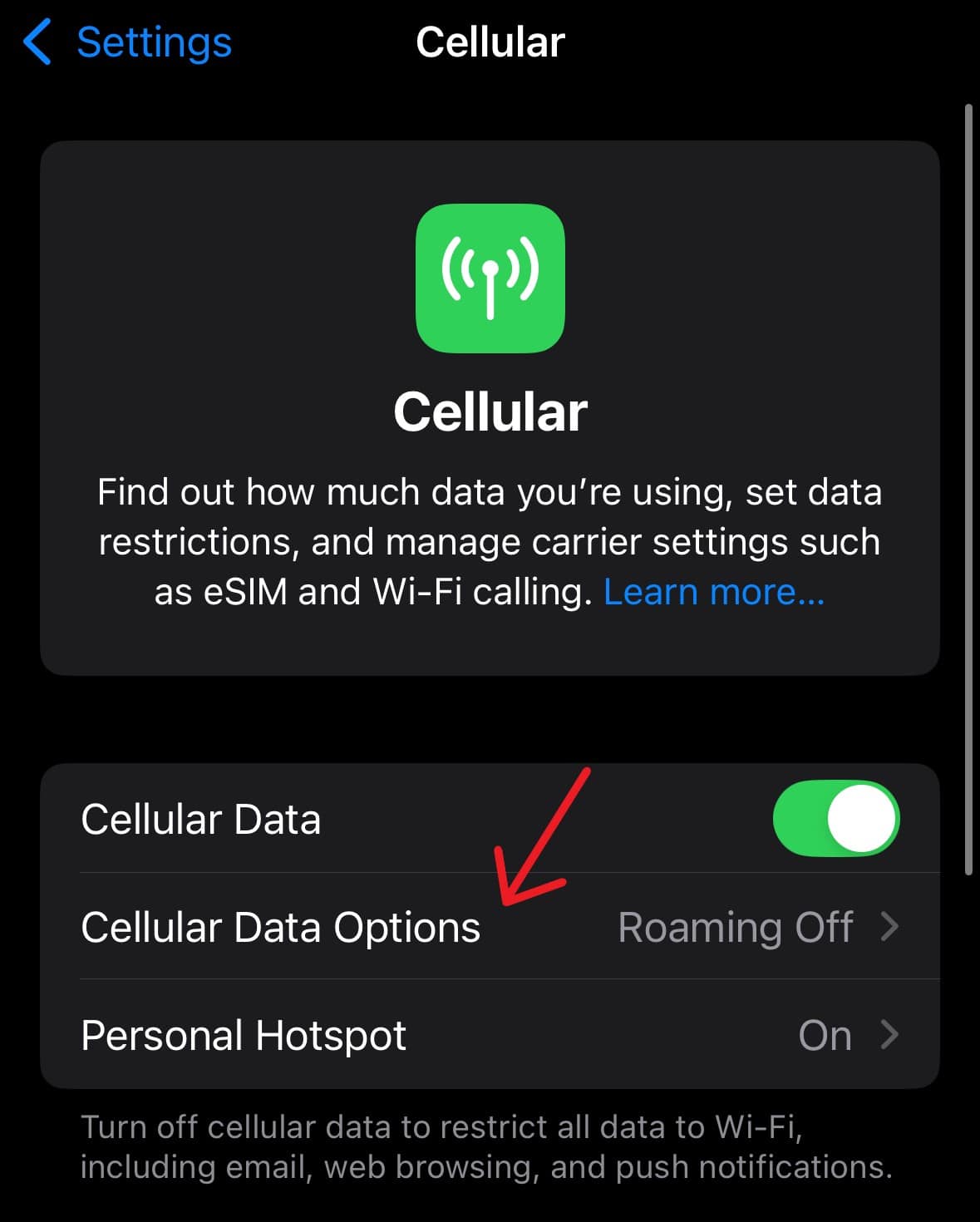
- Select Data Mode and ensure its not set to Low Data Mode. This setting often restricts high-bandwidth video playback.
- Switch from Wi-Fi to cellular data, or vice versa. Confirm the network source is not the issue.

5. Utilize Alternative Browsers or Video Streaming Tools
Default Safari browsing often fails because of format issues. Problematic on-page advertisements can also be the cause. Switching to a different browser provides a fast resolution. Certain specialized browsers handle unstable video embeds better. For instance, you should understand how CarPlay video streaming works. This is essential for smooth playback if you share video to a car display.
- Download a different mobile web browser. Try Chrome or Firefox from the App Store. Test the stream there.
- Consider using third-party software. Such apps capture and play online video streams. They may offer better codec support and stable AirPlay.
- Finally, users interested in content creation can learn more. Finding specialized YouTube streaming software offers helpful insights.
FAQ
This error signals a problem. The browser cannot load or initialize the HTML5 video player. Clearing your browser cache usually fixes this issue. Disable any ad-blockers too. Ad-blockers sometimes interfere with the video player script.
Newer iPhones offer superior processing and display capabilities. However, most StreamEast issues relate to software or network limits. They do not usually relate to the hardware itself. But, very old iOS devices may struggle with high-definition playback.
Maintaining Reliable Live Sports Access on Your iPhone
Proactive maintenance ensures consistent live sports streaming on your iPhone. Regularly update your iOS and browser applications. Periodically clear all browser data. Understand how your network affects the site. These actions minimize downtime effectively. While focusing on streaming media, learn to organize media, too. Learn how to work with your iCloud Photo Stream. Implementing these troubleshooting steps helps the action run smoothly.


Discussion