

For years, the iPhone’s home and lock screens stayed pretty much the same, until iOS 14 and iOS 16 shook things up. With iOS 14, users finally got the chance to personalize the home screen by using custom app icons via the Shortcuts app. Then, iOS 16 brought even more personality to your device by letting you customize your lock screen and add widgets.
One of the standout features in iOS lock screen customization is the depth effect, which gives your photo wallpapers a layered, dynamic look. You can enable this visual depth with just a few taps. Here’s how to do it and give your lock screen a fresh, eye-catching feel.
What Is Depth Effect?
Depth Effect uses image segmentation to identify the subject in a photo and separate it from the background. It pushes the time widget slightly behind the subject, so part of your wallpaper sits on top of the clock, giving it a poster-like feel and making your wallpaper look like it belongs on a magazine cover.
Don’t miss the best of The Mac Observer
Set us as a preferred source and our Apple reporting ranks higher in your Google Search results and Discover feed — one tap, no account changes.
How to Turn On Depth Effect on Your Lock Screen
- Press and hold the Lock Screen on your iPhone.
- Tap the blue + icon in the bottom-right corner. Tap Photos and pick an image from your library.
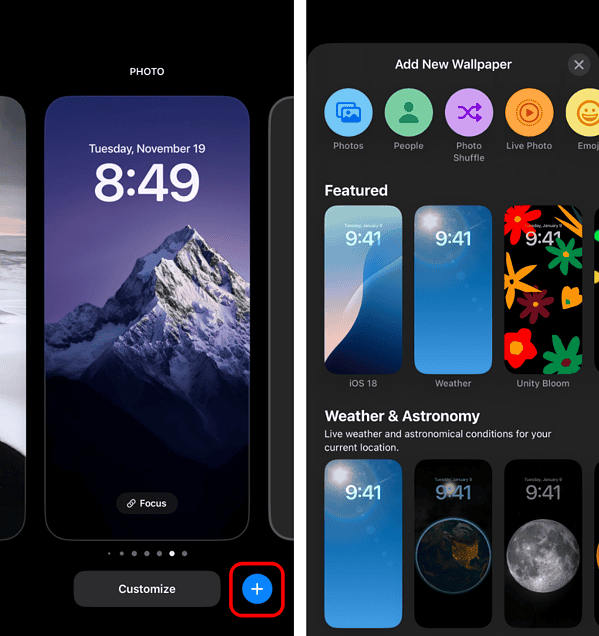
- Move and scale the image to fit using pinch and drag gestures.
- Tap the three-dot menu in the lower-right and enable Depth Effect.
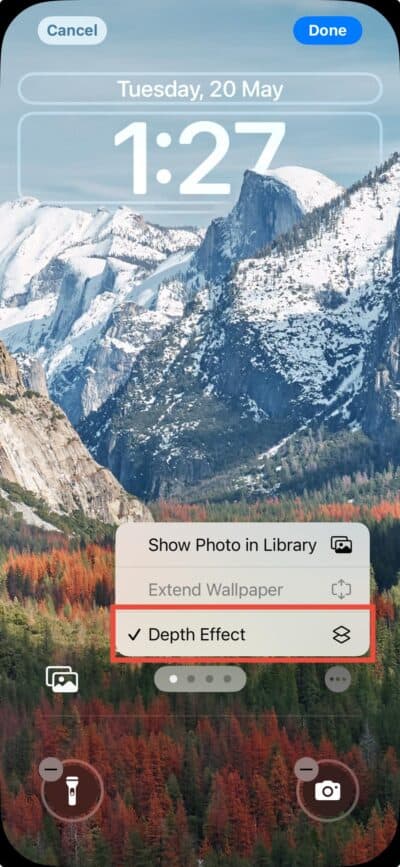
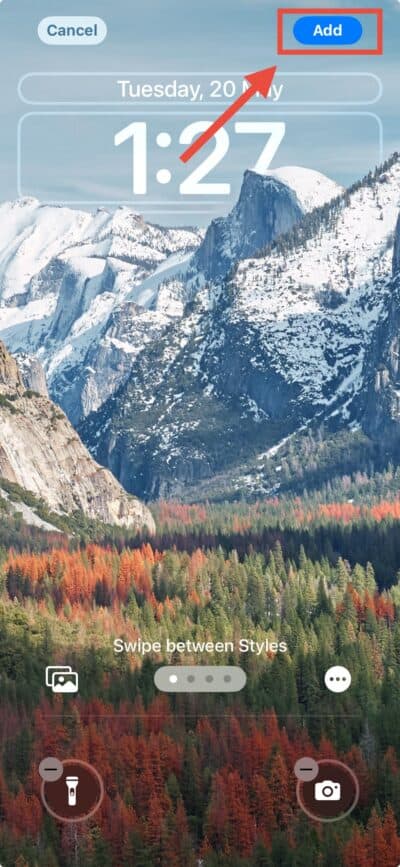
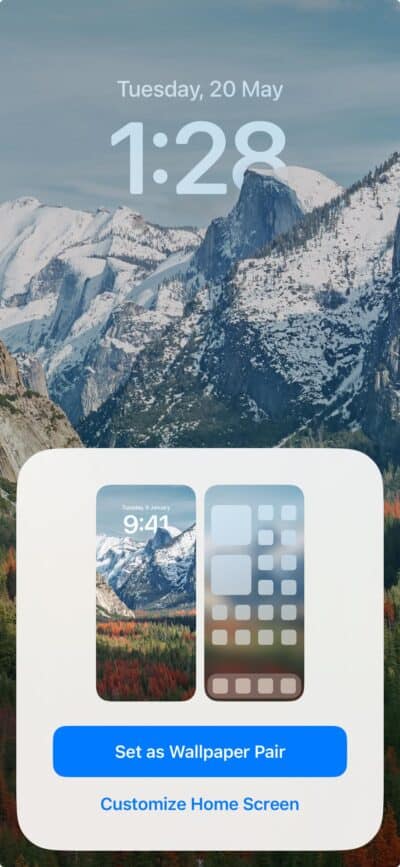
- Tap Add, then choose whether to set it as your Lock Screen or both your Lock and Home screens.


Not All Images Work
To effectively use the Depth Effect, choose images with a distinct subject in the foreground and a contrasting background. Portraits, especially those taken in Portrait mode, work best, though high-contrast standard photos can also be effective.
Avoid images with cluttered or low-contrast backgrounds, as these diminish the effect. Ensure the subject isn’t overly zoomed in and keep your Lock Screen free of widgets, as they disable Depth Effect. Blurry photos or subjects that blend into the background usually won’t work. You can also use web images, but they must be in JPG or HEIC format and not heavily compressed.
How to Adjust the Depth in Portrait Photos
You can go further if you use Portrait Mode in the Camera app.
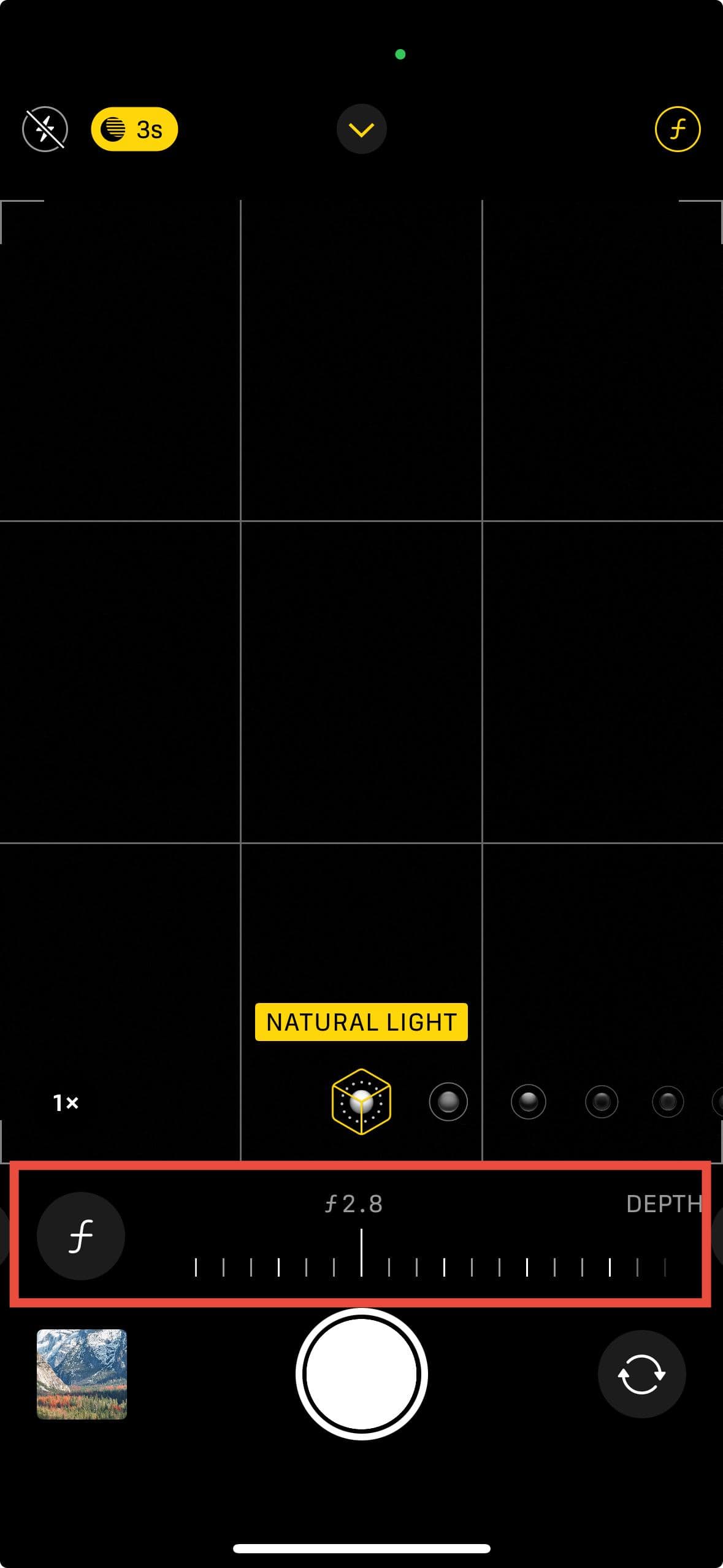
- Open the Camera app and tap Portrait. Frame your subject. Tap the f icon at the top to adjust background blur.
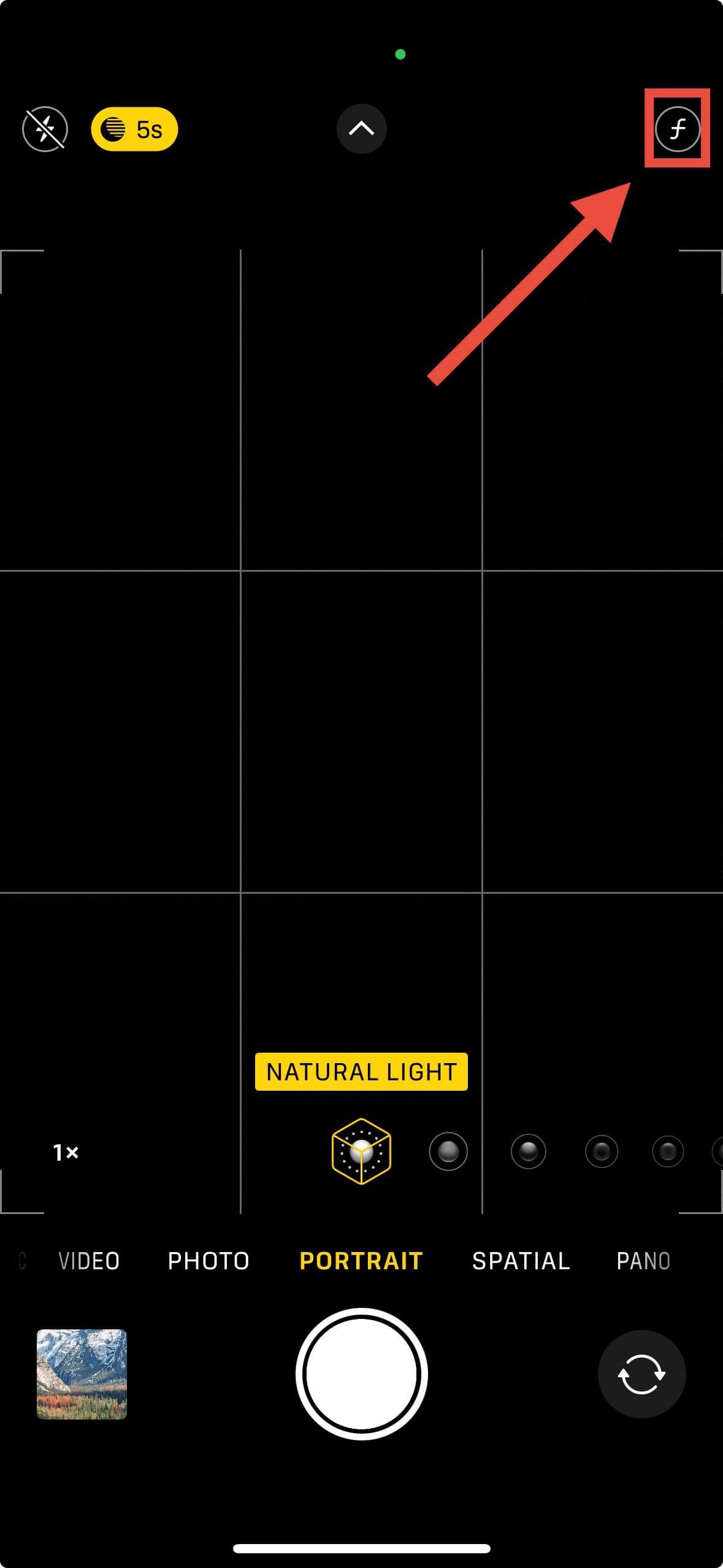
- Use the slider to control depth of field before snapping the photo.


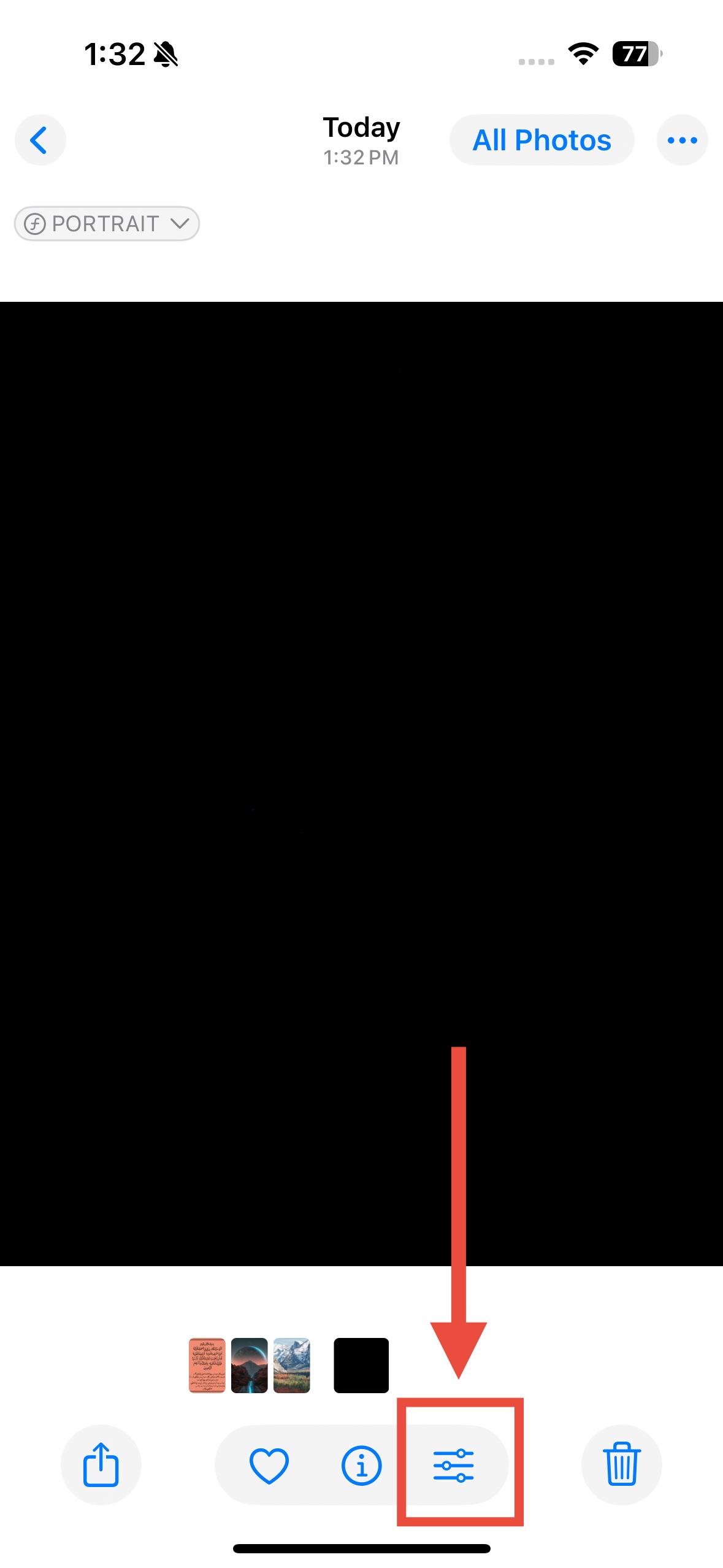
To adjust a Portrait photo you’ve already taken:
- Open the photo from your library.
- Tap Edit, then use the depth slider at the bottom to adjust the blur.
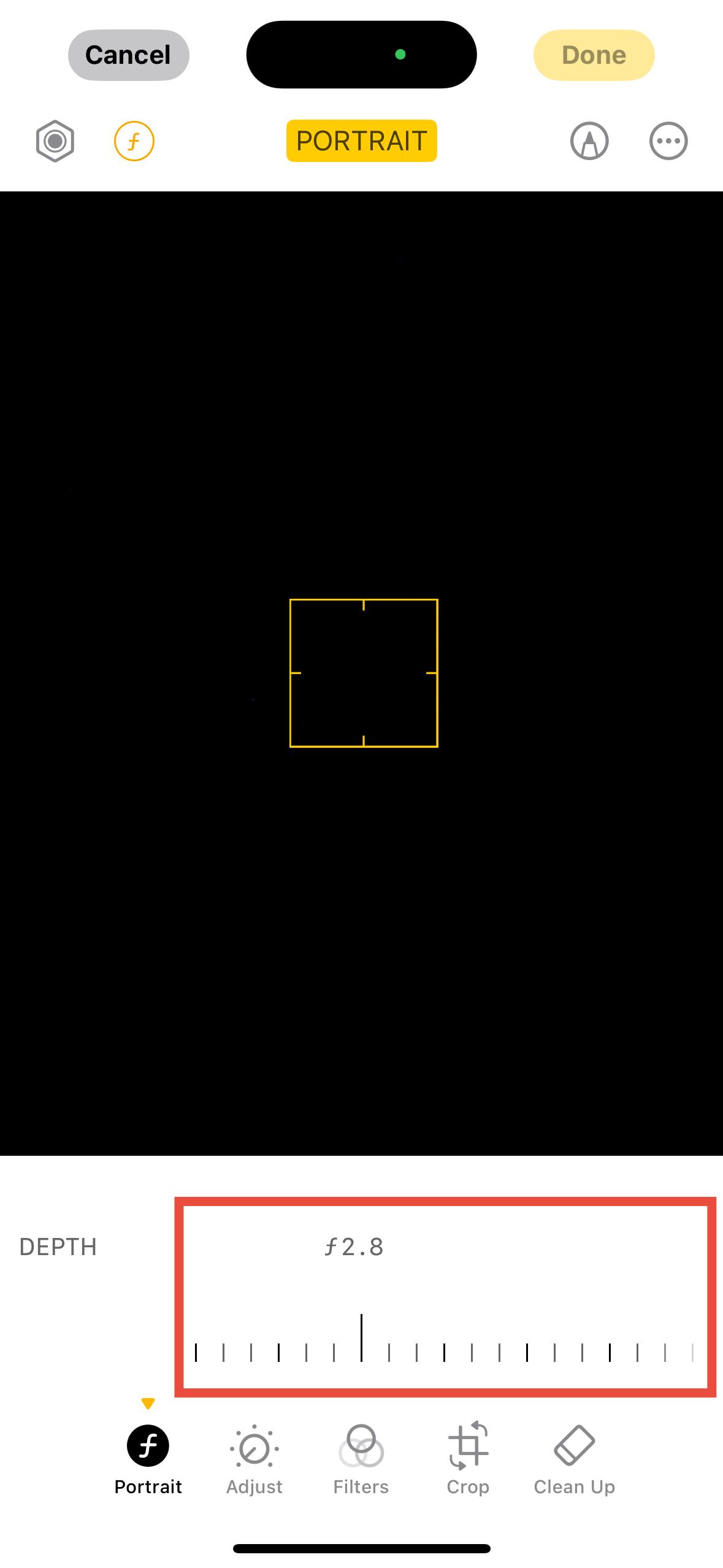
- Tap Done to save your changes.
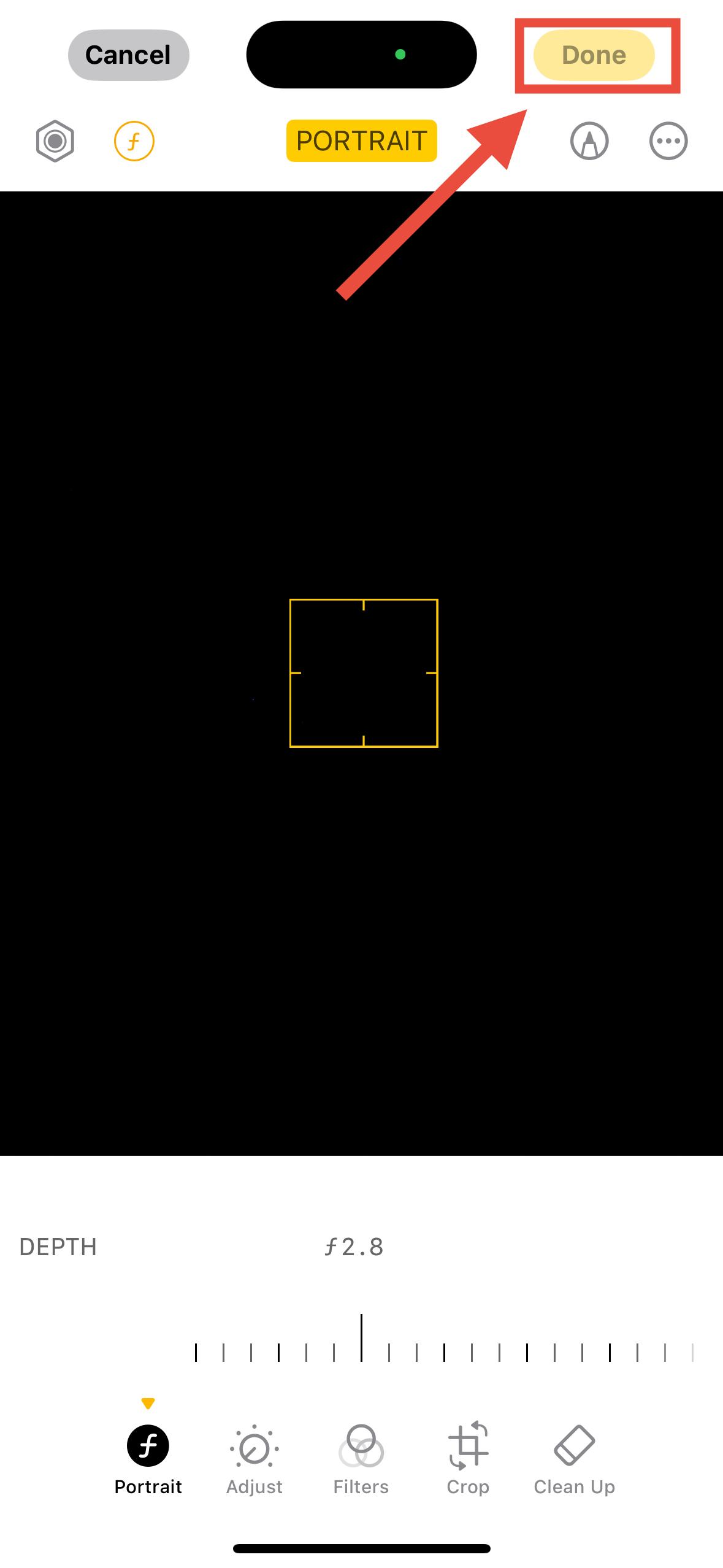


This doesn’t change your Lock Screen, but it can help you prep the perfect wallpaper shot.
Common Reasons Why Depth Effect Isn’t Working
If Depth Effect isn’t showing up or is greyed out, here’s what to check:
- You added widgets to the Lock Screen
- Your image is too zoomed in
- There isn’t enough contrast between the foreground and the background
- Your image format is PNG (use JPG or HEIC)
- Your iPhone isn’t updated to iOS 16 or later
- You’re using a device older than iPhone XR or SE 2nd gen
If you want to enhance your Lock Screen with this stunning effect, check out our list of the best depth effect wallpapers for iOS.



Discussion