

If you want to stop your iPhone from sharing usage data with Apple, you can turn off iPhone analytics in a few seconds. Apple collects diagnostic and usage data by default to improve its services, but you can disable it anytime from your privacy settings. This helps reduce background data sharing and gives you more control over your device.
Here’s everything you need to know, including all available methods and related settings.
Turn off iPhone Analytics (Main Method)
This is the primary setting that controls whether your iPhone sends usage and diagnostic data to Apple.
Don’t miss the best of The Mac Observer
Set us as a preferred source and our Apple reporting ranks higher in your Google Search results and Discover feed — one tap, no account changes.
When you turn this off, your device stops sharing daily reports about how you use apps, system performance, and other analytics data.
- Open Settings
- Tap Privacy & Security
- Scroll down and tap Analytics & Improvements
- Turn off Share iPhone Analytics
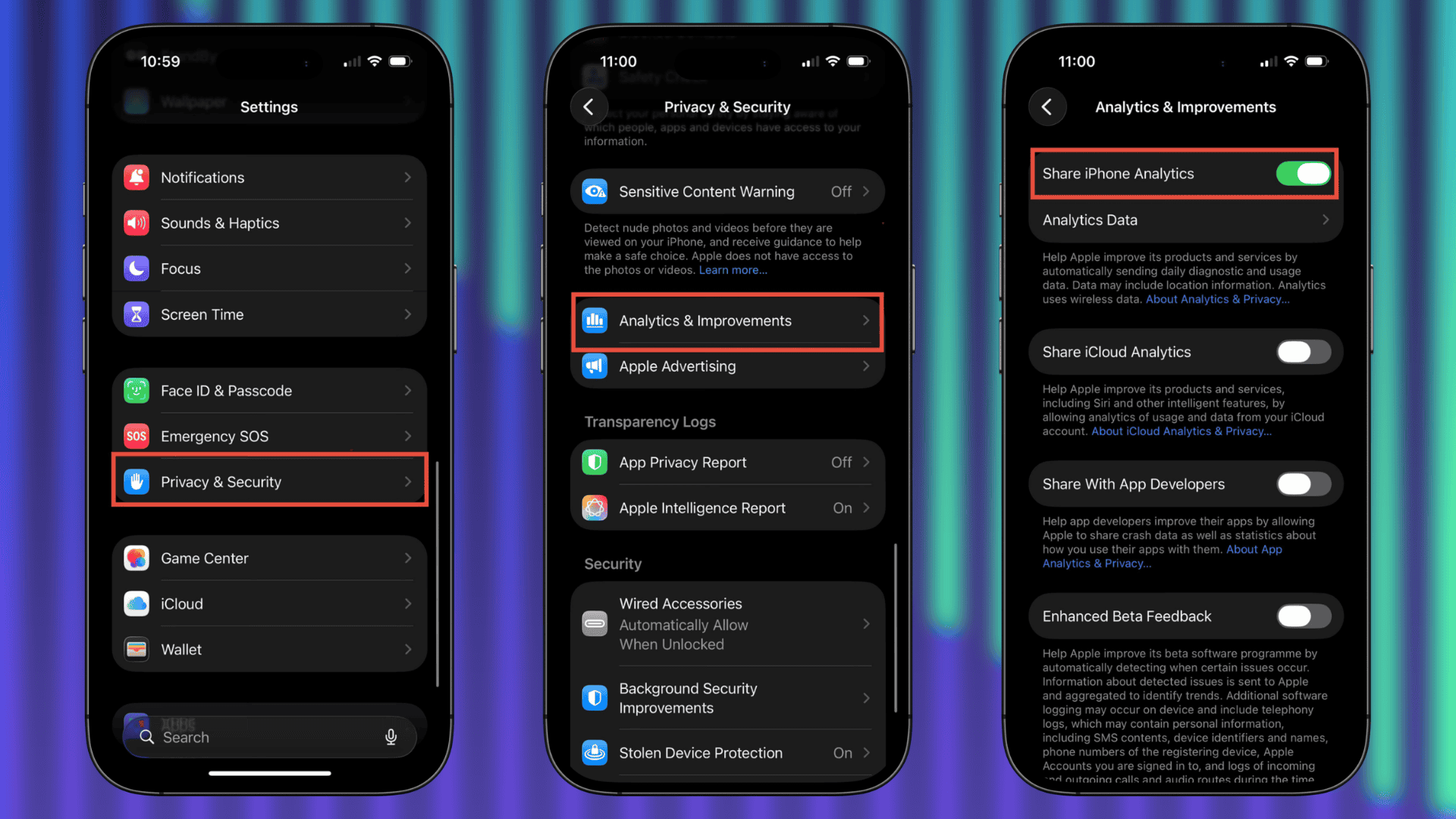
- Also turn off:
- Improve Siri & Dictation
- Share iCloud Analytics (optional)

Turn off analytics from system services
Your iPhone also collects analytics through location-based system services. Turning this off limits additional background data collection.
- Open Settings
- Tap Privacy & Security
- Tap Location Services
- Scroll down and select System Services
- Turn off:
- iPhone Analytics
- Improve Maps
- Other “Product Improvement” options
Turn off app-level analytics and tracking (Optional)
Apps can also collect analytics and tracking data. Disabling this reduces overall data sharing across apps.
- Open Settings
- Tap Privacy & Security
- Tap Tracking
- Turn off Allow Apps to Request to Track
Tips
- Turning off analytics does not affect your phone’s performance or features
- You may still receive software updates normally
- Disabling analytics can slightly improve battery life over time
- Review these settings after major iOS updates since some options may reset
- You can turn everything back on anytime if needed
FAQs
Does Apple still track me if I turn off iPhone analytics?
Apple limits data collection when you disable analytics, but some basic system data may still be used for essential functions.
Will turning this off improve battery life?
Yes, slightly. Your phone stops sending background reports, which reduces small amounts of power usage.
Is it safe to turn off analytics?
Yes. It does not impact normal usage, apps, or system stability.
Do I need to turn off all options inside Analytics & Improvements?
For maximum privacy, turn off every toggle in that section.
Summary
- Go to Settings > Privacy & Security > Analytics & Improvements
- Turn off “Share iPhone Analytics”
- Disable other analytics options in the same menu
- Turn off analytics under Location Services > System Services
- Optionally disable app tracking
Conclusion
Turning off iPhone analytics takes less than a minute and gives you more control over your data. Once you disable these settings, your device stops sending usage reports to Apple and reduces background data collection. It is a simple privacy step that most users should check after every major iOS update.


Discussion