

Siri can be helpful when using AirPods, but not everyone wants voice commands to activate mid-song or during a call. Knowing how to turn off Siri on AirPods helps prevent accidental triggers and gives users more control over their listening experience. The process is simple and can be done directly from an iPhone, iPad, or Mac’s Bluetooth settings.
Table of contents
Why Turn Off Siri on AirPods
Siri often activates when users accidentally touch or squeeze their AirPods, especially on models that support touch or pressure controls. This can interrupt playback or calls. Turning off Siri prevents unwanted activations and allows users to remap gestures for playback or noise control instead.
For related Siri control tips, see how to stop Siri from randomly activating on iPhone, iPad, and Mac.
Don’t miss the best of The Mac Observer
Set us as a preferred source and our Apple reporting ranks higher in your Google Search results and Discover feed — one tap, no account changes.
Here Are All the Methods to Turn off Siri on AirPods
1. How to Turn Off Siri on AirPods (iPhone or iPad)
Follow these steps to disable Siri functions for AirPods directly from an iPhone or iPad:
- Open Settings on the iPhone or iPad.
- Tap Bluetooth.
- Locate the AirPods in the list and tap the “i” icon next to them.
- Under Press and Hold AirPods, select Left or Right.
- Choose Noise Control or Off instead of Siri.
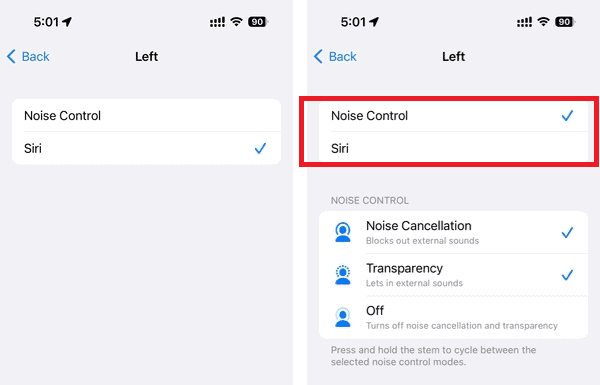

This turns off Siri for that side of the AirPods. Repeat for the other ear if needed.
2. How to Turn Off Siri on AirPods Using a Mac
Those who use AirPods with a Mac can disable Siri activation through System Settings:
- Click the Apple menu and open System Settings.
- Select Bluetooth from the sidebar.
- Click the Options button next to the connected AirPods.
- Under Press and Hold, select Noise Control or Off instead of Siri.
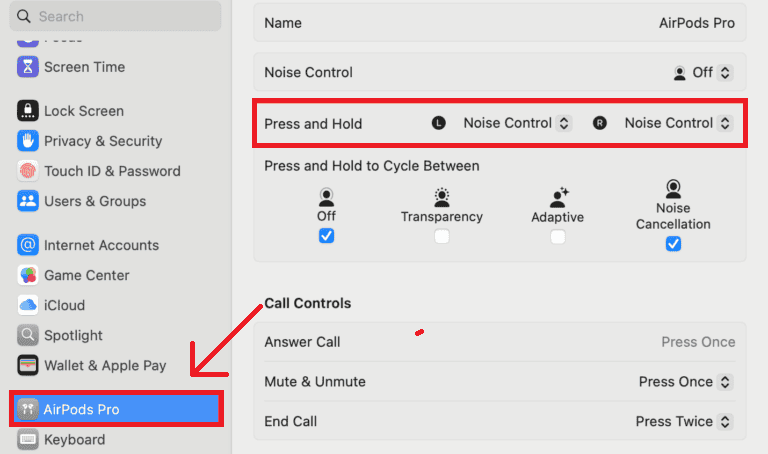
- Click Done to save changes.

Once disabled, pressing and holding an AirPod will no longer summon Siri.
3. How to Disable “Hey Siri” Voice Activation
If AirPods still respond when saying “Hey Siri,” users can disable the voice activation feature entirely on their connected device. This stops Siri from waking up in response to voice prompts, even when AirPods are in use.
On iPhone or iPad
- Open Settings.
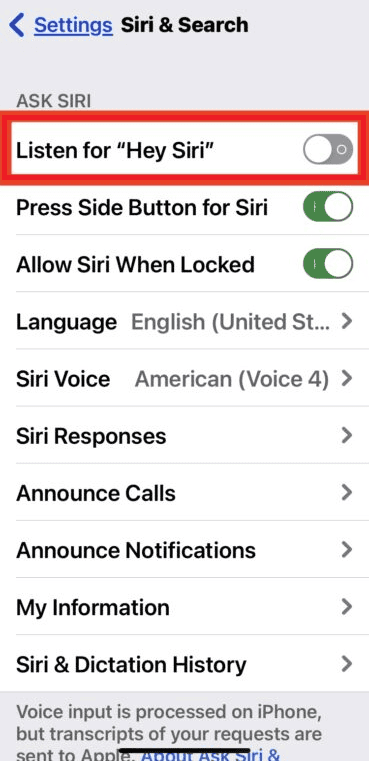
- Tap Siri & Search.
- Toggle off Listen for “Hey Siri.”

On Mac
- Click the Apple menu and select System Settings.
- Choose Siri & Spotlight from the sidebar.
- Toggle off Listen for “Hey Siri.”
This ensures that Siri won’t activate through voice commands, even if AirPods are connected and paired.
4. How to Stop AirPods from Reading Notifications
Many users confuse notification announcements with Siri activation. AirPods can automatically read incoming messages and notifications, which involves Siri’s voice but is a separate feature.
To turn off AirPods reading messages:
- Go to Settings on iPhone
- Tap Notifications
- Select Announce Notifications

- Toggle off the feature entirely or disable it for specific apps

This prevents interruptions during calls or music playback.
Tips for Managing AirPods Controls
- Customize actions: Assign different functions to the left and right AirPods for better convenience.
- Check Siri settings: Go to Settings > Siri & Search to manage Siri across all Apple devices.
- Avoid accidental triggers: Keep AirPods secure and avoid touching the sensor areas frequently.
- Adjust Siri volume: Learn how to change Siri volume on AirPods.
- Silence notifications: Disable interruptions by turning off Announce Notifications on AirPods.
Conclusion
Successfully managing how to turn off Siri on AirPods is a matter of knowing which setting to adjust on your connected device. Whether you disable the physical controls, stop announcements, or shut off the “Hey Siri” voice command entirely, these steps allow for a personalized and interruption-free listening experience.
FAQs
Yes. In Bluetooth settings, you can assign different actions to the left and right AirPods.
No. Disabling Siri only removes the voice assistant function; playback, calls, and noise control remain active.
Yes. Siri on AirPods is independent of Siri on other Apple devices.
Return to the same Bluetooth settings and select Siri under “Press and Hold AirPods.”
These steps apply to AirPods Pro, AirPods (2nd gen or later), and AirPods Max with slight menu variations depending on the model.



Discussion