

Movie nights are a cherished tradition, but distance often gets in the way. Fortunately, Apple’s SharePlay feature has completely changed the game for long-distance streaming. Gone are the days of counting down “3, 2, 1, press play” over a phone call. With SharePlay, you can watch your favorite movies and shows on Hulu in perfect sync with friends and family directly through FaceTime.
If you are ready to host a virtual watch party where everyone laughs, gasps, and cries at the exact same moment, this guide is for you. We will walk you through exactly how to set it up so you can start streaming together in minutes.
Table of contents
What You’ll Need to Get Started
Before you jump into the app, there are a few requirements you need to meet. SharePlay is powerful, but it requires specific hardware and software to work its magic.
Don’t miss the best of The Mac Observer
Set us as a preferred source and our Apple reporting ranks higher in your Google Search results and Discover feed — one tap, no account changes.
- Updated Apple Devices: Everyone on the call needs an iPhone or iPad running iOS 15.1 or later. You can also use an Apple TV running tvOS 15.1 or later.
- Hulu (No Ads) Subscription: This is the most important part. Currently, the SharePlay feature on Hulu is only available to subscribers with the Hulu (No Ads) plan. If you or your friend are on the ad-supported tier, this feature will not work.
- Individual Accounts: Every participant needs their own active Hulu account (or be part of a household account) logged in on their device. You cannot “broadcast” your screen to someone who does not have a subscription.
Here’s How to Watch Hulu with SharePlay
Once you have checked off the prerequisites, setting up the stream is actually quite simple. Follow these steps to get your movie night rolling.
1. Start a FaceTime Call
The foundation of SharePlay is FaceTime. You need to connect with your friends first.
- Unlock your iPhone or iPad.
- Open the FaceTime app.
- Start a video call with the people you want to watch with.
- Wait for them to answer and ensure the connection is stable.
- Look for the SharePlay button, which looks like a small screen with a person in front of it.
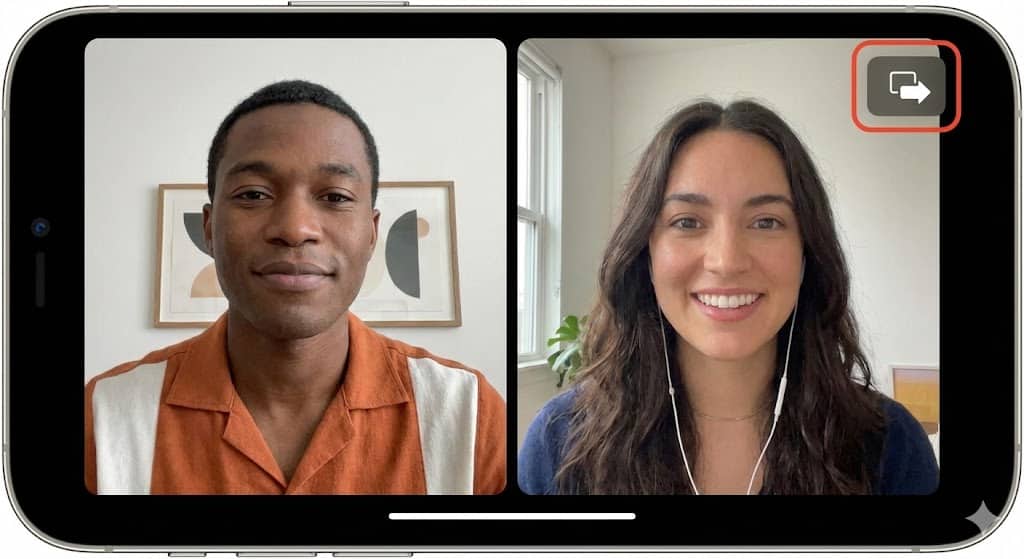

If you are unfamiliar with the basics of this feature, you might want to read our guide on how to use SharePlay on iPhone to get comfortable with the controls.
2. Launch the Hulu App
Once the call is active, you can move over to the streaming app.
- Swipe up from the bottom of your screen to minimize FaceTime. The video call will continue in a Picture-in-Picture window.
- Open the Hulu app.
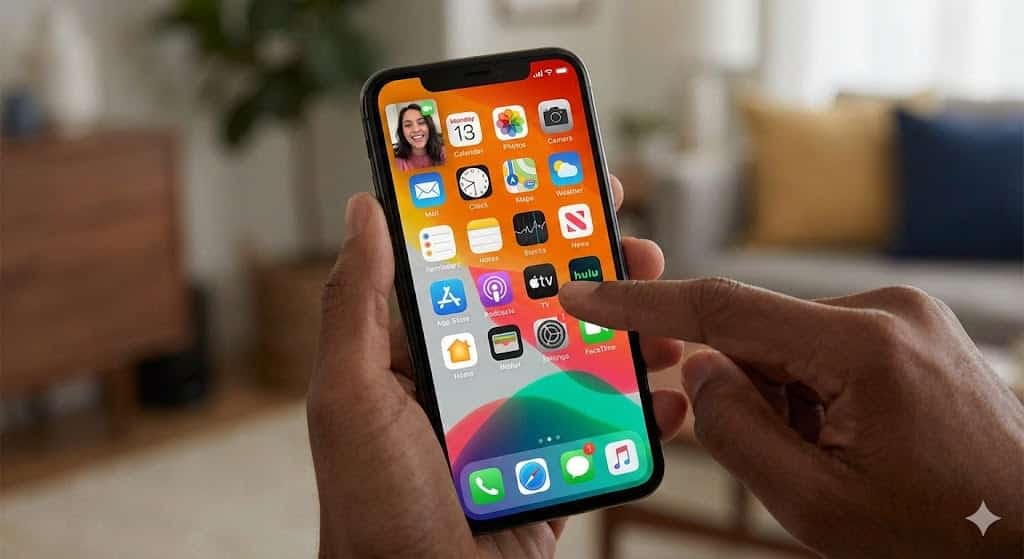
- Browse the library and find the movie or TV show episode you want to watch.

3. Join the Watch Party
This is where the syncing magic happens.
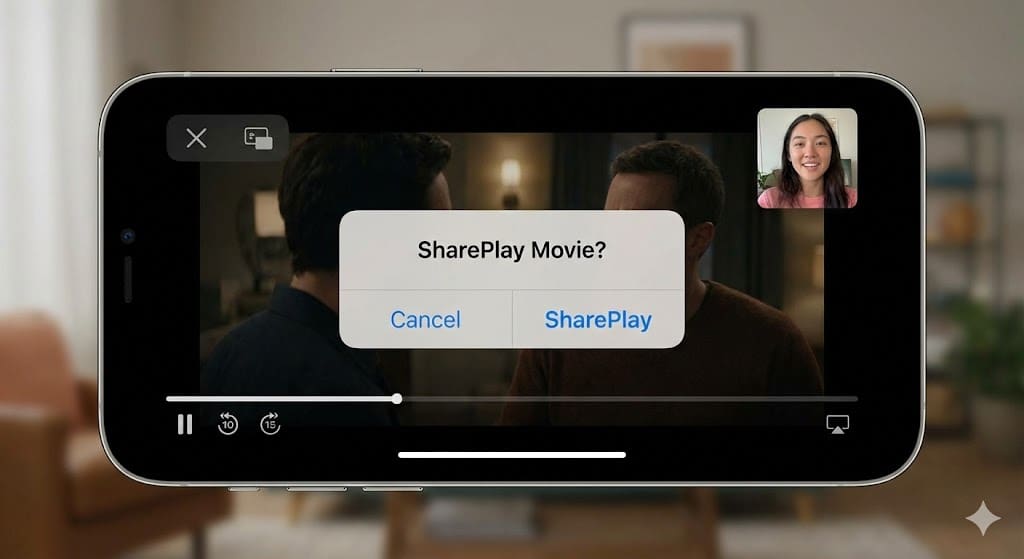
- Press the Play button on your chosen content.
- A prompt will appear at the top of the screen asking if you want to SharePlay the content.
- Tap SharePlay.
- Your friends on the FaceTime call will receive a “Join SharePlay” prompt on their screens.
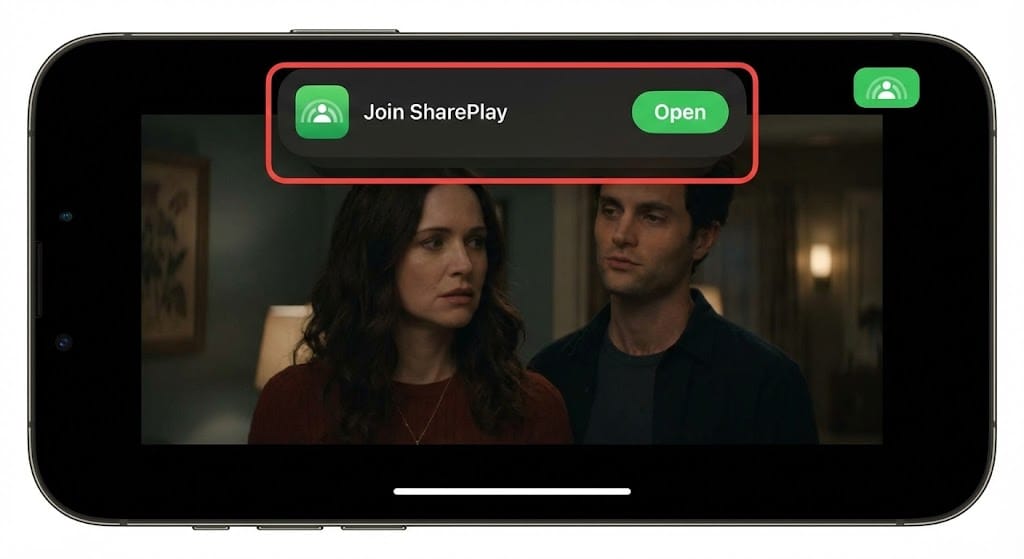
- Once they tap Open, the video will load on their devices and sync up perfectly with yours.


Now, if anyone pauses to grab popcorn or rewinds to catch a missed line of dialogue, it happens on everyone’s screen instantly.
Additional Tips
While SharePlay is generally seamless, technology can sometimes be finicky. Here are a few tricks to ensure a smooth experience.
- Volume Control: FaceTime intelligently lowers the movie volume when someone speaks so you can hear them. If you prefer to focus on the film, you can adjust the audio mix in the FaceTime controls.
- Switching Devices: You can start the SharePlay session on your iPhone and hand it off to your Apple TV for a big-screen experience. Just look for the SharePlay icon in the Control Center on your Apple TV.
- Troubleshooting: If you encounter technical glitches, such as the video not loading, ensure your internet connection is strong. If you specifically face issues on the big screen, check out our guide on fixing Hulu not working with Apple TV.
- Beyond Movies: SharePlay isn’t just for video. You can also use it for other shared experiences, like working out or listening to albums together. You can even SharePlay music to HomePod for a synchronized dance party after the movie credits roll.
Final Thoughts
Watching movies together is one of the best ways to bond, and SharePlay removes the physical distance barrier entirely. It brings the feeling of sitting on the same couch right to your iPhone screen. So grab your popcorn, call your best friend, and enjoy a perfectly synced movie night without the hassle of counting down to press play.
FAQs
No, currently SharePlay is only supported for subscribers on the Hulu (No Ads) plan. Users with the ad-supported plan cannot initiate or join a SharePlay session on Hulu.
Yes, every participant must have access to an active Hulu (No Ads) subscription to join the session. The app verifies access for each user individually.
Absolutely. If you have an Apple TV running tvOS 15.1 or later, you can join the FaceTime call on your iPhone and then open the Hulu app on your Apple TV to watch on the big screen.



Discussion