

If you want to view your Apple Watch activity history, you can do it in three places: the Activity app on your Apple Watch, the Fitness app on your iPhone, and the Health app for long-term data. Each app serves a different purpose, from quick daily ring checks to detailed records going back years.
Table of contents
View Activity History on Apple Watch
The Apple Watch is best for quick checks and short-term history. It focuses on daily progress and recent trends rather than long-term data.
Step 1. Open the Activity app
- Press the Digital Crown to open the Home Screen.
- Open the Activity app.
- Scroll using the Digital Crown or swipe up.
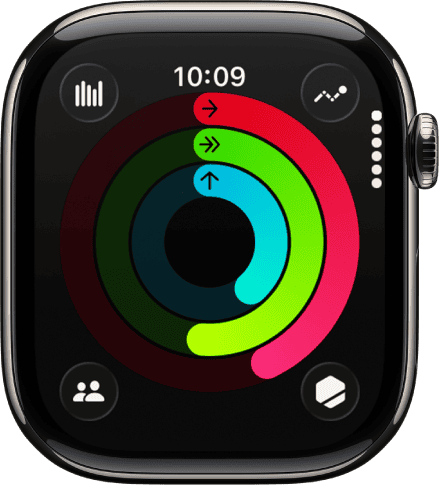

You see the three Activity rings for the current day: Move, Exercise, and Stand.
Don’t miss the best of The Mac Observer
Set us as a preferred source and our Apple reporting ranks higher in your Google Search results and Discover feed — one tap, no account changes.
Step 2. Check weekly summaries
- Scroll down in the Activity app.
- Tap Weekly Summary.
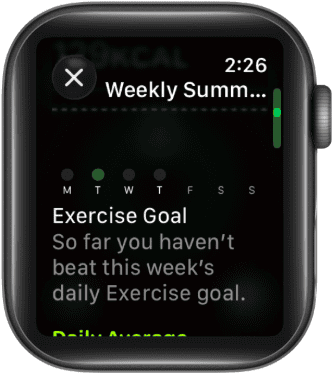

This section shows how you performed over the last seven days, including ring completion and average comparisons.
Step 3. View awards and streaks
- Scroll further down in the Activity app.
- Tap Awards.


Awards highlight milestones like longest streaks, record Move days, and special challenges, giving historical context without detailed metrics.
View Activity History on iPhone
For detailed activity history, I rely on the Fitness app on the iPhone. This is where Apple organizes daily records, trends, and workouts.
Step 1. Open the Fitness app
- Open the Fitness app on your iPhone.
- Tap Summary at the bottom.
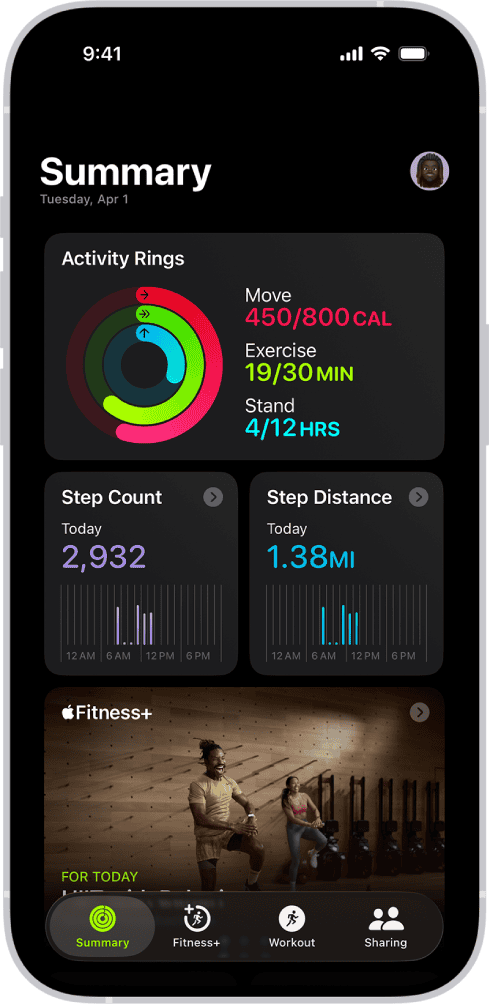

This screen shows current rings, recent workouts, and trend indicators.
Step 2. View past daily activity
- Find the Activity Rings section.
- Use the date controls or calendar navigation within the app to select a previous day.
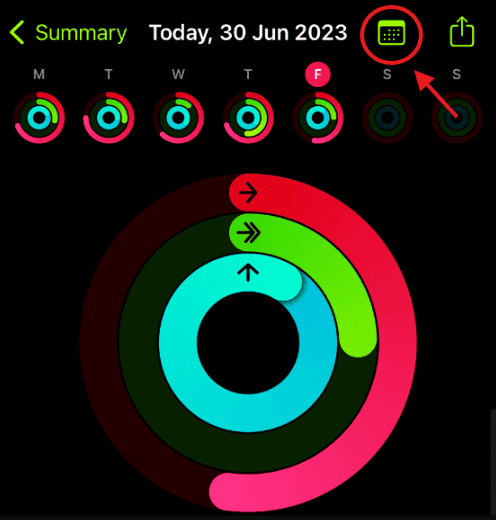

Each selected day shows Move calories, Exercise minutes, and Stand hours.
Step 3. Review activity trends
- Go back to the Summary dashboard.
- Scroll down and tap Trends.
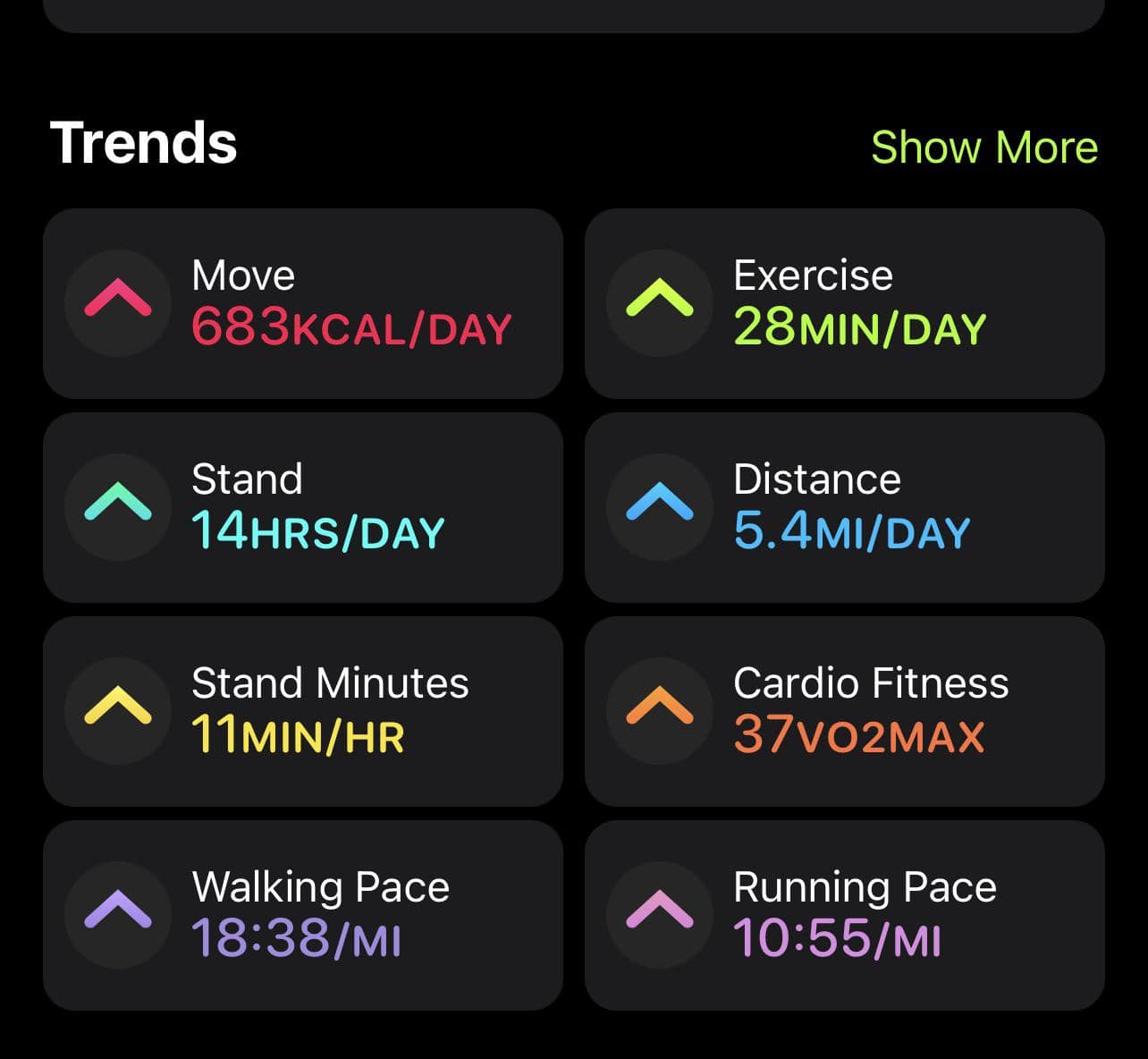

Trends analyze your activity over the past 90 days and compare it with the previous period, showing whether metrics are increasing, decreasing, or staying steady. You can unlock the numbers once you have six months worth of data.
How to View Workout History
Workouts are stored separately from activity rings and provide more detailed performance data.
Step 1. Access workout history
- Open the Fitness app.
- Tap Summary.
- Scroll to Workouts and tap Show More.
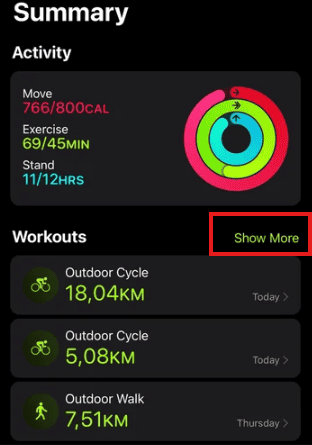

You see a chronological list of all recorded workouts.
Step 2. Filter workouts by type
- Tap All Workouts.
- Select a workout category such as Walking, Running, or Strength Training.
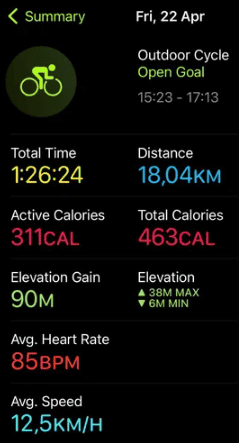

Each workout includes duration, calories burned, heart rate data, and route maps for GPS-enabled activities.
View Activity History in the Health App
The Health app stores raw activity data and long-term records. I use it when I want precise numbers rather than summaries.
Step 1. Access Activity data
- Open the Health app.
- Tap the Search icon.
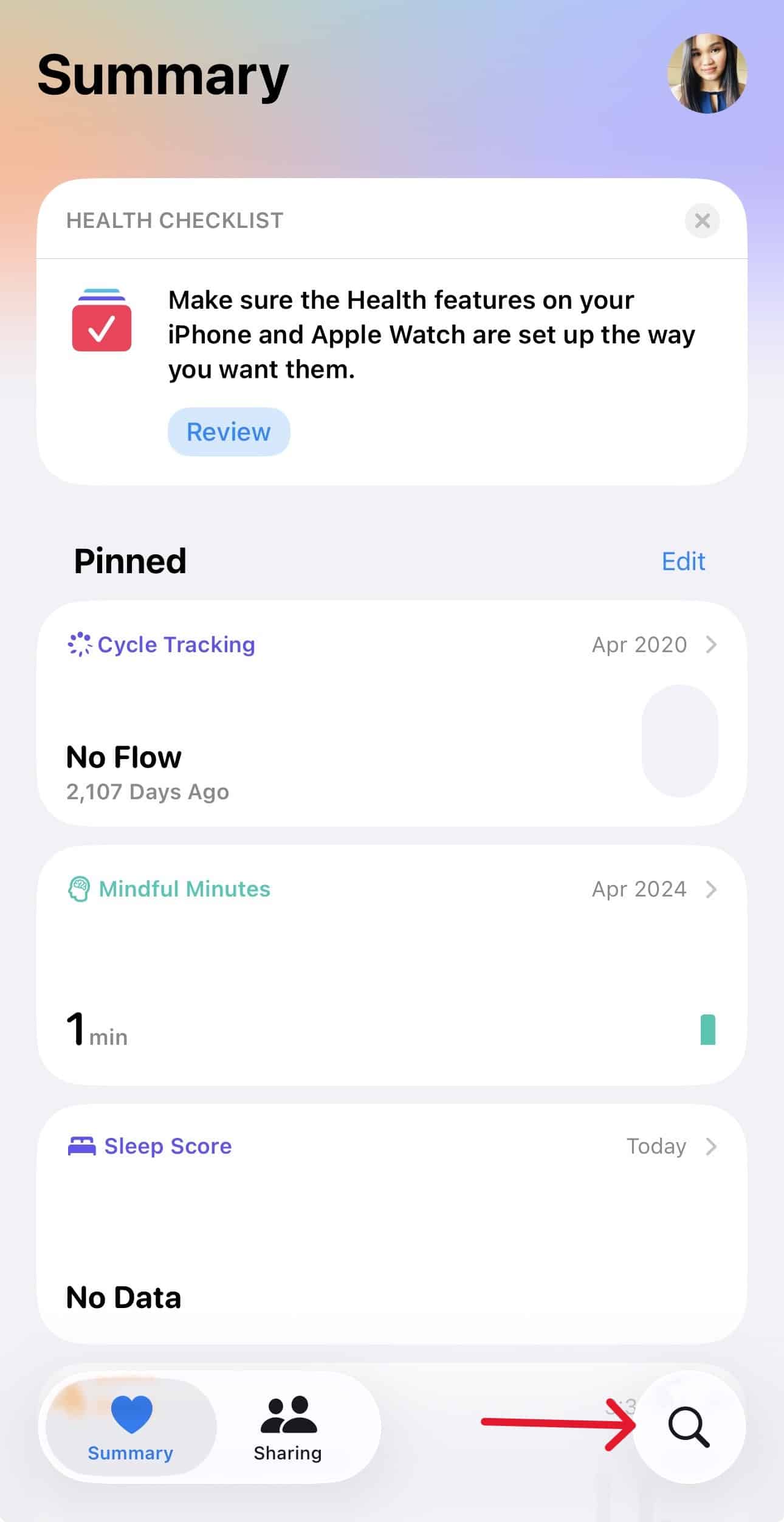
- Select Activity.
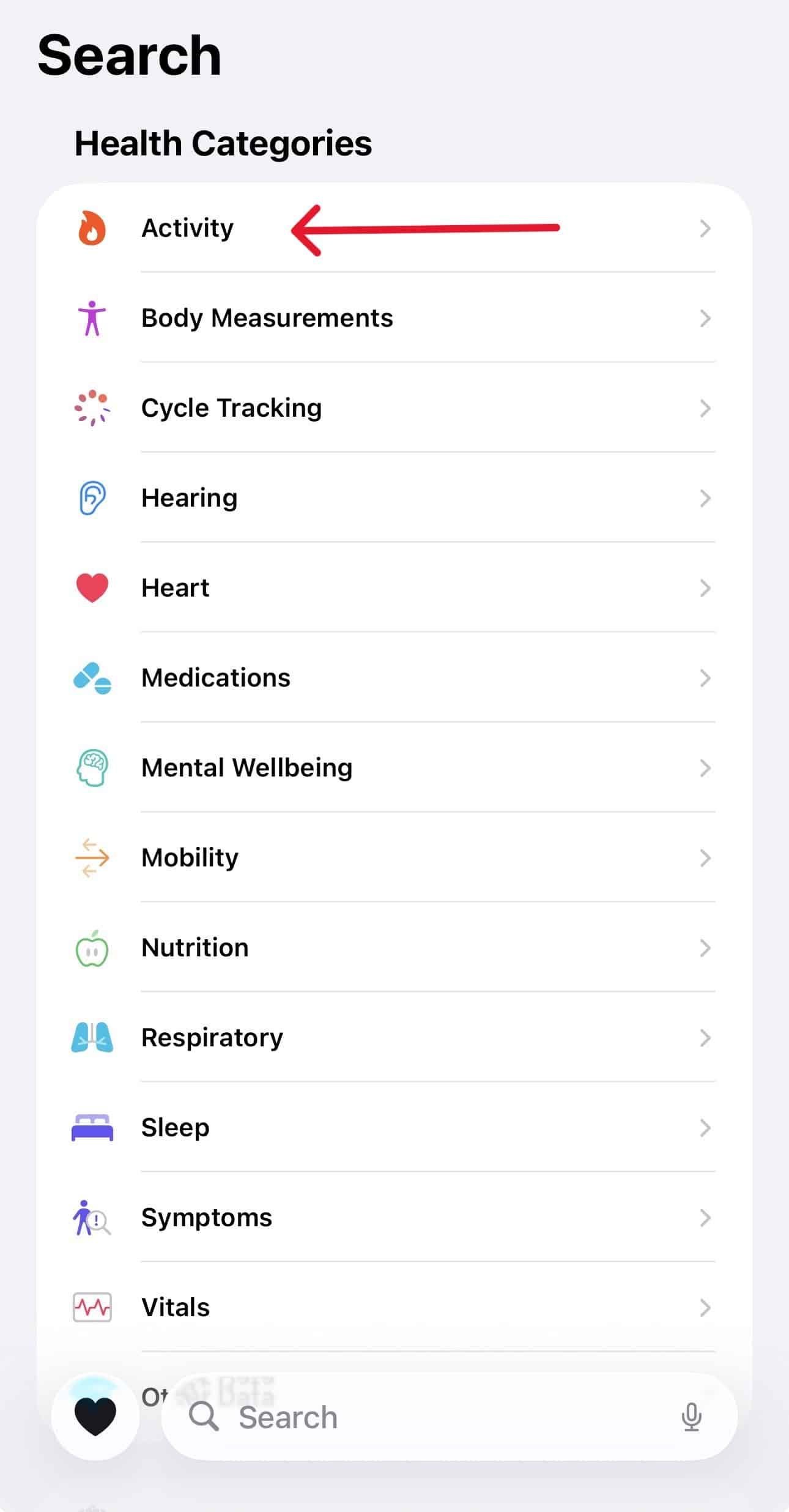
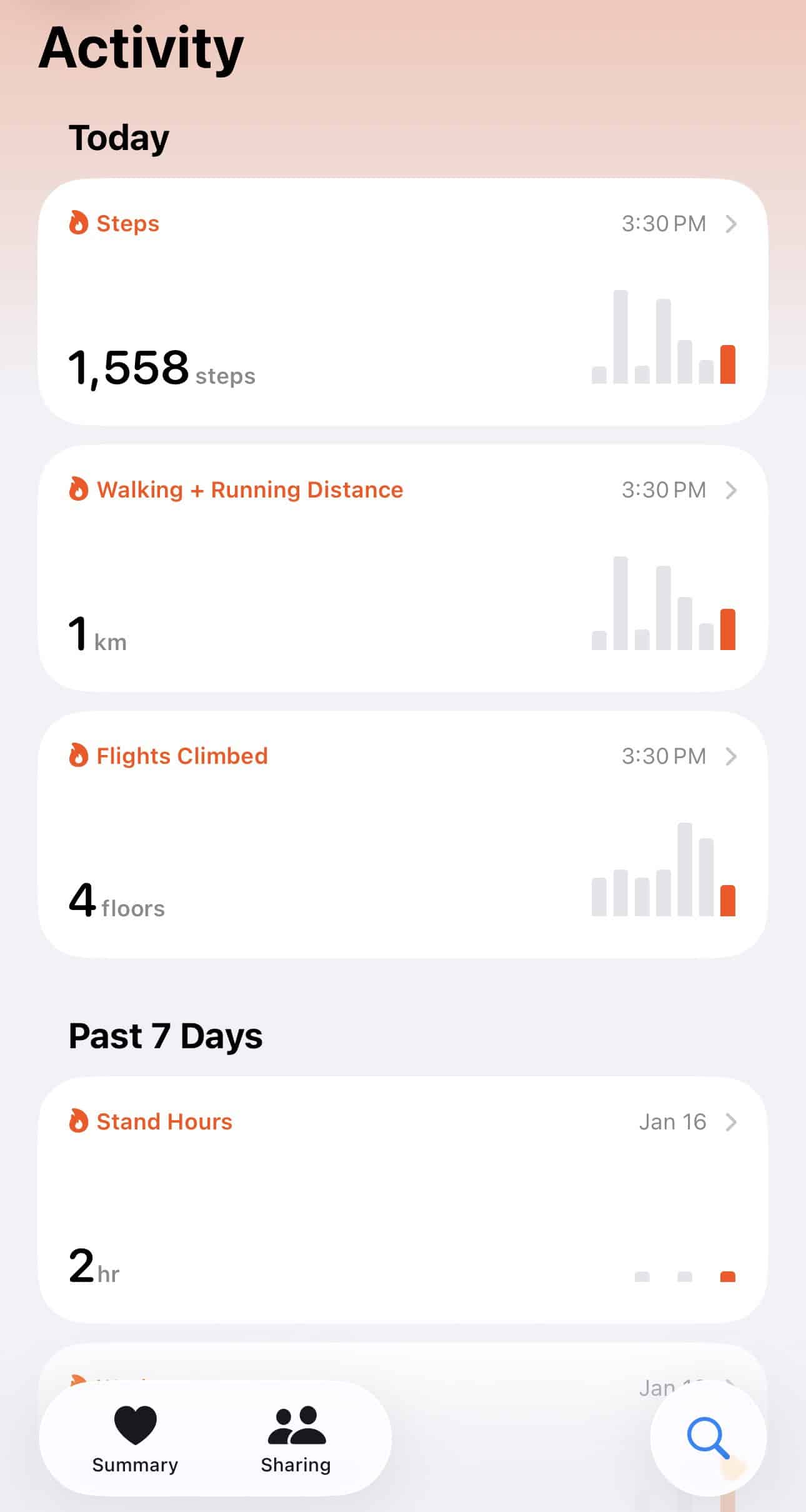


You can view metrics such as Active Energy, Exercise Minutes, Stand Hours, Steps, Distance and Flights Climbed.
Step 2. View long-term charts
- Tap a specific metric.
- Switch between Day, Week, Month, 6 Months or Year views.
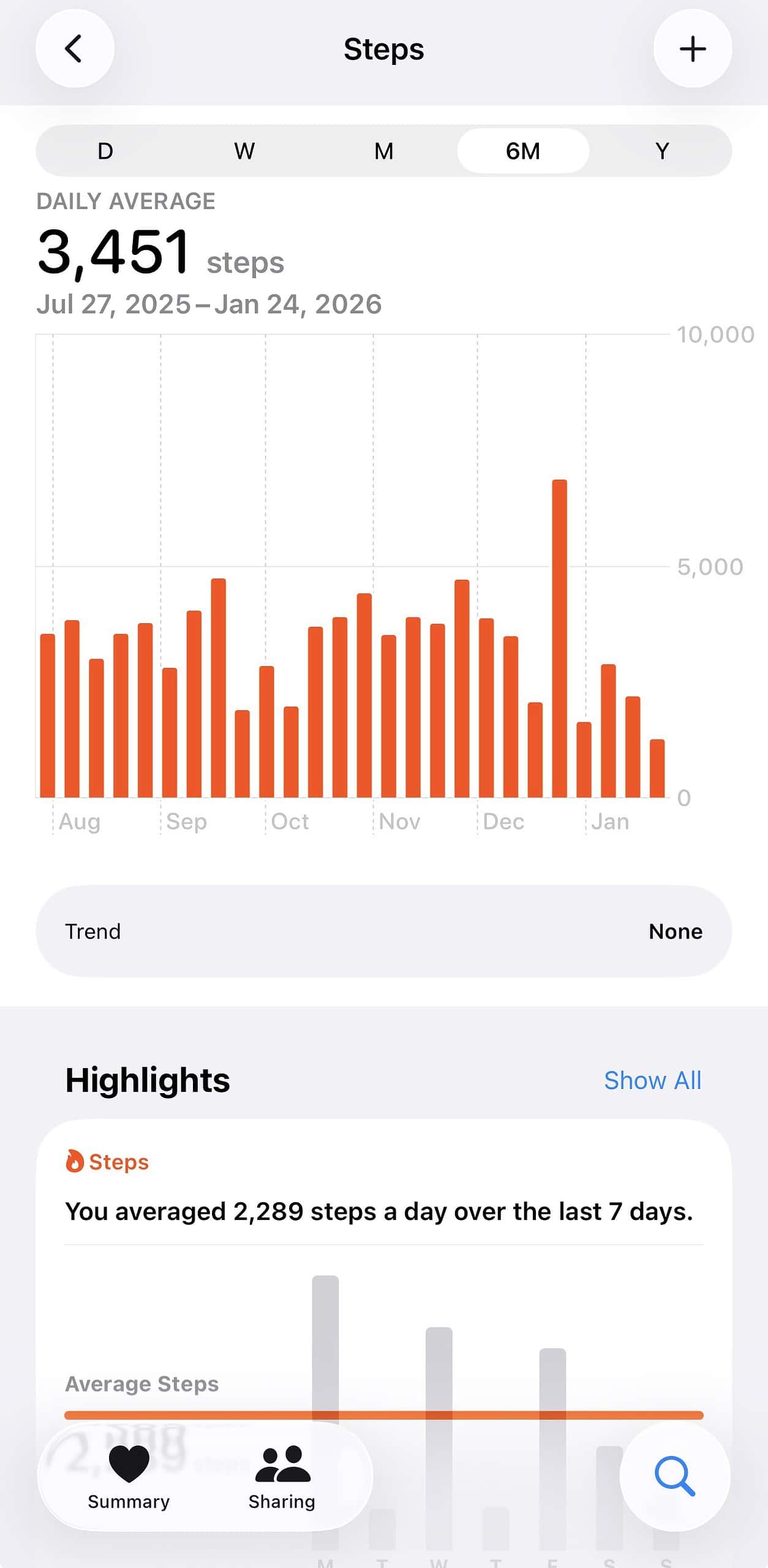

This view is useful for spotting long-term patterns or seasonal changes in activity.
How Far Back Apple Watch Activity History Goes
Apple does not automatically delete activity data as long as your Health data and backups remain intact.
- Activity ring data can go back to the first day you used Apple Watch.
- Workout records are stored long-term unless manually deleted.
- Health metrics remain available as long as Health data is preserved.
When you restore a new iPhone from a backup, activity history usually transfers automatically.
Tips for Using Activity History Effectively
- Review Trends monthly rather than daily for meaningful insight.
- Adjust Move goals based on long-term averages, not single days.
- Compare workouts by duration and effort, not just calories.
- Use Stand data to identify sedentary work habits.
- Back up your iPhone regularly to protect activity history.
Apple Watch activity history is spread across the Watch, the Fitness app, and the Health app, with each offering a different level of detail. Once you know where each type of data lives, tracking progress and long-term trends becomes much easier.
FAQ
You can view recent daily and weekly history on the Apple Watch, but long-term history requires the iPhone.
Apple does not provide a direct option to delete a single day’s Activity rings. You can delete individual workouts or underlying Health data, which may change totals for that day.
If you unpair the Watch correctly, data remains on the iPhone. Resetting without a backup may result in data loss.
Yes, if you grant permission through the Health app.


Discussion