

Have you ever struggled to remove a watermark on your own and still felt the image looked off? Even manual tools like clone, patch, or blur rarely fix it cleanly. AI has made this process much simpler. These tools spot the watermark, rebuild the missing details, and blend the area so it looks natural. You don’t need advanced editing skills and the job gets done much faster.
In this guide, you’ll find the best AI watermark removers for Mac, including tools like Vmake, that help you clean images or videos without losing quality. Read along to find a tool that works for your requirements.
What is a Watermark Remover?
A watermark remover is a tool that helps clean visuals by deleting logos, stamps, or any layered mark. It may also help repair the covered section. People use it when they need clean visuals for presentations, social posts or personal projects.
Don’t miss the best of The Mac Observer
Set us as a preferred source and our Apple reporting ranks higher in your Google Search results and Discover feed — one tap, no account changes.
It can also fix older files where watermarks may block important parts of the frame.
Ethical Considerations Before Removing a Watermark
Before using any watermark remover, it’s important to pause and consider the ethical and legal implications. Watermarks are often added to protect copyright, ownership, or licensing rights, especially for stock images, videos, or professional content. Removing a watermark from content you do not own, or do not have explicit permission to edit, can violate copyright laws and the creator’s terms of use.
Watermark removal is generally appropriate only when you own the content, have written permission from the rights holder, or are working with your own files where a watermark was applied accidentally or for preview purposes. Using these tools responsibly helps respect creators’ work, avoids potential legal issues, and supports fair use practices in digital media.
Top 8 AI Watermark Removal Tools
Each tool below offers a different approach to clearing marks.
1. Vmake
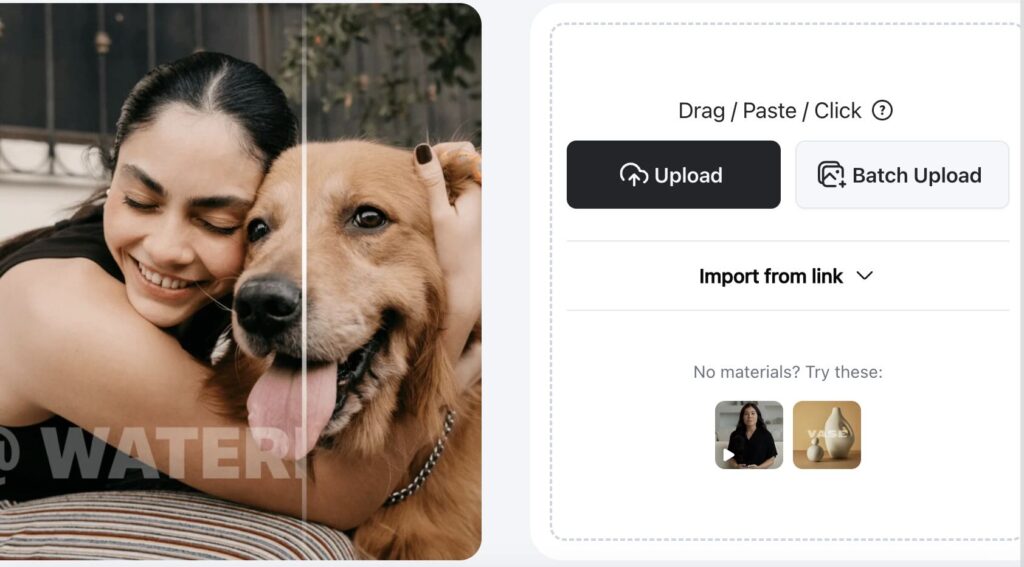
Vmake removes watermarks from videos automatically as soon as you upload your clip. The AI scans each frame and clears logos, corner tags, timestamps, and other elements without breaking the motion. You can switch between Smart Remove, Remove Watermark and Remove Subtitle depending on what the video needs. What’s more, Vmake also offers other video editing tools like video enhancer, AI auto caption generator, AI hook generator or creating UGV videos with AI.
Pros
- Auto-detection handles watermarks without manual marking.
- The preview loads fast, making corrections easy.
Cons
- Long videos may take more time to process fully.
- The full-resolution export requires a paid plan.
2. PixelBin

PixelBin clears text, logos, and marks with quick AI actions that keep the image looking natural. It works directly in your browser and adds helpful tools like background removal, upscaling, and object erasing. You can process many files together, and the layout keeps every step clear.
Pros
- HD export gives a sharper final file.
- The interface loads fast and feels light.
Cons
- Detailed edge fixing can still take manual work.
- A few tools stay locked without credits or signup.
3. Media.io
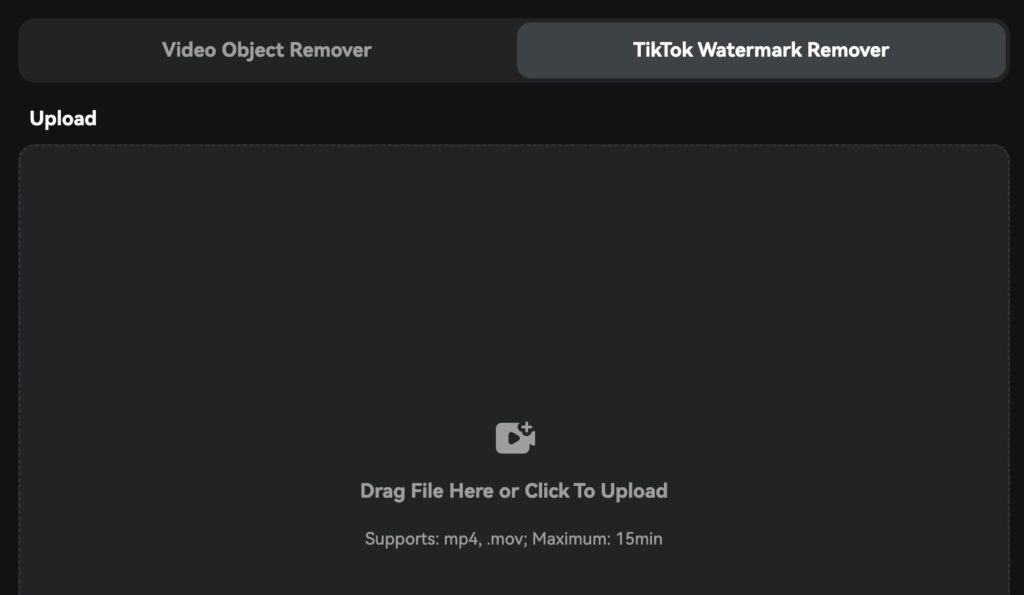
Media.io removes watermarks from images and videos without disturbing the background. The brush lets you mark only the part you want gone, and the tool separates text and object removal for clarity. It runs online, so you upload, select, and download in one flow. This helps if you switch between photo and video work often.
Pros
- Works smoothly across different file types.
- Clear tool options make editing easier for beginners.
Cons
- Tough frames may need extra cleanup.
- Some advanced features are paid.
4. WatermarkRemover.io
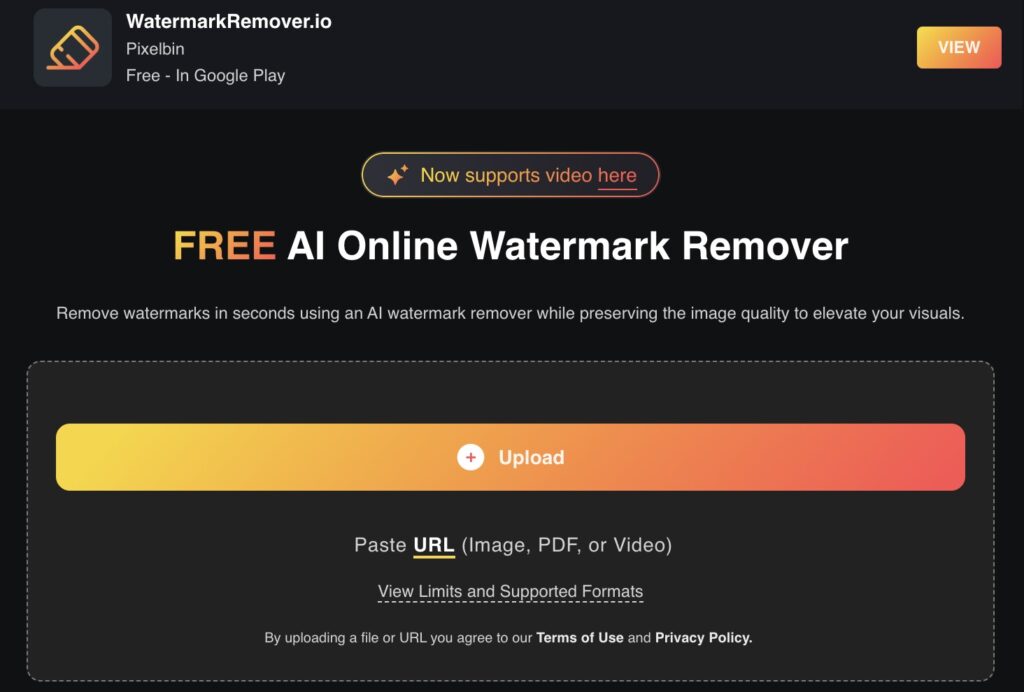
WatermarkRemover.io finds the watermark section without manual input. It copies surrounding pixels to cover the area, helping the edit blend in neatly. The tool runs online and supports common formats, so users can fix images quickly.
Pros
- It gives clear previews that help you check the final result.
- It works with many image types and handles routine edits well.
Cons
- Very textured surfaces can look uneven after cleanup.
- Slow networks can delay uploads and final processing.
5. Aiseesoft
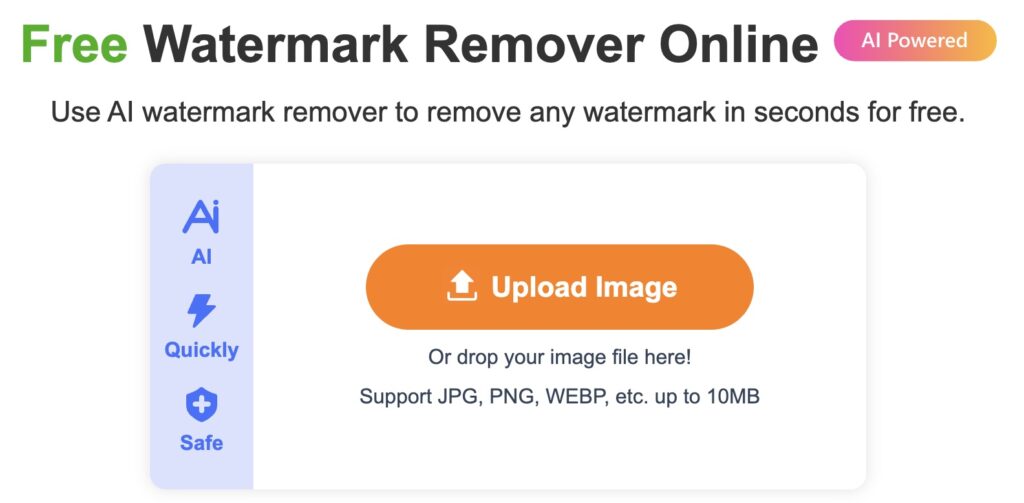
Aiseesoft uses AI to detect and remove watermarks directly in your browser. It works with JPG, PNG, WEBP, and additional formats. Upload your image, mark the area you want to remove, and the tool will clear it. It can remove multiple marks while keeping the image quality largely intact.
Pros
- Offers multiple selection tools for precise target highlight.
- You can preview edits before saving the final image.
Cons
- May show blurred output on heavily patterned backgrounds.
- Daily usage limits apply.
6. DeWatermark AI
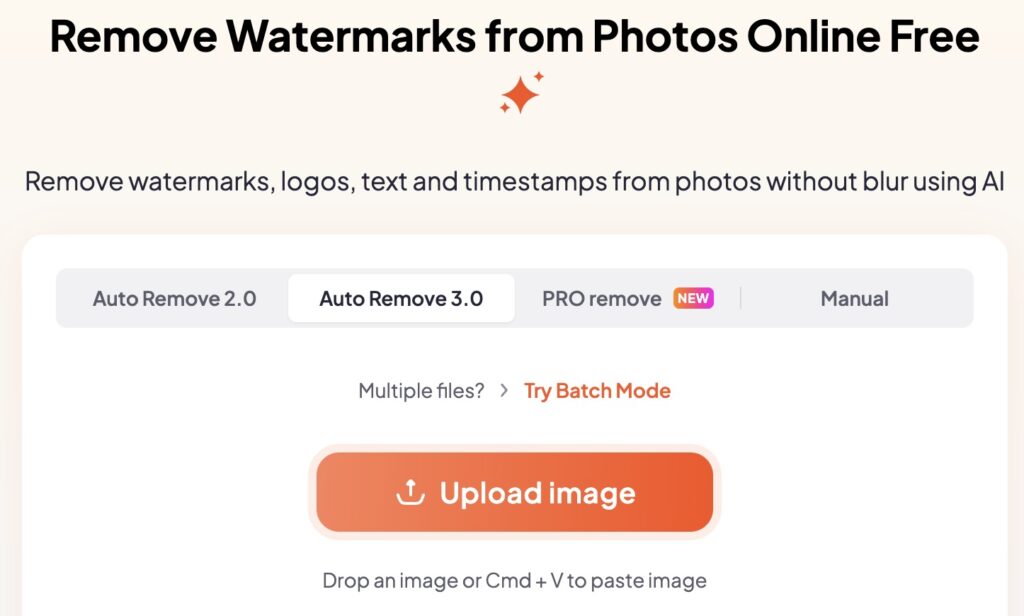
DeWatermark uses AI modes like Auto Remove 2.0, Auto Remove 3.0 and PRO to clean images in different ways. You can compare each result with a side-by-side preview. The tool also supports batch processing for faster work. Mode switching is quick, and the layout is easy to follow.
Pros
- Batch processing cleans many images at the same time.
- PRO mode handles tricky marks with better control.
Cons
- Large images may take more time to finish.
- Some tricky backgrounds can look slightly soft after removal.
7. PicWish
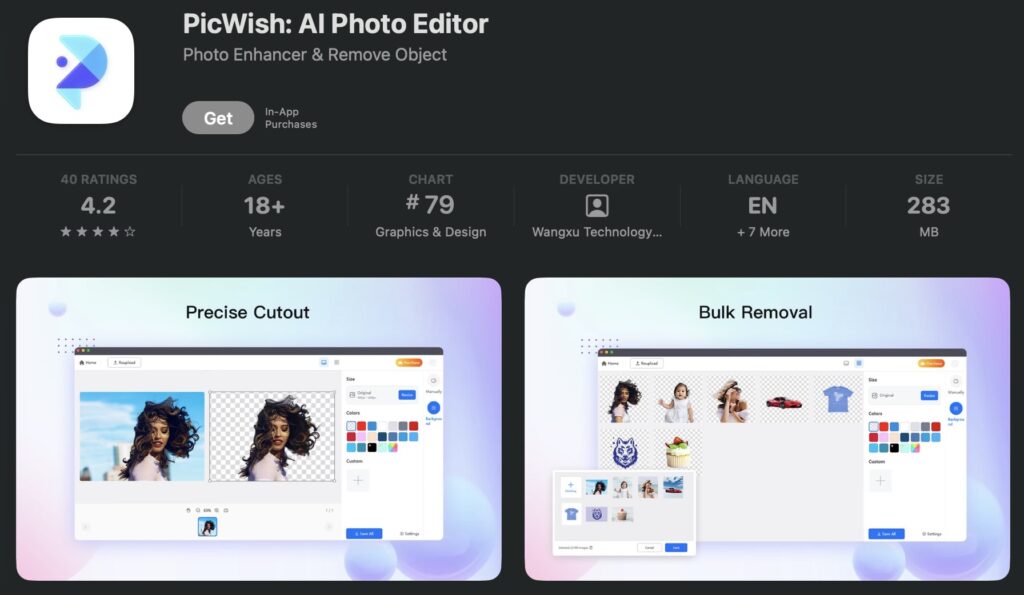
PicWish can clear logos, text, people, and unwanted objects from photos online. You upload one or more images and the tool erases them automatically or with manual highlights. It handles complex patterns easily and keeps the edit looking natural.
Pros
- It can fix up to 50 images at once.
- Batch removal lets you fix large image sets with one upload.
Cons
- Very complex textures may still show slight remnants after removal.
- Manual brushing takes time on very detailed edits.
8. Picsart
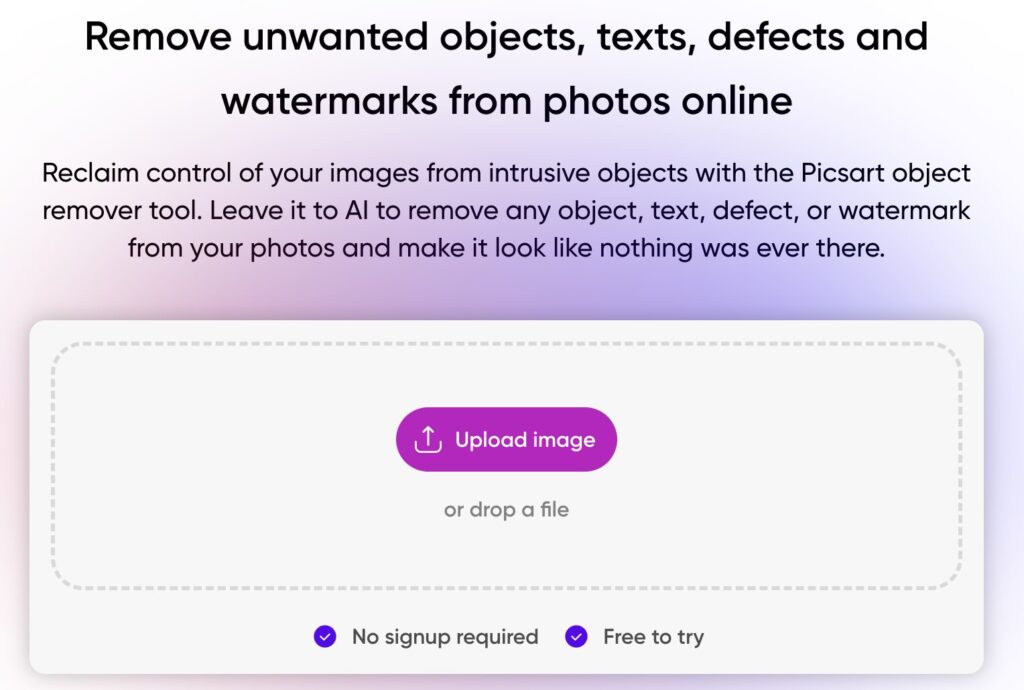
Picsart lets you highlight the area to remove after uploading your photo. The tool rebuilds the background so the change blends naturally with the rest of the image. It works well for clearing watermarks, text, or small distractions, and results appear within seconds. You can also adjust colors and retouch details in the same workspace.
Pros
- Offers many extra editing tools for full image adjustments.
- The brush controls feel smooth and easy to guide.
Cons
- Larger edits may need several passes for a clean finish.
- Some advanced tools require a paid plan to unlock.
Features to Consider When Selecting an AI Watermark Remover
A clear goal makes removing text or overlays much easier. Here are some tips to choose the right option.
- Output should look natural. The image must stay clean without visible patches.
- The interface should feel simple so you can edit without effort.
- Processing speed matters when you’re working with multiple files.
- Batch support saves time if you remove watermarks often.
- Privacy policies should be clear so you know how your images are handled.
- Pricing should match your usage. A basic plan usually works for light editing.
The Bottom Line
AI watermark tools perform differently on photos and videos. They also vary in how well they handle complex textures. Check how each one processes edges and restores details. This helps you avoid flat patches and keeps the final output clean. As you compare these points, you will notice that some tools are built for specific tasks. A quick look at the options above should help you decide faster. In that mix, Vmake stands out naturally for video work because it keeps motion and frames intact without extra effort.


Discussion