

Every AirPods pairing guide written before this year tells you to press and hold the setup button on the back of the case. AirPods 5 does not have one, so on an Android phone, a Windows laptop or a games console the old instruction simply fails.

Apple’s replacement gesture is a double-tap. Open the case with the AirPods inside, then “double-tap the front of the AirPods case so the status light flashes white.” That is pairing mode, and the AirPods then show up in the other device’s Bluetooth list like any other pair of headphones.
The steps, in Apple’s order
- Make sure Bluetooth is turned on for the device you want to connect to, and that it is looking for devices.
- Put your AirPods in the case and open the lid.
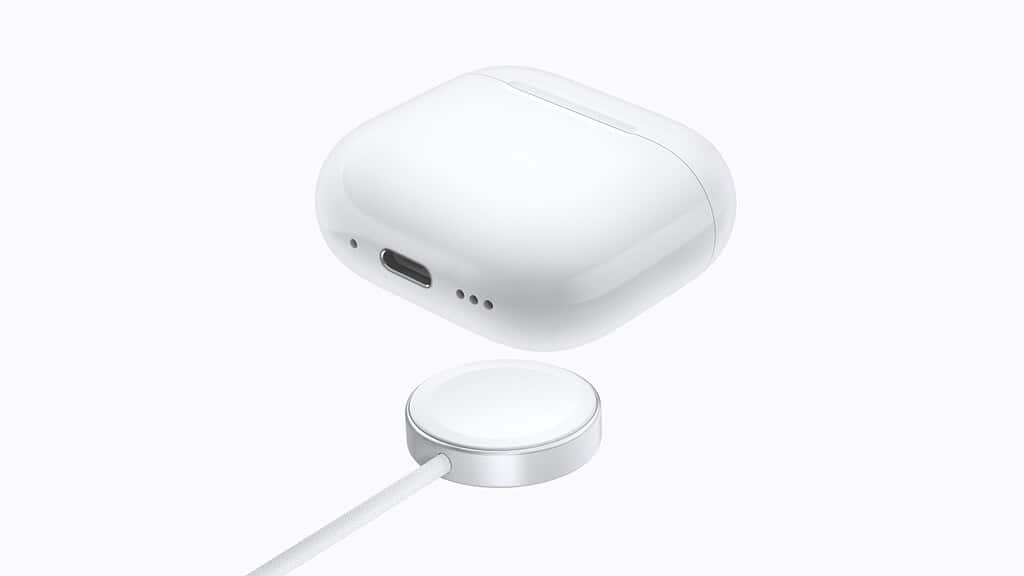
- Hold the case next to the device you are pairing to, then double-tap the front of the case so the status light flashes white.
- When your AirPods appear in the list of Bluetooth devices, select them.
The front of the case is the face carrying the status light, not the lid and not the back. The white flash is the confirmation to wait for: no flash means the taps did not register, and closing the lid and opening it again gives you a clean second attempt.
Don’t miss the best of The Mac Observer
Set us as a preferred source and our Apple reporting ranks higher in your Google Search results and Discover feed — one tap, no account changes.
Apple groups AirPods Pro 3 with AirPods 4 and AirPods 5 for this gesture, so the same double-tap works there. Everything older keeps the button.
Apple keeps the older instructions on the same page, which is worth knowing if the drawer holds a mixed set.
| Model | How to enter pairing mode |
|---|---|
| AirPods 5 | Double-tap the front of the case until the status light flashes white |
| AirPods 1 to 3, AirPods Pro 1 and 2 | Press and hold the setup button about five seconds |
| AirPods Max | Press and hold the listening mode button about five seconds |
What you give up
Apple’s line on this is a single sentence: “You can’t use Siri, but you can listen and talk.” Audio works and calls work. Anything that depends on Siri does not.
Beyond that sentence, Apple does not say what survives the jump to a non-Apple device. It does not state that Active Noise Cancellation, Transparency, Adaptive Audio, Personalized Spatial Audio, Live Translation or head gestures carry across, and we are not going to claim they do on its behalf. If a feature matters to you on a work laptop or a console, test it before you rely on it.
That gap is worth planning around rather than discovering mid-call. A console or a work laptop gets audio in and audio out, and the assistant on the far end is whatever that device provides, not Siri. Volume, track skipping and answering a call still run off the stem, because those are handled on the AirPods themselves.
This is pairing, not a reset
Two different AirPods 5 procedures both involve tapping the case, and mixing them up costs you your settings. A single double-tap with the lid open puts the AirPods into pairing mode, which is what this article covers. A factory reset is a different, longer sequence and it wipes the pairing with your iPhone as well. If you only want to connect to a second device, stop at the double-tap.
Coming back to the iPhone afterwards takes nothing special. The pairing you made by hand lives in the other device’s Bluetooth list, so switching back to it later means picking the AirPods from that list again rather than repeating the double-tap. Our AirPods 5 launch coverage covers the two case options, one of which changes what the stem can do.
Before the first pairing
AirPods 5 reaches customers on September 18. If you are setting a pair up alongside a new phone, it is worth updating the iPhone first so the AirPods land on current firmware, and our iOS 27 release coverage covers what shipped on September 14. The September event recap has the rest of the lineup.



