
In iOS 27, you can create a reminder by typing a sentence instead of working through date and repeat pickers. Type something like Apple’s example, “Feed the cat every evening at 5pm,” and Reminders “automatically fills in the details and timing based on what you typed.” Calendar does the same for events.

Both need Apple Intelligence. Apple lists “Describe a reminder in natural language” and “Describe a calendar event in natural language” among the Apple Intelligence features that come with iOS 27, on iPhone, iPad and Mac.
How to create a reminder from a description
- Go to the Reminders app on your iPhone.
- Tap the New Reminder button.
- Type a description of the reminder, such as “Feed the cat every evening at 5pm.”
- Check the details Reminders fills in, then tap the Done button.
Apple’s Apple Intelligence overview says suggestions for “the dates, times, frequency, and more appear in the reminder details.” Look at them before you tap Done. A wrong repeat is much easier to fix at this point than after the reminder has gone off at the wrong hour for a week.
Don’t miss the best of The Mac Observer
Set us as a preferred source and our Apple reporting ranks higher in your Google Search results and Discover feed — one tap, no account changes.
One condition covers the whole app. Apple says every Reminders feature in its guide is available when you use updated reminders in iCloud, and that some “aren’t available when using other accounts.”
How to create a calendar event from a description
- Go to the Calendar app on your iPhone.
- In Day view, tap the Add button.
- Instead of just a title, enter a description of the event. Apple’s own example text in its guide reads “Soccer game on Saturday from 11 a.m. – 1 p.m.”
- Suggestions for filling in the event details appear in the event card. Review them, add a location or invitees if you need to, then tap the Done button.
Calendar goes a step further than Reminders: you can also change an existing event by describing the change. Apple’s example is turning a lunch meeting into a coffee chat, after which “the event details are updated in Calendar.” Apple’s Calendar page doesn’t give separate steps for this, so if a description doesn’t take, fall back on the usual route of tapping the event, then tapping Edit.
Which iPhones and languages work
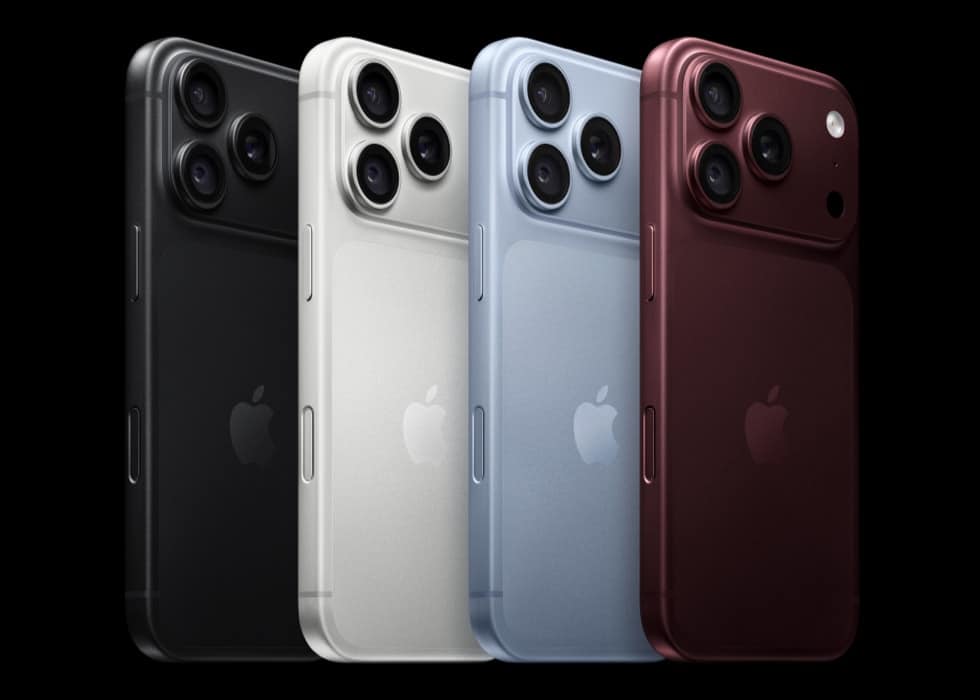
Apple Intelligence in iOS 27 runs on iPhone 15 Pro, iPhone 15 Pro Max, and iPhone 16 models or later, including iPhone 18 Pro. Other iPhones that run iOS 27 keep the familiar manual fields.
Apple’s feature availability page lists “Describe an event” for Calendar in all 16 Apple Intelligence languages, with Chinese (Simplified) not available in China mainland. Your device language and Siri language must match, and Apple says usage limits may apply.
Two older Reminders features that pair well with it
Apple lists these Reminders features as supported since iOS 26, so they aren’t part of this update, but they work alongside it.
- Suggested reminders from other apps: open a recipe in Safari or meeting notes in Notes, tap the Share button, then tap Reminders. Tap the Add button next to a suggestion, or tap Include All.
- Auto-Categorize: Apple Intelligence sorts related reminders into sections within a list. You switch it on or off from inside a list, and Apple says removing the sections it made doesn’t delete any reminders.



