

If you’ve ever felt a small tap when unlocking your iPhone, receiving a notification, using the keyboard, or adjusting settings, you’ve already experienced haptics. Haptics on iPhone are vibration-based feedback effects generated by Apple’s Taptic Engine. They help make interactions feel more natural by providing a physical response when you touch the screen or perform certain actions.
In 2026, haptics remain an important part of the iPhone experience across iOS 26 and the latest iPhone models. Apple continues to use haptic feedback for notifications, system interactions, accessibility features, calls, alarms, and app experiences. Understanding how haptics work can help you customize your iPhone and improve usability.
What Are Haptics on iPhone?
Haptics are tiny vibrations that simulate the feeling of pressing a physical button. Since modern iPhones have very few physical controls, Apple uses the Taptic Engine to create tactile feedback when interacting with software.
Don’t miss the best of The Mac Observer
Set us as a preferred source and our Apple reporting ranks higher in your Google Search results and Discover feed — one tap, no account changes.
Common examples include:
- Receiving notifications
- Incoming calls
- Locking or unlocking the phone
- Using the keyboard (when enabled)
- Long-pressing icons with Haptic Touch
- Apple Pay confirmations
- System menus and toggles
- Alarm and timer alerts
These vibrations help confirm that an action has been completed without requiring you to constantly look at the screen.
How to Turn Haptics On or Off on iPhone
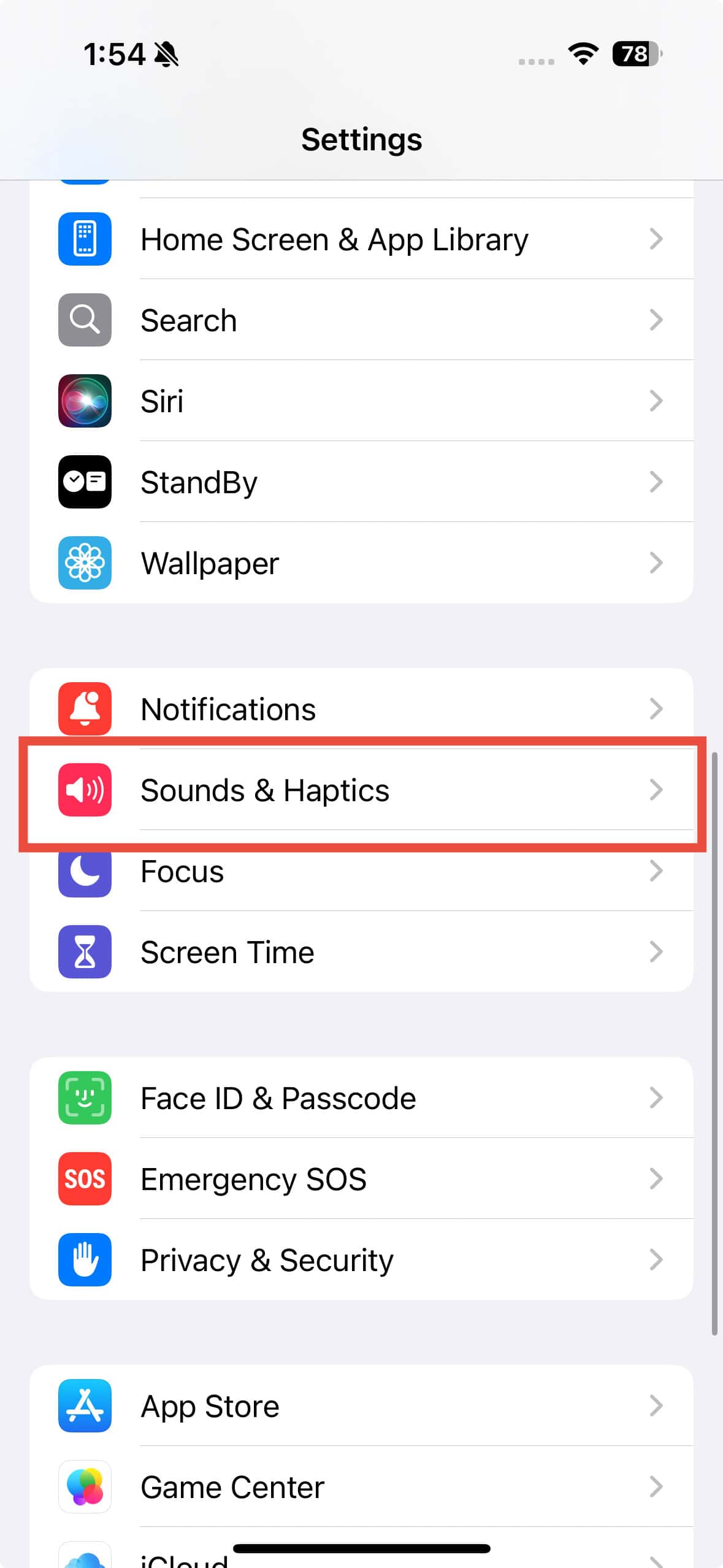
You can control system-wide haptic feedback through the Settings app.
Turn Haptics On or Off
Haptics can be configured to always play, play only in silent mode, or never play.
- Open Settings.
- Tap Sounds & Haptics.
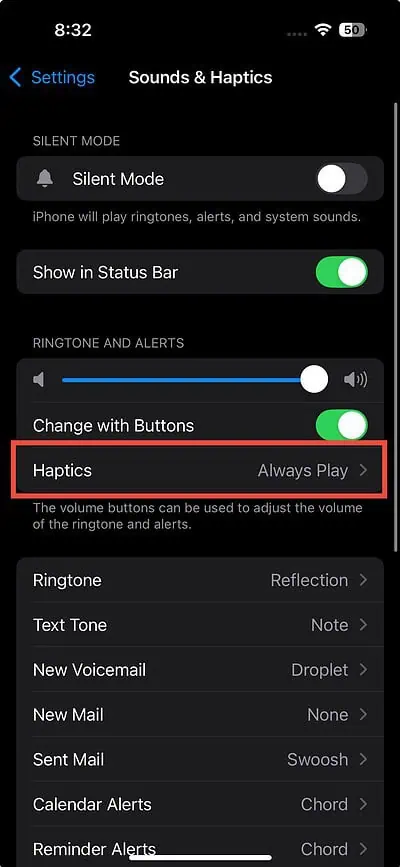
- Select Haptics.
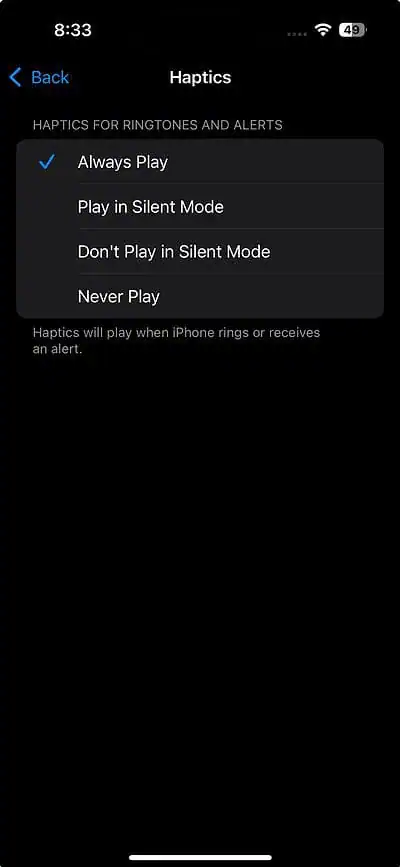
- Choose one of the following:
- Always Play
- Play in Silent Mode
- Don’t Play in Silent Mode
- Never Play

This setting affects many system vibrations across iOS.
How to Customize Notification Haptics
Different alerts can use different vibration patterns.
Change Haptics for Calls and Messages


You can assign unique vibration patterns for calls, text messages, and other notifications.
- Open Settings.
- Tap Sounds & Haptics.
- Select Ringtone, Text Tone, or another alert type.
- Tap Haptics at the top.
- Choose a vibration pattern.
- Tap Done to save.
This makes it easier to identify alerts without looking at your screen.
How to Create a Custom Haptic Vibration
Apple allows you to create your own vibration patterns.
Create a Custom Haptic Pattern
- Go to Settings > Sounds & Haptics.
- Select Ringtone or another alert type.
- Tap Haptics.
- Choose Create New Vibration.
- Tap the screen to record your pattern.
- Tap Stop when finished.
- Preview it with Play.
- Tap Save and give it a name.
You can then assign that custom vibration to calls, texts, or specific contacts.
What Is Haptic Touch on iPhone?
Haptic Touch is Apple’s long-press gesture system. When you press and hold an app icon, photo, link, or message, the iPhone provides a subtle vibration and opens additional options.
Examples include:
- Quick Actions on app icons
- Link previews in Safari
- Context menus in apps
- Live Photo previews
- Text editing shortcuts
Unlike the old 3D Touch system, Haptic Touch relies on press duration rather than screen pressure.
Change Haptic Touch Speed
- Open Settings.
- Go to Accessibility.
- Tap Touch.
- Select Haptic Touch.
- Choose Fast or Slow.
- Test the setting using the sample image.
How to Enable Keyboard Haptics
Keyboard haptics add a subtle tap sensation whenever you press a key.
Turn On Keyboard Haptics
- Open Settings.
- Tap Sounds & Haptics.
- Select Keyboard Feedback.
- Turn Haptic on.
Many users prefer keyboard haptics because typing feels more responsive and closer to a physical keyboard.
Do Haptics Affect Battery Life?
Yes, but only slightly.
The Taptic Engine uses power whenever it generates vibrations. However, for most users, the battery impact is minimal. Heavy use of keyboard haptics and frequent notification vibrations may cause a small increase in battery consumption, but it is generally not noticeable during everyday use.
If you are trying to maximize battery life, turning off unnecessary haptic feedback may help a little.
How to Fix Haptics Not Working on iPhone
If your iPhone suddenly stops vibrating:
- Open Settings > Sounds & Haptics.
- Make sure haptics are enabled.
- Restart your iPhone.
- Check that Silent Mode settings are configured correctly.
- Update to the latest iOS version.
- Remove thick cases that may reduce vibration sensation.
- Reset all settings if the issue persists.
Several users have reported occasional haptic-related issues after some iOS 26 updates, though Apple typically addresses these through software updates.
FAQs
Haptics are vibration-based feedback effects that provide a physical response when interacting with your iPhone.
Most users benefit from haptics because they improve feedback and make interactions feel more responsive.
No. Haptics refer to vibration feedback in general. Haptic Touch is a specific long-press feature that uses haptic feedback when activated.
Yes. Go to Settings > Sounds & Haptics > Haptics and choose Never Play.
Modern iPhones equipped with Apple’s Taptic Engine support haptic feedback and Haptic Touch features.
Summary
- Haptics are vibration-based feedback effects powered by the iPhone’s Taptic Engine.
- They are used for notifications, calls, keyboard feedback, system actions, and alerts.
- Haptic Touch provides context menus and shortcuts through long presses.
- Users can customize vibration patterns for calls and messages.
- Custom haptic patterns can be created directly in Settings.
- Haptics have only a minor impact on battery life.
- Most haptic settings are located under Sounds & Haptics and Accessibility.
Conclusion
Haptics may seem like a small feature, but they play a major role in the iPhone experience. From subtle taps when using Haptic Touch to notification vibrations and keyboard feedback, the Taptic Engine helps make iOS feel more responsive and intuitive.
In 2026, Apple continues to expand and refine haptic feedback across iPhone features, giving users more control over how their devices respond to touch. Whether you prefer strong vibrations or a quieter experience, iPhone offers detailed settings to customize haptics exactly the way you want.


it seems to use alot to say a little