

Customizing your iPhone lock screen has reached a new level of flexibility with the release of iOS 26. Apple now allows users to manually resize the time display using touch gestures rather than just selecting different fonts. This guide explains how to use the drag-and-stretch feature to achieve the perfect look for your personalized lock screen.
Table of contents
Master the New Clock Resizing Feature
The latest software update introduces a direct manipulation tool for the lock screen interface. While previous versions required navigating menus to change sizes, iOS 26 uses a bounding-box system. This allows you to scale the clock dynamically to fit your wallpaper perfectly. If you encounter visibility issues, check whether an iOS bug blurs the status bar and hides essential information during the customization process.
1. Activate the Lock Screen Editor
Before you can stretch the clock, you must enter the customization mode. This mode unlocks the interactive elements of your display and lets you modify the layout of your widgets and the time.
Don’t miss the best of The Mac Observer
Set us as a preferred source and our Apple reporting ranks higher in your Google Search results and Discover feed — one tap, no account changes.
- Long-press on your current lock screen until the gallery view appears.
- Tap the Customize button at the bottom of the screen.
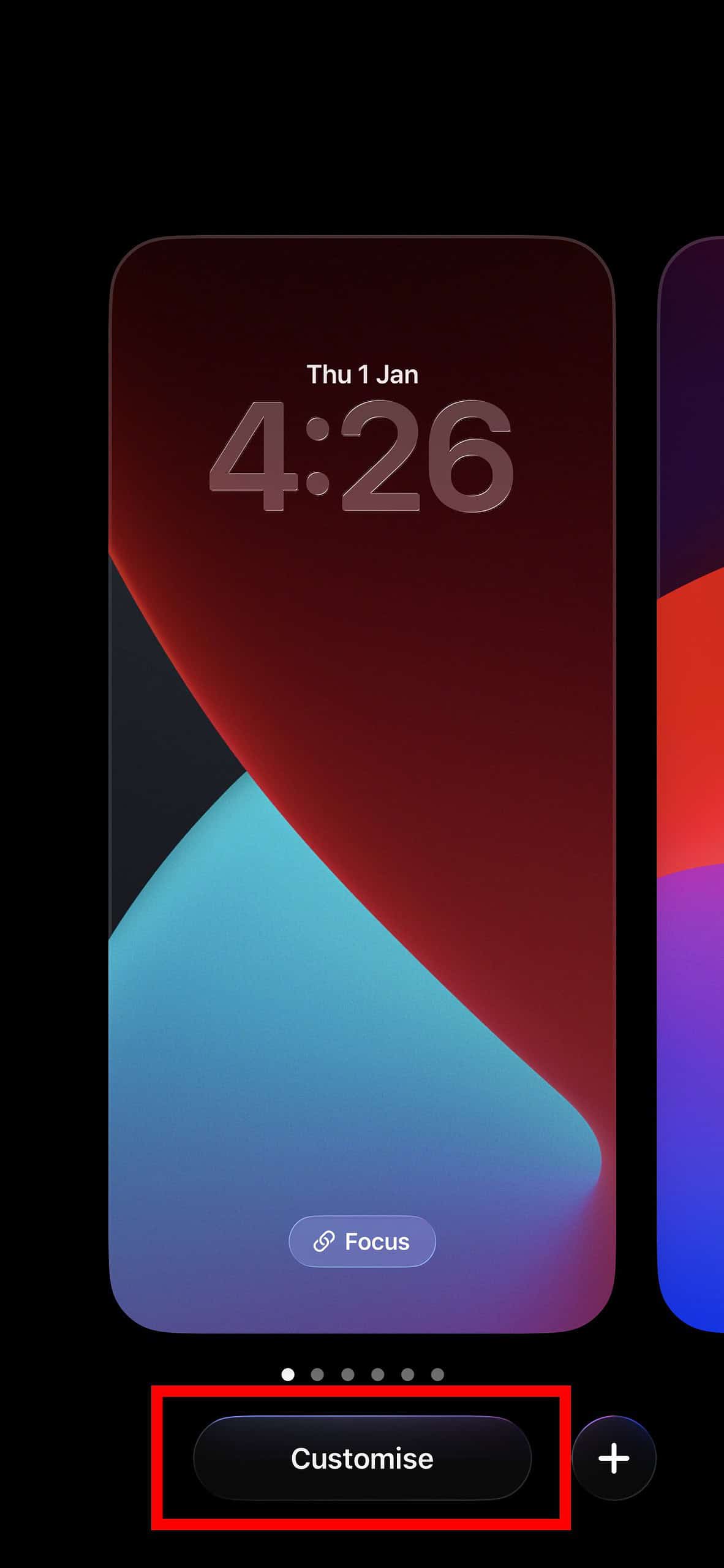
- Select the Lock Screen preview to begin editing.

2. Locate the Adjustment Handle
Once you are in the editor, you will notice a subtle frame around the time. This frame indicates that the element is active and ready for manual resizing via the new corner-drag gesture.
- Look for the small handle at the bottom-right corner of the clock box.
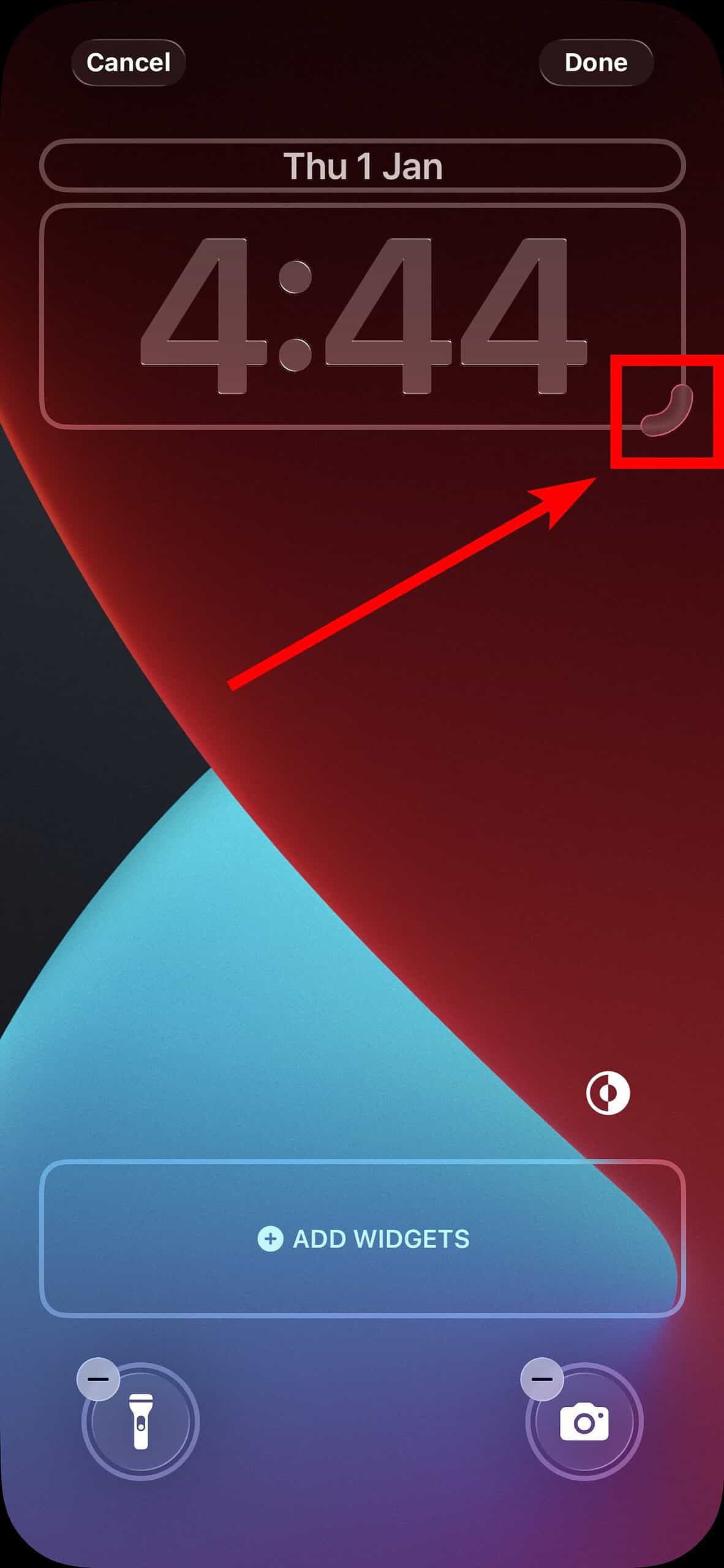
- Ensure the clock is not obscured by other widgets before attempting to stretch it.

3. Drag to Stretch the Clock
The stretching action is fluid and allows for various sizes. You can make the clock take up the majority of the top half of the screen or keep it small and minimalist, depending on your preference.
- Place your finger on the bottom right-hand corner handle.
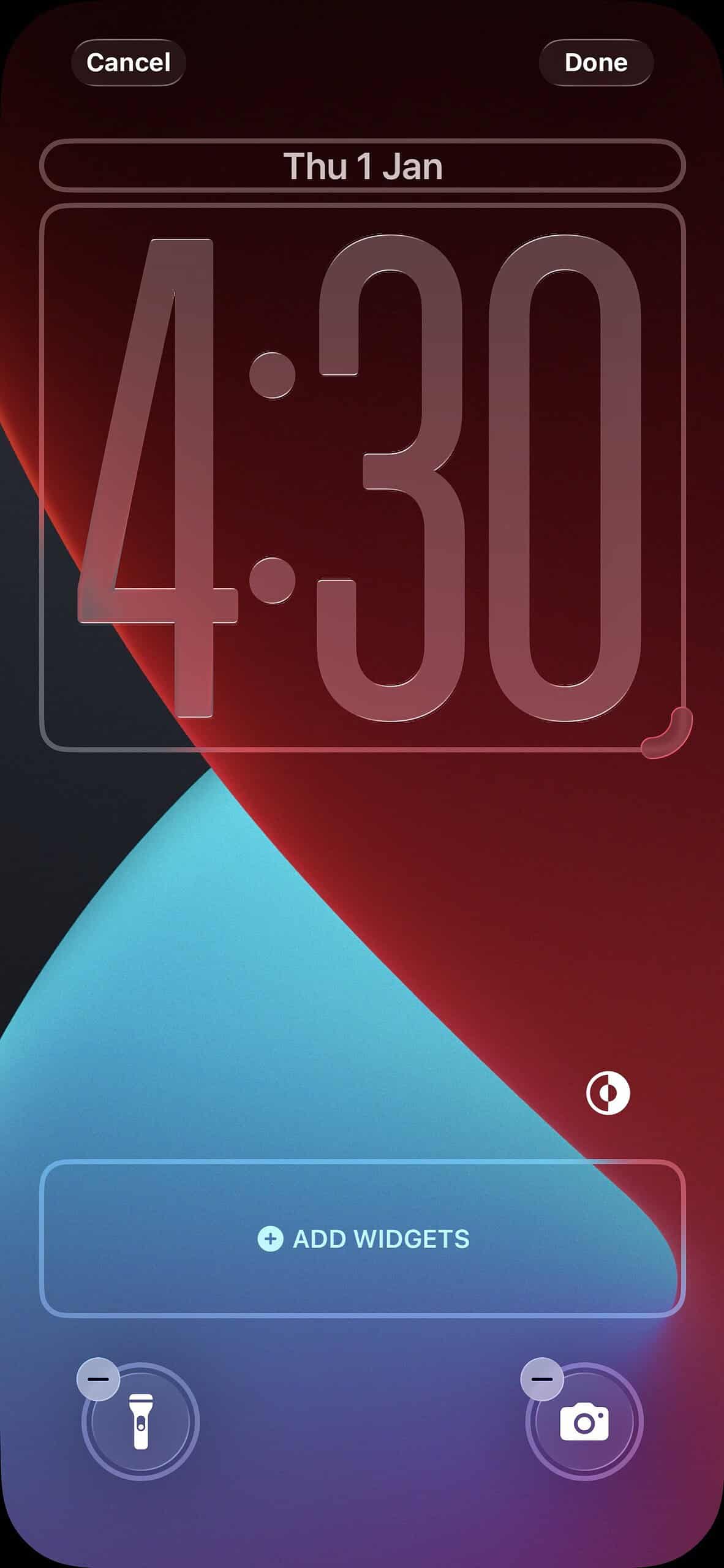
- Drag your finger diagonally away from the center of the clock to increase the size.
- Observe how the weight of the numbers adjusts automatically as you stretch the frame.

4. Adjust the Proportions
Finding the right balance between the clock and your background imagery is essential for a clean aesthetic. The stretching tool ensures that the font scales smoothly without losing clarity or becoming pixelated as it grows.
- Continue dragging until the clock reaches your desired height.
- Release your finger to lock in the new size.
- If the clock looks too large, drag the handle back toward the center.
5. Save Your Custom Layout
After you have stretched the clock to the ideal size, you must confirm the changes. iOS 26 saves these proportions specifically for the wallpaper pair you are currently editing. You might also find that iPhone alarm alerts for holidays are easier to see when paired with a larger, more prominent clock display.
- Tap the Done button in the top right corner.
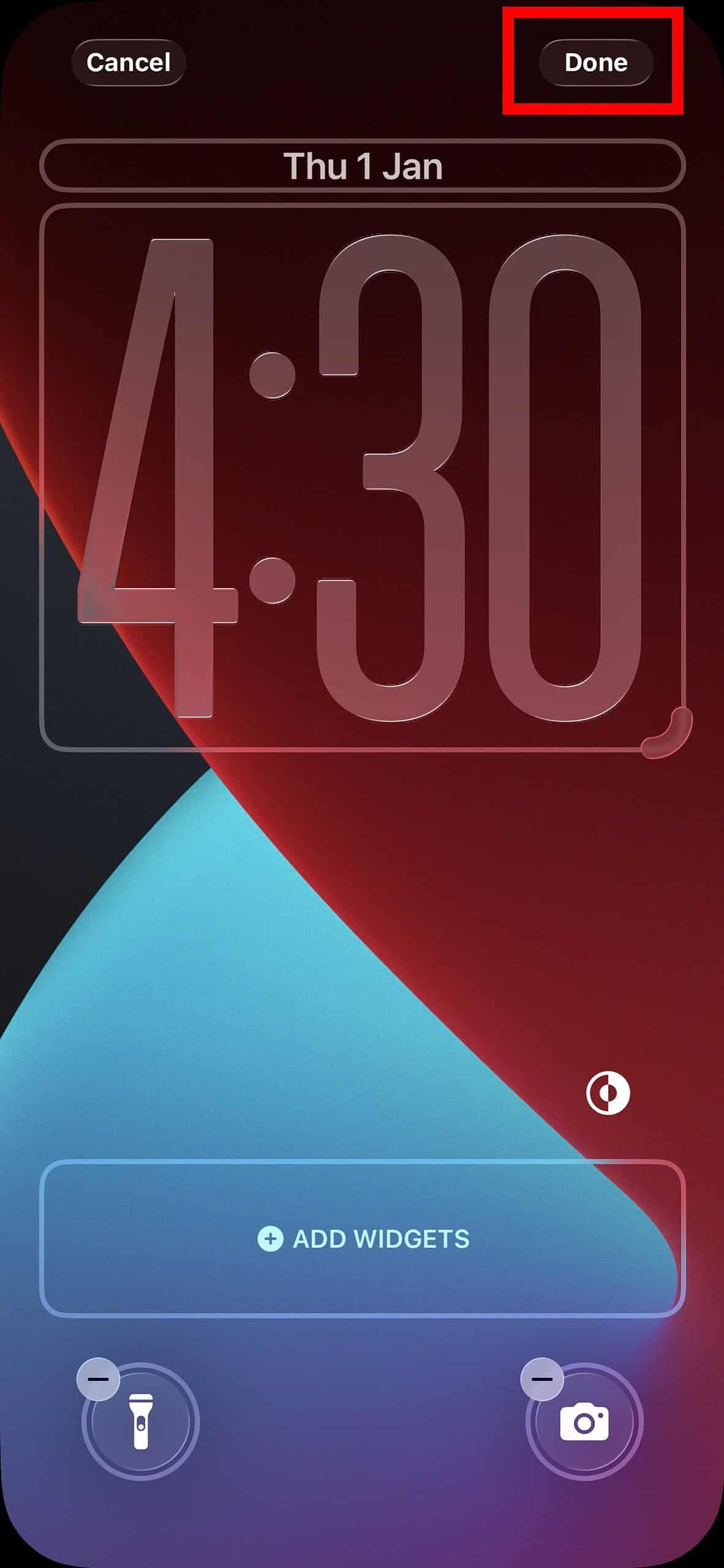
- Choose whether to set the layout as a wallpaper pair.
- Lock your phone and wake it to see the stretched clock in action.

FAQ
The resizing tool in iOS 26 maintains the aspect ratio of the clock digits. When you drag the corner, it scales both height and width simultaneously to keep the numbers legible and proportional.
Yes, if you make the clock exceptionally large, it may limit the space available for widgets. You may need to remove some widgets to accommodate a significantly stretched clock.
This specific stretching gesture is designed for the digital clock. If you prefer a different style, you can learn how to display an analog clock on the iPhone lock screen through the traditional font and style menu.
Achieve the Perfect iOS 26 Lock Screen Look
Stretching the clock provides a modern way to personalize your device without being restricted by preset font sizes. By dragging the bottom right corner, you gain full control over the visual hierarchy of your display. If you need more traditional methods, you can always make the clock bigger on your iPhone using standard settings for a classic appearance.


Discussion