

Need to check how much space is left on your Time Capsule? Easy-peasy. Whether you’re thinking of backing up an additional machine or you just want to know where you stand, knowledge is power, right? So today, I figured I’d go over a few ways you could do that. I mean, there are probably at least a dozen MORE ways that I won’t cover, but what do you want from me? I ain’t getting paid by the word here. If I were, I’d make a lot more jokes, so we’re all probably better off.
1. Check System Preferences. To do this, either click on the Time Machine icon in your menu bar and choose “Open Time Machine Preferences”…

…or use the Apple Menu to pick “System Preferences” and then go to the “Time Machine” section.

Whichever way you choose, you’ll end up with a window that contains this information:

I…I think I’m all right for a while. If I use up 1.81 TB anytime soon, I’m going to worry about me.
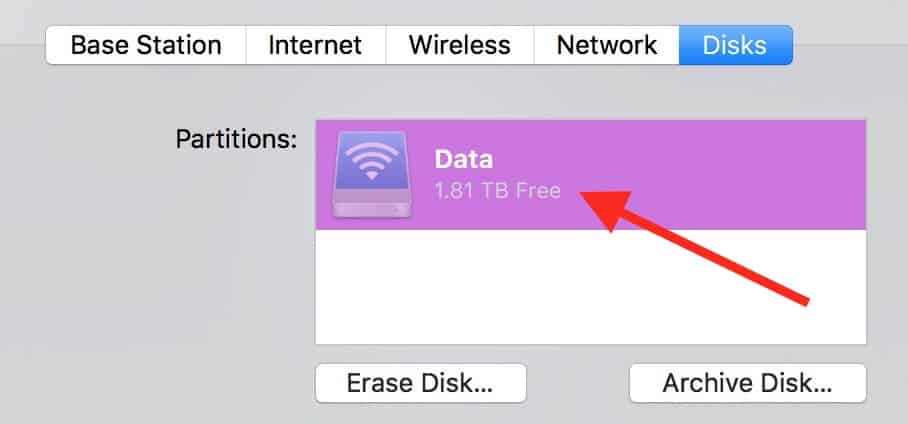
2. Look within AirPort Utility. This program—which lives in your Applications > Utilities folder—has all sorts of information and controls for your Apple networking devices. Once you’ve opened it (and you’re sure you’re on your home network!), click on your Time Capsule from the list you’ll see and enter the device password if it asks you to. Then you can click “Edit” to see its info.

The next step is to choose the “Disks” tab, and from there, look underneath the partition’s name to find what you’re looking for.
3. Look in Finder. Finally, if you wanna get all crazy and connect to your Time Capsule through the Finder, you can do that too! If you don’t have a Finder window already open, start by clicking on the blue smiley face in your Dock, which’ll open one for you.

As I’ve indicated above, the “Shared” section of the sidebar should contain your Time Capsule, assuming you’re on your own network, that is! Make sure you aren’t using, say, the gosh-darned xfinitywifi one. But anyway, once you select your Time Capsule from the sidebar, you’ll click that “Connect As” button. Then you’ll have to enter your Time Capsule’s password to get in.

Do that, click “Connect,” and you should see something like this:

After that, just double-click on the blue sharepoint (labeled “Data” in my screenshot above), and then on the following screen, you can press Command-/ (View > Show Status Bar) to reveal that storage info at the bottom of the window.

Whew! OK, that’s the long way around, maybe. But I do think it’s good to know that you can connect to your Time Capsule through the Finder anyhow. You could browse your Time Machine backups this way if you didn’t want to go through the odd interface you get when you choose “Enter Time Machine” from the menu bar icon. I’m sorry for calling it “odd,” Apple, but you gotta know it is a little strange.
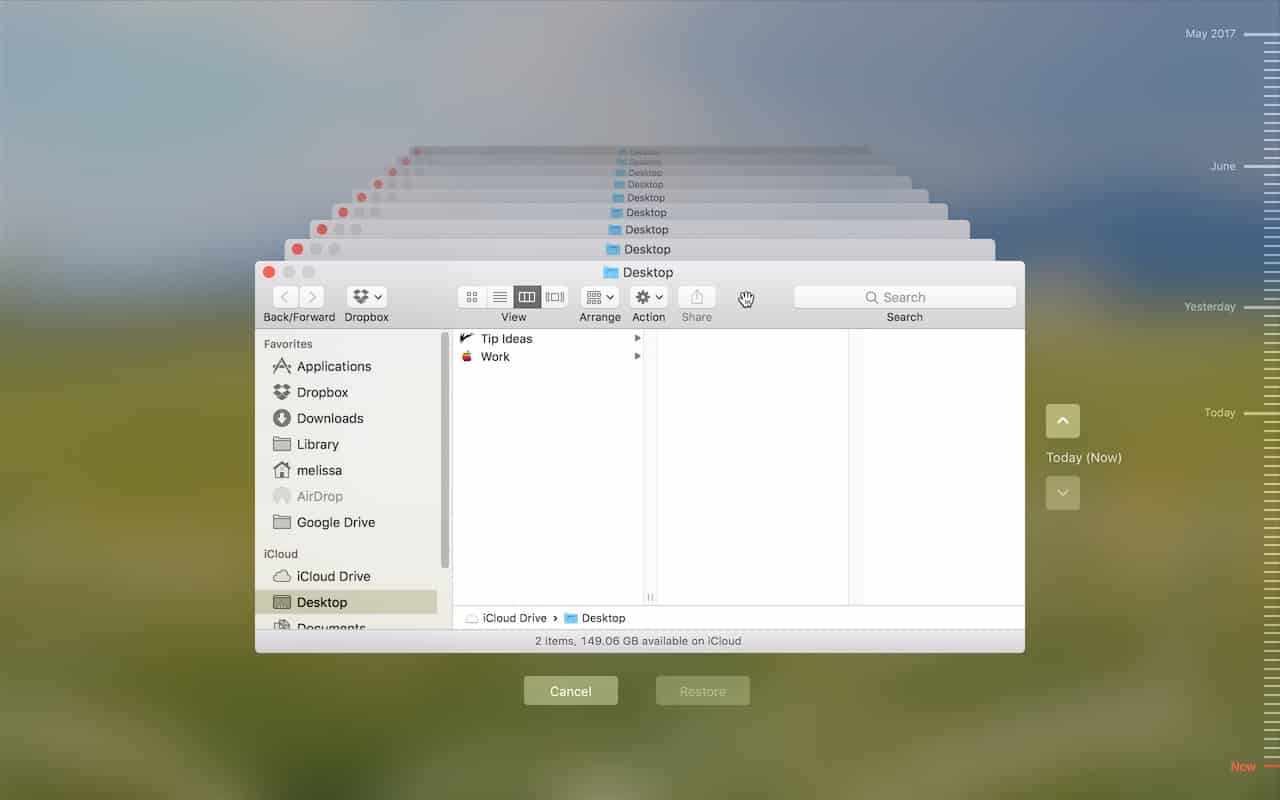
I can’t be the only one who gets weirded out by all those windows stretching into forever.
Don’t miss the best of The Mac Observer
Set us as a preferred source and our Apple reporting ranks higher in your Google Search results and Discover feed — one tap, no account changes.


Discussion