

Savvy Mac users know you can search your Mac, the dictionary, and even Wikipedia using Spotlight. It’s easy–you just press Command-Spacebar and then type in your Spotlight search. In seconds, or less, you get your search results sorted by type. Did you know that you can actually search for specific types of files using an operator? Let’s look at how that works. I’m using macOS 10.12, so bear that in mind if things go a bit differently for you.

Spotlight Search Operators
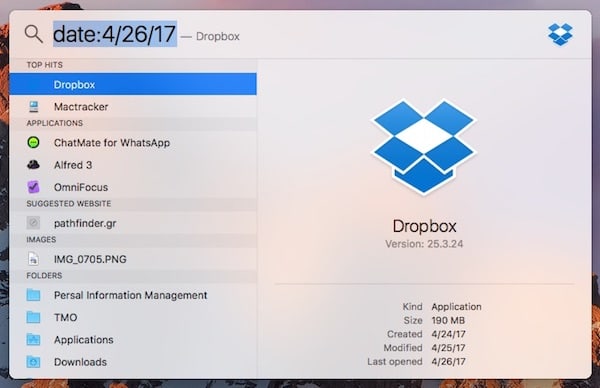
There are various operators you can use within Spotlight to really focus in on specific search results. For example, you can search Spotlight for files that were modified after a certain date using the short date format set in your advanced Language & Region preferences. That’s not what we’re here to learn about, but it’s certainly a good way to search for files you worked with on or around a specific date.
Don’t miss the best of The Mac Observer
Set us as a preferred source and our Apple reporting ranks higher in your Google Search results and Discover feed — one tap, no account changes.
The Kind Operator
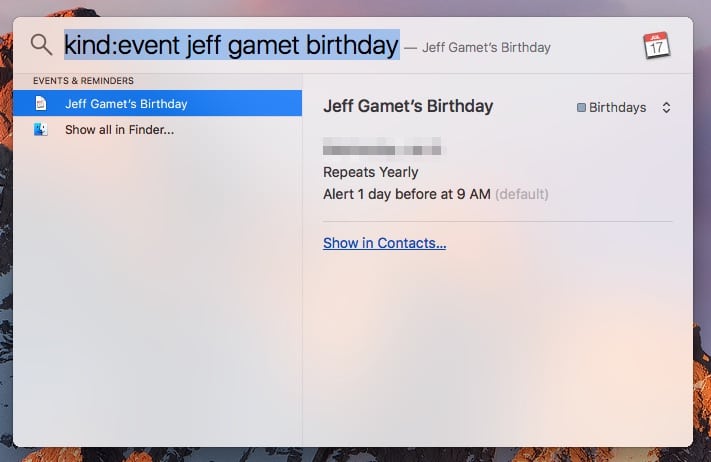
With all of the different types of entries that Spotlight will show you in its search results, you’ll often want to drill down into a specific file type. This is where the “kind” operator comes in really handy. You can use it to specify that you’re looking for an app, a contact, an email, or a number of other options. For example, let’s I wanted to quickly find Jeff Gamet’s birthday without launching an app and then searching. All I need to do is press Command-Spacebar and type this in:
kind:event Jeff Gamet birthday
Spotlight obliges by providing me with a link to the calendar entry, along with the details of that event. Very handy, indeed.
There’s quite a bit more you can do with the kind operator. You can search for images, movies, music (although this doesn’t seem to work with Apple Music), apps, PDFs, and more. For the full list of supported kind operators, visit Apple’s support page for that information and more.
Search Smarter, not Harder
Make sure you learn all you can about the Spotlight search feature. Make your queries smarter, not harder, and you’ll be navigating your filesystem and apps like a pro in no time.


Scott, I’ll dig a bit deeper in the coming days, but Apple doesn’t seem to have anything that documents what operators work with Spotlight.
I’ve got keyboard shortcuts set for my most commonly-accessed apps but have stopped physically looking in the dock or Applications folder for any others as a result of using Spotlight more extensively. The ability to quickly search by file name, application name, date or other specifics is incredibly useful.
This tip is a great addition as it will help narrow the search. Can you provide a list of acceptable operators in addition to “Event”?