

Do you want more great wallpaper without having to scour Google Images and Deviant Art for it? Your Mac actually has wallpaper hidden away in a “secret” location, but it’s actually pretty easy to find.

The Images Used by Apple’s Screensavers
If you’ve ever mucked around with the screensavers, you’ve likely noticed that quite a few of them use images to rotate and alternate on your screen to prevent burn-in. Those images aren’t “baked into” the screensaver. They’re actually in a folder on your Mac, and the screensaver just reads them and uses them to save your monitor from suffering burn-in.
These images include gorgeous photographs from National Geographic, and more. There are also nature patterns, images of the cosmos, and aerial photographs. They look beautiful in the screensaver, and they’ll work just as well for great wallpaper backgrounds on your Mac’s display.
Finding Those Hidden Images
I say they’re hidden, but they’re really not. The images are just in a folder that you might not think to check. Spotlight, however, finds them quite handily. To locate them for yourself, just activate Spotlight by clicking the magnifying glass in the top right of the menu bar, or pressing Command-Space on your keyboard. Once Spotlight comes up, type Default Collections. The first hit will probably be the folder you want.
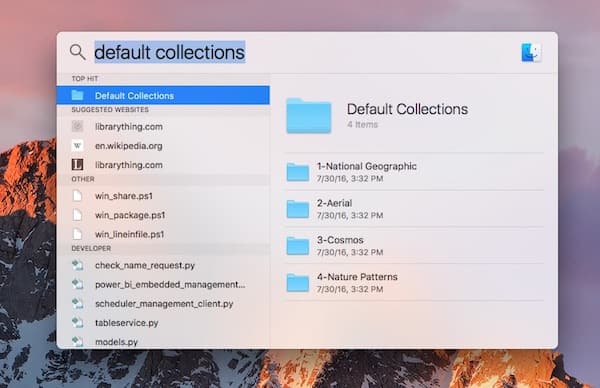
If all of that is too much trouble, here’s the full path to the screensaver images.
/Library/Screen Savers/Default Collections
These images are all sized at 3200 pixels by 2000 pixels, so they should work nicely for most resolutions. Of course, if you have a 4K or 5K display, they might be a bit small, but they’ll still look gorgeous. All together, Apple has provided 39 additional images that can be used for wallpaper. If you want to have easy access to them, you can add that folder to the Desktop pane of System Preferences easily.
Adding the Folder to Your Repertoire of Great Wallpaper
Just go to System Preferences > Desktop, and you’ll see a plus button. Click on the plus button, and use Finder to choose /Library/Screen Savers/Default Collections and then the folder you want to add. You’ll have to do that for each of the folders within Default Collections, unfortunately. Once done, you’ll have easy access to all of those gorgeous wallpapers, in addition to the ones that are already available to you.
Tip o’ the hat to Reddit user sony2kPL for this gem!
Don’t miss the best of The Mac Observer
Set us as a preferred source and our Apple reporting ranks higher in your Google Search results and Discover feed — one tap, no account changes.


These images can be accessed directly from the Desktop & Screensaver window in System Preferences. Click the Screen Saver tab, then click once on any screen saver on the left; now click the Source pop-up menu and choose the folder you wish to use (the list includes the Default Collection and its subfolders).
What a great idea! I have a jigsaw app that lets me use any picture to make a puzzle of any size. Now I can use all of these pictures!
Wow! There are some delightful images in that collection.