

If you’ve just lost important files from your Mac, whether from accidental deletion, a corrupted drive, or a macOS crash, the good news is that recovery is *often* possible. We tested dozens of recovery tools and narrowed them down to five that consistently delivered results. These tools can handle a wide range of file systems including APFS and HFS+, and vary in price, usability, and performance. Keep reasing to find side-by-side comparisons, key pros and cons, and an in-depth FAQ that explains how Mac data recovery software works.
Table of contents
- 1. EaseUS Data Recovery Wizard for Mac (Free + Paid): Best for Clean Interface
- 2. Wondershare Recoverit (Paid): Great for Multimedia Recovery
- 3. Stellar Data Recovery for Mac (Free Trial + Paid): Best for Technical Users
- 4. Disk Drill for Mac (Free + Paid): Best Free-Tier for Most Users
- 5. Prosoft Data Rescue (Paid): Best for Professionals
- FAQ
Comparison Table
| Software | Free Tier | Max Recovery Limit | Bootable Drive Support | APFS Support | User-Friendliness |
|---|---|---|---|---|---|
| 1.EaseUS | Yes | 2GB | Partial | Yes | Very High |
| 2.Stellar Data Recovery | Yes | 1 1GB | Yes | Yes | Very High |
| 3.Wondershare Recoverit | Limited Trial | 100MB | Yes | Yes | High |
| 4.Disk Drill | Yes | 500MB | Yes | Yes | Medium |
| 5.Prosoft Data Rescue | Limited Trial | Trial Scans Only | Yes | Yes | Low (Expert-only) |
1. EaseUS Data Recovery Wizard for Mac (Free + Paid): Best for Clean Interface

EaseUS is popular for good reason: its sleek interface, organized file preview, and up to 2GB free recovery make it ideal for users recovering files from SD cards, USBs, and even formatted drives.
Don’t miss the best of The Mac Observer
Set us as a preferred source and our Apple reporting ranks higher in your Google Search results and Discover feed — one tap, no account changes.
It supports over 1,000 file types and works with APFS, HFS+, exFAT, FAT32, and NTFS, making it versatile for both Mac and external storage recovery. EaseUS also offers a bootable media module to recover from unbootable Macs, though this feature sometimes struggles with newer Apple silicon Macs, as user reviews note.
Its Video Repair module and file type categorization (pictures, audio, docs, emails, archives) make post-recovery organization much easier.
Pros
- Free recovery up to 2GB
- Supports Time Machine and APFS recovery
- Clean UI with categorized file previews
Cons
- Subscription model can get expensive
- Cloud login tools may have issues
2. Wondershare Recoverit (Paid): Great for Multimedia Recovery

Recoverit stands out for its focus on multimedia recovery (especially photos and videos) and its System Crashed Computer mode, which can restore data even from unbootable Macs. Users praise its clean interface and effective Enhanced Recovery mode, which digs deep into corrupted or formatted drives.
It supports all major formats: APFS, HFS+, exFAT, FAT32, and more, and includes tools for bootable USB recovery media creation. It’s also one of the few tools with a corrupted video repair engine built in.
The free tier limits you to 100MB, which isn’t much, but all features are accessible before upgrading, making it easy to test before buying.
Pros
- Excellent UI and UX
- Deep scan + corrupted video repair
- NAS and Linux support
Cons
- No unlimited free recovery
- Some bugs with bootable drive creation
3. Stellar Data Recovery for Mac (Free Trial + Paid): Best for Technical Users

Stellar offers some of the deepest scan and recovery capabilities on macOS, which is especially good for recovering data from formatted, corrupted, or encrypted volumes. It supports byte-level cloning, disk imaging, and recovery from non-booting Macs using a command-line utility tied to Recovery Mode.
It works with APFS, HFS+, FAT32, NTFS, and exFAT, and its Preview-before-recovery and save-scan progress options are useful when scanning large drives.
However, bootable USB creation can be complex, and its UI isn’t the slickest. Still, for power users or IT pros, it’s one of the most comprehensive disk recovery software options for macOS.
Pros
- Comprehensive recovery modules
- Advanced scan and file filtering
- Works with HFS+, APFS, and encrypted volumes
Cons
- Interface can be buggy
- Pricing is steep for occasional use
4. Disk Drill for Mac (Free + Paid): Best Free-Tier for Most Users

Disk Drill is a user-friendly Mac data recovery software that balances simplicity with powerful features. Its standout appeal is the generous free tier, allowing up to 500MB of free recovery, which is more than many competitors.
It supports APFS, HFS+, FAT32, exFAT, and NTFS, making it compatible with a wide range of Mac and external drives. Disk Drill’s S.M.A.R.T. monitoring gives insight into your drive health, and its Recovery Vault protects against future losses by creating a map of deleted file metadata.
You’ll also find tools like bootable USB drive creation, partition recovery, and a data shredder included. While performance can lag on deeper scans, Disk Drill remains a top pick for average users looking to recover common file types like documents, videos, and photos, especially without spending upfront.
Pros
- Free version available (up to 500MB)
- Recovers over 400 file types
- Features extras like S.M.A.R.T. monitoring and duplicate finder
Cons
- Free tier is limited
- Some reports of instability during long scans
5. Prosoft Data Rescue (Paid): Best for Professionals
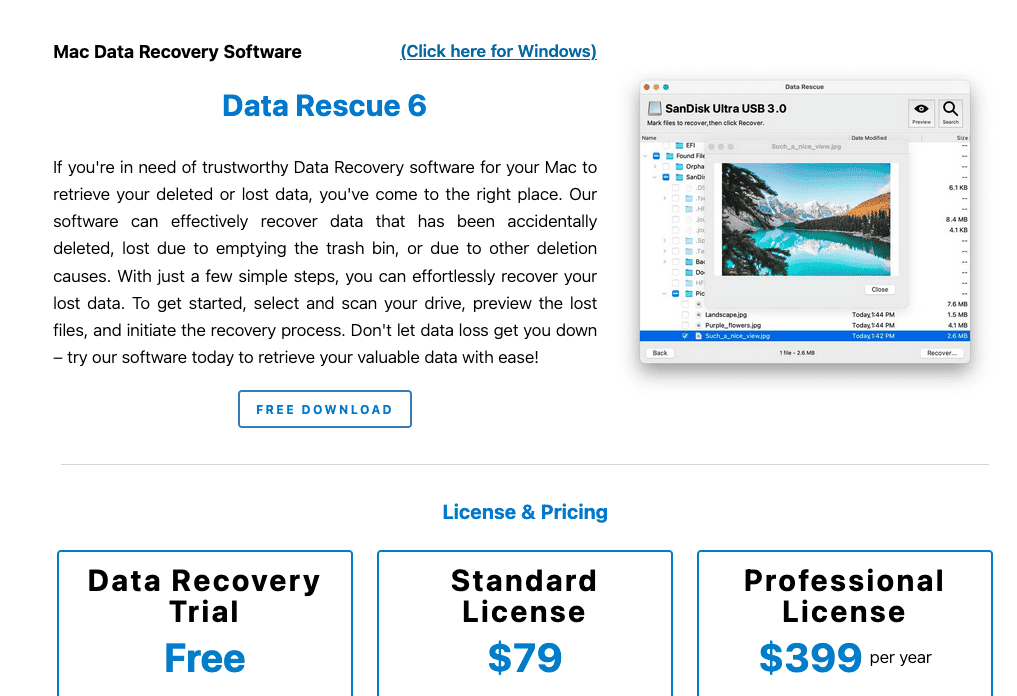
Data Rescue is aimed at tech-savvy users who need precise control over recovery tasks. It features sector-level scanning, hex data view, and virtual RAID reconstruction, which are powerful for complex or enterprise-grade recovery.
Its Clone Drive and BootWell USB creation tool allow recovery from failing drives or unbootable systems, and it works with APFS, HFS+, FAT, exFAT, and older macOS formats.
Unlike others, it doesn’t cap file recovery in the trial, instead, you scan first and pay only if you want to recover the results. The downside? No-frills UI and a steep price tag.
Pros
- Professional-grade recovery tools
- Supports recovery from failing drives
- Excellent scan session control
Cons
- Expensive
- Learning curve for casual users
FAQ
Most macOS file recovery software works by scanning your drive for file headers and fragments that haven’t been overwritten. If a file has been deleted but not overwritten, recovery is often possible. Some tools go further, reconstructing files based on known structures.
Reputable apps like Disk Drill and Recoverit are safe to use. They operate in read-only mode and do not overwrite existing data. Always download from official sources and avoid obscure clones.
Yes, both Disk Drill and EaseUS offer free versions with recovery caps (500MB and 2GB respectively). macOS Time Machine and cloud backups are also options if enabled prior to data loss.
Use Time Machine for local backups and a cloud backup solution for redundancy. Regularly test your backups and consider scheduling weekly backup checks.
Final Thoughts
Data loss is stressful, but it doesn’t have to be final. Whether you start with a free tier or invest in a pro tool, the data recovery software we reviewed above offer reliable ways to bring your files back. Start with Disk Drill or EaseUS if you want a free option. For deeper recoveries or business-level needs, Recoverit and Stellar are your best bets. And don’t forget: prevention beats panic. Set up your backups today.




Discussion