

Apple Watch offers several ways to tell the time beyond simply looking at the screen. You can hear it spoken aloud, feel it through haptic feedback, or receive subtle cues at regular intervals. These options are designed for accessibility, convenience, and personal preference. From Speak Time and character voices to Siri announcements, Taptic Time, hourly chimes, and Live Speech, the watch adapts to a wide range of needs.
Table of contents
Methods
Apple Watch provides multiple built-in features to announce or sense the time. Each method is useful in specific situations, whether you need audible confirmation, silent vibrations, or custom speech.
1. Speak Time
Speak Time lets your Apple Watch verbally announce the current time with a simple gesture. It works across most watch faces and is particularly useful for users who prefer an eyes-free experience.
Don’t miss the best of The Mac Observer
Set us as a preferred source and our Apple reporting ranks higher in your Google Search results and Discover feed — one tap, no account changes.
- Press the Digital Crown and open the Settings app.
- Scroll and tap Clock.
- Enable Speak Time.
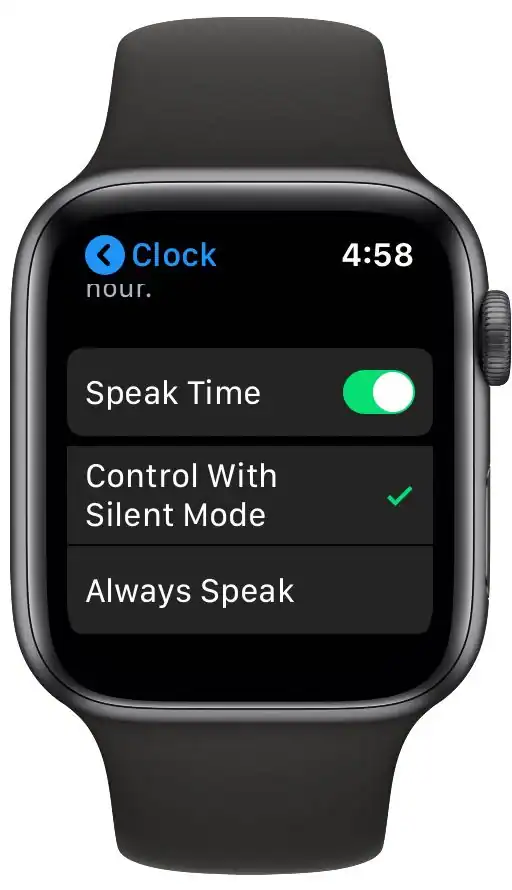
- Choose between:
- Always Speak the time is always announced, even in Silent Mode.
- Control with Silent Mode time is announced only when not muted.
- Return to the watch face.
- Touch and hold two fingers on the watch face for one second to hear the time.
You can also enable this through the Watch app on iPhone: go to My Watch > Clock > Speak Time, then select your preferred mode.
New to the device? Start with this guide on how to use Apple Watch.
2. Mickey and Minnie Mouse Character Voices
With the Mickey or Minnie Mouse watch face, the characters can announce the time in their distinctive voices. This adds a playful touch for users who enjoy themed interactions.
- Set the watch face to Mickey or Minnie Mouse.
- In Settings > Clock (or the iPhone Watch app), confirm Speak Time is enabled.
- Tap or place two fingers on the face to trigger the announcement.
If voices do not play, check the Watch app to confirm sound packs are downloaded. A Wi-Fi connection may be required for the initial setup.
If a feature isn’t showing up, here’s how to fix a missing Apple Watch complication.
3. Siri Time Announcement
Siri can announce the time on command. This works independently of Speak Time and provides hands-free interaction.
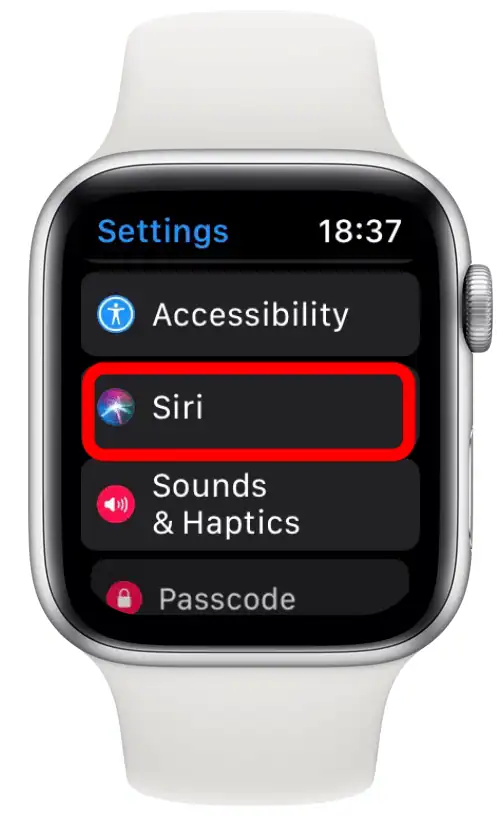
- On the watch, go to Settings > Siri. Enable Listen for “Hey Siri” or Raise to Speak.

- Say, “Hey Siri, what time is it?” or press and hold the Digital Crown, then ask for the time.
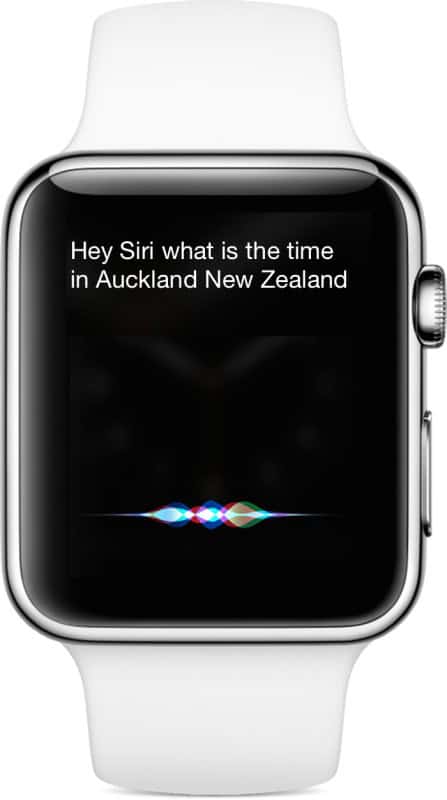
- Siri responds aloud through the watch speaker.


You can customize Siri’s voice and output in the Siri settings menu.
Upgrading your phone? Here’s how to pair Apple Watch to a new iPhone.
4. Taptic Time
Taptic Time uses vibration patterns to communicate the time, a discreet option for quiet settings or for visually impaired users.
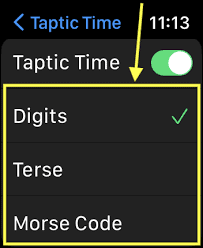
- Open Settings > Clock > Taptic Time, then toggle it on.

- Select a pattern:
- Digits long taps for tens, short taps for units.
- Terse broader intervals with simplified taps.
- Morse Code vibrations spelling out digits.
- Touch and hold two fingers on the watch face to trigger.


You can also adjust Taptic Time in the Watch app under My Watch > Clock > Taptic Time. Note that Speak Time set to “Always Speak” disables this feature.
5. Hourly Chimes
Hourly or periodic chimes let the watch play sounds or vibrations at set intervals. This keeps you aware of time without looking at the display.
- On the watch, go to Settings > Clock > Chimes (or use the iPhone Watch app).
- Turn on Chimes.
- Choose a sound: Birds or Bells.
- Set an interval: every 15 minutes, 30 minutes, or every hour.
6. Live Speech
Live Speech is an accessibility feature that allows users to type custom messages, including the current time, which are then spoken aloud.
- Go to Settings > Accessibility > Live Speech.
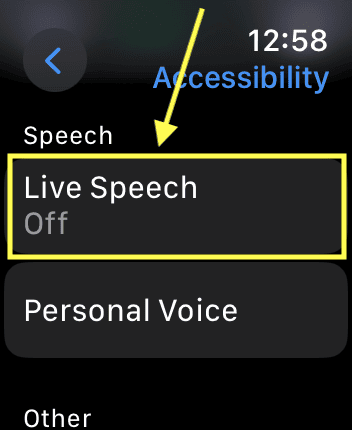
- Turn on Live Speech.
- Select a system or personal voice.
- Assign Live Speech to the Accessibility Shortcut (triple-click Digital Crown).
- Type a message or the time and tap Send to have it read aloud.

You can save your favorite phrases for quicker access.
Want more functionality? Learn how to install apps on Apple Watch.
Tips
- Use Control with Silent Mode to combine both Speak and Taptic Time.
- Mickey and Minnie Mouse voices may require a Wi-Fi connection for initial downloads.
- Combine Taptic Time with chimes for discreet reminders.
- Adjust Siri’s volume independently in Settings > Siri > Voice Volume.
- Live Speech works for any message, not just the time.
FAQs
Make sure Speak Time is enabled and the watch face supports it. If “Control with Silent Mode” is on, Silent Mode must be off.
Use the correct face, enable Speak Time, and connect to Wi-Fi for downloads.
Yes, if “Always Speak” is active. Use “Control with Silent Mode” to keep both.
Yes. Siri operates independently once voice feedback is enabled.
Yes. You can type the time or use pre-set phrases.
Summary
- Speak Time announces the time with a two-finger tap.
- Mickey and Minnie Mouse watch faces speak the time in character voices.
- Siri responds to time requests on demand.
- Taptic Time uses vibrations to convey time patterns.
- Hourly chimes play at set intervals.
- Live Speech reads typed messages, including the time.
Conclusion
Apple Watch delivers a range of features to announce or sense time, blending accessibility and convenience. Whether you prefer spoken time, playful character voices, discreet vibrations, or custom speech, the device ensures you always know the time in a way that suits your needs.


Discussion